Troubleshooting
GPS and location
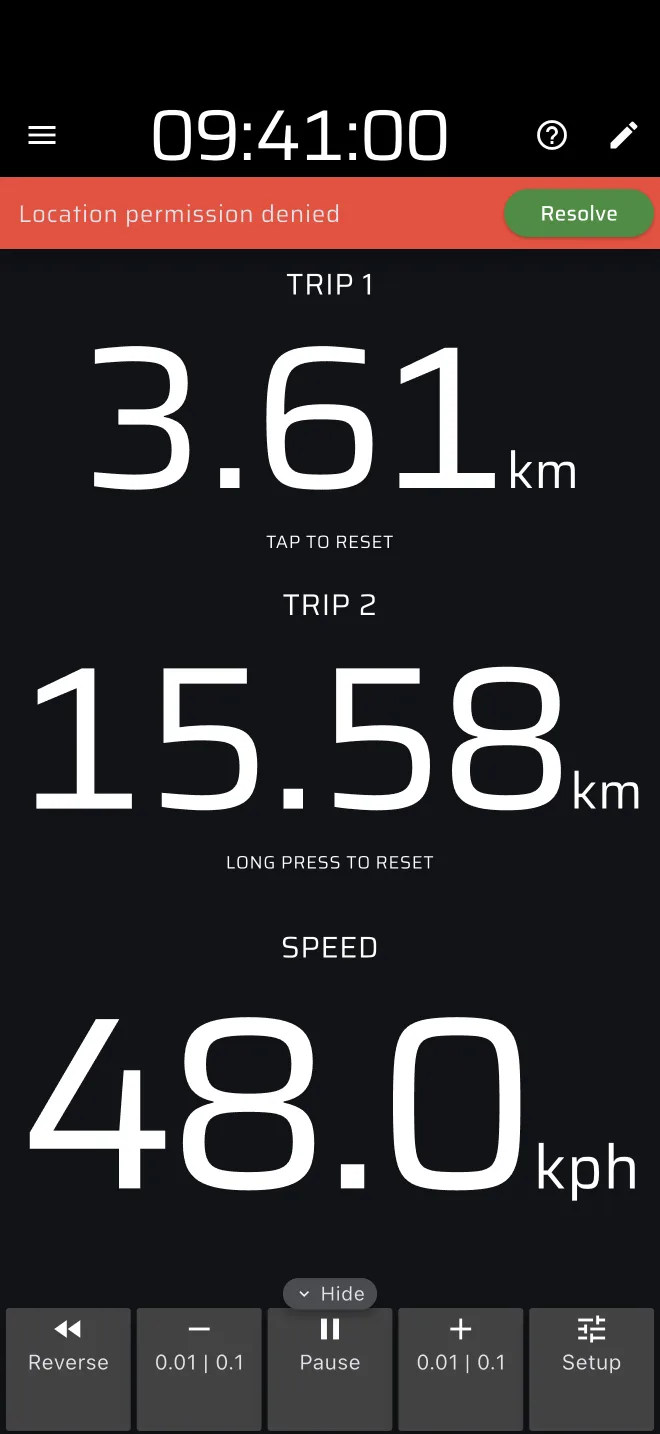
The red bar below the app bar
The bar shows when the app has no good position. It disappears by itself when the position is good.
| Message | Meaning | What to do |
|---|---|---|
| Location is off (amber) | The app has not asked for location yet. | Tap Allow and allow location while using the app. |
| Searching for GPS signal | No new position for 10 seconds while the car is moving, or no first fix yet. | Move the phone where it sees the sky and wait. |
| Poor GPS signal. Data might be inaccurate | Positions have an error of 30 metres or more. | Wait for the signal to improve. Under trees, in a town or a tunnel the bar can show. Correct the trip afterwards. |
| Location permission denied | The app is not allowed to read the location. | Tap Resolve and allow location while using the app. |
| Precise location accuracy permission is required | The phone gives only an approximate location. | Tap Resolve and turn on precise location. |
| Location services disabled | The phone's location is switched off. | On Android, tap Enable. On iOS the message names the place to switch it on: Settings, Privacy, Location Services. |
| Simulating location | Demo mode is on. | Tap the bar, or the amber Demo chip in the drawer, to stop demo mode. |
The Searching for GPS signal bar never shows while the car is almost still (under 1 m/s). A phone on the dashboard in a car park does not alarm.
The distance is wrong
- Check the amber Calibration factor row at the bottom of the drawer. If it shows a value other than 1.0, a factor is active. Open Settings and check it.
- Correct short errors with the trip toolbar plus and minus.
- Calibrate on a known distance. See Calibration.
- Compare with the organiser's measurement. They often use a wheel, which reads differently from GPS.
The distance on a History card is the length of the GPS track. It does not use the calibration factor.
The position freezes after a while
The GPS can stop when the phone is locked or the app is in the background. Turn on Keep running in the background in Settings. On Android, also exclude the app from battery saving in the phone settings. On Android you can try Use legacy GPS provider as a last resort.
Battery drains fast
GPS with the screen on is heavy. Plug the phone into the car charger. Live tracking and Bluetooth buttons add to it. Lowering the screen brightness helps. The app keeps the screen on while open, so it does not sleep on its own.
Plans
The screen says You are out of fuel
The day's free distance is used up. There are two:
- In Tripmeter and Map, the free plan allows 80 km a day. Driving in a Pro mode counts towards it too. Basic or Pro removes the limit.
- In a Pro mode, everyone without Pro has 40 km a day of Pro fuel, shared by all Pro modes. Pro removes the limit. A stage that is armed or running keeps the mode open until it finishes.
See How the two allowances add up.
Both come back at midnight on the phone's clock, also while the app stays open. Enable Demo mode lets you go on trying the mode without GPS. If you already pay, sign in and tap Restore Purchases on the Account screen.
A mode is covered by a purchase screen
On some phones a Pro mode is locked for users without Pro, with This mode is only available in Pro version. Tap Try for free or View options, or Enable Demo mode to try it. If you already pay for Pro, sign in and tap Restore Purchases on the Account screen. See Licences and plans.
A stage does not start
- A sheet You are out of fuel opens: the day's Pro fuel is used up. Tap Save stage to keep the stage for another day, or Go Pro.
- The app asks Stop the … stage?: a stage of another kind is armed or running. Only one stage runs at a time. Tap Stop to stop it and start the new one.
Data and sync
A finished run shows a cloud-off icon in History
It is Waiting to sync. The stage finished without a connection. The run is on the phone and uploads when there is a connection. The wait survives a restart of the app. Open the app with a connection and wait. Do not sign out or delete the app before the icon has gone. See Saving without a connection.
A route shows a cloud-off icon
It is Waiting to sync. The route is on the phone and uploads when there is a connection. The queue survives a restart of the app. Open the app with a connection and wait.
Data is missing after signing in
The app moves the data of the guest account to your account at sign in. If it cannot, it shows Signed in, but moving your recorded data failed. It will be retried the next time the app starts. Restart the app with a connection. If it says Could not check for data recorded on this device, check your connection and try again.
The time card is empty after a restart
The time card and the Simple TC entry are not stored. Enter them again after a restart.
A stage disappeared when I tapped the timer
A tap on the Stage Timer or the Ideal Time cancels a stage that is waiting for a Time or Line start. The tile says Tap to reset. The mode then shows its start sheet. Load the stage again with From library, if you saved it, or enter it again, and press Start.
Bluetooth buttons
A Bluetooth button does not pair
- Check that it came from shop.apphero.ee. Generic buttons do not work.
- Switch Bluetooth on. On Android, also switch location on.
- Allow Bluetooth for the app in the phone settings.
- Open Settings > Paired accessories (beta) > Add button. Press the button. A row lights up. Tap Connect.
- Stay near the phone. If the button does not show, press it again.
A paired button does nothing
- The row must read Tap to disconnect. If it reads Tap to connect, tap it.
- Open the gear icon and check the Tap actions and Long press actions. An empty list does nothing.
- Some modes use a gesture for themselves. The stage actions need a running stage.
- Check the battery in the row.
A button drops during a stage
Move the button closer to the phone, or the phone out of a pocket in the door. A metal mount can block the signal. Tap the row to connect again.
See Bluetooth buttons.
The app
The ? icon is missing
Hide hints is on in Settings. Turn it off, or open the guides from Quick guides in the drawer. Pacenotes has no ? icon.
My trips changed after a Quick guide
A Quick guide adds some distance to Trip 1 and Trip 2 so it has something to show, and the demo car drives them. Reset the trips before you drive.
It crashes or freezes
Close the app fully and open it again. Update to the latest version from the store. If it repeats, tell us through Help and contact > Contact in the drawer. Say what you were doing, the phone model and the app version. Copy your RevenueCat Id from the bottom of Settings if it is about a purchase.
The screen stays on
Intended. The app keeps the screen on while it is open, so a co-driver does not have to wake it.