Rally Raid mode
Rally Raid mode puts the Stage Timer, your heading, the section and stage trips with their averages, the direction you have travelled in the section, and your speed on one screen.
Load and start the stage
The section and stage trips need a stage.
- In the drawer, open Rally raid and off-road and tap Rally Raid.
- With no stage loaded, Rally Raid shows its no-stage screen: a stage plays in the background, with buttons at the bottom.
- Tap Start a stage now to start the stage timer at once, with nothing to set up. Or tap Create a stage (or From library), choose the Start signal and the Finish signal in the stage sheet, and tap Start.
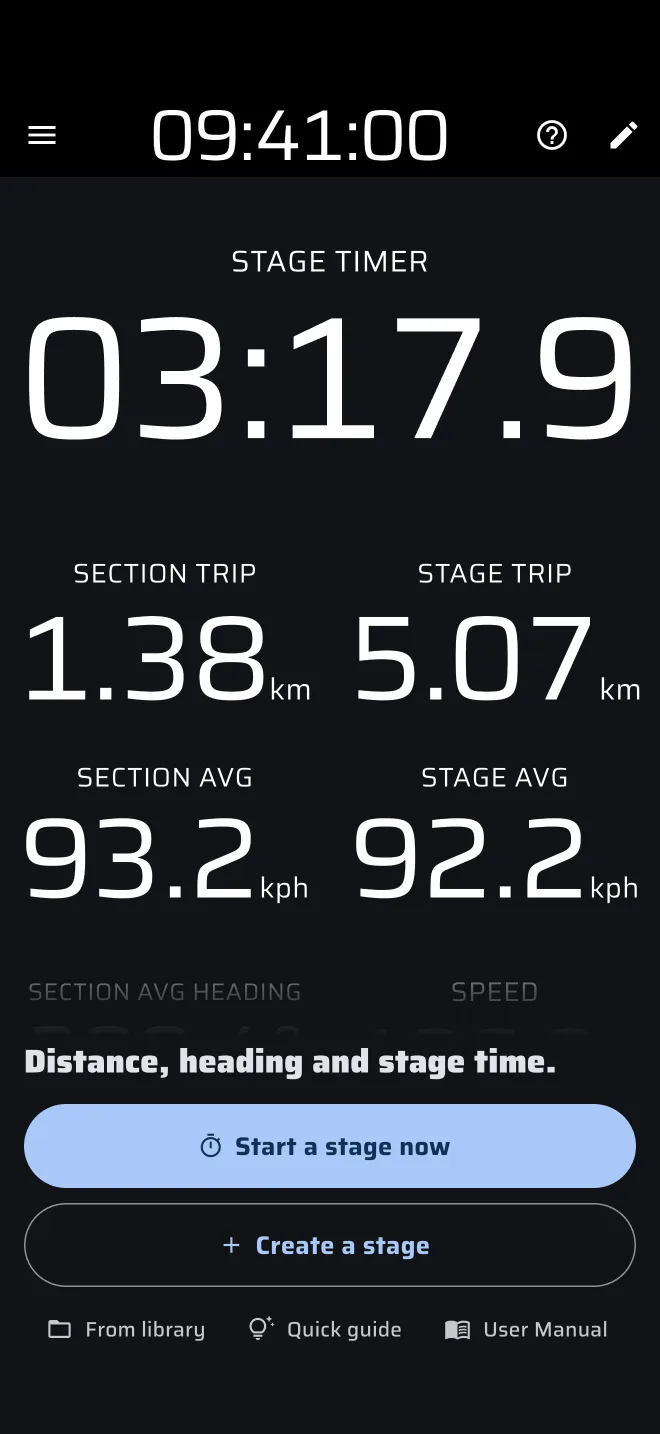
The no-stage screen also has Quick guide: Demo mode drives the car and tips show the timer, the heading, the section reset and the finish. The guide's stage is not saved to History, and it is gone when the guide ends. User Manual opens this guide.
The buttons, the sheet, the three start signals (Tap, Time, Line) and the three finish signals are the same as in Race mode. They are explained in Timing a stage. There is no start or finish by distance. Rally Raid and Race share the same stage: a stage started in one shows in the other. Like Race, Rally Raid uses the Pro fuel without a Pro plan.
A tap on the Stage Timer ends the stage
While the stage runs, a tap on the Stage Timer finishes it, whatever the finish signal says. While a Time or Line start is armed, a tap cancels it. On a rough track, keep your hands off the timer. A Bluetooth button is a safer way to work the screen (see Remotes).
What the screen shows
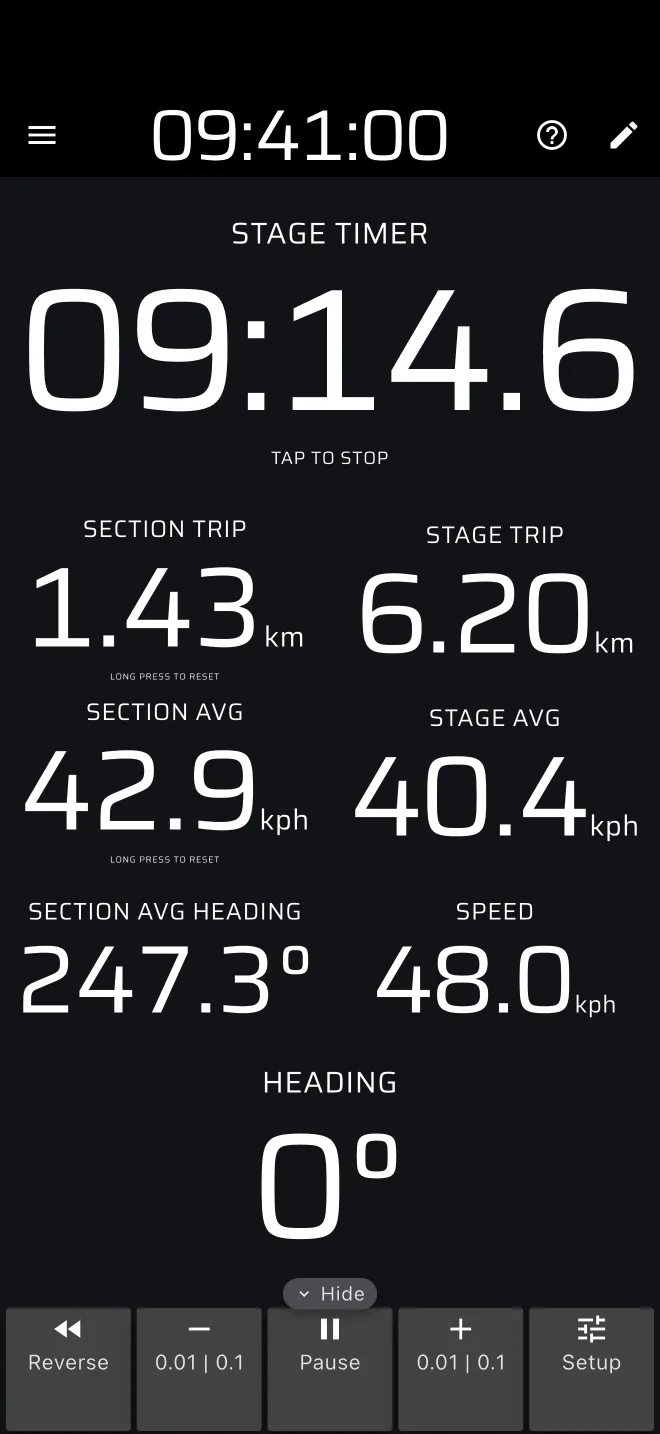
In portrait the screen has the Stage Timer at the top, two columns of trips in the middle and the heading at the bottom.
| Left column | Right column |
|---|---|
| Section Trip | Stage Trip |
| Section AVG | Stage AVG |
| Section Avg Heading | Speed |
- Stage Timer: the stage time, in tenths of a second.
- Stage Trip and Stage AVG: distance and average speed since the start of the stage.
- Section Trip and Section AVG: distance and average speed since you last reset the section.
- Section Avg Heading: the direction you have travelled since you last reset the section. See below.
- Heading: the direction you are moving now.
- Speed: your speed.
Before the start the trips read zero. They start counting when the stage starts and stop when it finishes.
Heading
Heading is the GPS course: the direction the phone is moving over the ground. It is in whole degrees from 0 to 360, with 0 as north. It is not a compass. It shows a dash until the phone has a course. At walking pace or standing still it is unreliable, because the GPS has no direction to report. The app's map ignores the course below 5 km/h for this reason. The Heading component does not.
Section Avg Heading
Despite the name, this is not an average of readings. The app takes two points: where the section trip was last reset (or where the stage started), and where you are now. It shows the straight-line bearing from the first to the second, with one decimal.
- On a winding track it is steadier than Heading, because it only looks at the net direction you have made good.
- It is not the bearing to the next waypoint. The app does not know where the next waypoint is.
- Just after a reset, you have moved only a few metres and the GPS error is as large as the distance, so the value jumps around. Wait until you are some distance from the waypoint before you compare it with the roadbook heading.
- With Pause on, it stays at the bearing to the point where you paused.
- If you have not moved at all since the reset, it shows the current Heading.
Section AVG and Stage AVG are distance divided by elapsed time since the reset or the start. They include the time you stood still, unless you used Pause.
Section reset at each waypoint
Reset the section at each roadbook waypoint. That zeroes the Section Trip and Section AVG, and sets the starting point for Section Avg Heading.
By default:
- Long press anywhere on the screen resets Trip 1, Trip 2 and the section. The hint under the Section Trip says Long press to reset. This mode does not show Trip 1 and Trip 2, so you do not see them reset.
- Tap resets Trip 1 only. In this mode that changes nothing on screen.
So it is better to make a tap reset the section. In Settings, group User inputs, open Default screen tap actions and tick Reset Section Trip. You can do the same for a Bluetooth button. A button is usually better than the screen, because the co-driver can press it without looking.
With that set, a typical waypoint goes like this:
- Read the next waypoint: its partial distance and its heading.
- At the waypoint, reset the section.
- Check the Heading against the roadbook heading as you pull away.
- Watch the Section Trip count towards the partial distance.
- When you reach the landmark, confirm. If the trip is off, correct it with plus and minus. They change the Stage Trip too, which keeps it in step with the roadbook's total distance. See Roadbook navigation.
The corrections also change the section trip, so a correction made after a reset is part of that section.
Finishing and history
End the stage with the Stage Timer, the Time or Line finish you chose, or a Bluetooth button with the action Finish. The final time stays on screen with the hint Tap to reset, and the trips stop at their final values. Tap the Stage Timer to clear it and go back to the no-stage screen for the next stage.
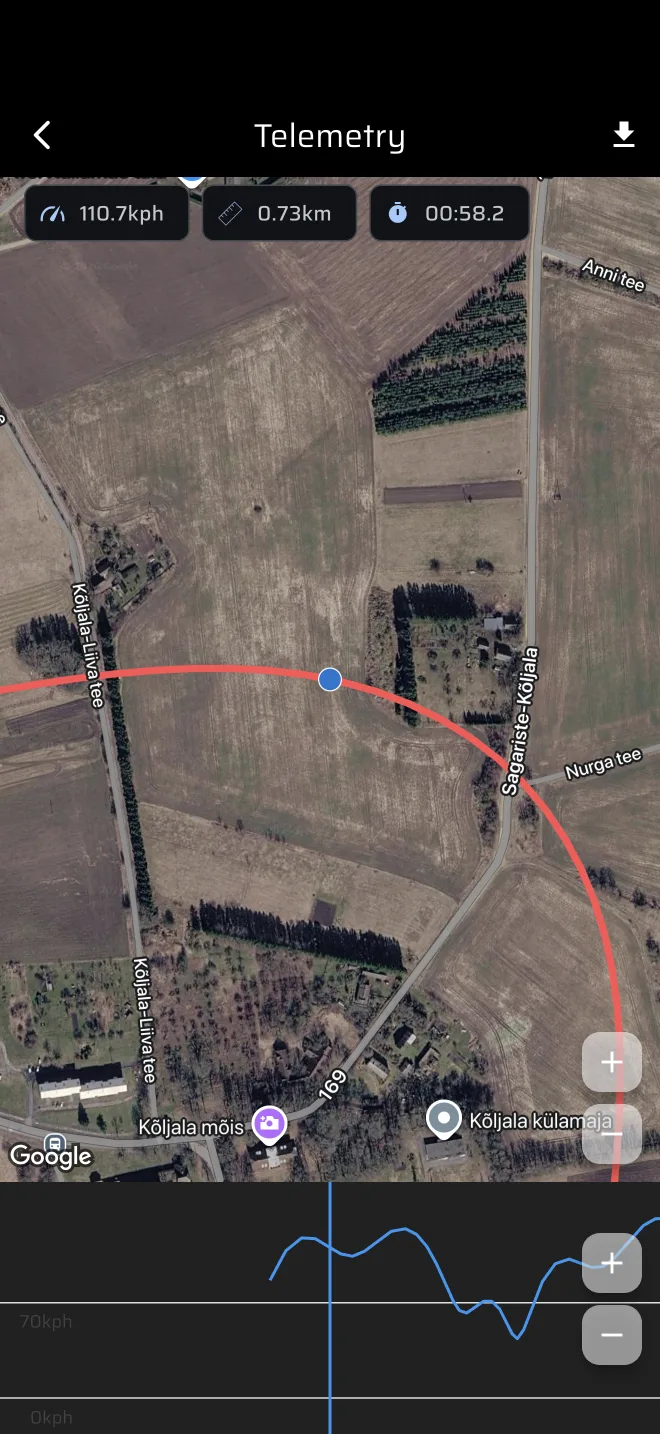
The run is saved to History automatically, with the track and the speed graph. See Service and history to read it and export the track.
For the road section to the bivouac, switch to Liaison in the drawer. Liaison is in the Stage rally and Road, touring and classic groups. See Liaisons and the time card. The stage you started keeps running when you change mode.