User inputs
The User inputs group in Settings decides what the screen, the volume keys and your Bluetooth buttons do. Each input has a list of actions. One input can run several actions at once.
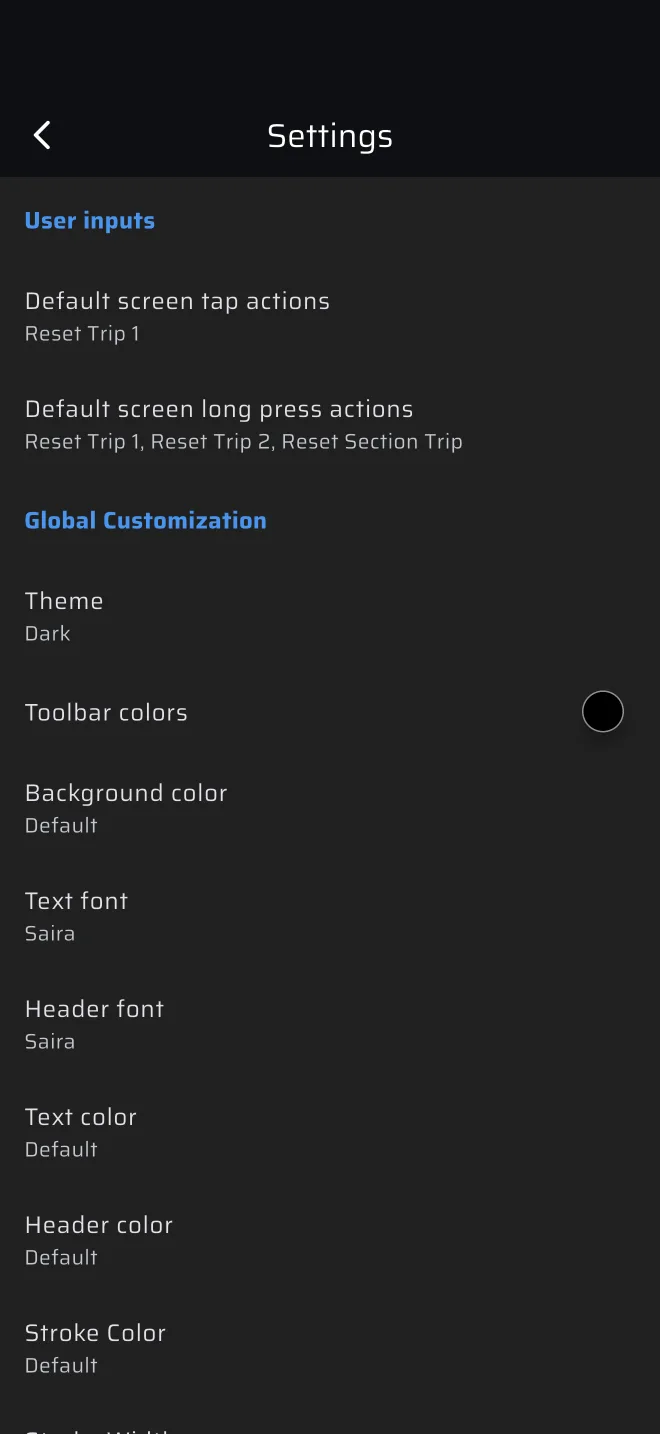
The inputs
| Input | Default actions |
|---|---|
| Default screen tap actions | Reset Trip 1 |
| Default screen long press actions | Reset Trip 1, Reset Trip 2, Reset Section Trip |
| Default volume up button actions | Reset Trip 1 |
| Default volume down button actions | None |
| Default volume up button long press actions | None |
| Default volume down button long press actions | Reset Trip 1, Reset Trip 2, Reset Section Trip |
The four volume inputs exist on Android only. On iOS the volume keys always change the volume. On Android the media next and previous keys work like volume up and down, which helps with a wired remote that sends those keys.
Tap an input to open its list. Tick the actions you want and tap OK. DEFAULT puts the defaults back. Leave the list empty to make the input do nothing.
The screen inputs act on the whole screen. A long press is a press of 300 ms or longer.
The actions
| Action | What it does |
|---|---|
| Reset Trip 1 | Sets Trip 1 to zero. |
| Reset Trip 2 | Sets Trip 2 to zero. |
| Reset Section Trip | Sets the section trip to zero. |
| Distance +10, +100, -10, -100 | Changes all trips. 10 is the same as one tap on the trip toolbar plus or minus: 0.01 of each trip's own unit. |
| Pause/Resume Trips | Stops or continues all trips. |
| Quick TC | Records a time control at the current stage trip while a stage runs. |
| Next Section | Moves the stage to the next section without recording a TC. |
| Next Section + Restart | Moves to the next section and records a TC that restarts the ideal time. On the last section it finishes the stage. |
| Sync Section Boundary | Snaps the stage trip to the section boundary. |
| Sync Section Boundary + Restart | The same, and records a TC that restarts the ideal time. On the last section it finishes the stage. |
| Finish | Finishes a running stage. |
| Start/Stop special stage | Bluetooth buttons only. Starts a waiting stage, or finishes a running one. With no stage waiting and no Pro fuel left, it buzzes and opens the out-of-fuel sheet. |
The stage actions do nothing when no stage is running. For what a TC does to the ideal time, see Time controls and re-bases.
Modes can override the screen
Some modes use a tap or a long press for their own purpose. Map mode ignores taps. In Liaison the time area at the top takes the tap and the long press for the TC entry. In Race, Regularity and Rally Raid the Stage Timer and the Ideal Time take their own taps. Everywhere else on the screen the defaults apply, including the long press that resets the section trip. The defaults above apply wherever the mode does not take the gesture. See the pages for each mode.
A typical setup
- Roadbook driving. Screen tap resets Trip 1, long press resets all trips. These are the defaults.
- Co-driver with a remote. Give one button Reset Trip 1 and another Distance +10. Use Bluetooth buttons for a clean mount.
- Regularity. Keep taps off the screen if your fingers hit it by accident: untick the screen tap actions. Put Sync Section Boundary and Next Section on buttons instead.