Practice at home
This chapter shows three ways to practise before the event, so you already know the right buttons when you sit in the car. None of them needs a Pro plan, and none of them uses Pro fuel.
- The Quick guide: the app drives a short sample stage and stops at each moment that needs a button. About five minutes.
- The Demo stage: the same sample stage, but you drive it yourself with two pedals.
- Demo mode with your own stage: a full rehearsal on the real Regularity screen. About 15 minutes.
Start with the Quick guide. Then drive the Demo stage once or twice. Do the Demo mode rehearsal when you know how to enter a stage (chapter 4).
The sample stage
The Quick guide and the Demo stage use the same sample stage. It is 1 km long, in three sections:
| Section | Distance | Speed |
|---|---|---|
| 1 | 0.30 km | 50 km/h |
| 2 | 0.30 km | 42 km/h |
| 3 | 0.40 km | 56 km/h |
Before it starts, you choose how the sections change:
- Automatic section change: the sections change by themselves at the roadbook distances. You correct the distance with Sync.
- Manual section change: you switch sections yourself with Next Section.
This is the Auto-switch sections by distance option of a real stage (see Options). If you do not know which one your event needs, tap Which one is my event?. It opens the format pages. You can try both.
The choice is only about how the sections change. The sample stage itself is timed in the restarted format: its time controls restart the ideal time. See Two separate choices.
The sample stage runs on its own screen. Nothing you do there reaches your trips, your stages or History, and it does not use the GPS.
The Quick guide
Open Regularity | TSD. With no regularity stage loaded, the screen shows a panel with Create a stage. Tap Quick guide under it. You can also tap the ? in the app bar and choose Quick guide, or tap Quick guides in the drawer and choose Regularity | TSD.
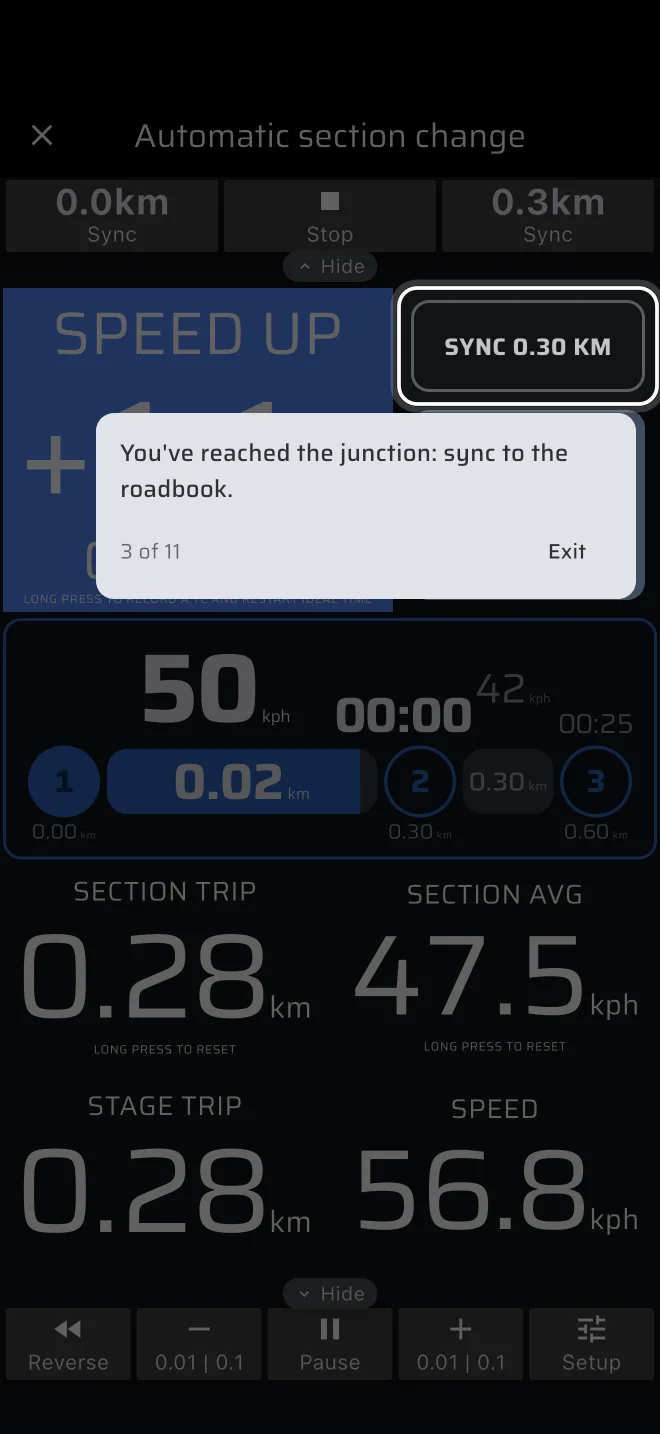
Choose Automatic section change or Manual section change. The sample stage opens, and the app drives the car. At each moment it stops the car and the clock and shows a tip. Do what the tip asks, with the real button. Only the button in the ring reacts. Then the guide drives on.
The moments are:
- At the start line: tap the Ideal Time to start the stage.
- A plus sign means you are late: speed up.
- The first junction, at 0.30 km. The app's distance is a little short. Tap Sync (automatic) or Next Section (manual). The trip jumps to the roadbook distance.
- A wrong turn: tap Reverse in the bottom toolbar, so the trip counts back while you drive back. When you are back on the route, tap Reverse again.
- A time control, at 0.475 km. Long-press the Ideal Time. Your time is saved, the Checkpoints sheet opens with it, and the ideal time restarts from there.
- At 0.60 km the next section is timed from zero: tap Sync … + Restart (automatic) or Next Section + Restart (manual). The ideal time restarts.
- A minus sign means you are early: slow down.
- The finish: tap Finish.
Steps 5 and 6 are for restarted timing only
The sample is timed in the restarted format, so steps 5 and 6 record a TC and restart the ideal time. In a cumulative event (France, Italy's prove di media, Spain, Portugal, Benelux) you do neither. At a secret check you keep driving and press nothing. At a section end you press plain Sync or Next Section. See What not to press in a cumulative test.
At the end, tap Create a stage to enter your own roadbook. The stage sheet opens with its own guide, which shows each field.
The Demo stage
Tap Demo stage on the same panel, and choose Automatic section change or Manual section change.
- The stage sheet of the sample opens. You can look at it, but not change it. Tap Start.
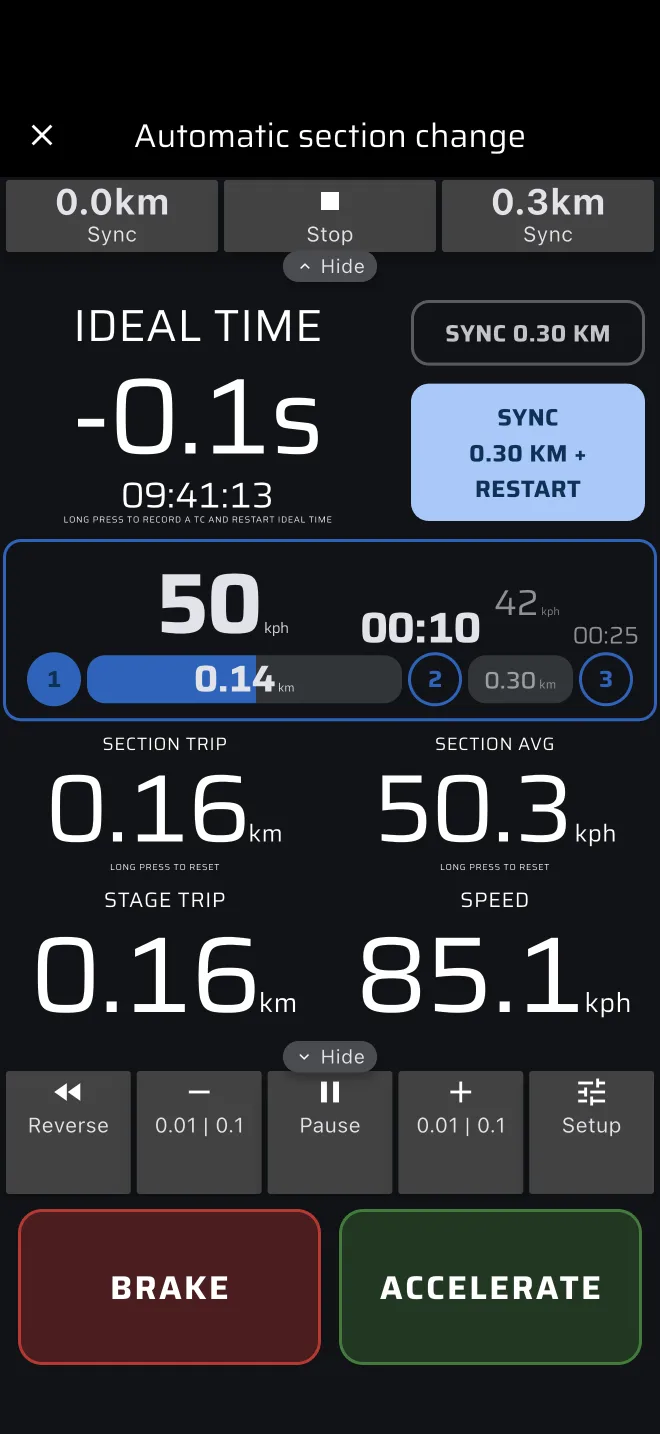
- Two pedals sit under the screen (on the right in landscape): Brake and Accelerate. Hold Accelerate to drive off. The stage starts at your first press.
- Drive with the pedals. Keep the Ideal Time near zero. At the section ends, use Sync or Next Section, as in the Quick guide.
- The stage finishes by itself at the end of the 1 km. You can also press Finish.
- At the end, tap Drive again for another run, or Enter my roadbook to create your own stage.
Use the Demo stage to feel how much a small change in speed moves the Ideal Time.
Rehearse a stage in Demo mode
This rehearsal uses the real Regularity screen, with a stage you enter yourself and a simulated drive.
Turn on Demo mode
Turn it on as described in Pro, Pro fuel and Demo mode. Then open Regularity | TSD in the drawer.
The app now simulates a drive instead of reading the GPS. If the phone has no position yet, the simulated car starts on a road in south Estonia. A red bar below the app bar says Simulating location, and it holds the speed stepper:
- Tap − or + to change the speed by 1.
- Hold − or + to change it by 10 every half second.
- Tap the speed in the middle to switch between a fixed speed and Auto mode. In Auto mode the speed wanders around 65 km/h by itself. A fixed speed gives you full control: use it for the drills.
The stepper uses the Speed unit in Settings > Units. The speed goes from 0 to 300.
To leave Demo mode, tap the text Tap to stop demo mode (not the stepper), or tap the amber Demo chip in the drawer. Demo mode is also off each time the app starts again.
The practice stage
Build this stage as described in Turning the roadbook into a stage. It takes two minutes. It is the stage of the worked example in Time controls and re-bases:
| Section | Distance | Speed |
|---|---|---|
| 1 | 1.00 km | 36 km/h |
| 2 | 1.00 km | 30 km/h |
| 3 | 1.00 km | 45 km/h |
Choose the Regularity type. Set the Start signal to Tap for the first drills. Leave Auto-switch sections by distance on. Save the stage, so you can load it again.
Rehearsal script
In Demo mode the offsets come out within about a second of the numbers in this script, not exactly, because the simulated position moves once a second.
1. First pass, cumulative.
- In the stepper, tap the speed to make it fixed and set it to 36.
- Tap From library, pick the stage and press Start in the stage sheet. The stage now waits for your tap. The Stage Timeline shows section 1 with a target of 36.
- Press Start in the top toolbar, or tap the Ideal Time, to start the stage. The Ideal Time stays near zero.
- Raise the speed to 40. The number goes negative and the header reads SLOW DOWN. Set it to 33. It goes positive and reads SPEED UP. Set it back to 36.
- Stay at 33 until about 0.9 km. You are about 8 seconds late.
- Watch the Sync button. Its label shows the distance it will snap to. Press it when the Stage Trip is within 100 m of 1.00 km. Check that the section on the timeline changes and the Ideal Time jumps a little.
- Set the speed to 30 for section 2, then 45 for section 3. At the last section the right-hand button reads Finish. Press it near 3.00 km.
- Read the total offset on the Ideal Time. Note it.
2. Second pass, restarted timing. This pass is for an event where each control restarts your time. Tap Reset, then From library, and load the stage again. Do the same drive. This time, at the section boundaries press Sync … + Restart instead of Sync.
- After the first TC, look at the Ideal Time. It is close to zero, although you were late a moment ago.
- Tap Checkpoints in the top toolbar. TC 1 shows the offset you had when you pressed.
- Tap the bin icon to delete TC 1. The Ideal Time goes back to the late value of the first pass.
- Open the sheet again, press the Record TC icon, and choose +60s under Restart time. The Ideal Time reads
-01:00and climbs to zero.
3. Third pass, the start. Set the Start signal to Time, with the default (the next full minute). Press Start. Watch the start time, then the 30 second countdown.
4. Wrong buttons. Press Pause in the bottom toolbar for five seconds and see the gap grow. Press + in the bottom toolbar and see the gap fall. Make each mistake once at home, so it does not surprise you in the car.
Clean up
The app saves a finished Demo mode stage to History like a real one. Delete it from History when you are done. Switch Demo mode off before you drive to the event.