General settings
Open the drawer and tap Settings, under More. The first part of the list holds the settings below. The rest of the screen is covered in User inputs, Bluetooth buttons and Appearance.
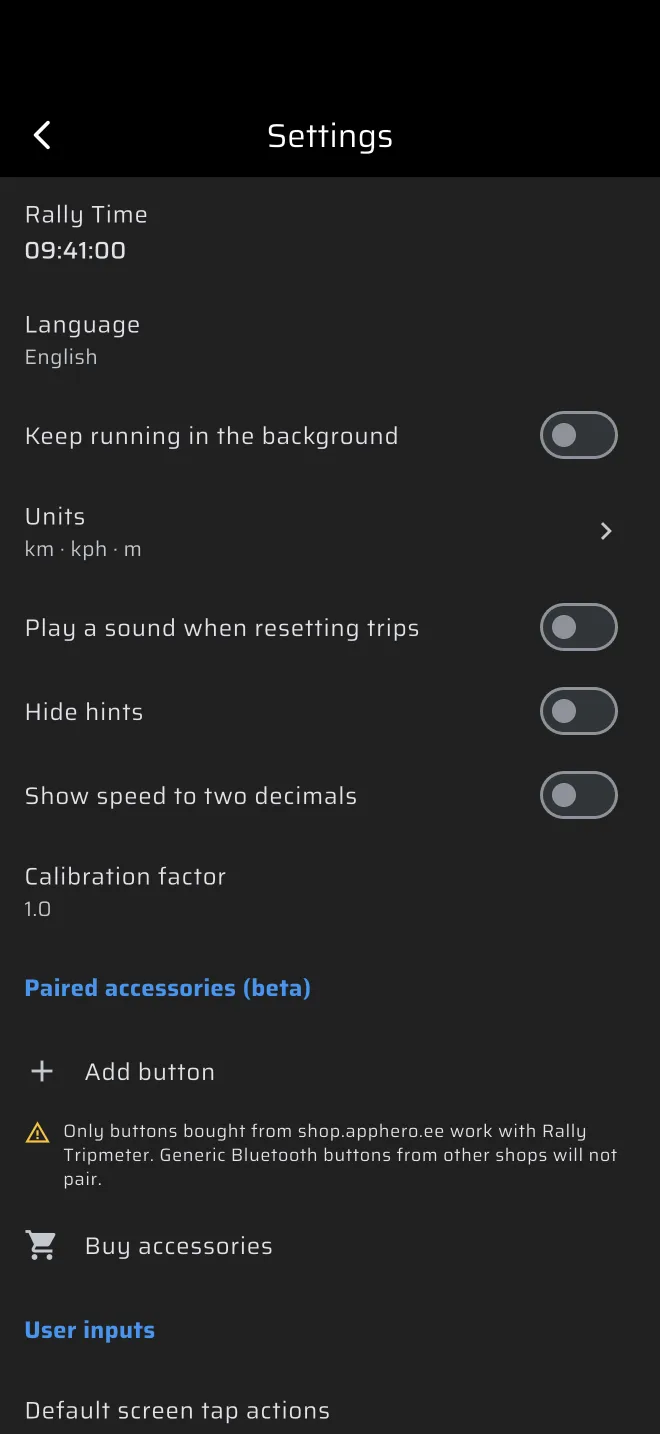
| Setting | Default | What it does |
|---|---|---|
| Rally Time | Phone clock | The clock the stages use. |
| Language | Phone language | The language of the app. |
| Keep running in the background | Off | Keeps the GPS running when the app is not in front. |
| Units | km · kph · m | Distance, speed and altitude units, and a unit for each trip. |
| Play a sound when resetting trips | Off | A beep on each screen, button or key action. |
| Hide hints | Off | Hides the ? icon, the first-visit guide sheets and the hint texts. |
| Show speed to two decimals | Off | Speed with two decimals instead of one. |
| Use legacy GPS provider | Off | Android only. |
| Calibration factor | 1.0 | Scales every measured distance. |
Rally Time
The tile shows the clock. Tap it to open the Rally Time sheet, set the official time and confirm. The app stores the difference between that time and the phone clock. The clock in the app bar and every stage start, countdown and time control then use the corrected time. Reset goes back to the phone clock.
You can open the same sheet by tapping the clock in the app bar.
Set the Rally Time before you time anything. See Rally time and the start.
Language
The app has 14 languages: English, Polish, German, French, Spanish, Italian, Czech, Estonian, Finnish, Dutch, Russian, Japanese, Hungarian and Portuguese. By default it follows the phone. Pick one to change the app only. Each device has its own setting.
Keep running in the background
On a phone, the GPS stops when the app is not in front unless you turn this on.
- Android. The app shows an ongoing notification, Background GPS is active.
- iOS. The app keeps receiving location in the background.
Turn it on if you lock the phone, switch to a navigation app, or record a route or share your location for a long drive. It costs battery.
Units
The tile shows the units in use, for example km · kph · m. Tap it to open the Units screen.
| Setting | Choices | What it covers |
|---|---|---|
| Distance | km, mi | Odometers, the stage and section trips, everything in a stage (section distances, TCs, speed tables), and History. |
| Speed | kph, mph | Current, average, maximum and target speeds, and speed limits. |
| Altitude | m, ft | Altitude and GPS accuracy. |
The three are independent. You can drive with miles and kph, for example.
Under Trips, Trip 1, Trip 2 and Countdown Trip each have their own unit. The default is Same as distance, which follows Distance. Pick km or mi to show, enter and step that trip in another unit, for example Trip 1 in miles for a roadbook in miles. The trip toolbar plus and minus, and the Distance input actions, move each trip by 0.01 of its own unit. The stage and section trips always use Distance.
If you had Imperial before an update, the app starts with mi, mph and ft.
The live map always shows the speed of other participants in km/h.
Play a sound when resetting trips
When on, a tap on the screen plays a short beep and a long press plays a long one. Bluetooth buttons and the volume keys beep only when they run at least one action.
Hide hints
Turns off the ? icon in the app bar and in the stage sheet, the guide sheet that opens the first time you visit a mode, and the small hint texts in components and in the stage and time card sheets. Use it once you know the screens. The Quick guides are still under Quick guides in the drawer. See Navigating the app.
Show speed to two decimals
The speedometer-style components show the current, average and maximum speed with two decimals instead of one. Speed limits, speed charts and History keep their own precision.
Use legacy GPS provider
Android only. It makes the app read positions from Android's own location manager instead of the default provider. Leave it off. Try it only if the position stops updating on your phone.
Calibration factor
A number between 0.8 and 1.2. Every distance the app measures is multiplied by it. The default is 1.0. A value outside the range is refused with More than 20% difference from default 1.0.
Tap the tile to open the entry. The dialog repeats the method:
- Reset the factor to 1.0.
- Reset all odometers.
- Drive a known distance. A longer one is better.
- Divide the driven distance by the trip value.
- Enter the result.
- Check it on a second known distance.
The app recommends leaving it at 1.0. When it is not 1.0, an amber Calibration factor row with the value appears at the bottom of the drawer. Tap it to come back here.
The History distance does not use the factor. See the calibration guide.