Finishing and after
This chapter covers the end of a test and what you can check afterwards: the finish, the total offset, History and telemetry.
Finish
A regularity stage ends in one of these ways:
- Finish. On the last section the + Restart button changes its label to Finish. (Before, it was Next Section + Restart in a manual stage and Sync … + Restart in an automatic one.) Press it at the finish line. This is the normal way. It does not store a TC, but the app counts the finish line as the last TC.
- Stop in the top toolbar. It ends the stage at once, wherever you are. Before the stage has started, Stop cancels the stage instead.
- A long press on Ideal Time, once you are past the finish distance. The hint reads Long press to stop the stage. Before that distance the same long press records a TC, so do not use it near the line.
- A Time or Line finish set in the stage editor. The stage ends by itself at that clock time or when the phone crosses the line.
- A Bluetooth or volume button set to finish the stage.
The app cannot finish a stage by distance. When your trip reaches the finish distance, nothing happens. The stage keeps running, and the Ideal Time keeps growing as the clock runs on. Press Finish at the line.
The finish uses the time of the press and your Stage Trip at that moment, capped at the finish distance. It compares them with the ideal arrival. If you press 30 m before the line, it measures your position 30 m before the line.
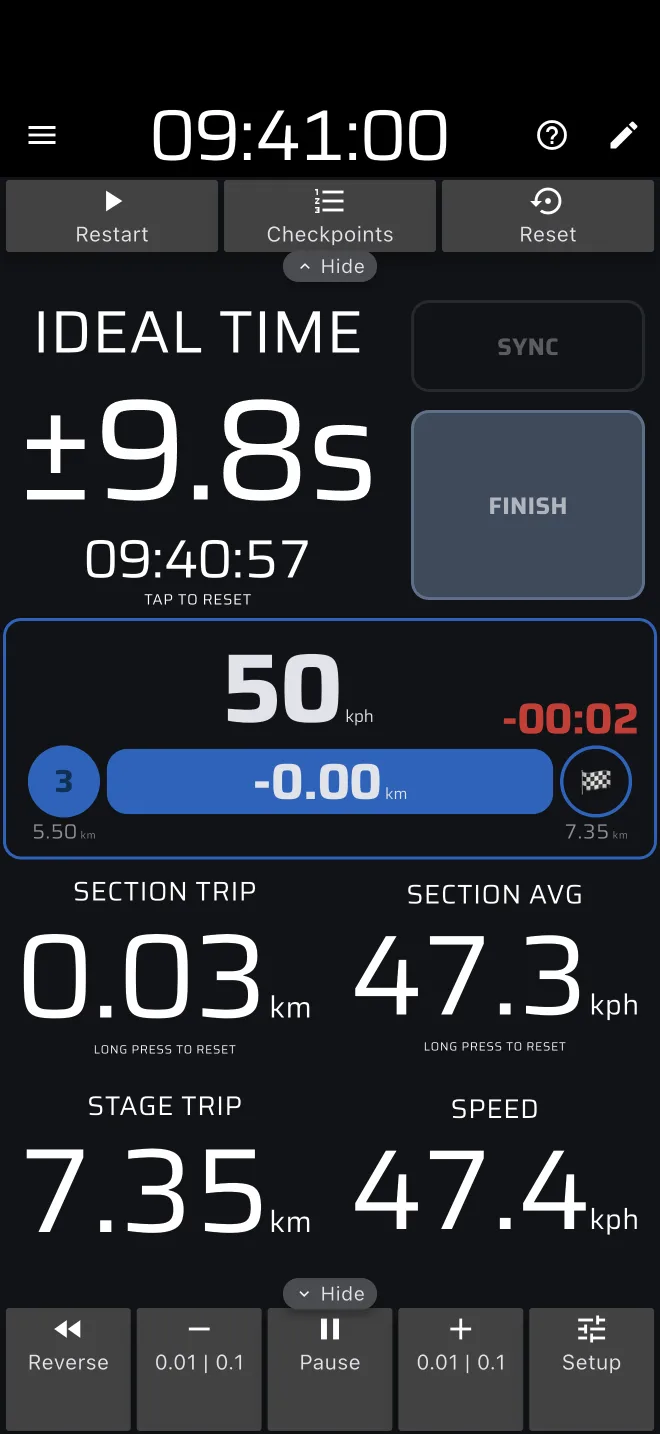
The total offset
When the stage is finished, the Ideal Time stops following the clock and shows the total offset:
the sum of the absolute offsets of every TC you recorded, plus the offset at the finish.
Early and late do not cancel. A TC at +12 s and a finish at -3 s give a total of 15 s.
The sign in front shows what the app added up:
| Sign | Meaning |
|---|---|
+ |
one offset was not zero, and it was late |
- |
one offset was not zero, and it was early |
± |
two or more offsets were not zero |
| none | every offset was zero |
For a test timed from the start with no TC, the total is the offset at the finish, for example +4.2s. If you recorded TCs, the total is the penalty of the stage only if the organiser scores each TC the same way. To see each TC on its own, tap Checkpoints in the top toolbar. It stays there after the finish. If you edit a TC there, the total changes.
The app only knows what you recorded
The organiser can place secret checks along the test. The app does not know where they are. The total counts only the TCs you recorded and the finish. Use it to check your own driving. It is not your score.
Restarting or starting again
After the finish the top toolbar shows Restart and Reset, and Checkpoints if you recorded a TC.
Another stage. Tap Reset. The screen goes back to the panel with Create a stage and From library. Pick the next stage there and press Start. Tapping the Ideal Time (it says Tap to reset) does the same. The finished stage stays in History.
Restart. This does not start a new stage. It continues the same stage, as if the finish had not happened. Use it only if you pressed Finish by mistake. The app leaves the time between Finish and Restart out of the ideal time, so if the car stood still you carry on where you were. The trips do not count while the stage is finished. If the car moved, press Sync at the next landmark, and expect the Ideal Time to read early by about the time the chart gives for the distance you drove while finished. See Restart after Finish. Without Pro, Restart needs Pro fuel.
History
The app saves every finished stage to History, under Library in the drawer. You do not need to do anything. If you are not signed in, the app uses a guest account.
History keeps the name, the stage time, the average speed, the distance and the track. It does not keep your TCs or your total offset. Write down the total offset before you reset the stage, or take a screenshot.
No signal at the finish
A stage that finishes with no mobile signal still shows in History, with a cloud-off icon (Waiting to sync). It uploads when the phone is online again. Until then it is only on this phone, so do not sign out or delete the app. See Saving without a connection.
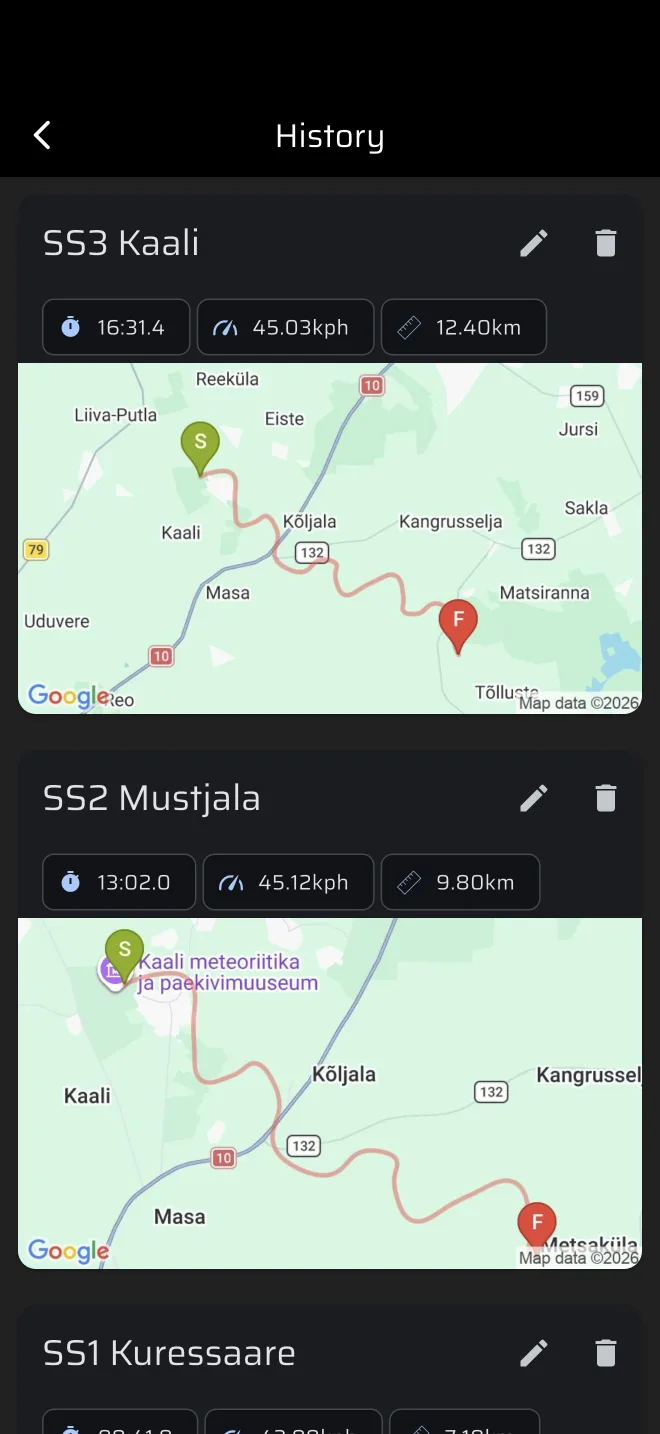
See Viewing history for the list, renaming and deleting.
Telemetry and comparing with the results
Tap a stage in History to open its Telemetry.
- A map with the track you drove.
- A speed graph under the map. Drag along it to move the marker on the map. Three chips show the speed, the distance and the time at that point.
- A download icon at the top, to share the track as a GPX file.
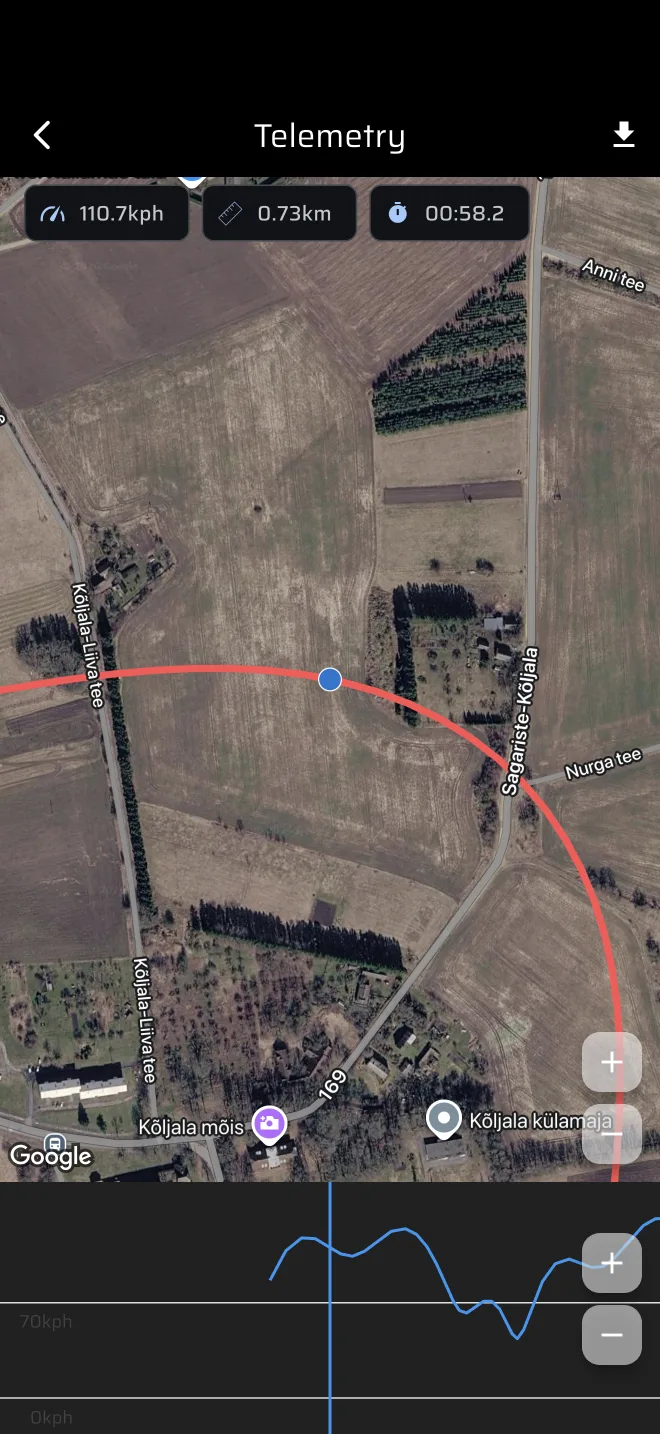
The graph does not show the target speed of the stage. Use it to see where you slowed down, not how far you were from the target.
When the official results come out, compare your total offset with the organiser's penalty for the test. Some difference is normal:
- The organiser times you at their own line. The app uses GPS and the Rally Time on the phone.
- The organiser scores secret checks. The app does not know them.
- A wrong calibration factor or a wrong clock moves every test by the same amount.
If the app is wrong in the same direction on every test, fix the calibration or the clock before the next event.