Tracks and GPX
Record your own track, mark hazards and fuel with points of interest, and put a GPX, KML or GeoJSON route from the organiser on the map.
Recording a route
The recorder is separate from the stage. It saves your GPS track as a route in Saved Routes.
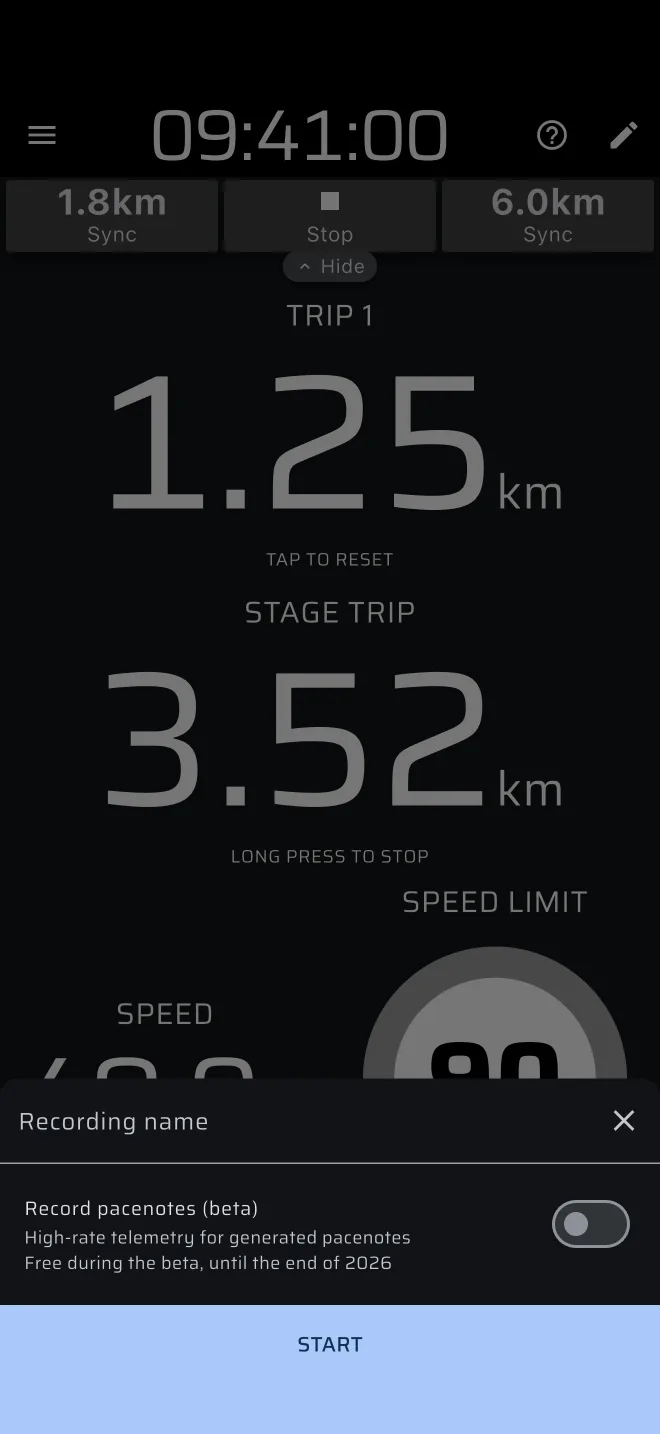
- Open the drawer and tap the Record chip under Activity.
- Enter a Recording name. It is optional.
- Leave the pacenote option off. It adds high-rate sensor recording for pace notes and is not needed for a track.
- Tap Start.
While it records, the Record chip is red with the elapsed time, and a recording bar shows a blinking red dot, the elapsed time and the number of points kept. It has two buttons: add a point of interest, and stop. The bar sits under the app bar in every mode except the custom layouts, and in landscape it moves into the app bar. The recorder keeps a point every second.
Tap the stop button at the end. The route is saved in Saved Routes.
The recorder stops by itself
A recording ends, and is saved, when the car has not moved for 15 minutes or when the recording reaches 90 minutes. A dialog tells you. A rally raid stage or a long liaison can pass 90 minutes, so start a new recording when the old one stops.
A recording you start in Demo mode is not saved.
The recorder uses the same GPS as the trips. If you want it to keep recording when the phone is locked or you switch to another app, turn on Keep running in the background in Settings. It is off by default. See the Quick start.
Points of interest
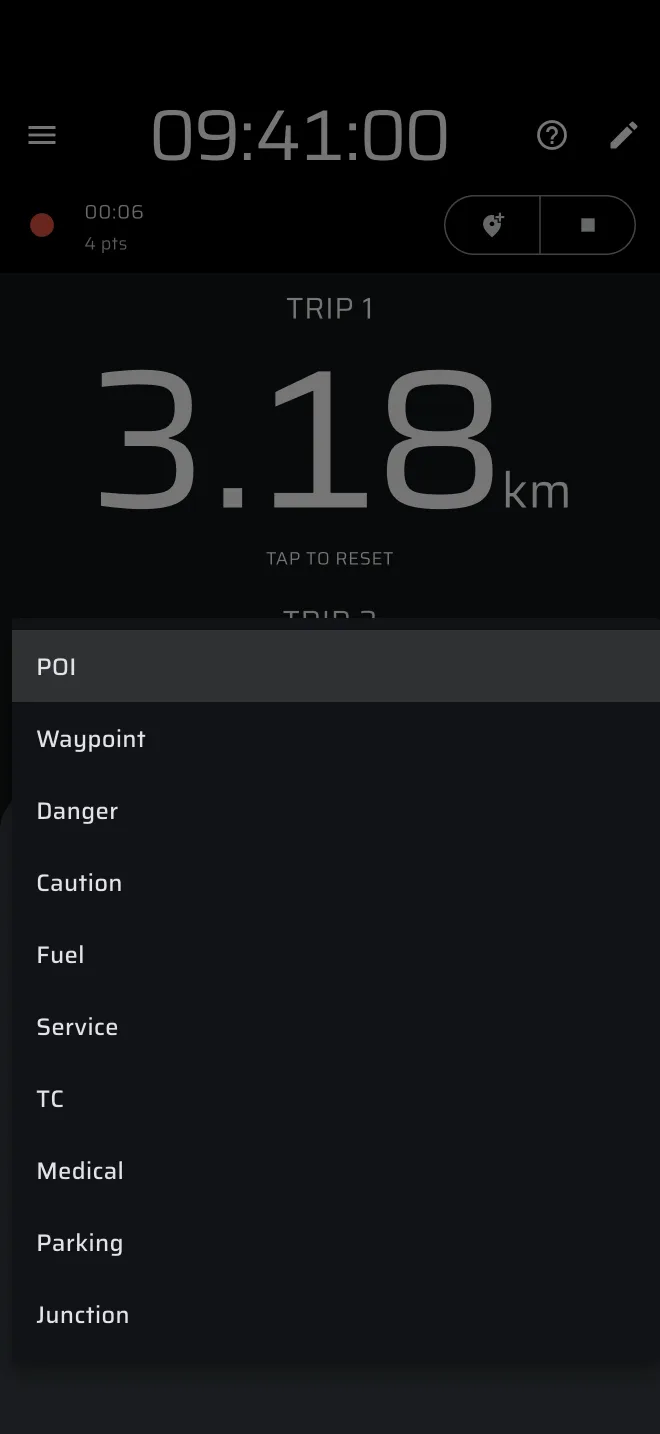
While a recording runs, tap the add-location button in the recorder bar to mark where you are.
- Optionally enter a Name (optional) and a Description (optional).
- Choose the Type: POI, Waypoint, Danger, Caution, Fuel, Service, TC, Medical, Parking or Junction.
- Tap Add.
The point is saved with the route, at the position and altitude of the moment you add it. Open the route later and tap a point to change its name, description or type.
Mark hazards and fuel when you meet them, because you can only add a point during a recording.
Importing GPX, KML and GeoJSON
To put the organiser's route in the app, send the file to your phone and import it.
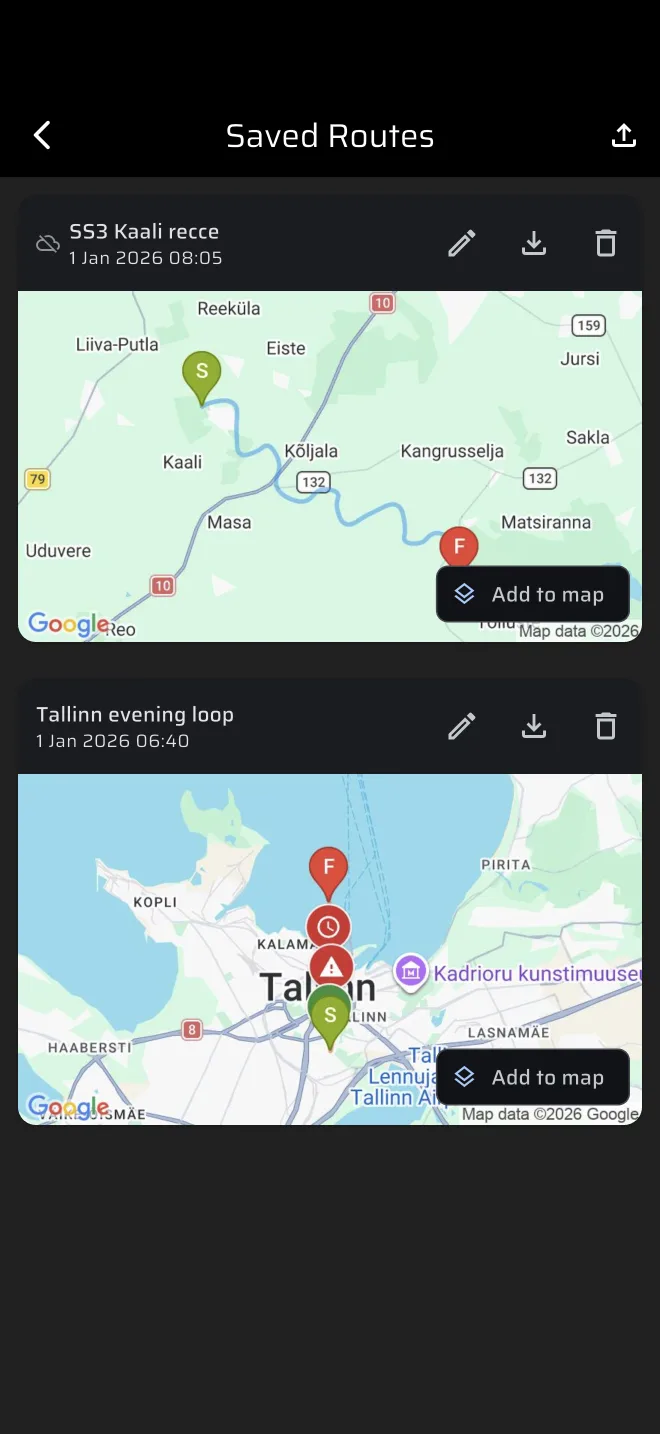
- Open the drawer and tap Saved Routes (under Library).
- Tap the import icon in the top bar (Import route).
- Pick a
.gpx,.kml,.geojsonor.jsonfile.
A message Imported with the route name confirms it. Could not parse file means the file is not one of these formats, holds no line, or is damaged.
What the import reads:
- GPX: the track, or a planned route if the file has no track. Waypoints become points of interest.
- KML: the track, or the lines. Point placemarks become points of interest.
- GeoJSON: lines and multi-lines for the route. Points become points of interest.
A point takes the type POI unless the file names one of the types above. A file without times gets the time of the import.
Routes are stored in your account. If you are signed in as a guest, a banner invites you to sign in so the routes stay with you. See Account and sign-in.
To send a route out, open it and tap Export route. Choose GPX (Garmin, Strava, OsmAnd), KML (Google Earth, Google Maps) or GeoJSON.
Map mode
On each route card in Saved Routes, tap Add to map. The chip changes to On map. Tap it again to remove the route.
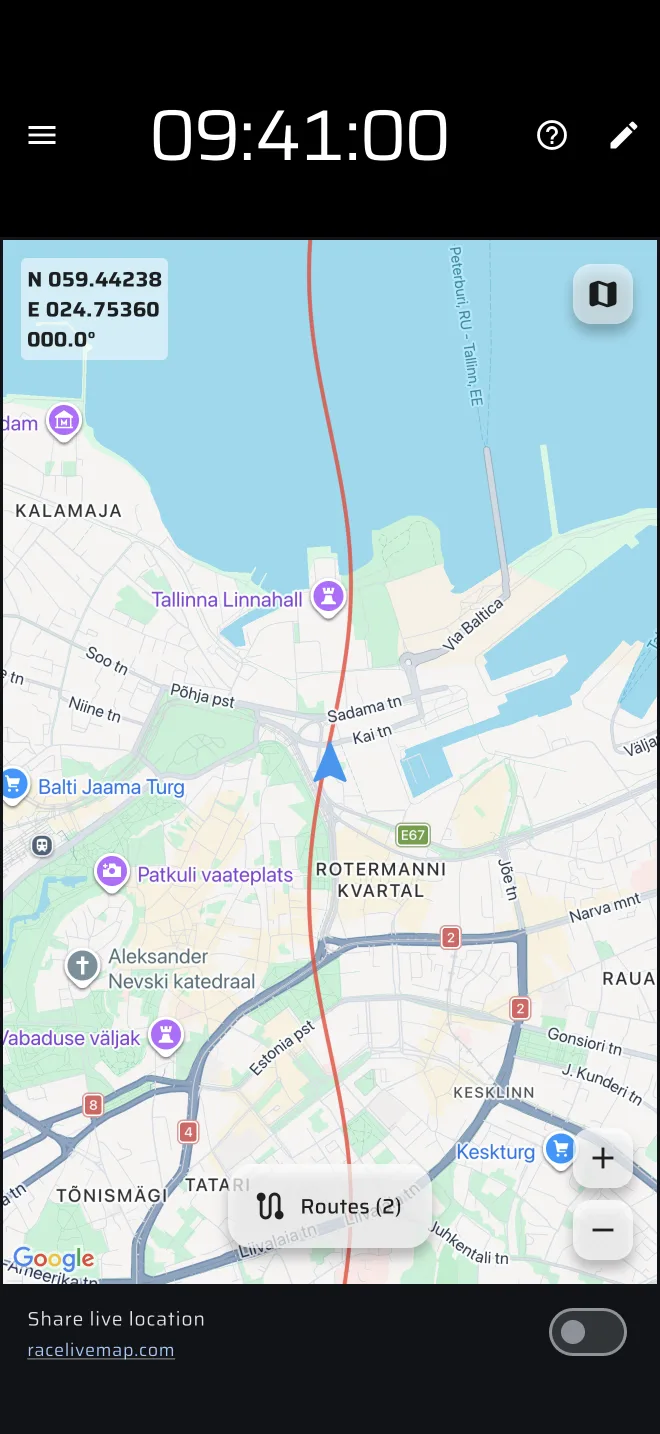
Then, in the drawer, open Rally raid and off-road and tap Map. The map shows your position and every route that is on the map. The Routes button on the map opens Saved Routes, so you can add or remove routes without leaving. When routes are on the map, the button shows their number.
- While the map is centred on you, it follows you. Above about 5 km/h it also turns to your direction of travel.
- Drag the map to look around. That stops the following. Tap the my-location button to follow you again.
- The plus and minus buttons zoom. The top right button changes the Map Type.
- Taps on the screen do not reset trips in this mode.
The map is a picture of the route and where you are. It does not give directions, and the app has no offline map download, so check how it looks on the day. See Map mode.
Live location for the team
In the drawer, tap the Live chip under Activity and then Start sharing. Your position is sent to the live map at racelivemap.com, where your team can follow it. Tap Your identifier in the sheet to choose your identifier, up to three characters. It needs a data connection, so it does not work out of coverage.
See Live tracking.