Recce day
A recce is a slow drive through the stages before the event, to write pace notes. Organisers enforce speed limits on it. Recce mode shows your speed next to the limit for your position and warns you when you go over.
Before you go
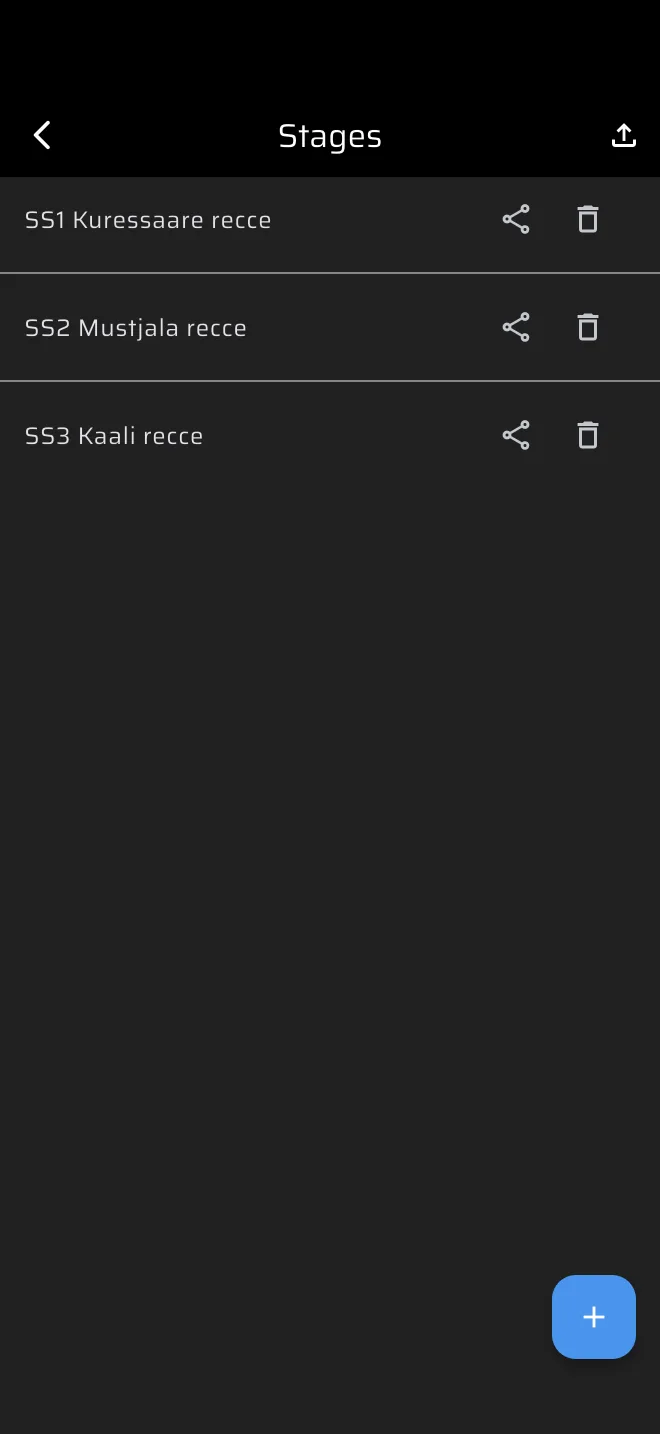
Enter each stage once and keep it in your library.
- In the drawer, open Library > Stages and tap the plus button.
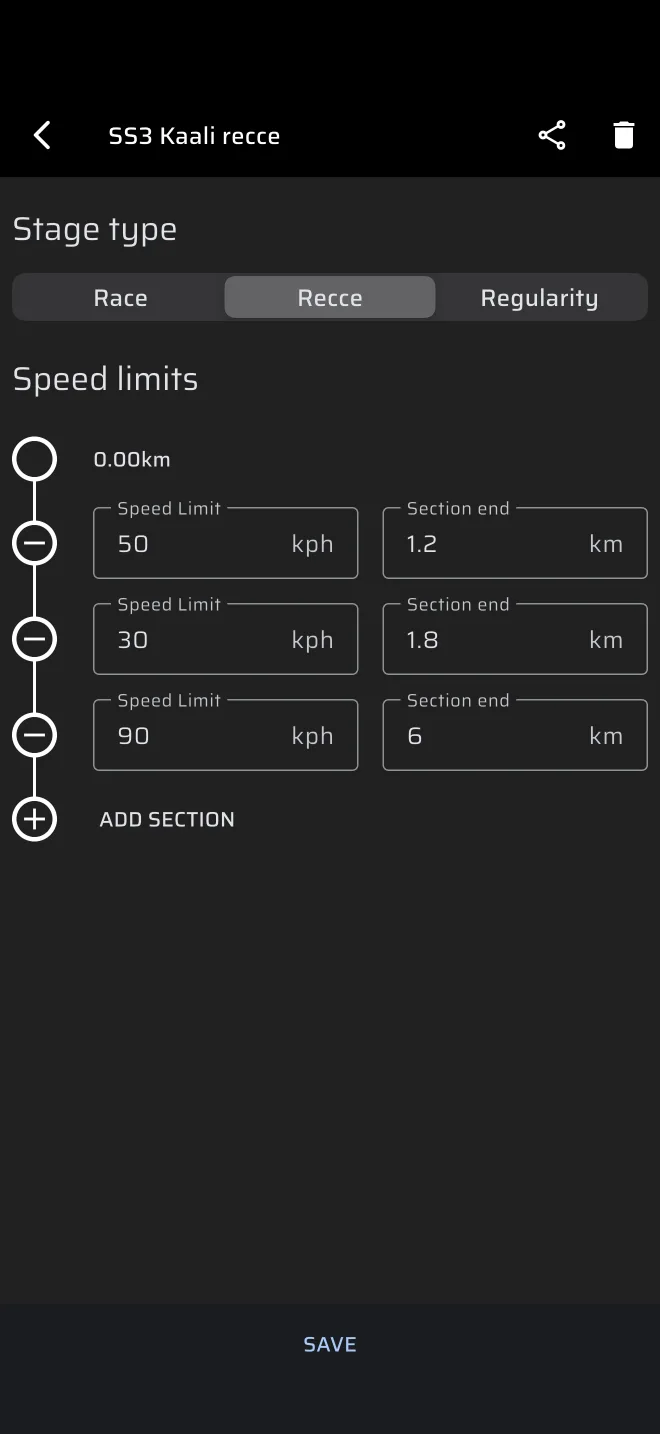
- Under Stage type, choose Recce.
- Give the stage a name in the Stage name field, for example "SS1".
- Under Speed limits, add one row per limit zone with Add section. In each row enter the Speed Limit and the Section end.
- Tap Save.
Section end is a distance from the start of the stage, not the length of the zone. A 60 km/h zone for the first 2.4 km followed by 40 km/h to 3.1 km is two rows: 60 and 2.4, then 40 and 3.1. The rules for the rows are in Speed limits.
Copy the limits from the supplementary regulations. They differ between events.
A Recce stage has no start or finish signal to set. It starts when you press Start in the stage sheet and ends when you stop it.
Give the driver the same stage
Tap the share icon next to a saved stage to send it as an .rtstage file. The driver imports it on their phone from Stages. See Sharing stages.
Starting a stage
- In the drawer, open Stage rally and tap Recce.
- With no Recce stage loaded, Recce shows its no-stage screen: a recce drive plays in the background, with buttons at the bottom. Tap From library and pick your saved stage, or tap Create a stage and enter the speed limits straight into the sheet.
- Tap Start.
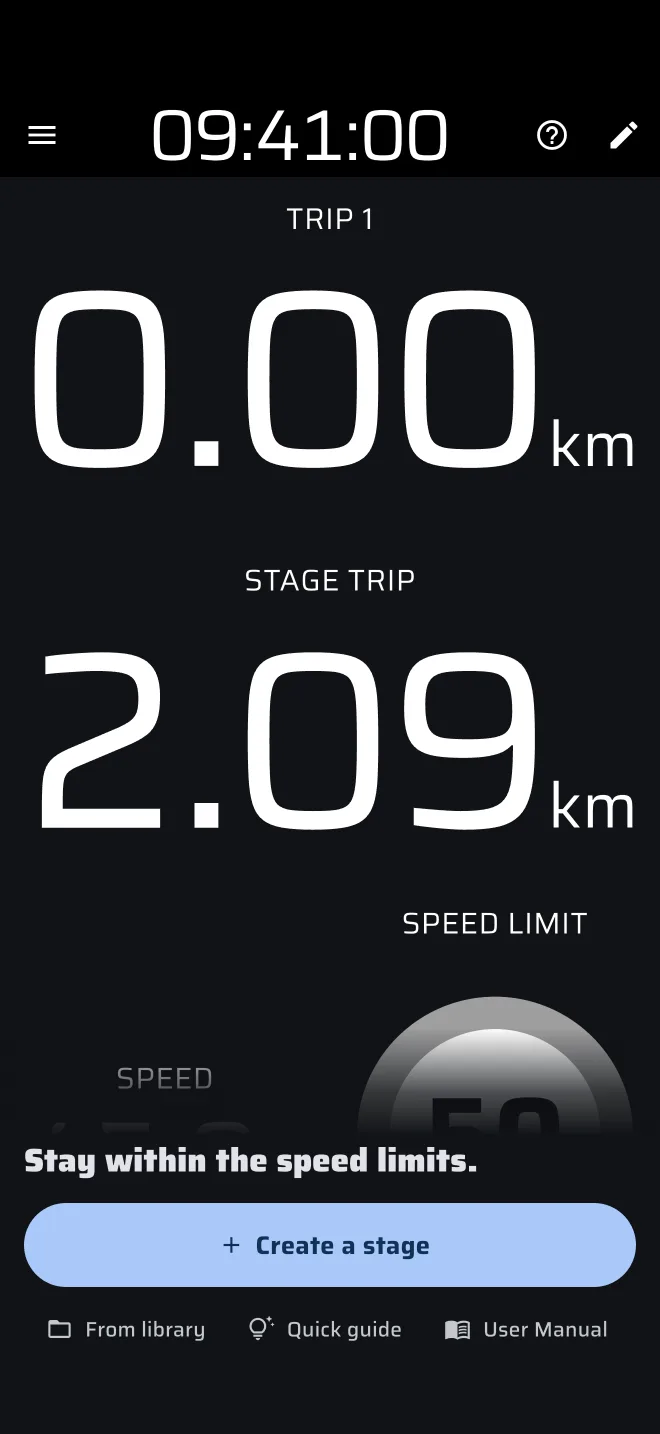
The same panel has Quick guide, which shows the Recce screen hands-on: Demo mode drives the car on a practice stage and tips explain the speed, the limit sign and the trips. The practice stage is not saved to History. User Manual opens the Recce page of this manual.
Recce keeps its own stage, apart from Race and Regularity. Only one stage runs at a time. If a stage of another type is running, the app asks you to stop it first, for example Stop the Race stage?
Recce is a Pro mode. Without a Pro plan, a recce stage uses the free daily Pro fuel, checked when you press Start. See Pro fuel.
The stage starts at once, at the moment you tap Start, and Trip 1 is reset. Press Start at the stage start line, because the speed limits are measured from there.
Reading the Recce screen
The screen shows four things:
- Trip 1: your working trip. Tap the screen to reset it.
- Stage Trip: the distance since you pressed Start. The speed limit sections are measured on this trip.
- Speed: your speed.
- Speed Limit: the limit for the section you are in. It changes by itself as the Stage Trip passes each section end.
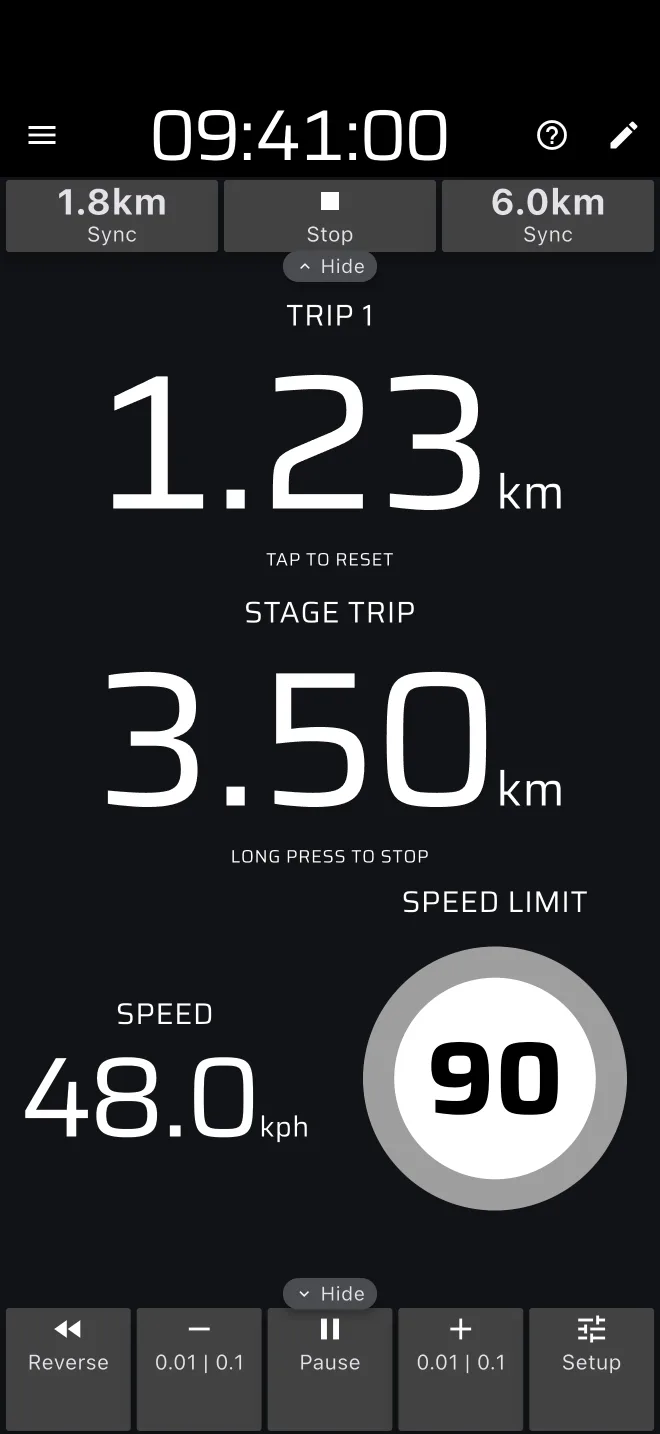
The ring of the Speed Limit sign is grey while you are within the limit. It turns red when you go over, and the app plays one long beep at the moment you cross the limit.
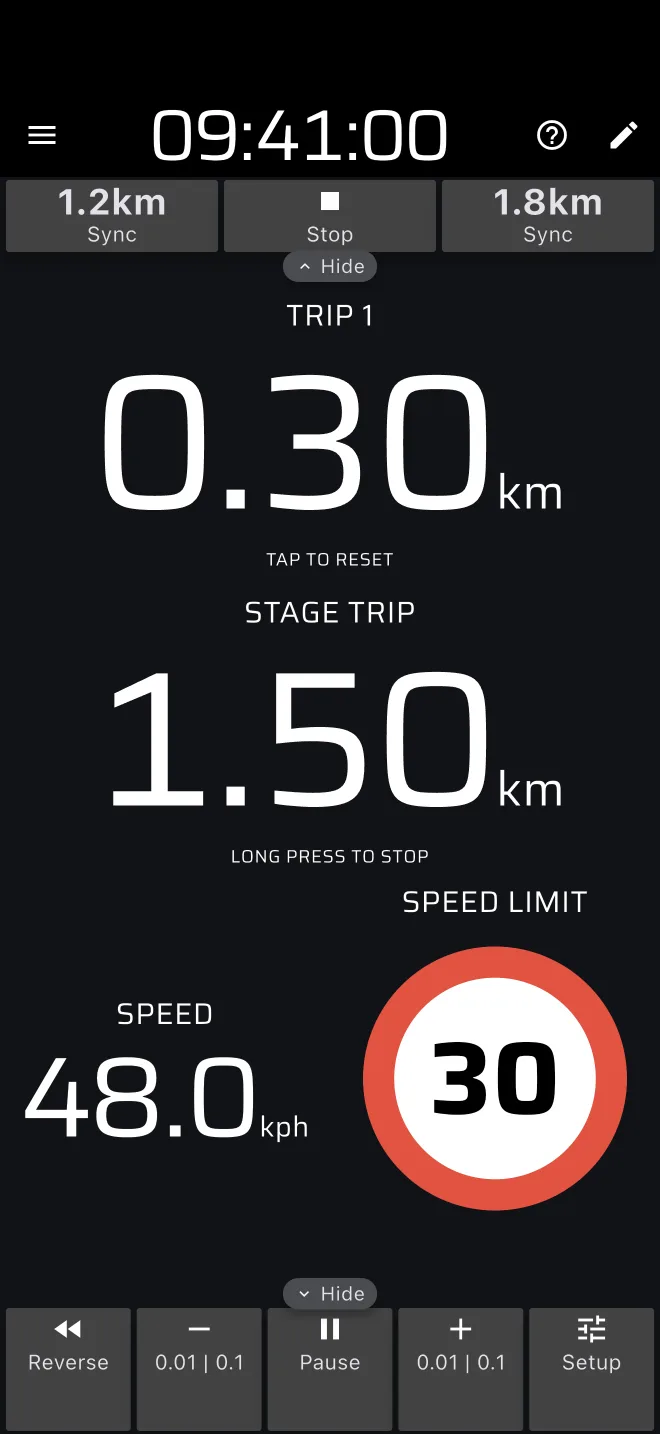
The speed on screen uses your calibration factor.
If the Stage Trip drifts from the roadbook, use the Sync button in the stage toolbar. It has a distance on it. It sets the Stage Trip to the start or the end of the current speed limit section. Press it when you pass the sign.
Pace notes while driving
The app does not store hand-written notes. Use the trips for the distances you write down.
- Write the Stage Trip distance next to each note, so every note has a fixed position on the stage.
- Or tap the screen at each notable feature to reset Trip 1, and write the distance since the previous note.
- If the distance reads wrong, correct it with plus and minus in the trip toolbar. They change all trips at once.
For notes the app generates from the recorded drive, see Recce and pacenotes.
Finishing and recording the route
To end the stage, long press anywhere on the screen, or tap Stop in the stage toolbar. The run is saved to History. Then tap Reset in the stage toolbar to go back to the no-stage screen, or tap the screen to set up the next stage in the stage sheet.
Recording the route is separate from running the stage:
- Open the drawer and tap the Record chip under Activity.
- Enter a Recording name and tap Start.
- While it records, the Record chip is red and shows the elapsed time. A recording bar above the screen has a button to add a point of interest and a stop button.
- Tap stop in the bar, or the red chip, at the end. The route is saved in Saved Routes.
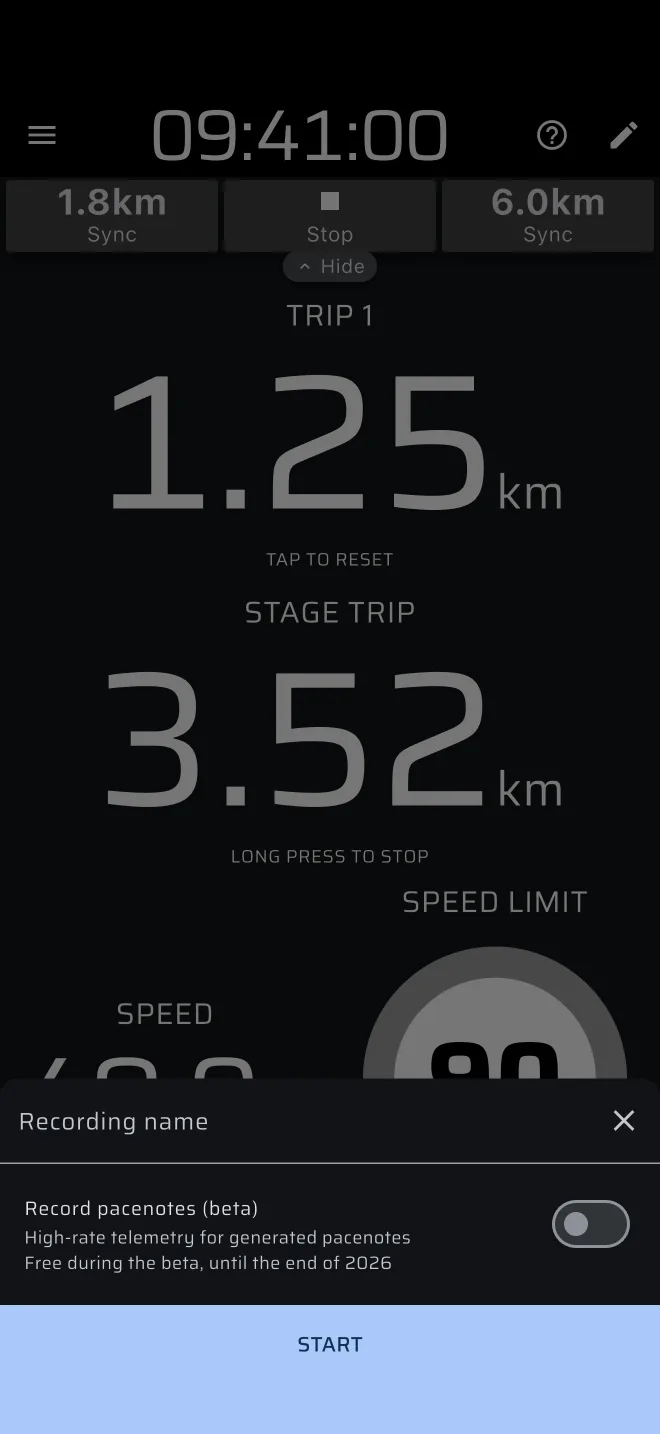
The recording does not start or stop with the stage on its own. The one exception is the pacenote option in the stage sheet, Record pacenotes (beta), which records the drive and stops with the stage.
The recorder stops by itself, and saves the route, when the car has not moved for 15 minutes or when the recording reaches 90 minutes. A dialog tells you when that happens.
After the recce
- Saved Routes (drawer, Library): open a route to see it on the map and zoom in on junctions. Use Export route to send it as GPX, KML or GeoJSON.
- History (drawer, Library): open the run to see the track and the speed against distance. See Service and history.
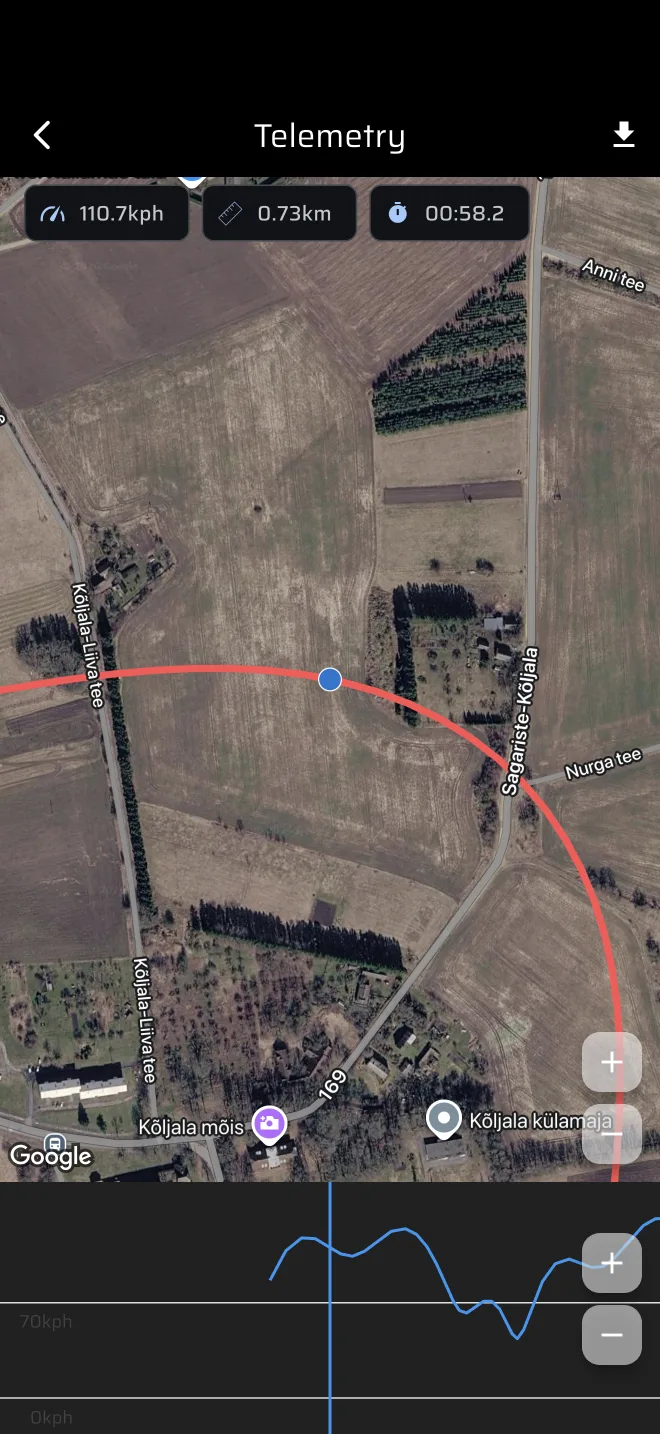
If the event allows two passes, use the first to learn the road and the second to refine the notes.