Getting the app ready
This chapter takes you from install to a phone that is ready for the car: a plan or Demo mode, sign-in, mount and power, and the settings that keep the GPS running.
Install and first launch
- Install Rally Tripmeter from the App Store or Google Play. See the Quick start.
- Open the app. The tripmeter measures distance and speed from GPS, so nothing works without location access. The app does not ask by itself. An amber bar under the app bar says Location is off: tap Allow and allow location when the phone asks. If a red bar shows later, see The red GPS bar.
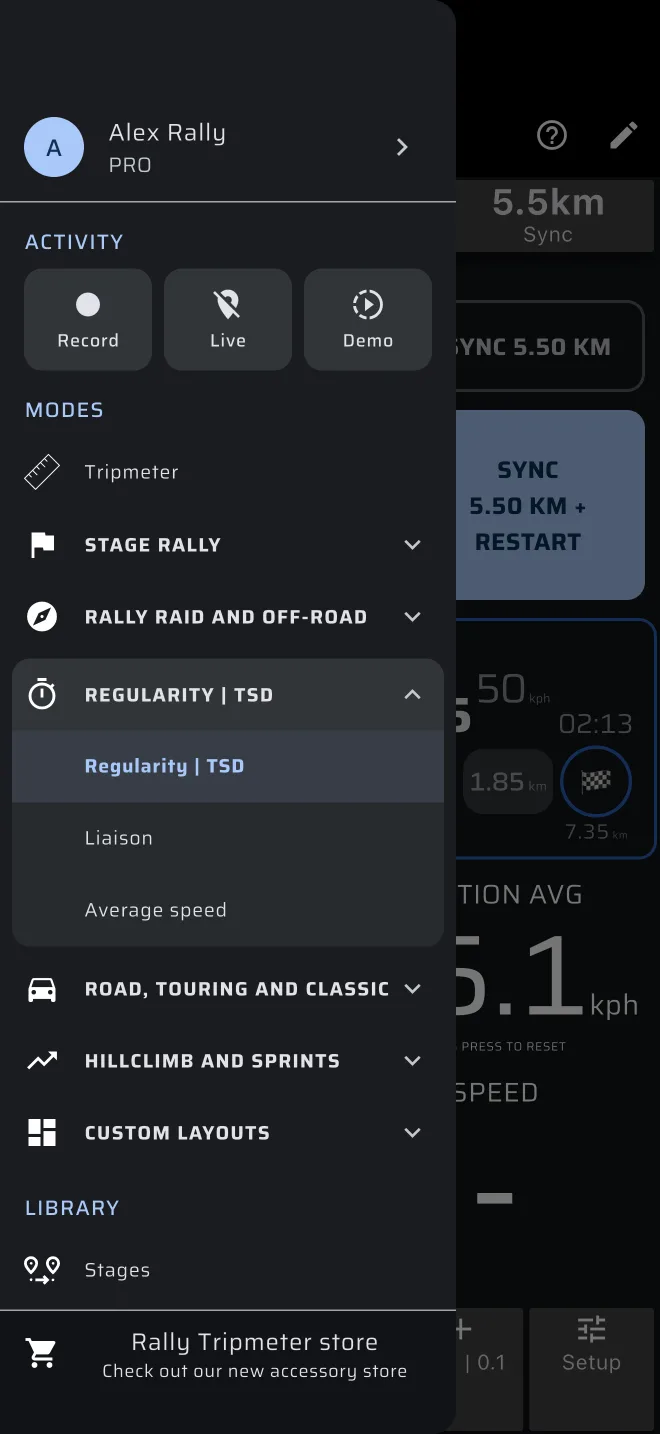
- Open the drawer: swipe in from the left edge, or tap the menu icon at the top left.
The regularity screen is called Regularity | TSD. In the drawer, under Modes, each discipline has a header. Tap the Regularity | TSD header to open it. It holds the modes you will use at a regularity rally: Regularity | TSD, Liaison and Average speed. Tripmeter is on its own, above the disciplines.
If you have not used the app before, read the Quick start first. It takes ten minutes and covers the basics that this guide takes for granted.
Try it first
Open Regularity | TSD. With no regularity stage loaded, it shows its no-stage screen: a short demo of the screen plays behind a panel with Create a stage, Quick guide and Demo stage. No sheet pops up.
Tap Quick guide before you enter a real roadbook. It drives a 1 km sample stage and stops at each moment that needs a button. It takes about five minutes, uses no Pro fuel and changes nothing in the app. Then drive the same sample yourself with Demo stage. Both are described in Practice at home. The ? in the app bar offers the Quick guide too.
The Quick guide first asks Automatic section change or Manual section change. That is only how the sections change, not how you are timed. See Two separate choices.
Pro, Pro fuel and Demo mode
Regularity | TSD is a Pro mode. So are Average speed, Liaison, Race, Rally Raid, Recce and the custom layouts.
- The free plan gives you Tripmeter and Map for a limited distance each day (80 km by default).
- Basic gives you Tripmeter and Map with unlimited distance.
- Pro unlocks everything, with no limit.
Without Pro, you can still open the Pro modes and look at them. Real driving in a Pro mode uses Pro fuel: a free distance each day (40 km by default), shared by all Pro modes, the same on the free plan and on Basic. See Licences and plans.
- A gauge under the app bar shows the Pro fuel left. Tap it to see the Pro plans.
- The stage sheet shows the fuel left above Start, for example Free Pro fuel left today: 12.3 km.
- The app checks the fuel when you press Start in the stage sheet. A stage that is waiting or running always goes on to its finish, even if the fuel runs out on the way.
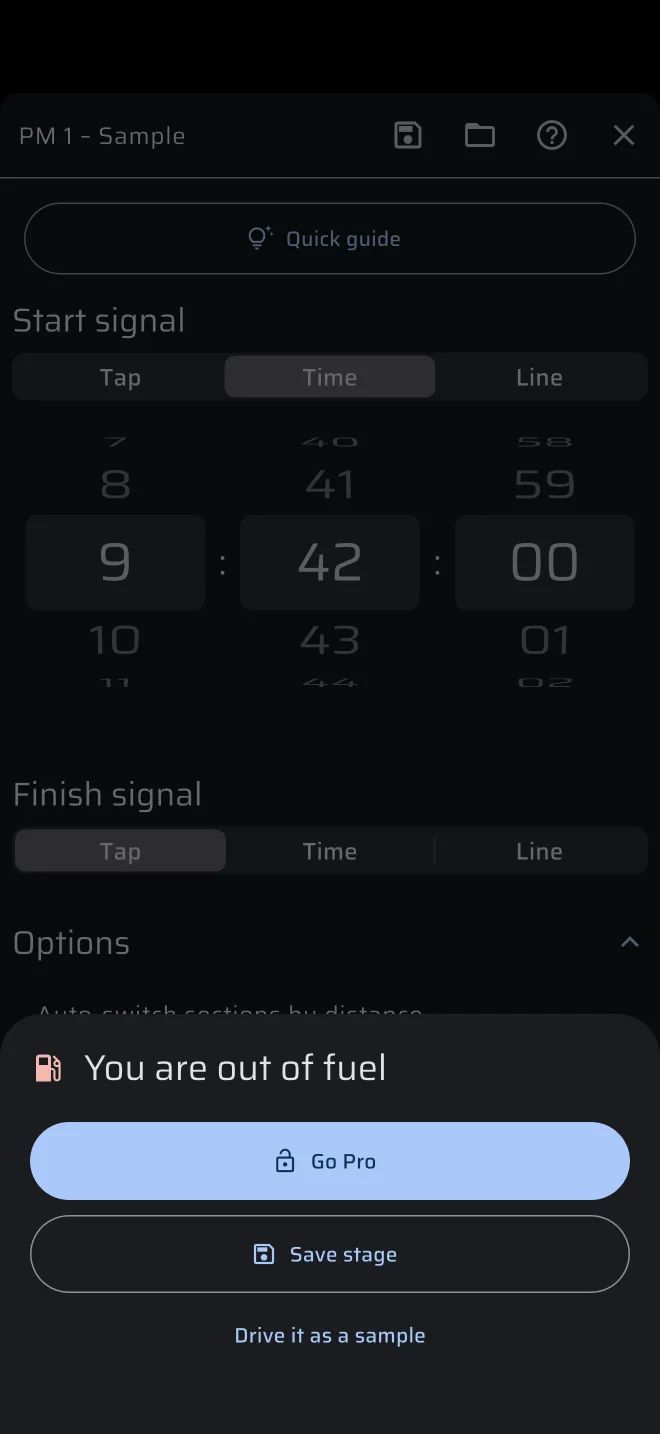
- With no fuel left, Start opens You are out of fuel, with Go Pro, Save stage and Drive it as a sample. Drive it as a sample drives your stage on the practice screen, with pedals instead of GPS (see Practice at home).
- With no fuel left, the no-stage screen stays open (its Quick guide and sample stage use no fuel). After a finished stage, a dark screen covers the mode: You are out of fuel, with Go Pro and Enable Demo mode. The fuel fills up again at midnight.
A regularity rally is usually longer than that. For the event itself you need Pro. Demo mode uses no Pro fuel.
You can try all the regularity screens without buying anything. Demo mode replaces GPS with a simulated drive. To switch it on:
- Open the drawer, tap the Demo chip and tap Start demo. Or tap Enable Demo mode on the dark screen over a mode.
- A red bar shows Simulating location with a speed stepper. Use it to change the simulated speed.
- To go back to real GPS, tap Tap to stop demo mode in the red bar, or tap the amber Demo chip in the drawer.
Demo mode is also how you practise before the event. See Practice at home.
Demo mode is not for the event
In Demo mode the position is simulated. Switch it off before you drive. The red bar shows that it is on.
Buying and managing a plan is covered in Licences and plans.
Sign in
You can use the app without an account. The app then keeps your stages on that phone under a guest account.
Sign in if you want your saved stages and history on more than one phone, for example the driver's phone and the co-driver's:
- In the drawer, tap the account header at the top (it says Sign in).
- On the Account screen tap Sign in with Google or Sign in with Apple.
- Do the same on the other phone, with the same account.
Your stages are then in the drawer under Library > Stages on both phones. A stage you save on one phone appears on the other.
If you made stages as a guest before signing in, the app moves them to your account. This needs a connection. Without one, the app asks you to try again.
When you are signed in, the account header in the drawer shows your name. Tap it to open the Account screen. It has Sign out and Delete account.
If you do not want to sign in, you can still send a stage to another phone as a file. See Save and share to the driver's phone.
Sign in at home
Sign in before the event, with a good connection. Prepare your stages at home too, not at the start line.
Mount, power and screen
Fix the phone where the person who reads it can see it without holding it. In a regularity test this is normally the co-driver, who watches the Ideal Time panel. If the driver reads it, place the mount in the driver's view, but not in front of the road.
Connect the phone to a charger. GPS with the screen on empties a battery quickly.
The app keeps the screen on while it is open. You do not need to change the phone's screen timeout.
Turn on Keep running in the background in Settings. It is off by default. With it on, the GPS keeps running when the screen locks or you open another app. On Android the phone then shows a "Background GPS is active" notification. With it off, a phone call or another app can stop the GPS.
Also check the phone's battery saver. A phone that limits apps in the background, or switches the screen off to save power, can lose the GPS in the middle of a test.
Units
Set the units in Settings > Units. Distance (km or mi) and Speed (kph or mph) are two separate settings.
The speed chart where you enter the test uses them both: distances, TCs and the stage and section trips in Distance, speeds and averages in Speed. Pick the units your roadbook uses, and set them before you enter the chart. If you change a unit later, the app converts the values.
Under Trips, Trip 1 and Trip 2 can have a unit of their own. The stage always uses Distance.