Time controls and re-bases
This chapter explains the one idea that separates regularity formats: whether a time control restarts your ideal time. It shows every button that does it and how to undo a mistake.
Cumulative or re-base
The app can time you in two ways.
Cumulative. The ideal time is a schedule that starts at the stage start. The ideal arrival at a point is the start time plus the time of every section up to that point (section distance ÷ section speed). Nothing you do on the way changes the schedule.
Re-base. When you record a TC, the app takes the TC time and adds the Restart time (0 by default). From then on the schedule counts from that clock time at the TC distance. The schedule starts again at the TC.
Which button you press decides the format
The app has no setting for "cumulative" or "per segment". It has buttons. Next Section and Sync never restart the ideal time. Next Section + Restart, Sync + Restart, a long press on Ideal Time, the TC button and Quick TC always do. If you press the wrong one, the app times you the wrong way and gives no warning.
A worked example
A stage has three sections, and the start is at 10:00:00:
| Section | From | To | Target speed | Ideal duration |
|---|---|---|---|---|
| 1 | 0.0 km | 1.0 km | 36 km/h | 100 s |
| 2 | 1.0 km | 2.0 km | 30 km/h | 120 s |
| 3 | 2.0 km | 3.0 km | 45 km/h | 80 s |
You are 12 seconds late at the end of section 1. You pass 1.0 km at 10:01:52, but the schedule says 10:01:40. From there you drive exactly at the target speed.
At 1.0 km, driver A presses Next Section. Driver B presses Next Section + Restart.
| Point | Your clock | A: Next Section, ideal clock | A: offset | B: Next Section + Restart, ideal clock | B: offset |
|---|---|---|---|---|---|
| 1.0 km, just before the press | 10:01:52 | 10:01:40 | +12.0 s | 10:01:40 | +12.0 s |
| 1.0 km, just after the press | 10:01:52 | 10:01:40 | +12.0 s | 10:01:52 | 0.0 s |
| 2.0 km | 10:03:52 | 10:03:40 | +12.0 s | 10:03:52 | 0.0 s |
| 3.0 km, finish | 10:05:12 | 10:05:00 | +12.0 s | 10:05:12 | 0.0 s |
Driver A is still 12 seconds late, and the screen says so all the way. If A wants to recover the time, the screen shows how much. Driver B's screen says 0.0 s from the TC on. The display has forgotten the 12 seconds, so it cannot tell B to recover them.
Which driver is right depends on how the organiser times you:
- If the test is timed from the start to the finish, driver A is right. Driver B's display is wrong by 12 seconds all the way to the finish. The organiser's clock still counts the 12 seconds.
- If the test is split into segments and each time control restarts your time, driver B is right. Driver A's display shows 12 seconds of lateness that the organiser has already forgotten.
At the finish, the total still counts the TC. B's total offset is |+12.0| + |0.0| = 12.0 s, the same as A's. The display during the test did not show it. See Finishing and after.
The format pages tell you which way each country times you. If you do not know, ask the organiser at the briefing.
The buttons that record a TC
Each button always does the same thing. Learn this table.
| Button | Records a TC and restarts ideal time? | What it does to the distance |
|---|---|---|
| Next Section (manual sections) | No | Moves to the next section and sets the stage trip to the start of that section. Disabled on the last section. |
| Next Section + Restart (manual sections) | Yes, at the roadbook end of the section | Same as Next Section. On the last section the button reads Finish and finishes the stage. |
| Sync … (automatic sections) | No | Sets the stage trip to the start or the end of the section (the 15 % rule from chapter 6) and resets the Section Trip. |
| Sync … + Restart (automatic sections) | Yes, at the snapped distance | Same as Sync. On the last section the button reads Finish. |
| Long press on Ideal Time | Yes, at your current trip | None. Opens the Checkpoints sheet. Past the finish distance, finishes the stage instead. |
| TC (custom layouts) | Yes, at your current trip | None. Opens the Checkpoints sheet. |
| Quick TC (Bluetooth or volume button action) | Yes, at your current trip | None. No sheet opens. |
| Record TC icon in the Checkpoints sheet | Yes, at your current trip | None. |
| Sync or Section in the top toolbar | No | Sync sets the stage trip. Section moves the section like Next Section. |
| − and + in the bottom toolbar | No | Changes all trips by 0.01 (tap) or 0.1 (hold), each in its own unit. |
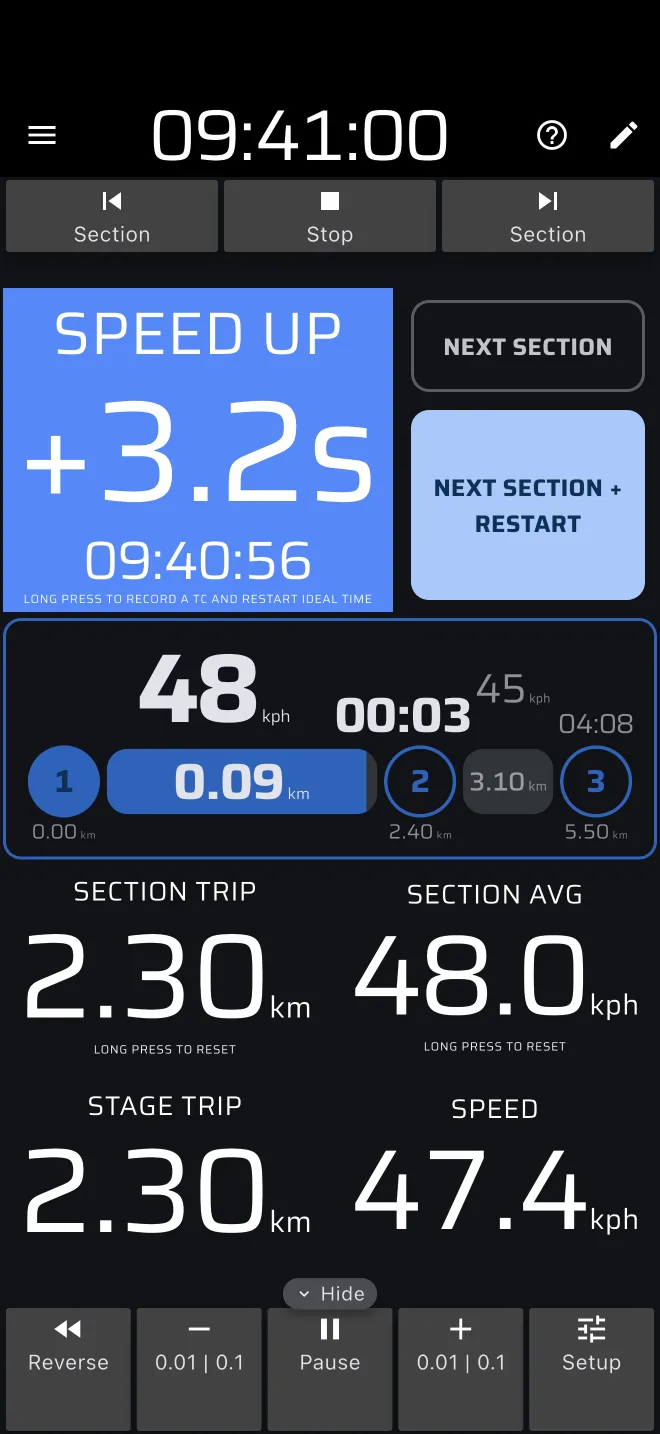
The + Restart in the label says what the button does. The long press on Ideal Time has its own hint, Long press to record a TC and restart ideal time. The TC button of a custom layout shows Restarts ideal time. Both hints are hidden when Hide hints is on in Settings.
More details:
- The TC time is the exact moment of the press on the Rally Time clock, to a fraction of a second. Right after a TC with
0srestart, the Ideal Time reads 0.0. The Checkpoints sheet shows a pressed time with hundredths of a second. A time you type in yourself is whole seconds. See Checkpoints and TCs. - Next Section + Restart records the TC at the roadbook end of the section. It does not use your trip. If the app was 20 m behind, the TC is still at the roadbook boundary, and the stage trip is set there too.
- The long press and Quick TC record the TC at the distance on your Stage Trip. They do not change it.
- The app ignores a second TC less than 0.5 m from an existing one. A double tap does not make two TCs.
- In a Distance unknown section, a + Restart button ends the section. Until the section has an end, the automatic one reads only Restart. The TC is recorded at your current trip, and that sets where the section ends. The plain Next Section button is disabled there.
Restart time
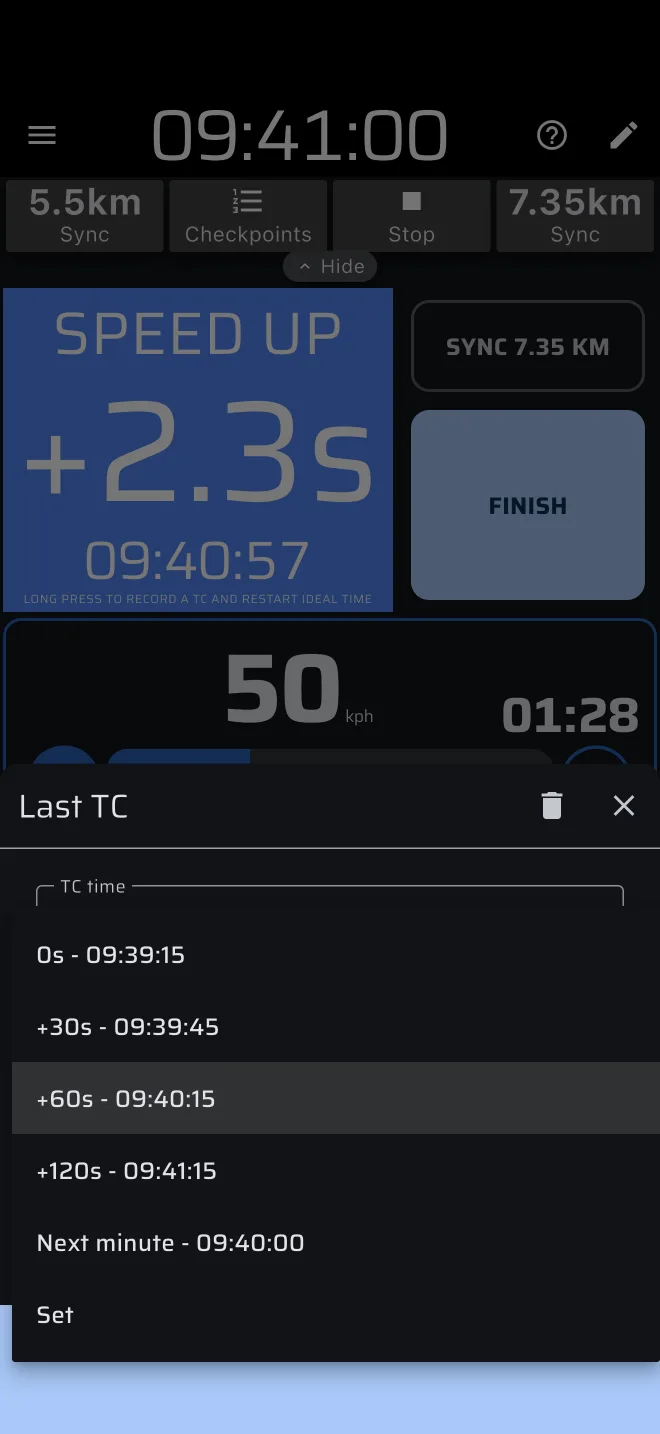
The Restart time says when the ideal time starts again after the TC. A new TC has 0s: the ideal time restarts at the TC time. You change it in the Checkpoints sheet. The dropdown shows these choices, each with the clock time it gives:
| Choice | The ideal time restarts at |
|---|---|
0s |
the TC time |
| +30s | the TC time plus 30 seconds |
| +60s | the TC time plus 60 seconds |
| +120s | the TC time plus 120 seconds |
| Next minute | the next whole minute after the TC time |
| Set | a clock time you pick |
With a restart time, the Ideal Time reads early at first. Example: a TC at 10:01:52 with +60s restarts at 10:02:52. Right after the TC the screen shows -01:00 and SLOW DOWN. The number climbs to 0.0s at 10:02:52. Wait until it reads zero, then drive off. This waiting time is the dead time of the control.
After you choose Set and pick a time, a plain Restart time field replaces the dropdown. Tap it to change the time.
The format pages say which restart each format uses.
The Checkpoints sheet
Every TC you record is in the Checkpoints sheet. Open it:
- with the Checkpoints button in the top toolbar. It appears when the stage has at least one TC, while the stage runs and after it has finished;
- by a long press on Ideal Time. That records a TC first, then opens the sheet.
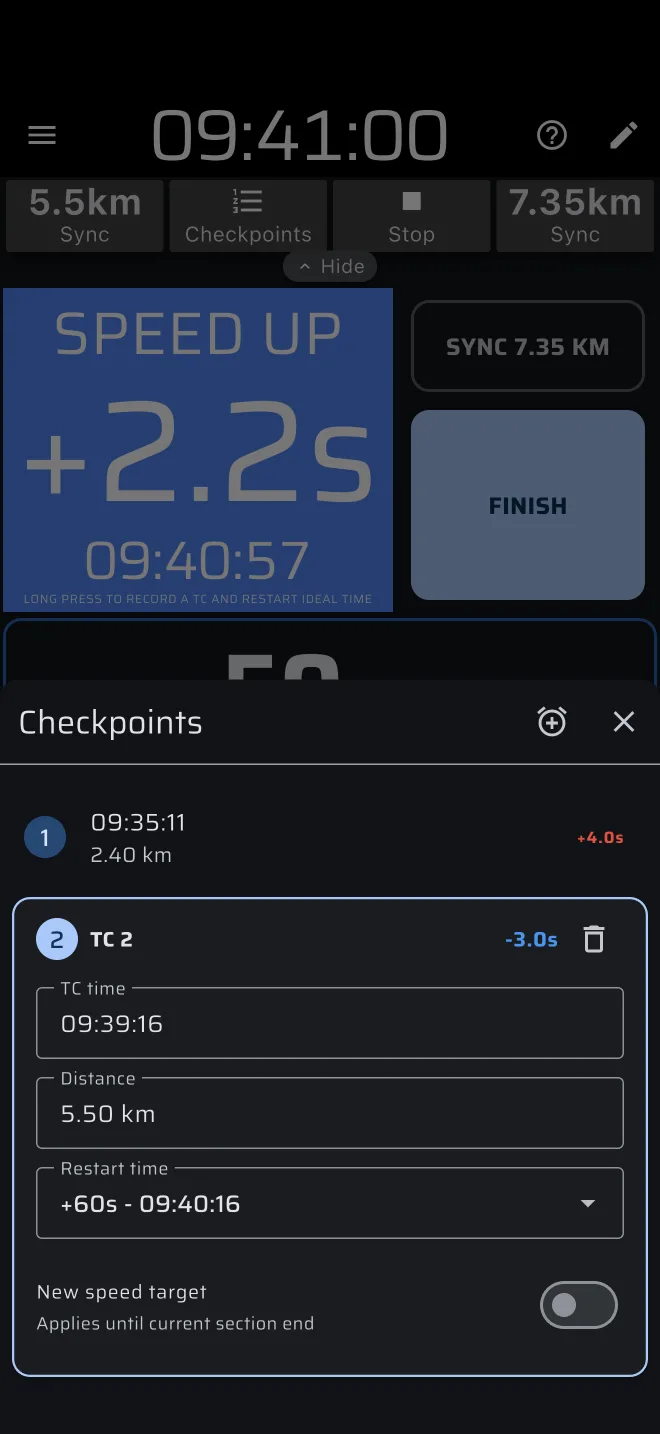
The list has one row per TC, with the numbered circle, the TC time, the distance and the offset. The offset is your TC time minus the ideal arrival time at the TC distance. The ideal time counts from the restart of the TC before it, or from the stage start for the first TC. + is late and - is early. In this sheet late is red and early is blue.
Tap a row to open it as a card with these fields:
- TC time
- Distance
- Restart time
- New speed target
- a bin icon to delete the TC
The icon at the top of the sheet, with the tooltip Record TC, adds a TC at your current trip and time. The app saves every change at once. There is no Save button.
Fixing a wrong TC
Open the Checkpoints sheet and tap the row of the TC.
You pressed a TC button by mistake. Tap the bin icon. The ideal time at once goes back to counting from the TC before it, or from the stage start. A section that moved on by Next Section + Restart stays moved on. That is normally what you want, because you were at the boundary.
The TC is right but the values are wrong. Tap TC time or Distance and enter the right value. The app recalculates all offsets and the live Ideal Time at once. Use this when the co-driver pressed a second late: enter the time you passed the point. Use Restart time if you need a different dead time.
New speed target
The New speed target switch changes the target speed from the TC to the end of the section the TC is in. Switch it on and enter the speed. Use it when the organiser announces a new speed at a time control.
If the TC is exactly at a section boundary, the next section gets the new speed. The switch stays on when you open the card again, and the timeline shows the speed in use.