Service and history
After a stage or a day, every finished run is already in History. This page shows how to read the runs and export the track.
Where your runs are saved
Every stage you finish is saved automatically. This applies to Race and Recce runs and to regularity stages. A stage you cancel before it starts is not saved.
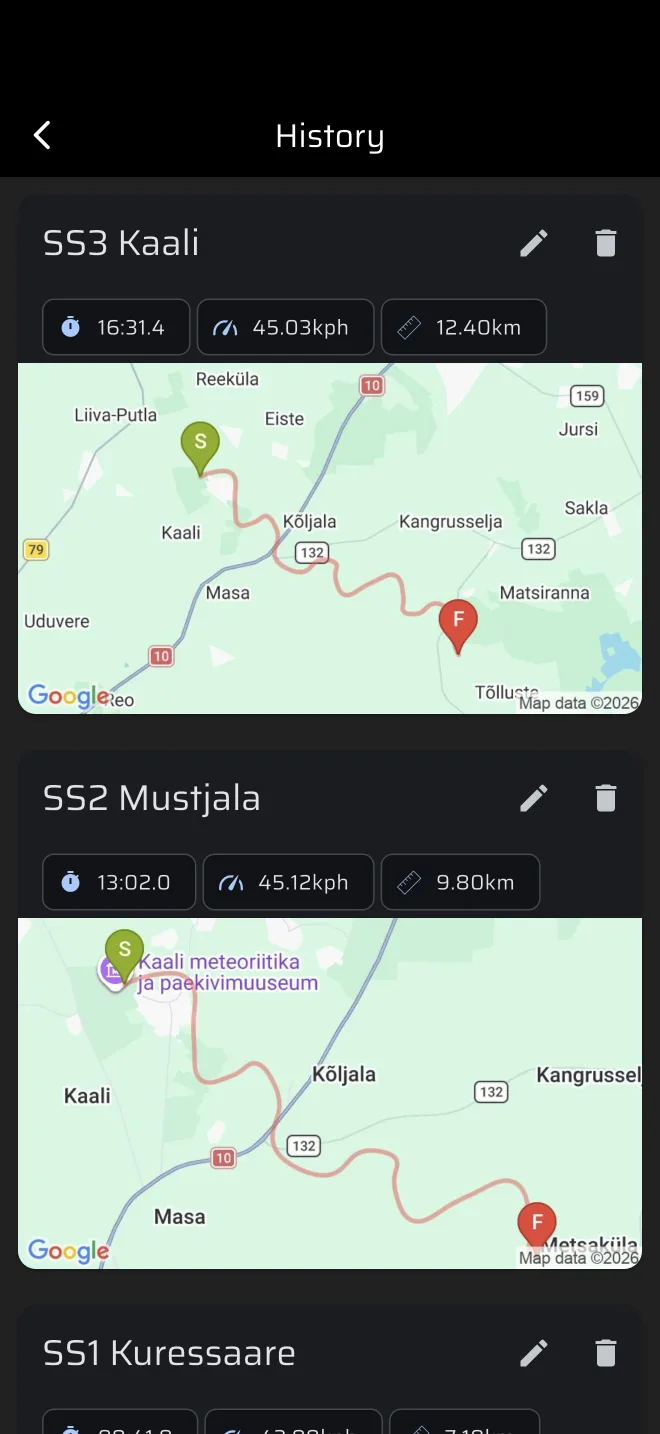
Open the drawer and tap History (under Library). Each run is a card with:
- the stage name, or Untitled if it had none;
- the stage time, the average speed and the distance;
- a map of the track, with S at the start and F at the finish.
Use the pencil icon to rename a run and the bin icon to delete it. Delete asks you to confirm (Delete stage?).
Runs are stored online, in your account. A run that finishes without a connection shows in the list at once, with a cloud-off icon (Waiting to sync), and uploads when the phone is online again. See Saving without a connection. Guests see a banner at the top of History that invites them to sign in.
Distance in History
The distance on the card is the length of the recorded GPS track. It is not the trip, so it does not include your calibration factor.
Telemetry
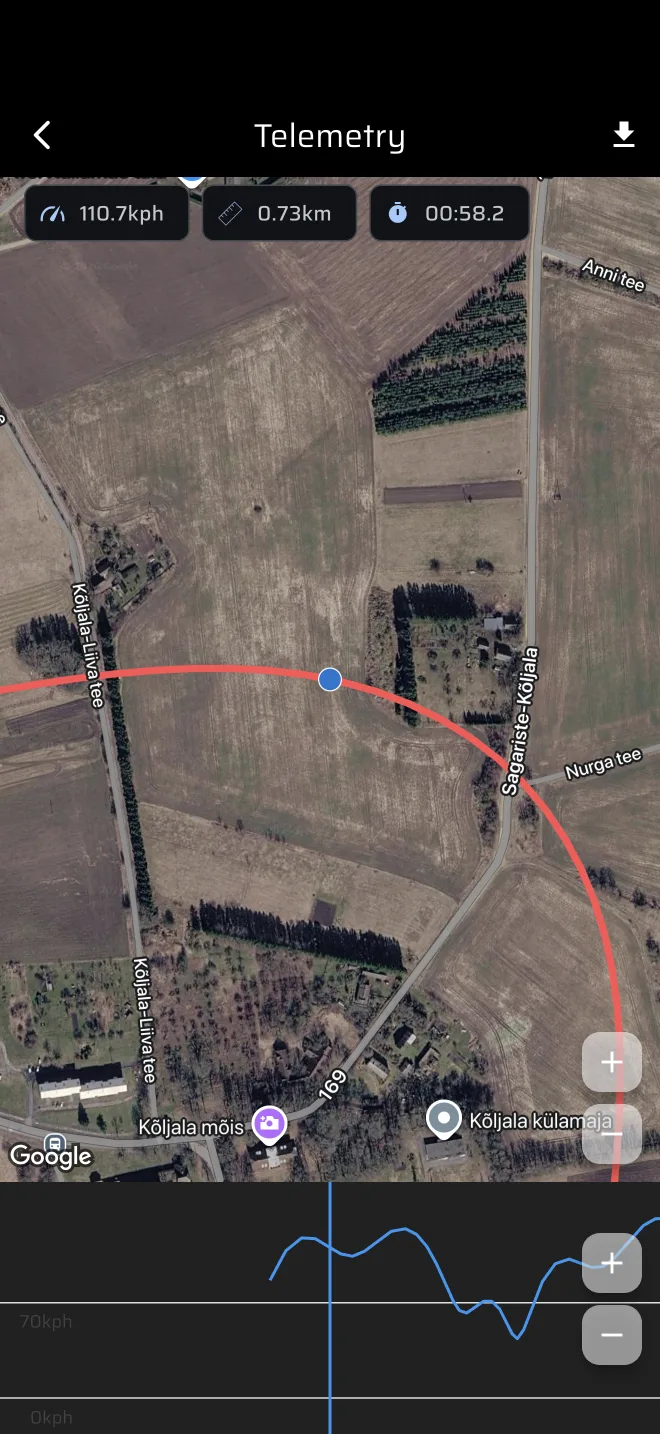
Tap a run to open Telemetry:
- The map shows your track, centred on the point you are looking at.
- The speed graph below it shows speed against distance.
- Drag along the graph. The map moves to that point, and the chips above the map show the speed, distance and stage time at that point.
- The download icon in the top bar exports the track as a GPX file through the share sheet.
A run needs at least two GPS points to open in Telemetry. A run with fewer shows an empty screen.
Comparing runs
The app has no side-by-side comparison. To compare two runs of the same stage:
- put the stage time, average speed and distance of the two cards next to each other in the History list;
- open each in Telemetry and drag to the same distance to compare speed at a corner or a crest.
To compare section splits during the stage, use the Section Trip and Section AVG in Race mode (see Timing a stage). Those values are not stored in History.
In the service park
- Routes. Drawer, Library > Saved Routes. Open a route and use Export route to send it as GPX, KML or GeoJSON. GPX works with Garmin, Strava and OsmAnd.
- Stages. In Library > Stages, tap the share icon next to a stage to send it as an
.rtstagefile. Anyone with the app can import it from the Import stage icon in the Stages screen. - Battery. GPS with the screen on drains the battery quickly. Plug the phone in at service and in the car.