Account and sign-in
The app has no profile with driver or co-driver names. It has an account. The account keeps your stages, history, routes and plan, and lets you move them to another phone.
Guest and signed in
You never have to sign in to use the app. Until you do, you are a guest. The app gives a guest an anonymous account in the background the first time it needs to store something online. Your stages, history and routes sync to it.
The guest account lives only on this phone. If you delete the app or change phones, a guest cannot get the data back. If you sign in, the data belongs to a Google or Apple account that you can open on any phone.
| Guest | Signed in | |
|---|---|---|
| Tripmeter, all modes your plan allows | Yes | Yes |
| Stages, history and routes stored online | Yes, on this phone's guest account | Yes, on your account |
| The same library on another phone | No | Yes |
Guests see a banner with Sign in to sync your data across devices. in the stage list, the history and the saved routes.
The Account screen
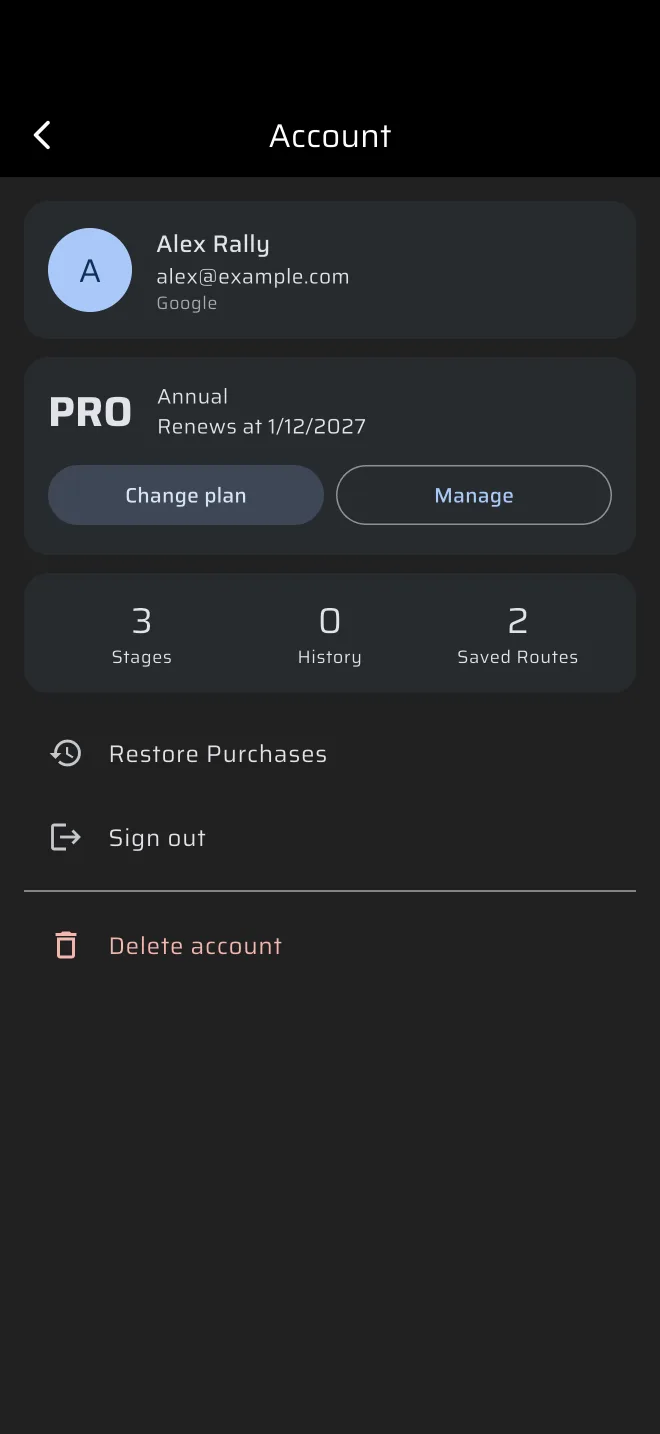
Open the drawer and tap the account header at the top. It shows your avatar, your name (or Sign in for a guest) and your plan. The Account screen has these parts, from the top:
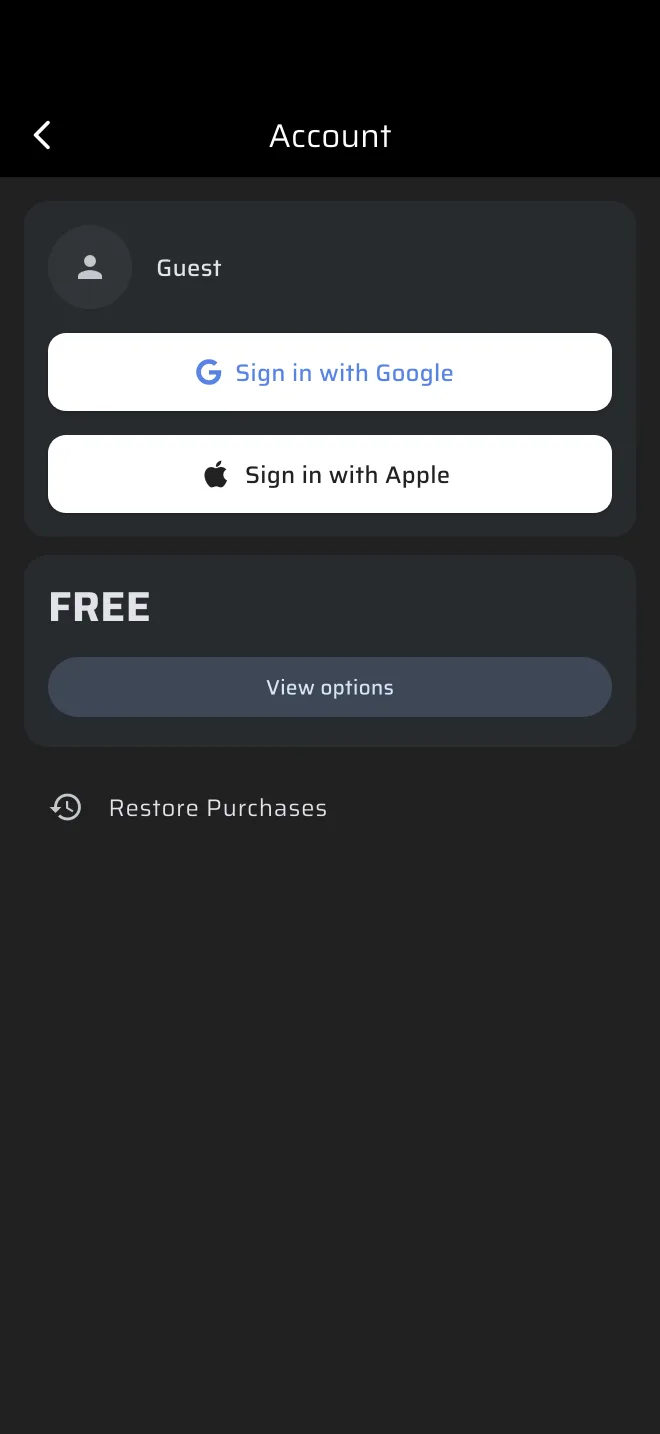
- Profile card. Your name, your email and Google or Apple, whichever you signed in with. A guest sees Guest and the Sign in with Google and Sign in with Apple buttons in the same card.
- Plan card. Your plan: Free, Basic or Pro. When the store has them, it also shows the billing period and when the plan renews or expires. The button is View options on Free and Change plan on a paid plan. A plan bought in the App Store or Google Play also has Manage, which opens the store's subscription page. See Licences and plans.
- Counts card. How many Stages, History runs and Saved Routes the account holds. A count shows once its list has loaded.
- Restore Purchases.
- Sign out, for a signed-in account. It asks Log out? first. After signing out you are a new, empty guest. Sign in again to get your library back.
- Delete account, in red, for a signed-in account. See below.
Sign in
- Open the drawer and tap the account header.
- In the profile card tap Sign in with Google or Sign in with Apple.
The data you recorded as a guest stays with you. If the Google or Apple account is new, the guest account simply becomes that account. If the account already exists, for example from your other phone, the app moves the guest data to it. If the move fails, the app says Signed in, but moving your recorded data failed. It will be retried the next time the app starts.
A plan you bought is tied to your store account. When you sign in or out the app syncs your purchases. If the plan does not show, tap Restore Purchases on the Account screen, see Licences and plans.
Delete the account
On the Account screen tap Delete account and confirm Delete account?. This removes your account and its cloud data for good: stage history, routes and shared routes. Data that is stored only on this phone stays. A subscription is not cancelled by this, because the store manages it. Cancel it in the App Store or Google Play.
After the deletion the app starts again as a new guest.
The live tracking identifier
If you share your position, other people see a short identifier of up to three characters next to your marker. You set it in the Share live location sheet, which the Live chip in the drawer opens. See Live tracking.