Running a stage
This page follows a stage from loading to finish and shows what the app does at each step. The details of each mode are on its own page.
Stage types and stage modes
There are three stage types: Race, Recce and Regularity. Each type has its own stage modes:
| Stage type | Modes |
|---|---|
| Race | Race, Rally Raid |
| Recce | Recce |
| Regularity | Regularity | TSD |
Each type keeps its own stage. A Race stage, a Recce stage and a Regularity stage can be loaded at the same time, and each mode shows the stage of its own type. Race and Rally Raid share one stage.
Only one stage runs at a time. A stage runs from the moment it is armed (waiting for its start) until it finishes. If you start a stage while a stage of another type runs, the app asks Stop the type stage?. Stop ends the other stage and starts the new one. A stage that had already started is finished and saved to History. A stage that was only armed is cancelled.
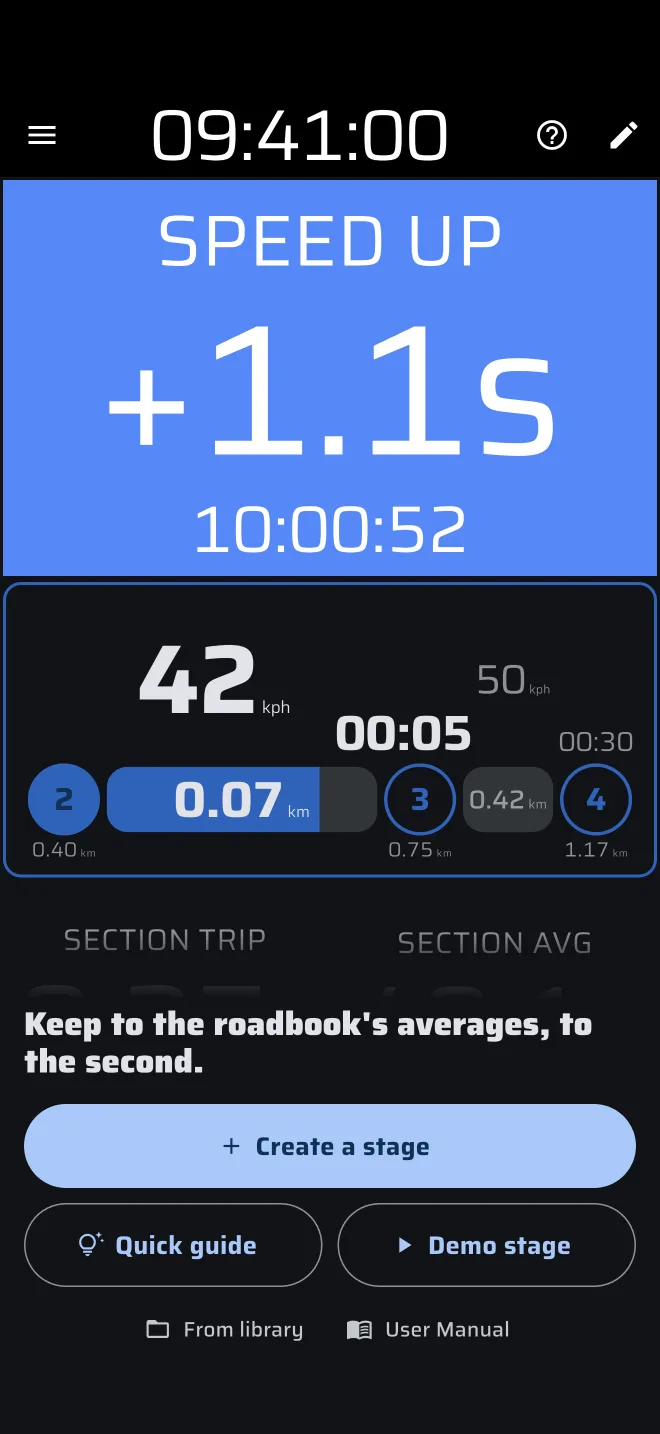
The no-stage screen
A stage mode with no stage of its own type shows its no-stage screen. The mode's screen plays a short sample drive in the background. Over it a panel has a one-line description and the ways to start:
| Mode | Big buttons | Small links |
|---|---|---|
| Race, Rally Raid | Start a stage now, Create a stage | From library, Quick guide, User Manual |
| Recce | Create a stage | From library, Quick guide, User Manual |
| Regularity | TSD | Create a stage, Quick guide, Demo stage | From library, User Manual |
- Create a stage opens the stage sheet with an empty form.
- From library opens the stage library. Tap a stage and the stage sheet opens with it. The link shows only when the library has a stage.
- Start a stage now starts a Race stage at once, with no form. The timer runs from the tap. The stage finishes by Tap, so you end it with a tap on the Stage Timer. No tips follow. The Quick guide is under Quick guide and the ? icon.
- Quick guide shows tips on the live screen of the mode. Demo mode drives the car during the guide. In Regularity | TSD it drives a sample stage on its own screen instead, without Demo mode. It works with an empty Pro fuel tank too.
- User Manual opens the page of the mode in this manual.
While the panel is shown, a tap or a long press on the screen does not reset any trip.
Load
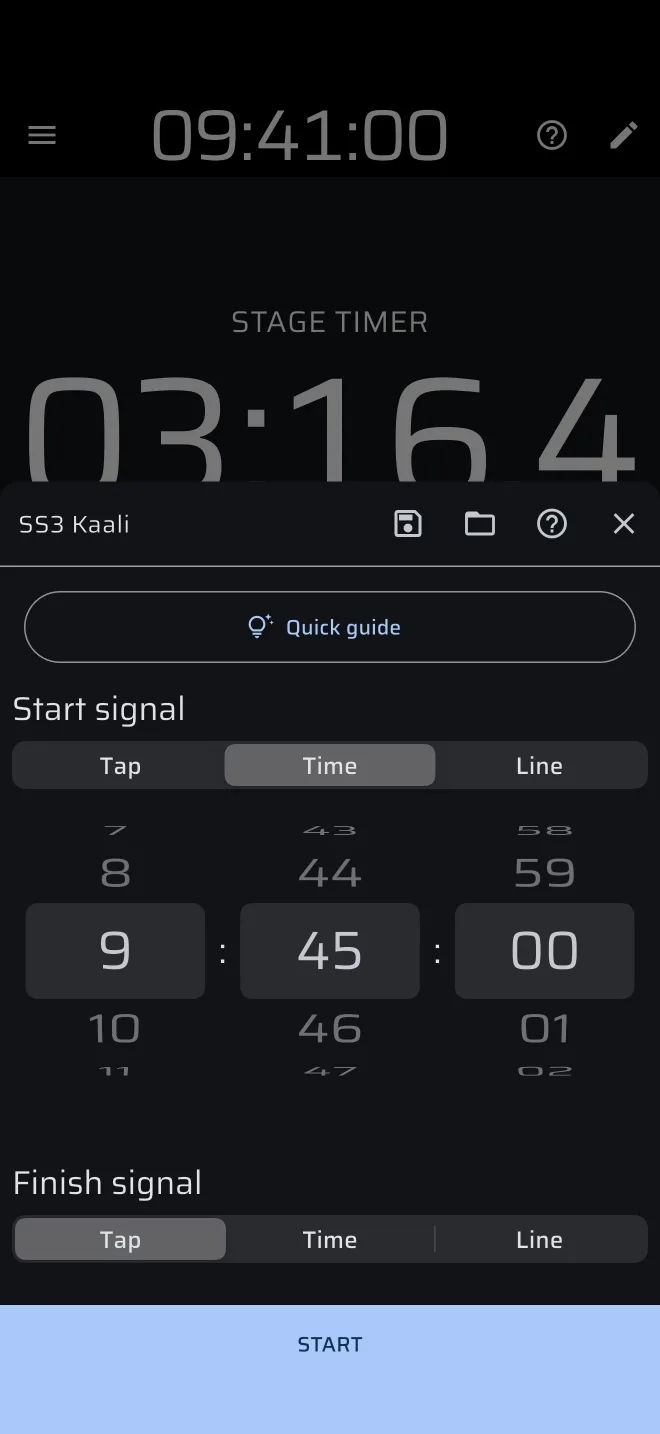
The stage sheet opens from the no-stage screen, with Create a stage or From library. It also opens when you tap the screen after a finished stage in Recce. In a custom layout it opens from the Stage Timer, Ideal Time or the Reset button of the Stage toolbar.
The sheet shows the form of the stage type: the same fields as the stage editor. At the top is the Stage name field with these icons:
| Icon | What it does |
|---|---|
| Save | Saves the form to the stage library. |
| Folder (Load) | Opens the library. Tap a stage and its values fill the form. |
| ? | Offers Quick guide and User Manual. Hidden when Hide hints is on. |
The sheet has its own Quick guide: tips that walk you through the form, field by field. Until you have used it, or started or saved a stage from the sheet, a wide Quick guide button is at the top of the sheet. After that the guide is under the ? icon. It is also in the drawer: Quick guides > Creating a stage.
At the bottom is Start. You do not have to save a stage to run it.
Regularity stages without sections
If a Regularity stage has no sections, Start asks Start without sections?: The regularity tools will have nothing to track against. Confirm to run it anyway.
Pro fuel
The stage modes are Pro modes. Without Pro they are free to open and look at, and real driving uses the daily Pro fuel: 40 km a day (the figure can change). A gauge under the app bar shows how much is left today, and at the bottom of the stage sheet a line says Free Pro fuel left today: with the distance.
- The fuel is checked when you press Start in the sheet. With an empty tank the sheet You are out of fuel opens, with Go Pro and Save stage. Save stage keeps what you entered in the library. For a Regularity stage it also offers Drive it as a sample: you practise your stage on screen, as with the sample stage of the mode, not on the road.
- Start a stage now checks the fuel too. With an empty tank it opens the out-of-fuel sheet with Go Pro only.
- A stage that is armed always starts, and a stage that has started always finishes, even when the fuel runs out on the way.
- Restart after the finish needs fuel again.
- With the tank empty and a finished stage on screen, the mode is covered by You are out of fuel: Today's free Pro fuel is used up. Go Pro or come back tomorrow. It offers Go Pro and Enable Demo mode.
- With no stage, the no-stage screen stays open: Quick guide and the sample use no fuel, and Start opens the out-of-fuel sheet.
Demo mode uses no fuel. See Licences and plans.
Arm and start
Start creates the run and closes the sheet. What happens next depends on the start signal, see Start triggers:
- Tap: the stage waits. Start it with a tap.
- Time: the stage waits for the clock time, and counts down in the last 30 seconds.
- Line: the stage waits for the phone to cross the line.
- Recce: the stage starts at once, and Trip 1 is reset.
The stage trip and the section trip are set to the start distance of the stage (0 for Race and Recce).
During the stage
The trips of the stage run while the stage runs. Switching to another mode only changes the screen: the stage keeps running. Modes without a stage type of their own, such as Tripmeter or a custom layout, show the stage that runs.
- Pause in the trip toolbar stops the distance of the trips. In Regularity the ideal time keeps running, because it is a clock.
- The plus and minus buttons correct all the trips, including the stage trip.
- In Regularity, the section buttons and the TCs work on the stage. See Regularity | TSD mode.
- The speed, the highest speed and the track are recorded.
The stage lives in the memory of the app. If the app is closed or stops, the running stage is gone.
Finish
A stage ends when its finish signal fires, or when you end it. See Start triggers. In Regularity, on the last section Next Section + Restart reads Finish and ends the stage.
The final time stays on screen. The run is saved to History with its track. A run that finishes without signal shows in History at once and uploads when the phone is online again (Waiting to sync). A run that you cancel before it starts is not saved.
Restart or reset
- Reset in the stage toolbar clears the finished stage, and the mode shows its no-stage screen again. In Race and Rally Raid a tap on the finished Stage Timer does the same.
- Restart resumes the finished stage. It is for an accidental finish. The time between Finish and Restart is left out of the stage time. The trips do not count while the stage is finished, so if the car moved, correct the distance at the next landmark. In Regularity, see the warning on Regularity | TSD mode.
Several stages in a day
When a stage is finished, reset it and load the next one from the no-stage screen. A stage that you want to drive again must be in the library: save it, and load it later with From library. Each finished run is a separate entry in History.