Trips and averages
Trip 1 and Trip 2 count distance. Average speed mode adds the average of Trip 2, so you can see at a glance whether you are on pace.
Tripmeter mode
- In the drawer, tap Tripmeter. It sits on its own at the top of Modes, above the discipline groups.
- The screen shows Trip 1, Trip 2 and Speed.
A typical use: reset Trip 1 at each point of the roadbook (a junction, a village sign, a landmark) and read the distance to the next instruction. Keep Trip 2 as the running total for the section or the day.
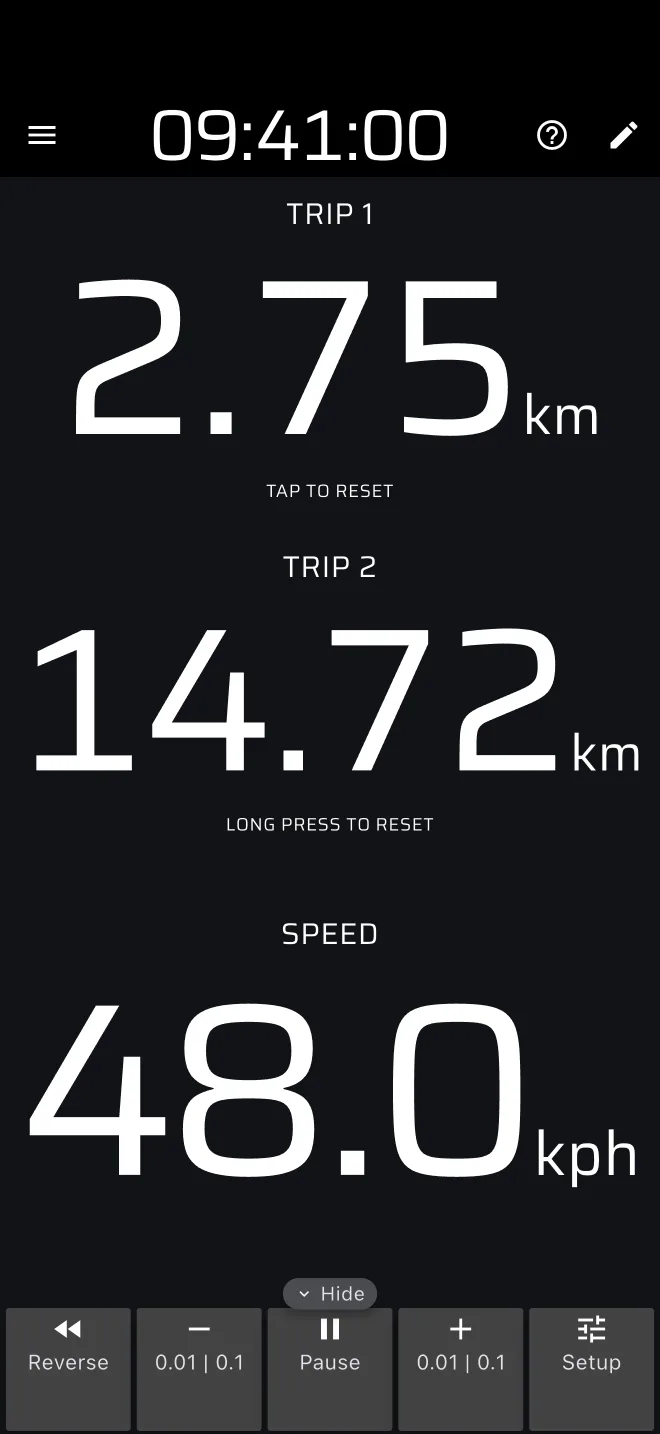
By default, tap anywhere on the screen resets Trip 1, and long press anywhere resets Trip 1 and Trip 2 together (and the section trip when a stage is loaded). Tapping a trip does not reset only that trip.
A long press zeroes your running total
On a bumpy road a long press can happen by accident, and it clears Trip 2 as well. In Settings, group User inputs, change Default screen long press actions. For example, tick Reset Trip 2 only, or leave it empty. Then Trip 2 can only be reset on purpose. See User inputs.
The trips show two decimals, in km or miles, truncated rather than rounded. Trip 1 and Trip 2 follow the Distance unit in Settings > Units, or a unit of their own under Trips. For example, keep km and set Trip 1 to mi for a roadbook in miles.
Average speed mode
Average speed is a Pro mode: without a Pro plan it runs on the free daily Pro fuel. In the drawer, open Road, touring and classic and tap Average speed. The screen shows Trip 1, Trip 2, Trip 2 AVG and Speed.
Trip 2 AVG is the distance of Trip 2 divided by the time since Trip 2 was last reset, in the Speed unit, kph or mph. It counts the time you stood still, at a junction or at a control, because it is plain elapsed time. Pause stops both the distance and the clock, so use it when you stop for something that the average should ignore.
Reset Trip 2 when the average should start: at the start of a timed section, or when you leave a control.
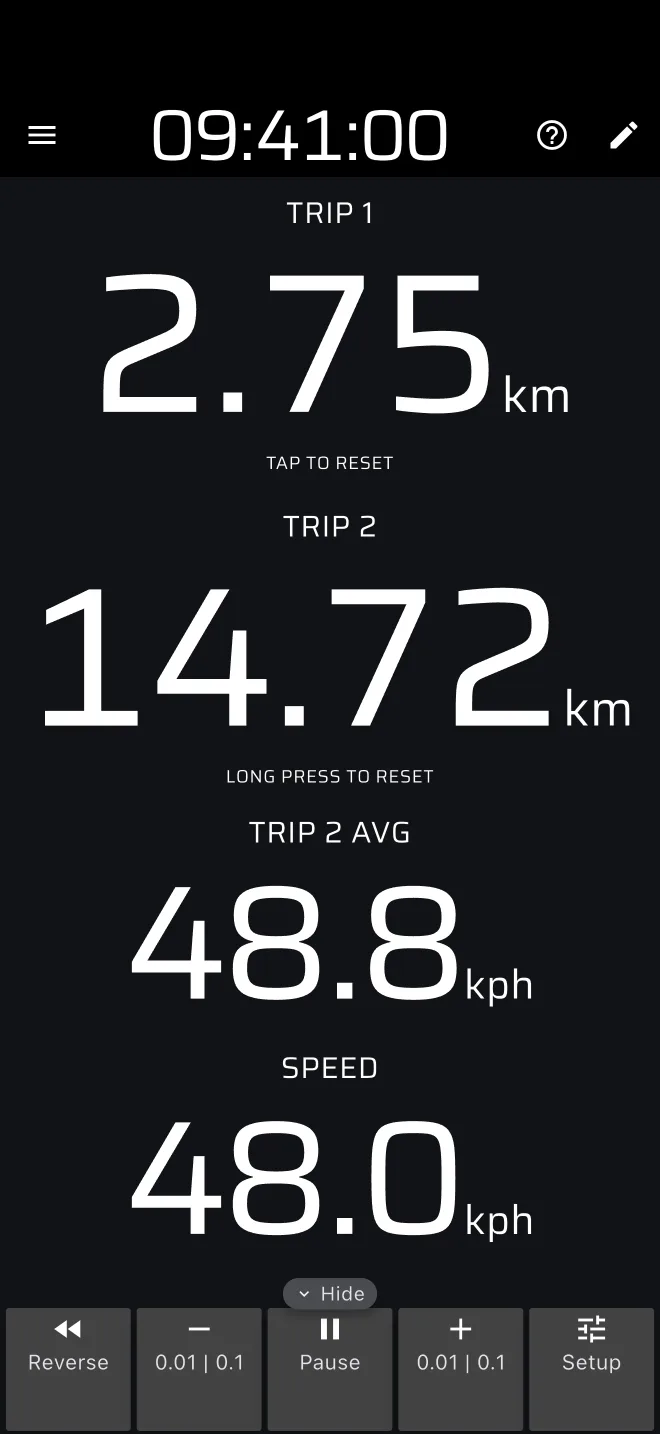
The averages of Trip 1 and of the other trips are not on this screen. A custom layout can show Trip 1 AVG and the others.
Typing in a trip value
The Setup sheet lets you type a distance, an average speed, or both, into one trip. Use it to recover after the app was restarted, or to start from the roadbook's figures. The steps are in Roadbook navigation. The trip then counts on from the values you typed.
Staying on schedule
The app does not tell you whether you are early or late. It shows the figures, and you compare them with the roadbook.
- Compare Trip 1 with the distance the roadbook gives to the next instruction.
- Reset Trip 2 when the average should start. Trip 2 AVG is then your average since that moment. If the regulations require a given average speed for the section, a lower figure means you are behind.
- For the time to the next control, use Liaison mode.
If the event times sections against an ideal time with penalties for early and late arrival, use the Regularity | TSD mode instead. See the Regularity guide.
Corrections
The trip toolbar is at the bottom of the screen (on the right in landscape). If it is hidden, tap the Show tab at the edge. The buttons, from the left: Reverse, minus, Pause, plus and Setup.
- Tap minus or plus to change the trips by 0.01. Hold a button to step by 0.1, faster the longer you hold. Each trip steps in its own unit, km or miles.
- Minus and plus change all trips at once. To change one trip, use its row in Setup.
- Reverse makes the trips count down. Use it if you must drive back to a missed instruction. Tap it again to count up.
- Pause stops the trips and their clock.
The Calibration factor in Settings matches the app's distance to the organiser's. The range is 0.8 to 1.2 and the default is 1.0. An amber warning at the bottom of the drawer shows when it is not 1.0. See Calibration, and Roadbook navigation for the corrections in more detail.