Turning the roadbook into a stage
This chapter takes a roadbook time table and builds the stage in the app, section by section. You finish with a saved stage you can share to another phone.
Do this at home, the night before. Each stage takes a few minutes to enter. Give each stage a clear name, for example "PM 1 - Village to Crossroads". It saves time at the start line.
New to the app? Drive the 5-minute sample stage first, see Try it first. And know how your event times you before you enter the stage, see Two separate choices.
Create the stage
- Open the drawer and, under Library, tap Stages.
- Tap the plus button. The stage editor opens.
- Tap the title at the top of the screen, where the hint reads Stage name, and type a name.
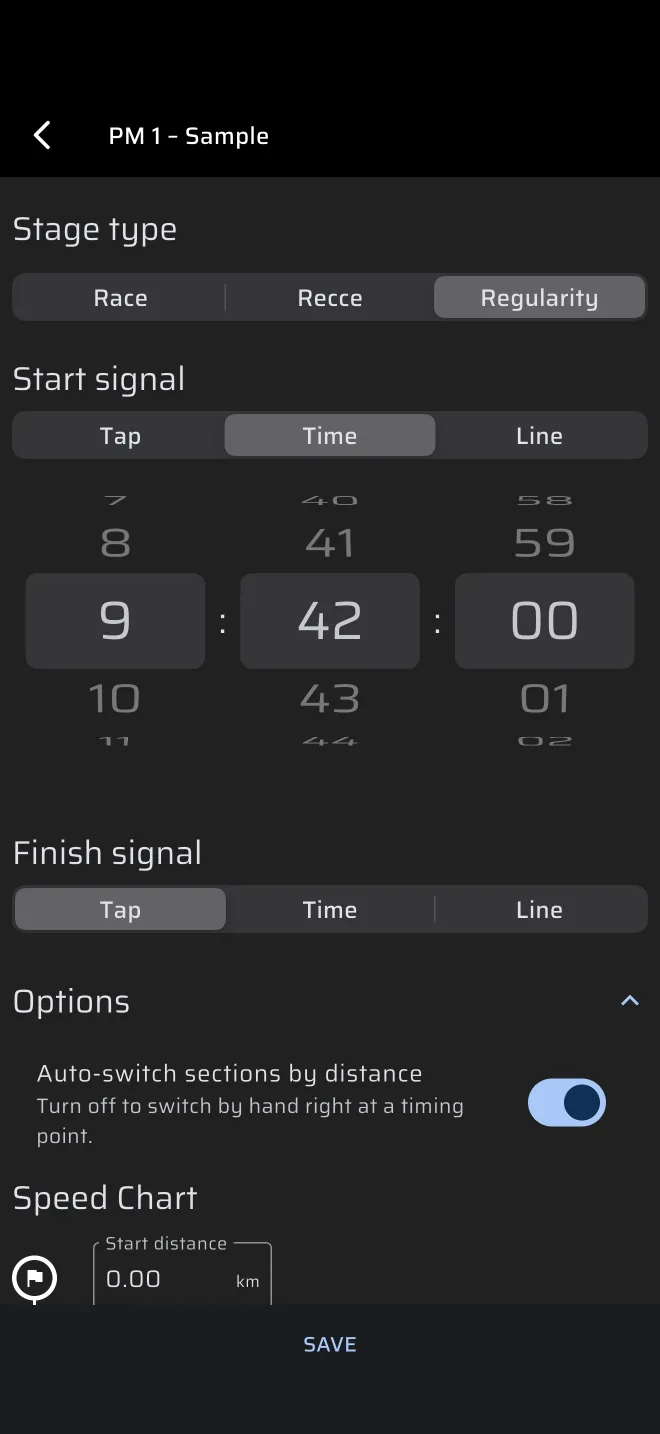
- Under Stage type, choose Regularity. A new stage starts as Race, so this step matters.
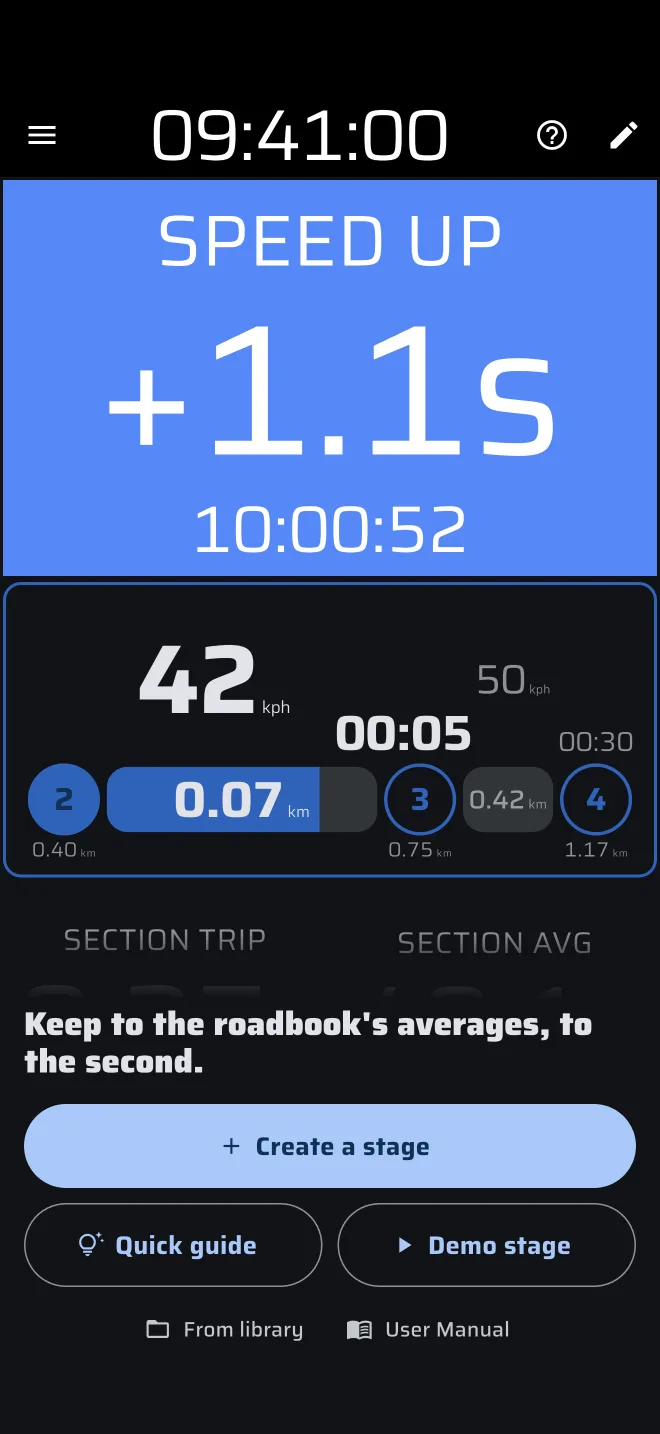
You can also build a stage on the Regularity screen. When no regularity stage is loaded, Regularity | TSD shows a short demo of the screen behind a panel with Create a stage, Quick guide and Demo stage. Tap Create a stage. The stage sheet opens with the same fields and the type already set to Regularity. The sheet is for the stage you are about to drive. For stages you prepare in advance, the editor in Library is easier.
Until you have used it, the stage sheet has a Quick guide button at the top. It walks you through the fields of the stage you are entering: the name, the start and finish signals, a section, the options, Start and the save icon. The ? at the top of the sheet offers the same guide later.
Next come the Start signal and the Finish signal. Each is Tap, Time or Line:
- Tap: the stage starts when you tap the start button.
- Time: the stage starts at a clock time. You set hours, minutes and seconds with wheels. The default is the next full minute.
- Line: the stage starts when the phone crosses a line you draw on a map. The app works out the start time between two GPS fixes.
Regularity stages almost always use Time for the start, because the organiser gives you a start time at a traffic light. Chapter 5, Rally time and the start, covers it. For a flying start over a marked line, use Line.
The stage cannot end by distance. It ends with the Finish signal you choose: Time, crossing a Line, or Tap, where you press the finish button yourself. Chapter 8 covers finishing.
A saved Time start has no date
A stage saves the start as a time of day only. When you start the stage, the app uses that time today. If you reuse a saved stage on another day or at another event, check the start time. Chapter 5 shows what happens if it is wrong.
Fill the speed chart
The Speed Chart is the roadbook time table in the app. It is a list of sections. Each section is a stretch with one average speed. When the average speed changes, a new section starts.
At the top of the chart is Start distance, with a flag. It is the roadbook distance where the test starts. Leave it at 0.00 if your table counts from the start of the test. If the table uses the roadbook odometer and the test starts at, say, 12.30 km, enter 12.30. The stage trip then begins at 12.30 and reads the same as the roadbook odometer.
Then tap ADD SECTION once for each row of the table. For every section, fill in two of the three fields Distance, Speed and Time. The app works out the third:
- Distance and speed give the time.
- Distance and time give the speed.
- Speed and time give the distance.
If you change a field later, the app updates the others. Changing Distance or Speed recalculates Time. Changing Time recalculates Speed.
Enter distance in km (or miles) with two decimals, and speed in kph (or mph). Choose Time with the wheels as hours, minutes and seconds. The units are the Distance and Speed units in Settings > Units. See Units.
Under each section are two more fields, Total distance and Total time. They show the totals up to the end of that section, and you can type into them. Use them when your table gives odometer readings and times counted from the start, as many roadbooks do. Type each row's total distance in Total distance and its total time in Total time. The app subtracts the previous row to get the section. Total time must be larger than the previous row's, or the app ignores the entry.
Here is the small test from chapter 1 in the chart. Start distance 0.00.
| Section | Distance | Speed | Time | Total distance | Total time |
|---|---|---|---|---|---|
| 1 | 5.00 km | 40 km/h | 07:30 | 5.00 km | 07:30 |
| 2 | 3.00 km | 30 km/h | 06:00 | 8.00 km | 13:30 |
| 3 | 4.00 km | 48 km/h | 05:00 | 12.00 km | 18:30 |
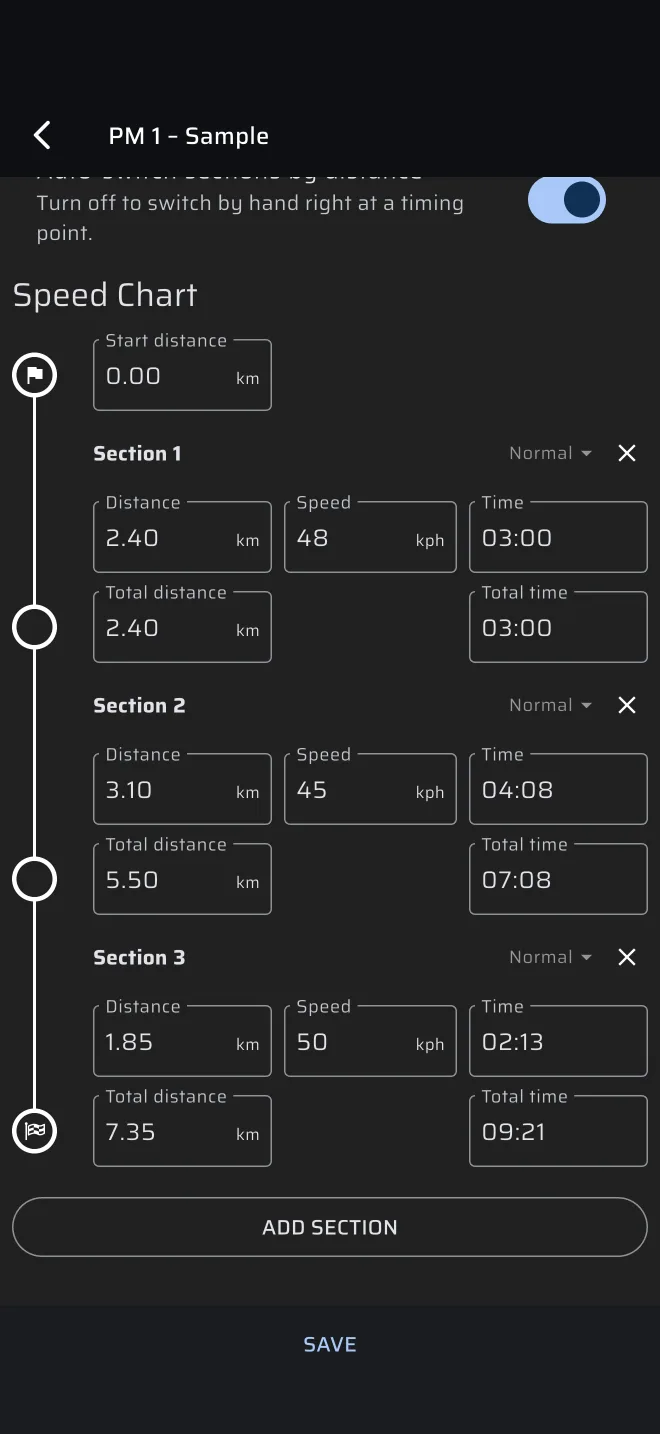
To remove a section, tap the cross at the right of its title. The sections are numbered Section 1, Section 2 and so on.
Every section needs a distance (except Distance unknown) and a speed above zero. If one is missing, the field shows an error and the stage will not save or start.
Section types
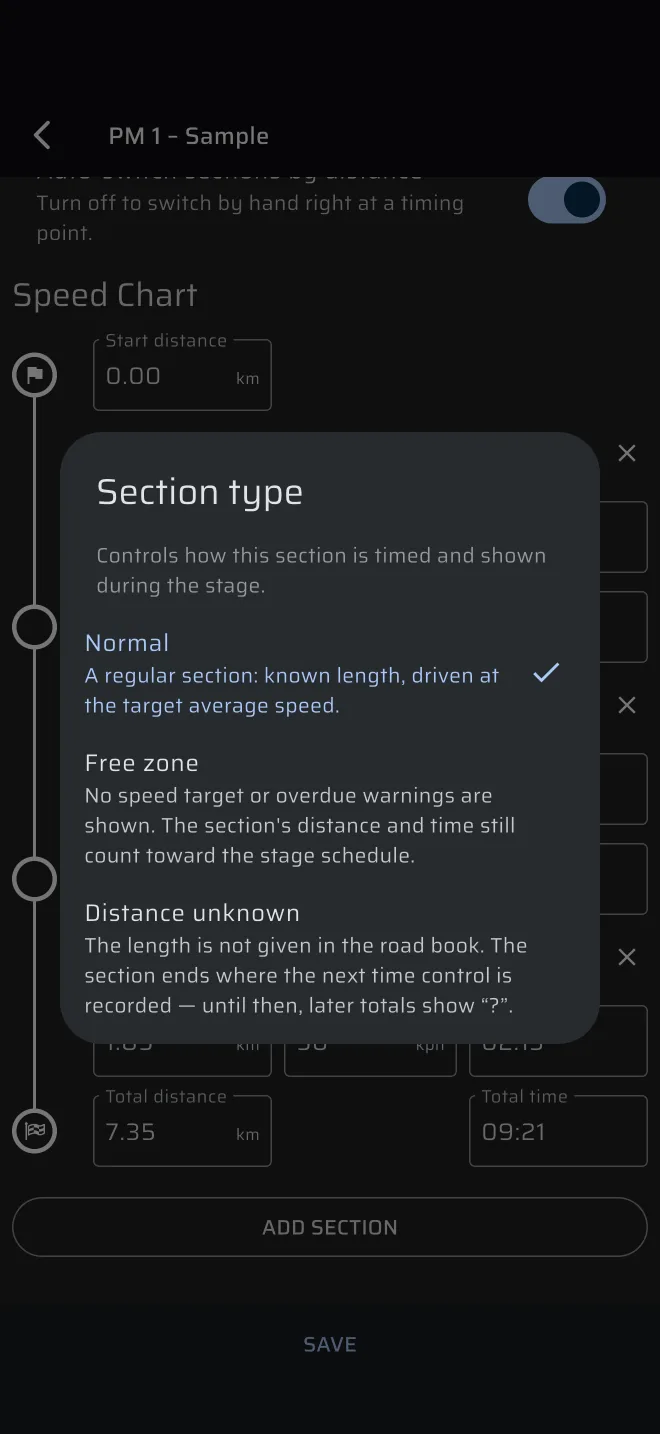
Each section has a type, shown at the right of its title, at first as Normal. Tap it to open Section type and choose:
- Normal. A regular section with a known length, driven at the target average speed.
- Free zone. While you are in it, the app shows no target speed and no overdue warning. The distance and time of the section still count in the stage schedule, so enter a speed anyway.
- Distance unknown. The roadbook does not say how long the section is. The Distance and Time fields show a question mark, and so do the totals of this section and of every later section. The section ends where you record the next time control in the car. Until then, the later totals stay unknown.
Enter the speed for a Distance unknown section too. The app needs it to work out the ideal time once the length is known.
Options
Below the start and finish signals is the Options group. It has one switch, Auto-switch sections by distance, on by default:
- On: the section changes by itself when your stage trip reaches the end of the section. You correct the distance with Sync at the landmark.
- Off: you change the section by hand with Next Section, right at the landmark or timing point.
The switch does not decide whether the ideal time restarts. Both settings have a plain button and a + Restart button, see Two separate choices. The full description is in Creating stages.
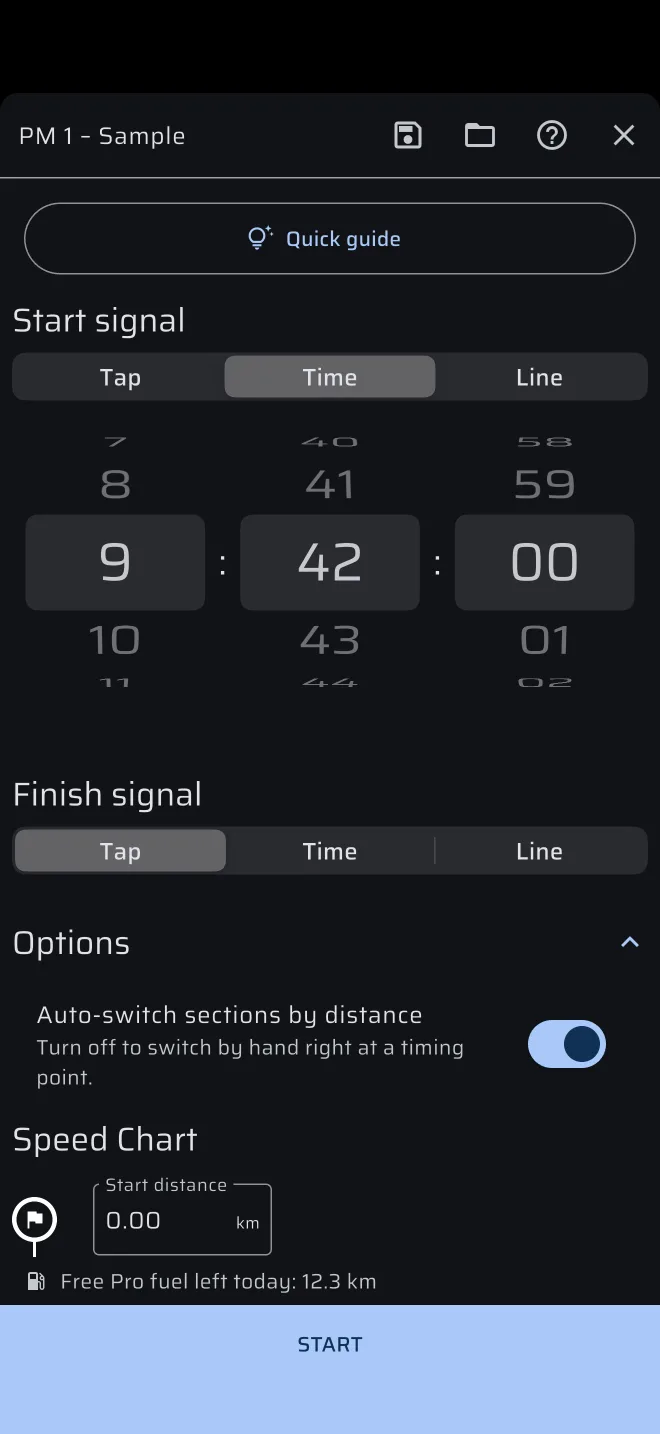
For a first stage, keep the default. Chapter 6, Driving a test, and chapter 7 explain the buttons in the car.
ALTA and BASSA
Some tables give two sets of average speeds for the same route: a high and a low set (the Italian ALTA and BASSA, the Spanish Alta and Baja). You choose one when you enter. The sections and distances are the same. Only the speeds differ.
Save them as two stages, for example "PM 1 ALTA" and "PM 1 BASSA", with the same sections and different speeds. Load the one that fits your entry.
There is no "duplicate" button. To make the second stage without typing the sections again, share the first stage as a file and import it (see below). The import creates a separate copy that you can rename and edit. Saving an edited stage always overwrites the stage you opened.
Save and share to the driver's phone
Tap SAVE at the bottom of the editor. The stage is stored in Library > Stages. If you are signed in, it also appears on your other phones. If you close the editor without saving, you lose your changes.
Name the stage
The app lets you save a stage without a name. It then appears as Untitled in the list. Give it a real name.
To send a stage to another phone, tap the share icon at the right of the stage in Library > Stages (in the editor it is in the top bar) and choose how to send the .rtstage file. On the other phone, save the file, then open Library > Stages, tap the Import stage icon in the top bar and pick the file. The imported stage is your own copy. It is private, it has no link to the original, and it keeps the start time it was saved with. Sharing stages has the steps and the error messages.
Tapping the file in a message does not open it in the app. Use Import stage.