Calibrating
This chapter shows how to measure the app's distance against a known distance and enter a correction. Every ideal time depends on it, so do it before the event.
Why calibrate
The app works out the ideal time from the distance it counts. If its distance is 1 % wrong, every ideal time is about 1 % wrong. A section of 5.00 km at 40 km/h takes 7 min 30 s. 1 % of that is 4.5 seconds. That is enough to lose a test.
GPS distance is usually close, but it is not the organiser's distance. The organiser measured the route with a wheel or another instrument, and the roadbook follows that. On twisty roads GPS tends to read a little short. To find the difference, drive a distance that both you and the organiser know.
The general idea of calibration is in Calibration.
Find a measured section
Use a section whose length you trust:
- A calibration base marked by the organiser. Rulebooks often require the organiser to provide a measured base. Check your regulations for the length.
- Failing that, a stretch of road with kilometre posts, or a section of the roadbook that the organiser states as exact.
A longer base gives a better factor. A few hundred metres is too short, because a few metres of GPS error is then a large percentage.
Drive it at normal speed. If you drive it again, drive it the same way.
Compute the factor
The factor is the official distance divided by the distance the app counted.
factor = official distance / distance the app counted
Before you start, make sure the factor in the app is 1.0. If the drawer shows an amber warning, an old factor is still set. Set it back to 1.0 first (see Enter it and Check the drawer warning).
Then:
- Open Tripmeter in the drawer. It is free, and it shows Trip 1.
- At the start of the measured section, tap the screen to reset Trip 1.
- Drive the section.
- At the end of the section, read Trip 1.
Worked example. The organiser's base is 5.00 km. At the end, Trip 1 reads 5.03 km. The app counted 30 m too much.
factor = 5.00 / 5.03 = 0.994
Enter 0.994. From then on the app multiplies every distance it counts by 0.994, so 5.03 km becomes 5.00 km. If the app had read 4.97 km, the factor would be 5.00 / 4.97 = 1.006.
If you can drive the base twice, compute the factor for each run and take the average.
The trip display cuts, it does not round
The trips show two decimals and cut the rest. A trip of 2.9999 km reads 2.99. When you check a calibration, a difference of 0.01 km is normal. A long base makes 0.01 km a small part of the whole.
Enter it
- Open the drawer and tap Settings.
- Tap Calibration factor.
- The dialog shows a warning, We recommend leaving this setting at 1.0, and the calibration instructions. Enter the factor, for example
0.994. - Tap Set.
The factor must be between 0.8 and 1.2. Outside that range the dialog says More than 20% difference from default 1.0 and does not accept it. A factor that far from 1.0 almost always means a wrong base distance or a wrong reading. Check those first.
The dialog always opens with 1.0 in the field, whatever the current factor is. To see the current factor, look at the drawer (see below).
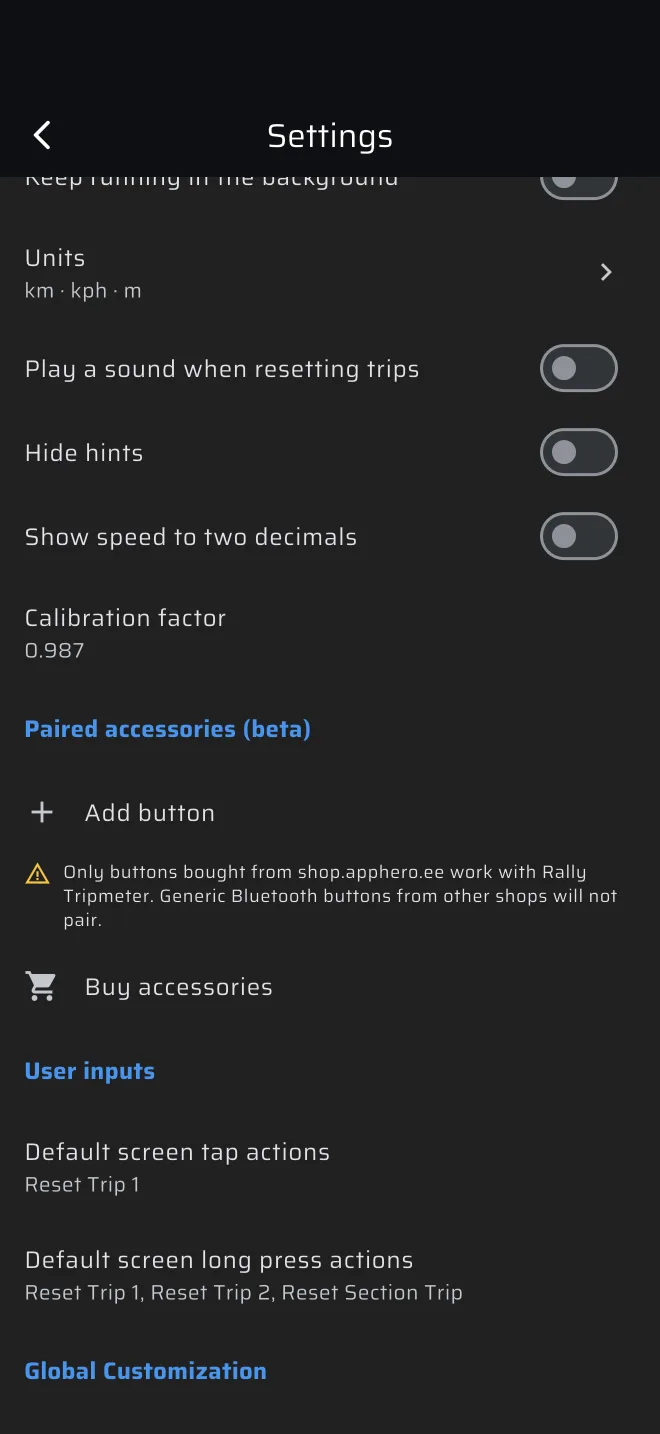
The factor applies to the distance the app counts from that moment. It does not change trips that are already counted. The speed shown is multiplied by the same factor. To remove the correction, enter 1.0.
Check the result. Drive the base again, or another measured section, and see that Trip 1 now agrees with the official distance.
Calibrate before the event
Change the factor before the event, not in the middle of a test. The new factor applies only to the distance counted from that moment on. The trips do not jump, but from then on they grow at a different rate, so the Ideal Time drifts away from where it was.
Check the drawer warning
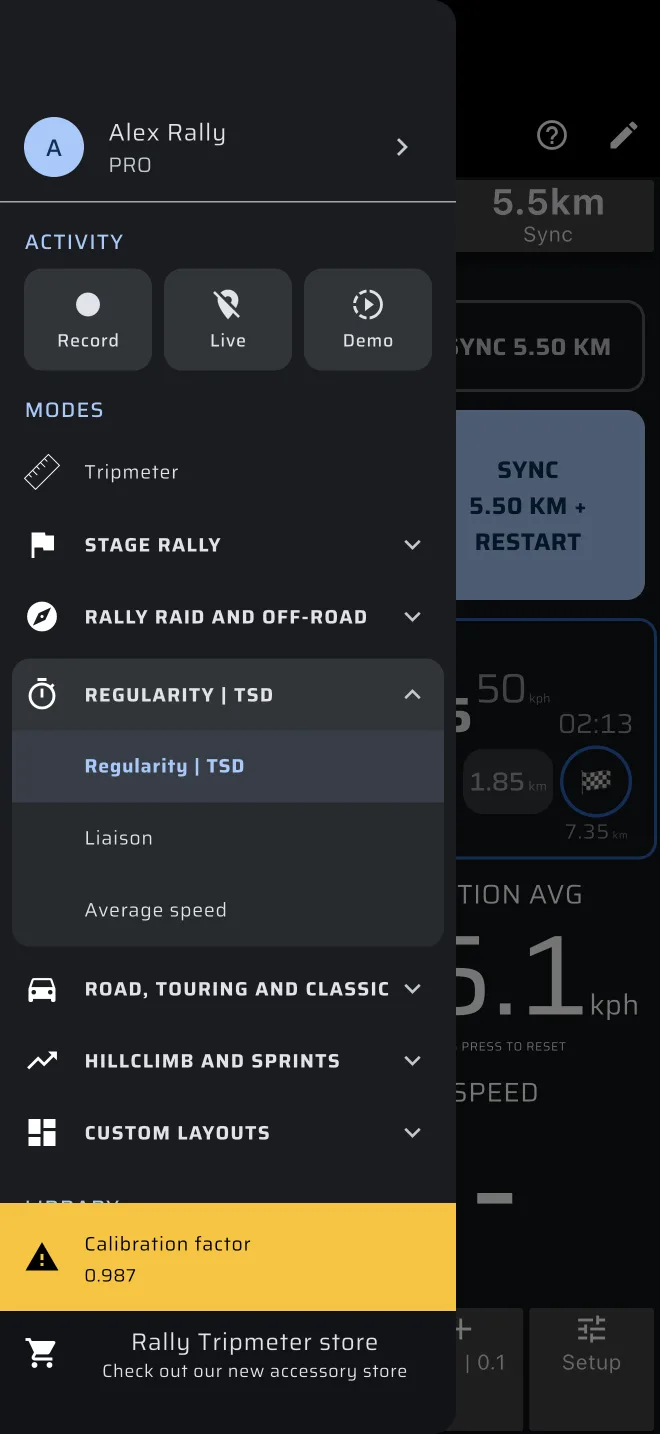
The factor is saved on the phone and stays until you change it. A factor from your last event is still there at the next one. So the drawer shows an amber tile at the bottom whenever the factor is not 1.0. It has a warning icon, the title Calibration factor and the value. Tap it to open Settings.
Open the drawer before every event and look for that tile. If it is there and you did not set it for this event, set the factor back to 1.0 and calibrate again. When the factor is 1.0, the tile is not shown.
A small error in the distance grows over a long test. If your gap grows steadily, early or late, check the factor first.