Tuning the notes
The tuning sheet changes how the generator turns the sensor data into notes. You can open it in three places:
- In the recording sheet or the Recce stage sheet, on the Pacenote tuning row, before a recording. The row shows the settings you changed and Crest calls: with the crest step. The sheet's button reads Save.
- In Drive a recording, before a demo drive, on the same row.
- On a recording, with Tune and regenerate in the app bar. The button reads Generate, and the notes are made again.
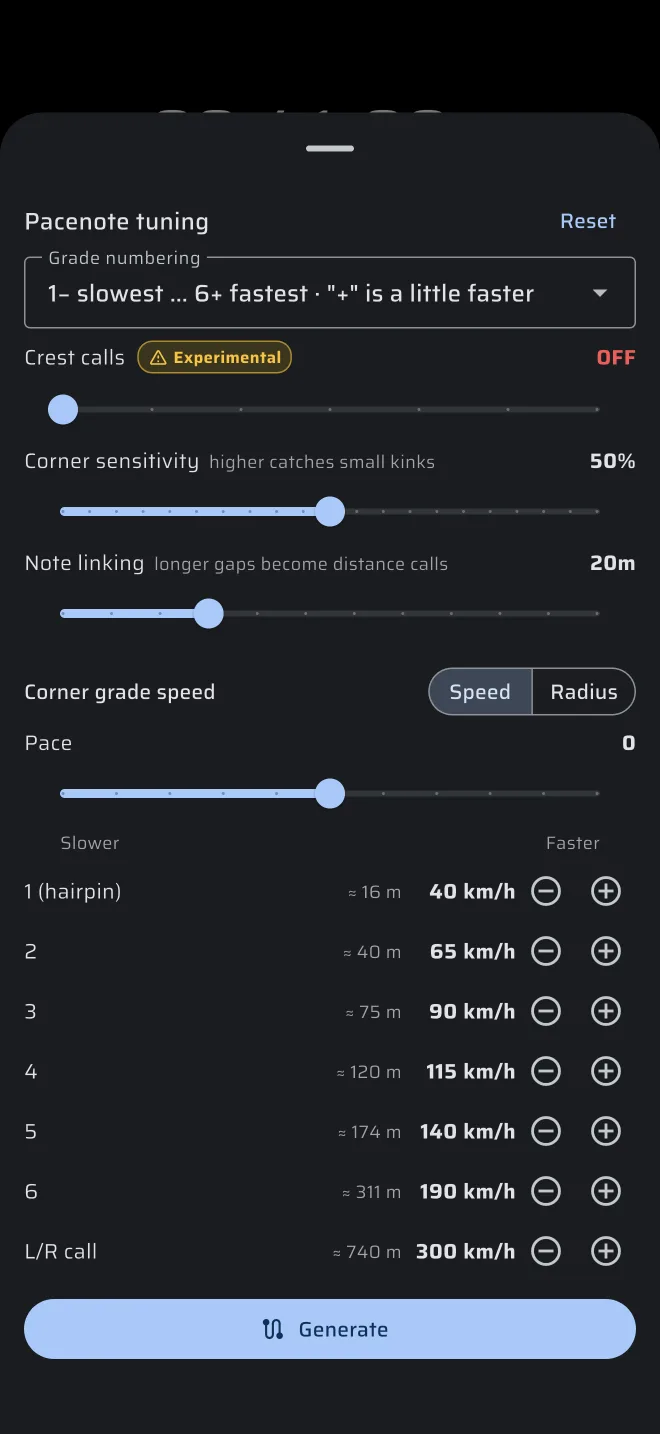
The tuning controls are still changing during early access.
Expect names, ranges and defaults to move between versions.
The tuning is one setting for the whole app. The live notes and every new recording use it. Reset at the top right of the sheet puts every control back to its default, with crest calls off. It does not change the grade numbering.
Grade numbering
A drop-down that sets how the grades are numbered on screen and in the PDF. There are three choices, each shown as its slowest and fastest grade and what + means:
- 1− slowest … 6+ fastest, where "+" is a little faster. This is the default.
- 6+ slowest … 1− fastest, where "+" is a little tighter.
- 6− slowest … 1+ fastest, where "+" is a little faster.
The choice only changes how notes are shown. It applies at once, and you do not need to generate again.
Crest calls
A slider with the label Crest calls and an Experimental badge. It runs from OFF at the far left through Severe only, Big +, Medium +, Small + and Slight + to All. Each step calls the smallest crest listed and everything bigger.
Crest calls are off by default. When they are on, the sheet warns: Crest calls can be wrong on flat roads or when the phone mount moves. The crest lamp in the live view only shows when the slider is above OFF.
Corner sensitivity
A slider shown as a percentage. Higher catches small kinks.
Note linking
A slider from 5 to 60 m. Longer gaps become distance calls.
Corner grade speed
By default a grade is the speed you take the corner at. The title reads Corner grade speed, and a Speed | Radius switch at its right picks how the grades are set.
Pace is a slider shown in steps from the default 0, from −5 to +5, with Slower at the left and Faster at the right. A faster car, a better surface or a braver driver all mean a higher pace: the same corner is taken faster, so it gets a faster grade.
Below it is a list of rows, from 1 (hairpin) through 2 to 6, and L/R call. Each row shows the top speed in km/h that is still called with that grade, and in grey the corner radius that speed means at the current pace, for example ≈ 16 m next to 40 km/h. Use the minus and plus buttons on a row to move it by 5 km/h. A row always stays at least 5 km/h above the one before it.
| Grade | Default speed |
|---|---|
| 1 (hairpin) | 40 km/h |
| 2 | 65 km/h |
| 3 | 90 km/h |
| 4 | 115 km/h |
| 5 | 140 km/h |
| 6 | 190 km/h |
| L/R call | 300 km/h |
With Radius the title reads Corner grade radius and the Pace slider is hidden. Each row shows the largest radius in metres still called with that grade, and in grey the speed it means at the current pace. The step is 5 m for small radii, 10 m for medium ones and 25 m for large ones. The radius defaults are the speed defaults turned into radii and rounded to 5 m, so both give nearly the same notes. Each scale keeps its own values when you switch.
The grade rows and Note linking are always in km/h and metres, whatever you chose in Settings → Units.