Recording
The route recorder saves your drive as a route: a GPS track plus any points of interest (POIs) you mark on the way. Saved routes appear under Library > Saved Routes. See Viewing routes.
Recording runs next to whatever mode you are in. You can record in Tripmeter, Race, Regularity or any other mode.
Start a recording
- Open the drawer.
- Under Activity, tap the Record chip.
- The recording sheet opens. Type a name in Recording name, or leave it empty.
- Tap Start.
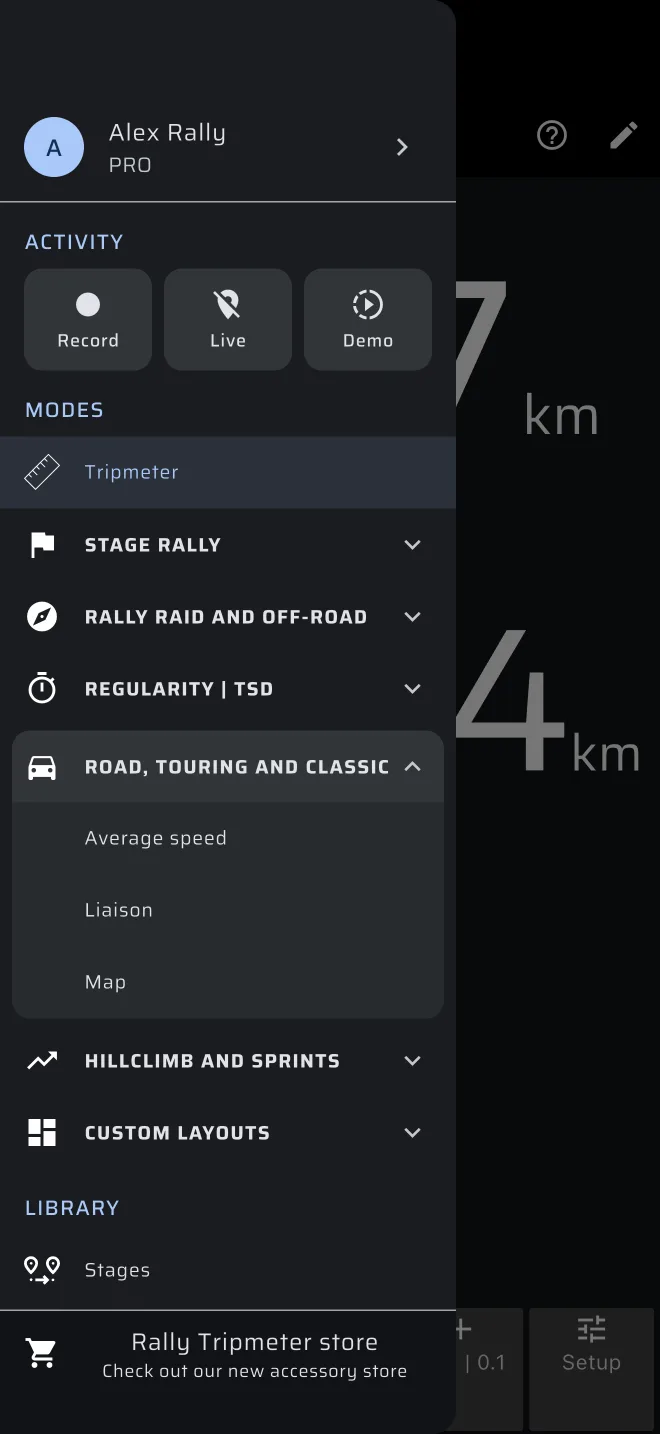
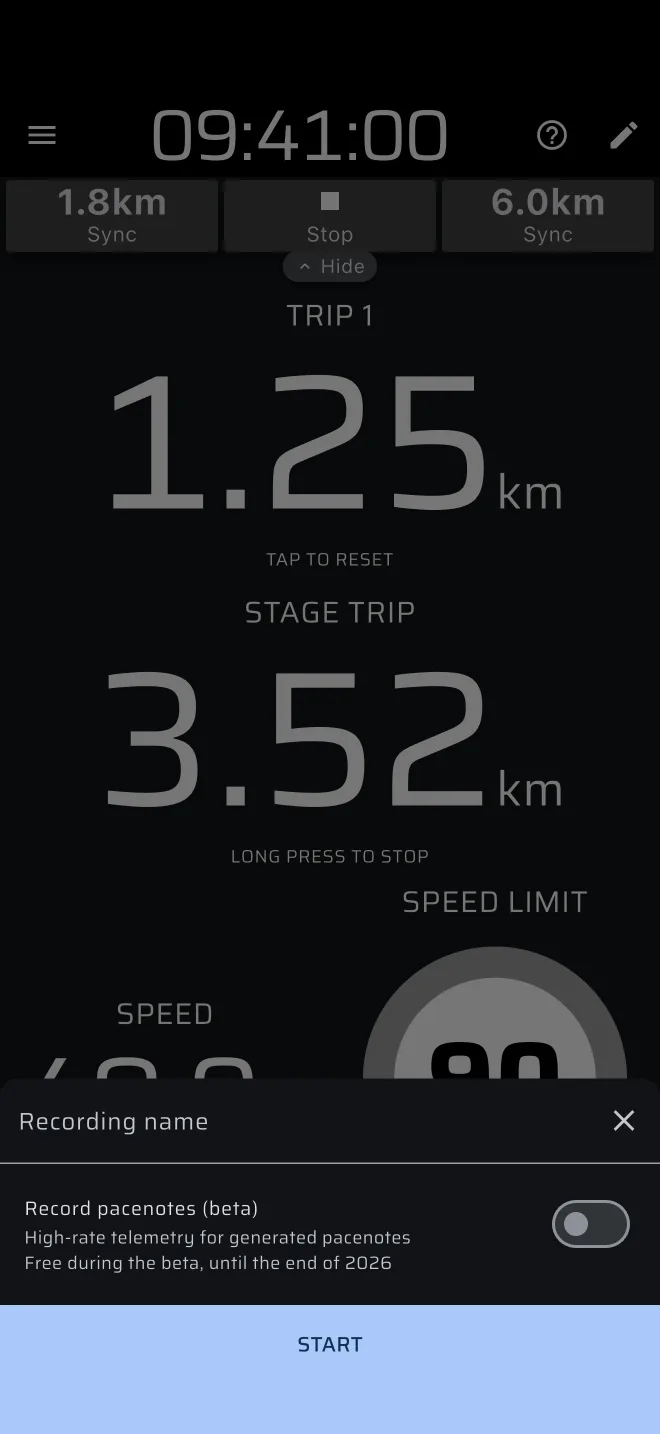
A recording needs a location. If location is off or not allowed, the app asks for it first. If you decline, the recording does not start.
The sheet also has a pacenote option with its own switch. It records high-rate sensor data for generated pacenotes and is separate from the route. A plain route recording leaves it off. See Recce and pacenotes.
While it records
The Record chip in the drawer turns red and shows the elapsed time. A recording bar shows above the screen in every mode except the custom layouts, with a blinking red dot, the elapsed time, the number of points kept so far (for example 128 pts), the add-location icon for a POI and the stop icon. In landscape the bar moves into the app bar instead.
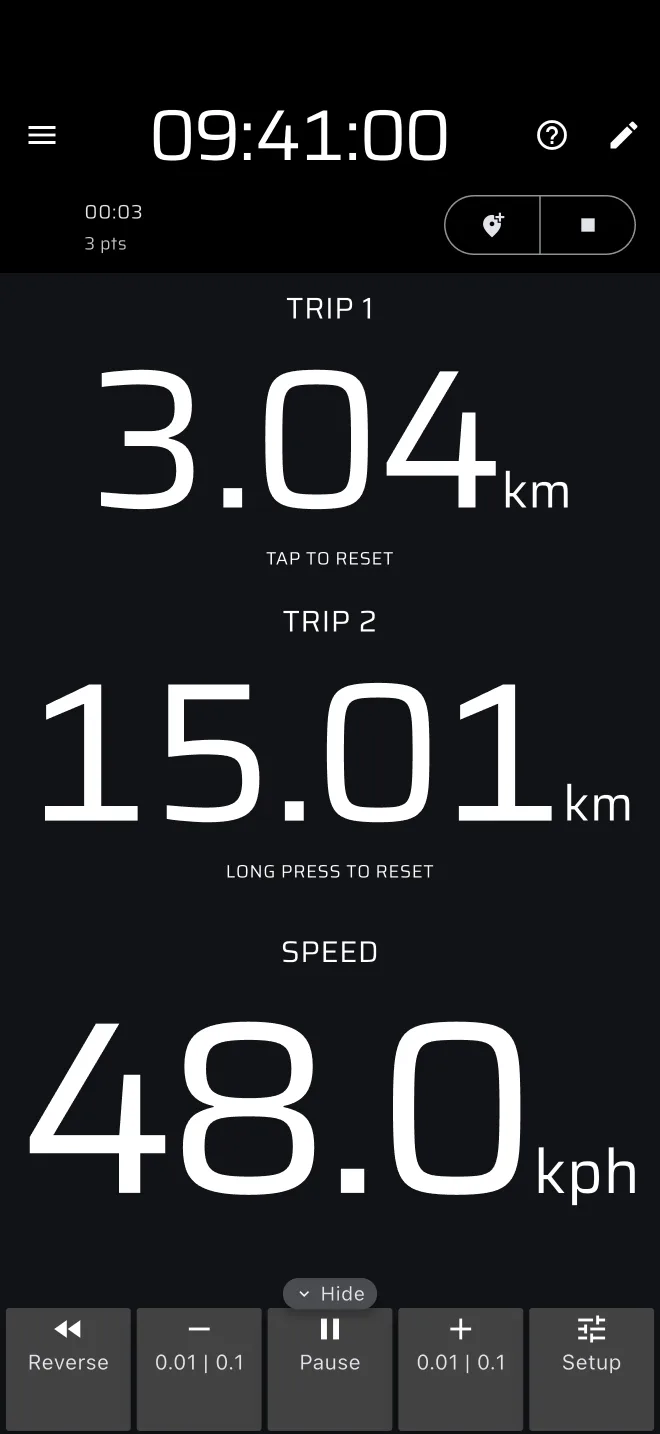
The recorder keeps one point per second. Each point holds latitude, longitude, altitude and the time.
Keep the GPS running
The recording follows the phone's GPS. If you lock the phone or switch to another app, the GPS may stop. Turn on Keep running in the background in Settings first. See General settings.
Add a POI
Tap the add-location icon in the recording bar. The Add POI sheet opens.
- Name (optional) and Description (optional) are free text.
- Type picks the marker: POI, Waypoint, Danger, Caution, Fuel, Service, TC, Medical, Parking or Junction. The default is POI.
Tap Add. The POI is placed at your current position and time. If the phone has no position yet, nothing is added.
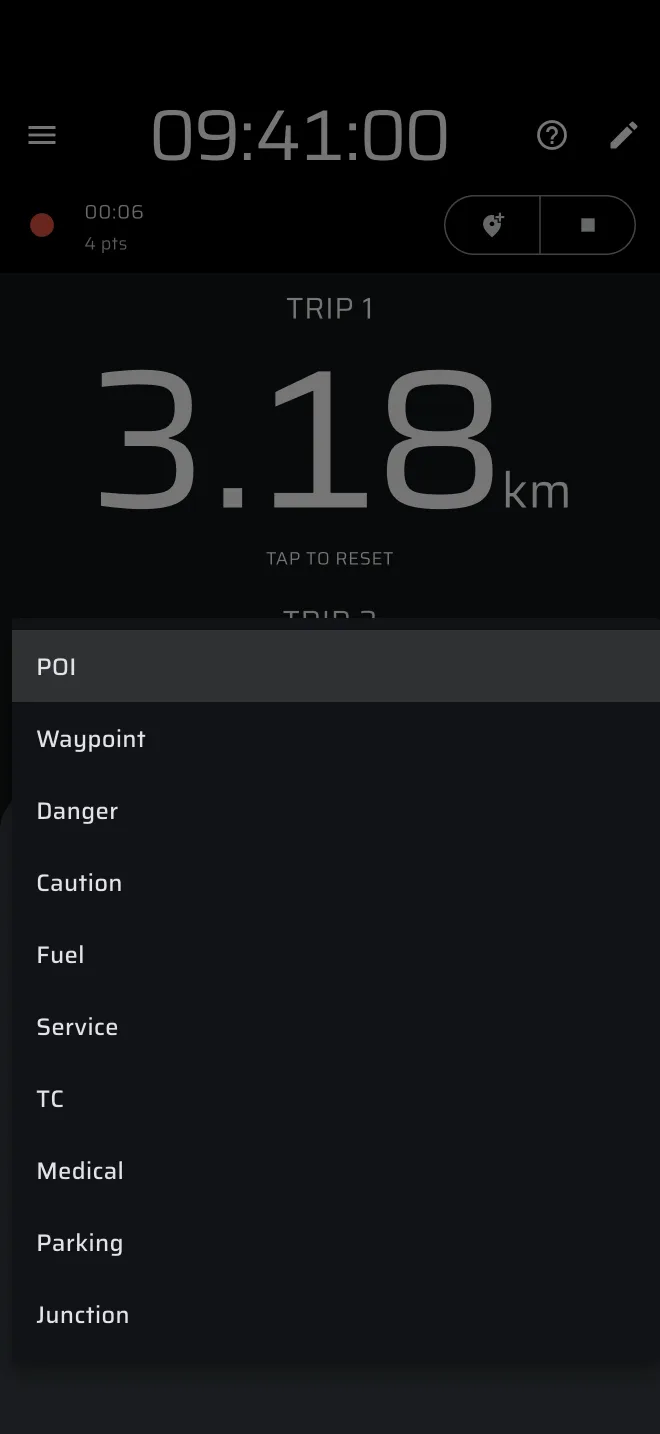
You can edit a POI after the recording. Open the route and tap the marker. See Viewing routes.
Stop and save
Tap the stop icon in the recording bar, or the red Record chip in the drawer. A Saved message appears. A saving overlay shows while the app closes the recording and saves the route. The route is then in Saved Routes.
- Nothing is saved if the recording holds no points.
- If saving fails, a Failed to save route message appears.
- A recording started in Demo mode, or a replayed drive, is not saved.
- Saving needs an account. If you are not signed in, the app uses an automatic guest account. See Viewing routes.
It stops by itself
A recording nobody stops ends on its own and is saved like any other. The app then shows a Recording stopped dialog. It stops when:
- the car has not moved for 15 minutes. "Not moved" means no position at 1 m/s or faster;
- or the recording reaches 90 minutes, whatever the car does.
For a longer drive, stop and start a new recording.