Liaison
Liaison mode is for the road sections between stages. It counts down to the next time control and keeps your trips and average speed next to it. It is a Pro mode, see Plans.
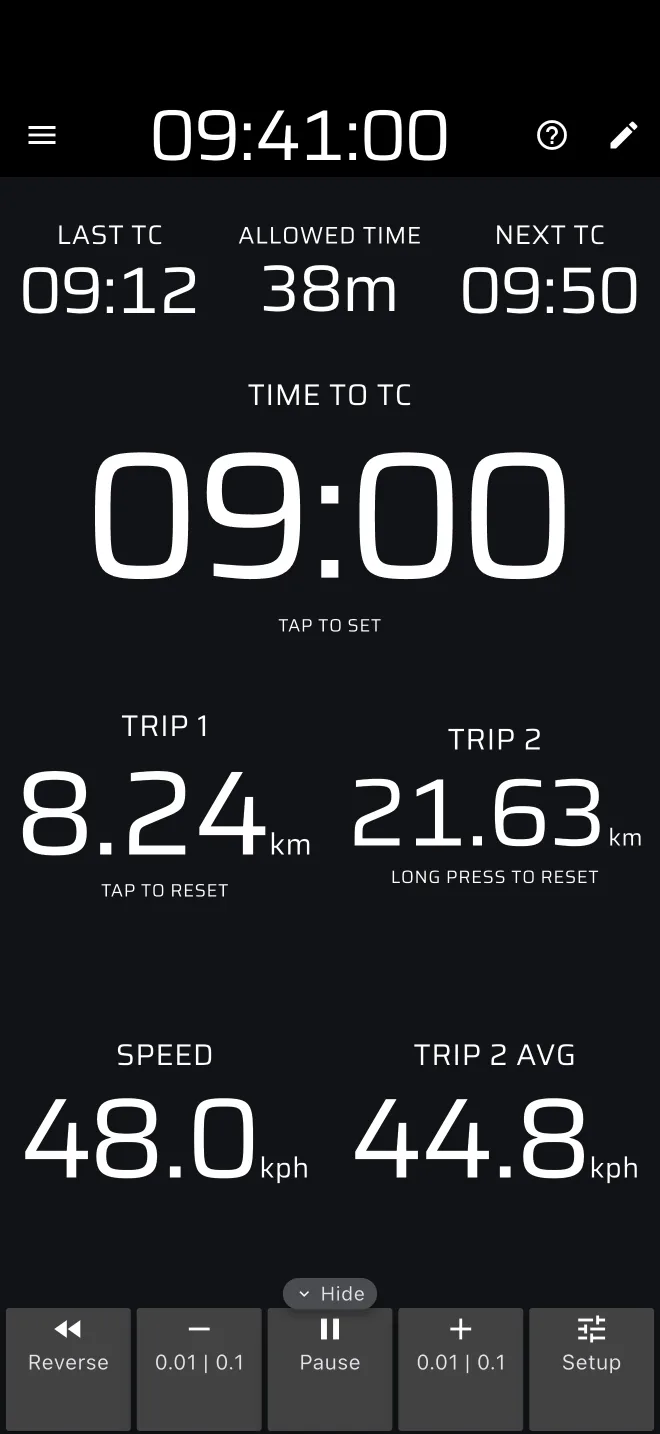
The screen
Top row, from left to right, and below it the countdown:
| Component | Shows |
|---|---|
| Last TC | Clock time of the last time control. Tap to set. |
| Allowed Time | Time allowed for this liaison. Tap to set. |
| Next TC | Clock time when the next control is due. |
| Time to TC | Countdown to the next control. |
Below them:
| Component | Shows |
|---|---|
| Trip 1, Trip 2 | The two trips. |
| Speed | Your GPS speed. |
| Trip 2 AVG | Average speed since Trip 2 was reset. See Average speed. |
At the bottom (right, in landscape) is the Trip toolbar.
Time to TC counts down in whole seconds and rounds up, so it reads 00:00 at the moment the control is due. After that it counts below zero with a minus sign. It uses the Rally Time of the app bar, not the plain phone clock. Set the Rally Time to the official clock first, see the Quick start.
The ? in the app bar offers Quick guide (tips on the live screen, while Demo mode drives the car) and User Manual. The Quick guide uses Simple and your own TC times.
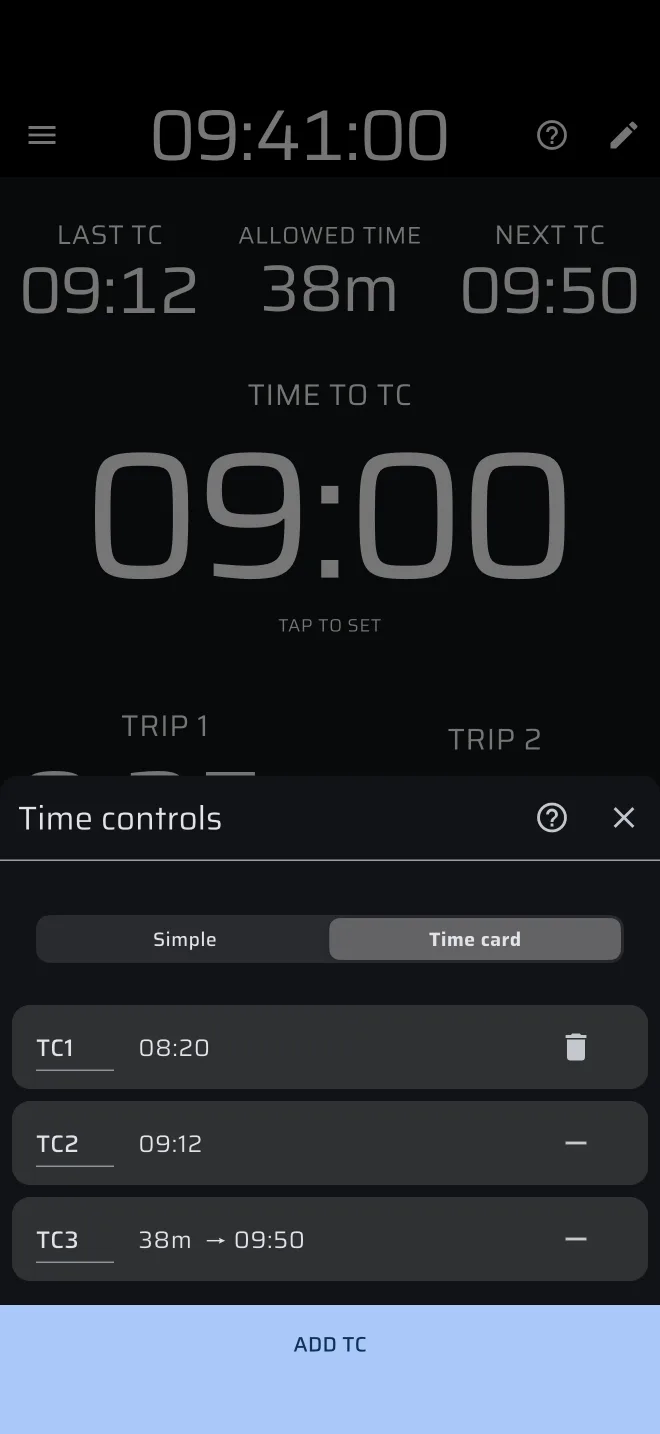
The Time controls sheet
Tap Last TC, Allowed Time, Next TC or Time to TC to open the Time controls sheet. At the top you choose Simple or Time card.
Simple
One liaison at a time. You enter two values:
- Last TC: when you left the last control.
- Allowed Time: the time allowed to the next one.
Next TC is Last TC plus Allowed Time. For the next liaison you enter new values.
On Simple the ? of the sheet opens the page of the manual on the time card.
Time card
The whole day. The sheet holds a list of controls, with Add TC.
- The first control is the Initial TC, a fixed time that anchors the card.
- Each further control is either Fixed time (a clock time) or Allowed Time (the time allowed from the previous control).
- Each control has a name field on the left, with the hint TC. It starts empty. Type a name such as
TC3Aif you want one. Changing the time of a control keeps its name. - Tap a control to edit its time. The minus icon removes it, and on the first control the bin icon resets the whole card. Both ask for confirmation.
- When you switch to an empty time card, it starts from the Simple times: Last TC becomes the Initial TC and Allowed Time the next control, an Allowed Time control. The countdown goes on as before. A card that already has controls is not changed, and nothing is copied back to Simple.
The time card has its own Quick guide. The first time you switch to Time card the app offers it. Later the ? of the sheet offers Quick guide and User Manual. With Hide hints on, the offer and the ? of the sheet do not show.
The app picks the next control from the clock: Last TC is the latest control that has passed and Next TC the next one that has not. An Allowed Time control is counted from the scheduled time of the previous control, not from when you arrived. A warning icon marks a fixed time that is earlier than the control before it. Allowed Time on the screen shows the allowed time of the next control when it has one.
The values are not saved
The times you enter in Simple and in Time card live only while the app runs. If the app is closed or restarted, enter them again.
Limits
- The Quick TC, Next Section and other stage actions of a button do not change this time card. They act on a stage.
- There is no sound or warning when a control is due.
- A Regularity stage has its own time controls, see Checkpoints and TCs.
Plans
Liaison is a Pro mode. Without Pro you can drive it on the daily Pro fuel: a gauge under the app bar shows what is left today. When it is used up, the mode is covered by You are out of fuel until the next day, with Go Pro and Enable Demo mode. Demo mode uses no fuel. See Licences and plans.
Used in
Liaisons and the time card, Time controls (road and classic), Liaisons in a regularity rally.