Regularity | TSD mode
Regularity | TSD mode shows how far ahead of or behind the ideal time you are, and drives a stage made of sections with different average speeds. It is a Pro mode. For a walk-through of a whole event, use the Regularity guide. This page describes the screen.
With no stage
When there is no Regularity stage, the mode shows its no-stage screen. The Regularity screen plays an example stage in the background, and a panel over it has:
- Create a stage: opens the stage sheet.
- Quick guide: a sample stage that drives itself and stops at each control with a tip. You press the real button to go on.
- Demo stage: a sample stage that you drive yourself with Accelerate and Brake.
- From library: your saved stages. It shows only when you have saved a stage.
- User Manual: opens this manual.
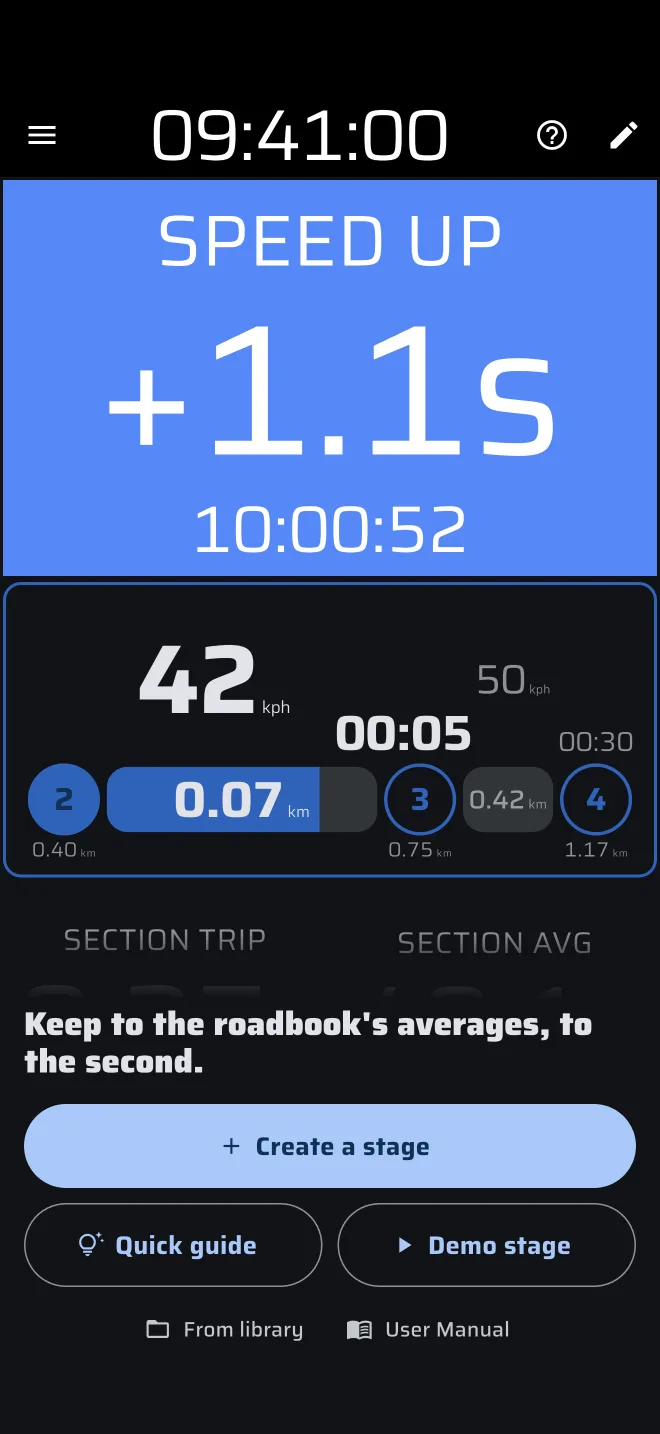
Quick guide and Demo stage first ask which kind of stage to drive: Automatic section change or Manual section change. Which one is my event? opens the Regularity formats pages. A sample stage changes nothing in the app: no trips, no history, no library entry, and no Pro fuel is used.
A Regularity stage that is armed, running or finished shows the normal screen. Reset on a finished stage clears it and brings back the no-stage screen.
One stage of each type
Regularity, Race and Recce each keep their own stage. A Race or Recce stage does not show in Regularity mode, and switching modes does not touch it. Only one stage runs at a time. If you start a Regularity stage while a stage of another type is armed or running, the app asks Stop the type stage?. Stop finishes that stage, or cancels it if it had not started yet.
Screen overview
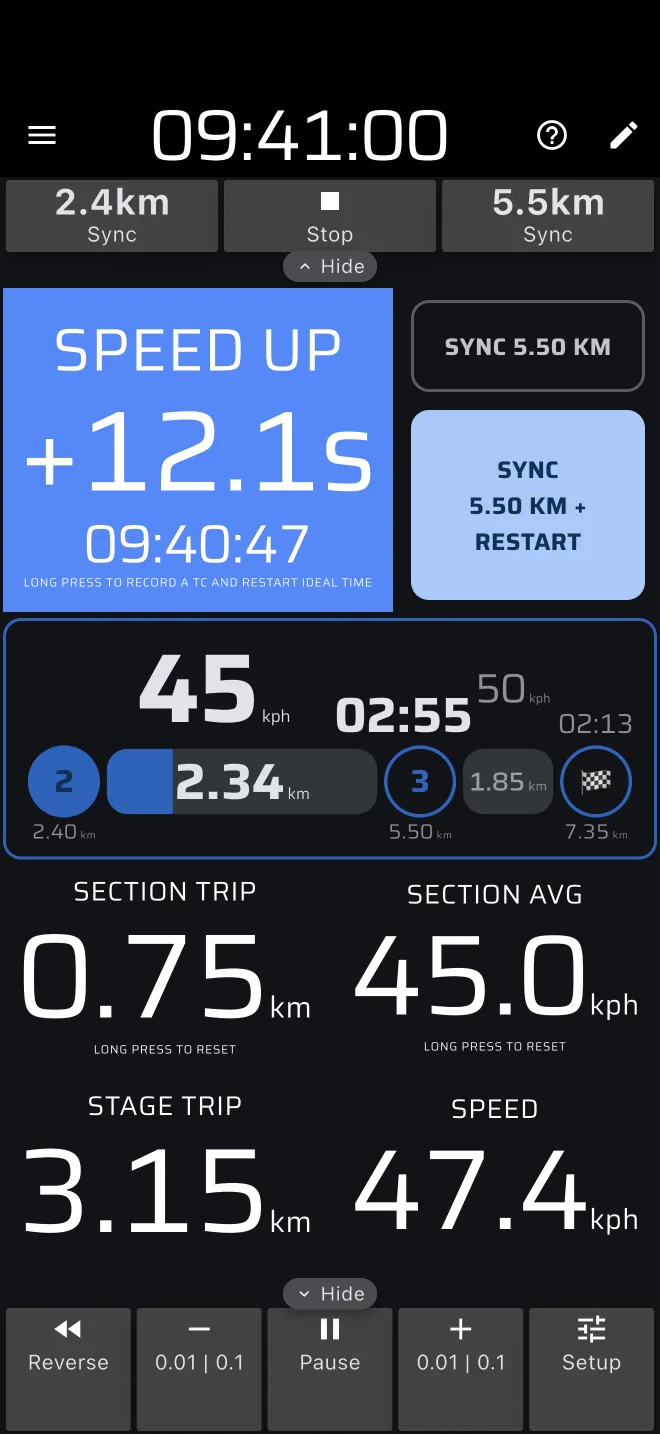
In portrait, from the top:
- Ideal Time on the left and the section buttons on the right.
- The Stage Timeline.
- Four readouts: Section Trip, Section AVG, Stage Trip and Speed.
In landscape, Ideal Time is a tall column on the left, the timeline and the section buttons are stacked at the right, and the four readouts run along the bottom.
Above the screen is the stage toolbar (at the left, in landscape) and below it the Trip toolbar. The app bar clock is the Rally Time. Everything is timed against it, so set it to the official clock first, see the Quick start.
The Section Trip and Section AVG have the hint Long press to reset. A long press on the screen resets them by default. The Section Trip also resets by itself at every section change.
Ideal Time
Ideal Time is the gap between your clock and the speed chart at the point where you are now. The app works out the clock time at which the chart says you pass this exact point, and subtracts it from the Rally Time.
| You see | Meaning |
|---|---|
+ and the header SPEED UP |
You are late. |
- and the header SLOW DOWN |
You are early. |
| Header Ideal Time, plain background | The gap is inside the threshold. |
- The number is
S.Tsunder one minute, for example+12.3s, thenMM:SS, thenH:MM:SS. A gap under 0.05 s has no sign. - The header changes at the Ideal time threshold: 1 second by default. The threshold and the two background colours are in the Ideal time customization group of the component, see Appearance. By default SPEED UP is blue and SLOW DOWN is red.
- The small line under the number is the ideal clock time at the point where you are, in hours, minutes and seconds.
Before the start
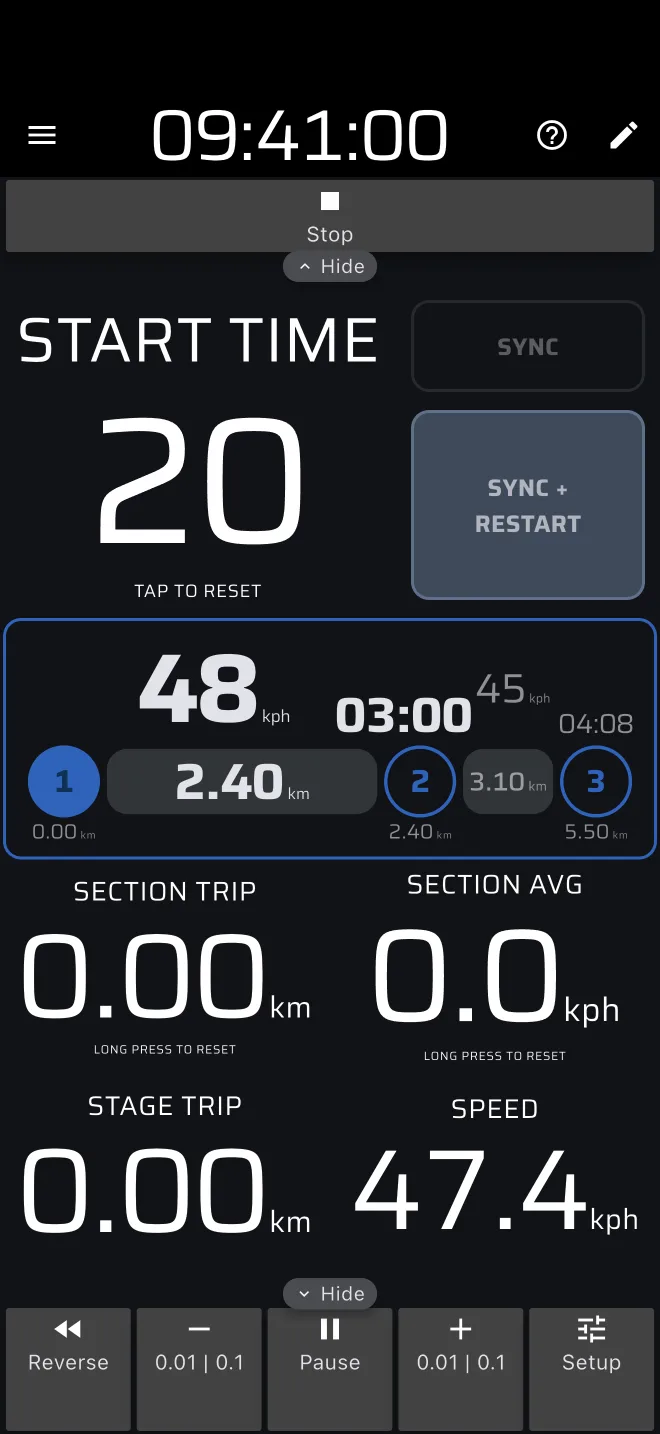
- A stage waiting for a Time start shows the header Start time and the start time. In the last 30 seconds it counts down in seconds.
- A stage waiting for a Tap start has the hint Tap to start. A Line start has Cross the startline.
The hint at the bottom
While the stage runs, the hint under Ideal Time reads Long press to record a TC and restart ideal time. Once you are past the finish it reads Long press to stop the stage. A stage without sections reads Long press to finish the stage.
What a press does
| State | Tap | Long press |
|---|---|---|
| Finished | Clears the stage (the hint reads Tap to reset). The no-stage screen comes back. | none |
| Waiting, Tap start | Starts the stage. | none |
| Waiting, Time or Line start | Cancels the stage and clears the trips. | none |
| Running | none | Records a TC at the current stage trip and opens the Checkpoints sheet. Past the finish, or with no sections: finishes the stage. |
A waiting stage shows Tap to reset on the tile. To cancel it, tap the tile or Stop. Press Start again to re-arm it.
After the finish
Ideal Time shows the sum of the absolute offsets of every recorded TC plus the finish. A leading + or - means only one offset was not zero, and it was late or early. ± means more than one. So an early 5 s and a late 5 s add to 10 s, not to zero. See Checkpoints and TCs.
Stage Timeline
The timeline is a row of numbered dots and bars: the sections of the stage.
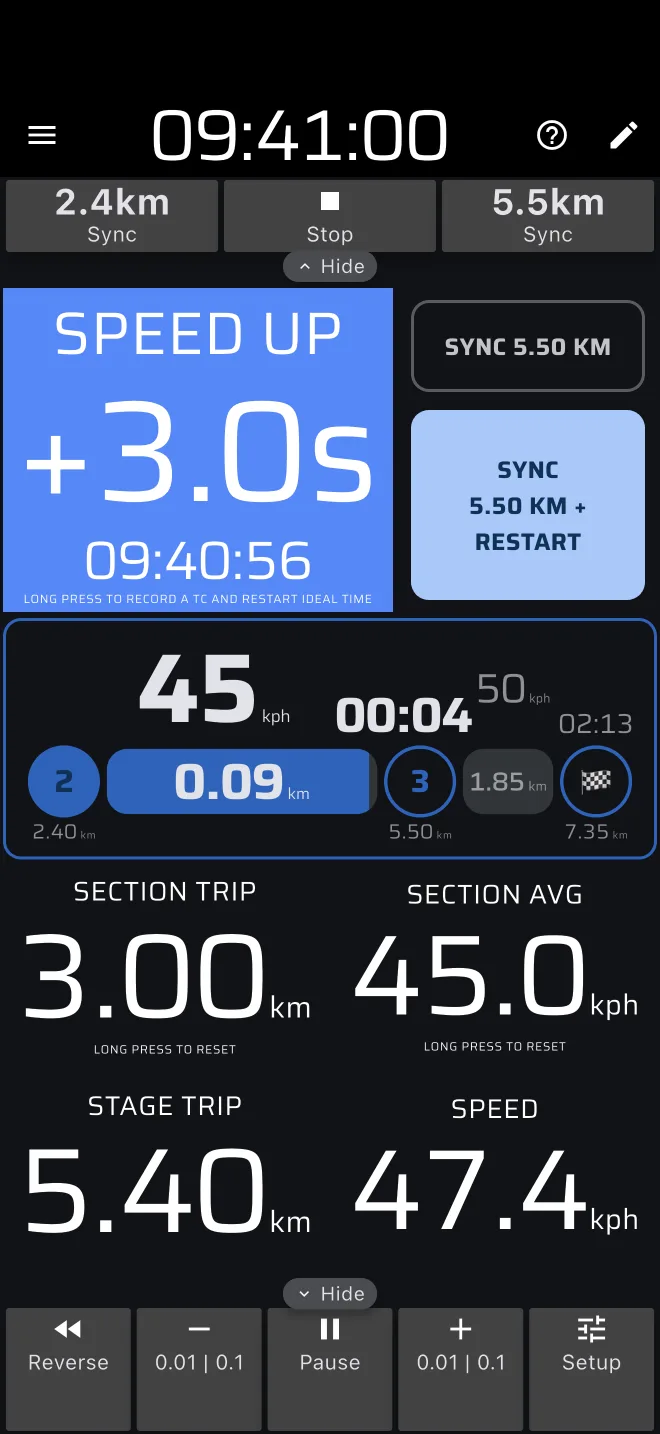
- The filled dot at the left is the start of the current section. The next dot is its end. The last dot is a flag, the finish. Under the dots are the distances from the start.
- The bar fills as you drive. The number in the bar is the distance left in the section.
- Above the bar is the target speed of the section, or Free zone.
- Above the end dot is the time left to the ideal arrival at the end of the section. It follows the clock, not the distance.
- The pale part after the end dot is the next section: its speed, its length and its duration. A narrow screen hides it.
- A small TC marker in the bar shows where the last TC fell, when it is inside this section.
- In a section of unknown distance the distances and times show
?until a TC ends the section.
The bar and the countdown turn red when the section is overdue: you are past its end distance, or the ideal arrival time at its end has passed. It never turns red in a free zone. With a stage that has no sections it shows No sections defined.
Controls
The buttons beside Ideal Time depend on the stage option Auto-switch sections by distance (on by default). It is the only Regularity option. Turn it off to switch sections by hand right at a timing point.
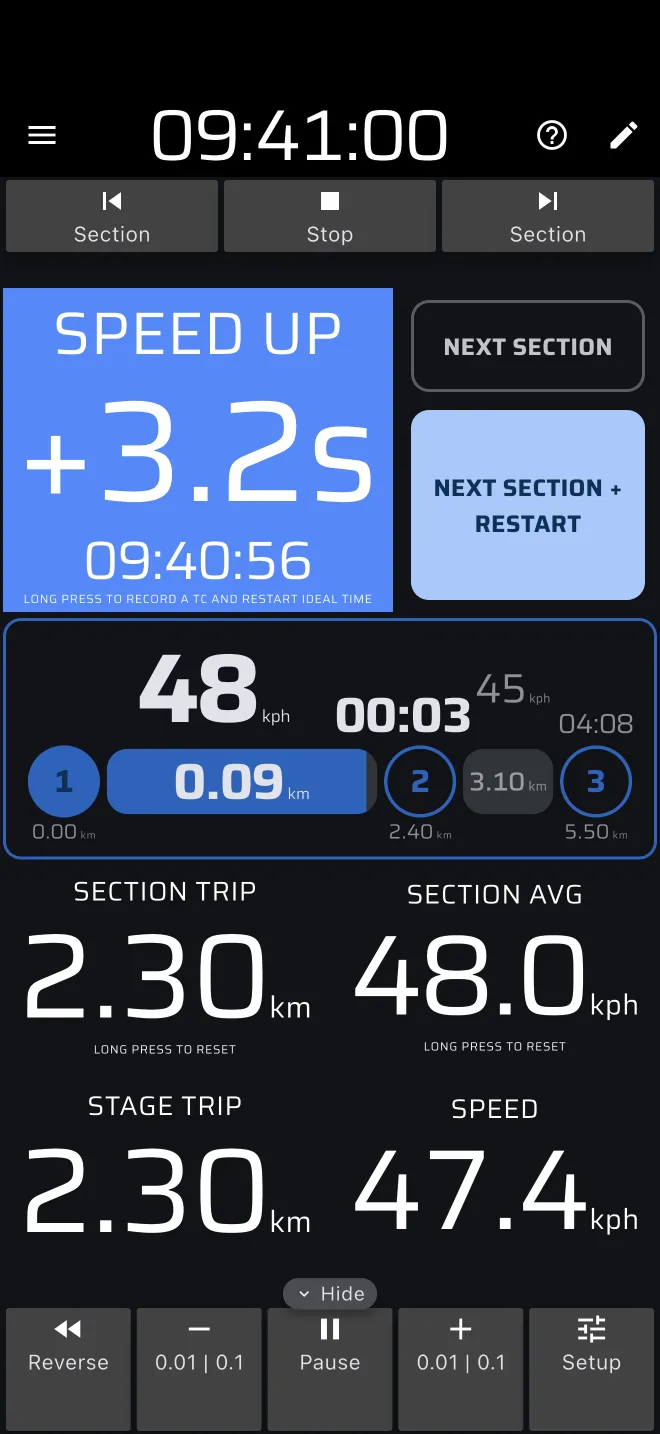
Every section change moves the stage trip to the section boundary and resets the Section Trip. There is no setting for this.
Automatic sections
Two buttons, labelled with the distance they snap to:
- Sync x.xx km: sets the stage trip to the start of the section, if you are less than 15 % into it, and otherwise to its end. It also resets the section trip. It records no TC. Press it at the landmark.
- Sync x.xx km + Restart: the same, and it records a TC at that distance, so the ideal time restarts. On the last section it becomes Finish.
Manual sections
Two buttons:
- Next Section: moves to the next section and sets the stage trip to its start. It records no TC.
- Next Section + Restart: records a TC at the end of the current section, then moves on. On the last section it becomes Finish, which ends the stage. The finish line then counts as the last TC and no TC is stored for it.
A button pulses while the section is overdue.
All the ways to record a TC
Every recorded TC restarts the ideal time from the TC. A pressed TC keeps the exact moment of the press, so with a Restart time of 0s the Ideal Time reads 0.0s right after it. See Checkpoints and TCs.
| Press | Records a TC? | Stage trip |
|---|---|---|
| Next Section | No | To the next section's start. |
| Next Section + Restart | Yes, at the section end | As above. |
| Sync | No | To the section start or end. |
| Sync + Restart | Yes, at the snapped distance | As above. |
| Long press Ideal Time | Yes, at the current trip | Unchanged. |
| TC button (custom layouts) | Yes, at the current trip | Unchanged. |
| Quick TC (Bluetooth button or volume key) | Yes, at the current trip | Unchanged. |
| Plus and minus in the trip toolbar | No | All trips move by 0.01 (hold: 0.1). |
In a test timed from the start to the finish, do not press any button that records a TC inside the test.
Stage toolbar
The stage toolbar sits at the top (left in landscape). It is always open when the stage uses manual sections.
| Button | When | What it does |
|---|---|---|
| Section (previous) | Manual sections, stage running | Goes back. The first press sets the trip to the start of the section you are in. The next press goes to the previous section. |
| Sync x.xx km (left) | Auto sections, stage running | Sets the stage trip to the start of the current section. |
| Start | Stage waits for a Tap start | Starts the stage. |
| Restart | Stage finished | Resumes the finished stage. |
| Checkpoints | At least one TC recorded, stage running or finished | Opens the Checkpoints sheet. |
| Reset | Stage finished | Clears the stage. The mode shows its no-stage screen. |
| Stop | Stage waiting or running | Waiting: cancels the stage. Running: finishes it. |
| Section (next) | Manual sections, stage running | Next section, with no TC. |
| Sync x.xx km (right) | Auto sections, stage running | Sets the stage trip to the end of the current section. |
Pause is in the trip toolbar. It stops the distance of the trips only. The ideal time is a clock, and it keeps running.
Restart after Finish
Restart carries on with the same stage. The time between Finish and Restart is left out of the stage time and the ideal time, also after a TC, so a car that stood still carries on where it was. The trips do not count while the stage is finished. If the car moved, press Sync at the next landmark. The Ideal Time then reads early by about the time the chart gives for the distance you drove while finished. Use Restart only to undo an accidental finish.
Liaisons and the time card
Regularity stages have no liaison clock. For the road sections and their time controls use Liaison mode.
Help
The ? in the app bar opens a sheet with Quick guide, User Manual and Not now. The Quick guide is the same sample stage as on the no-stage screen. The sheet opens by itself only if a stage is already loaded the first time you open the mode. Otherwise the no-stage panel offers the Quick guide and no sheet opens.
The stage sheet has its own Quick guide button at the top. It walks you through creating a stage. The button shows until you have run that guide, or saved or started a stage. See Creating stages.
Plans
Regularity | TSD is a Pro mode. Without Pro you can still open it, run the Quick guide and drive the sample stages. Real driving uses a daily allowance, Pro fuel, shown as a gauge under the app bar. A stage needs Pro fuel to start, and a stage that has started always runs to its finish. With the tank empty, the out-of-fuel sheet offers Go Pro, Save stage and Drive it as a sample. Demo mode uses no Pro fuel. See Licences and plans.