Appearance
The Global Customization group at the bottom of Settings sets the look of the whole app. Components in a custom layout can override most of it one by one.
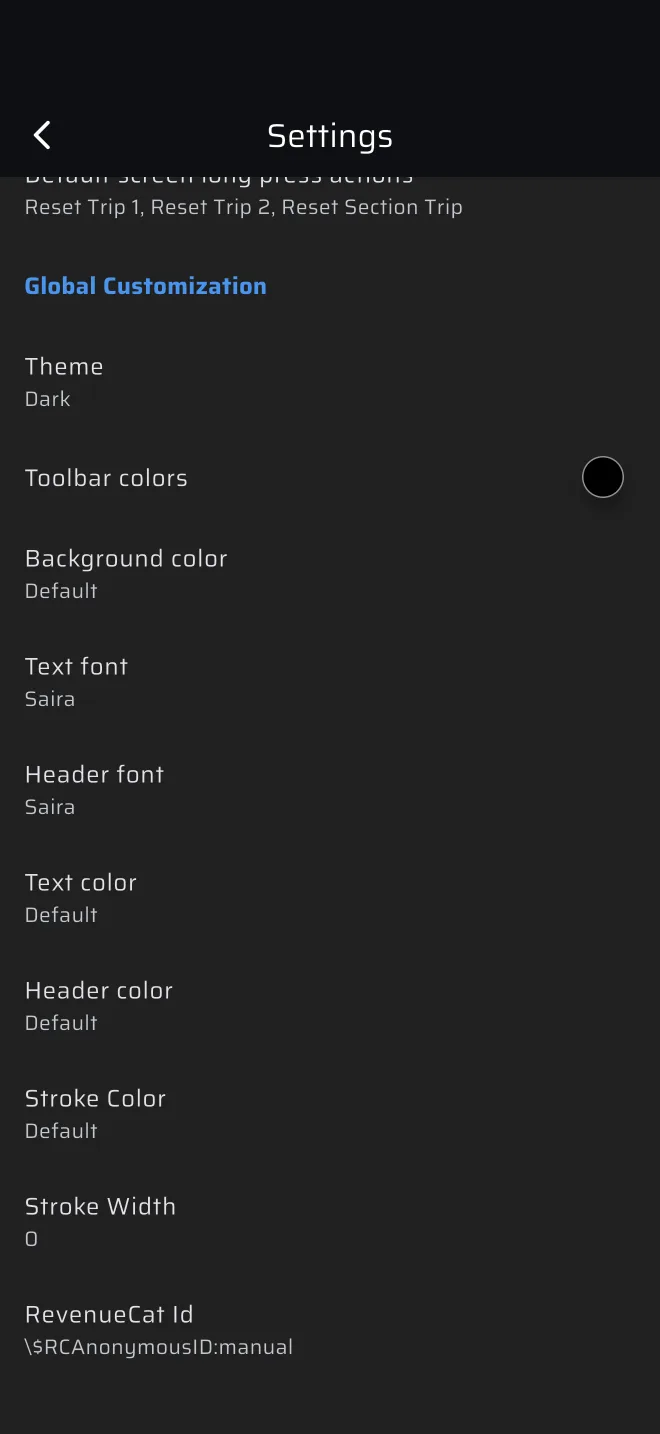
Global Customization
| Setting | Default | Notes |
|---|---|---|
| Theme | Dark | Light or Dark. |
| Toolbar colors | Black | The colour of the app bar. |
| Background color | Default | The screen background. |
| Text font | Saira | Font of the values. |
| Header font | Saira | Font of the small labels above the values. |
| Text color | Default | Colour of the values. |
| Header color | Default | Colour of the labels. |
| Stroke Color | Default | Colour of the outline around the text. |
| Stroke Width | 0 | Outline width, 1 to 10. |
A colour row reads Default until you pick one. Tap it to open the colour picker.
The fonts are Saira, Roboto, RobotoMono, WRC Bold, WRC and Handwriting. The list shows each font on a sample number, so you can judge how it reads. Pick one with clear digits. The values are what you read at a glance in a moving car.
Choose a strong contrast between the background and the text. A light theme is easy to read by day. The dark theme glares less at night.
Per component
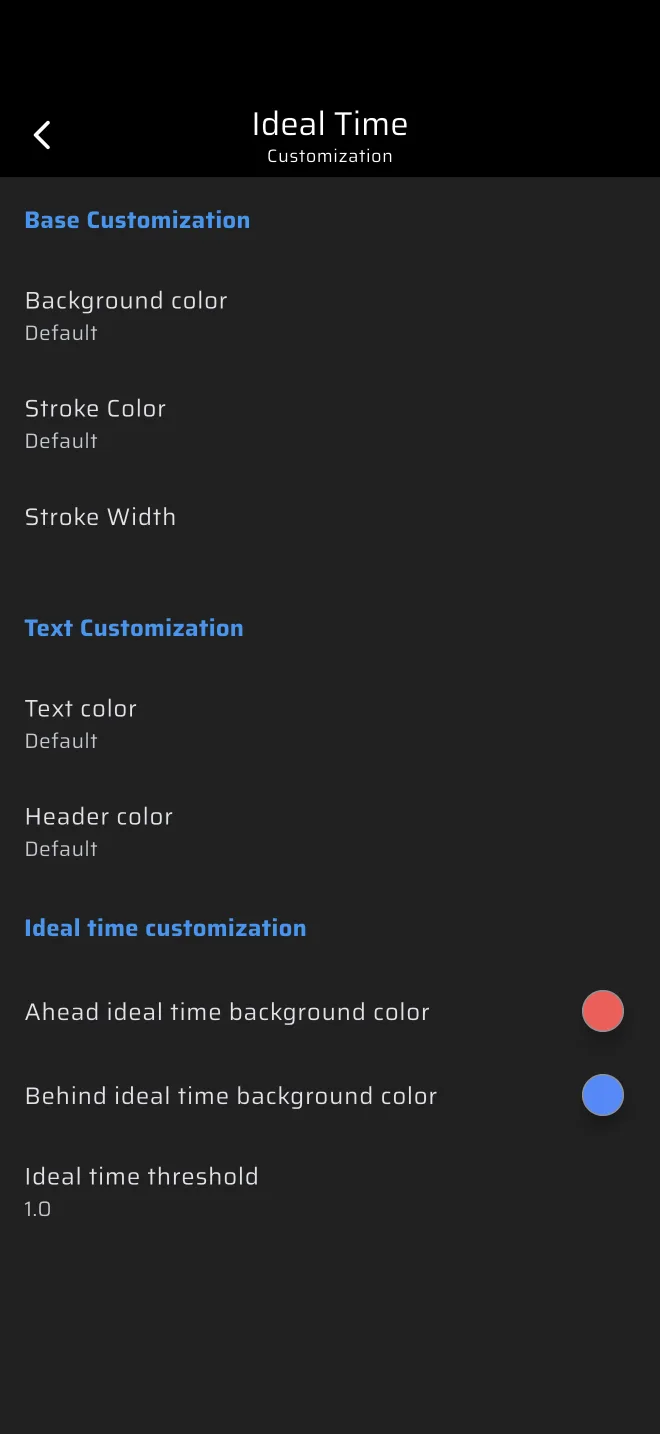
In a custom layout, select a component and tap the paintbrush icon. The Customization screen has:
- Base Customization: Background color, Stroke Color and Stroke Width of that component, 0 to 10.
- Text Customization: Text color and Header color.
Component settings win over the global ones. See Custom layouts.
Ideal time customization
The Ideal Time component's customization screen has a third group, Ideal time customization. Its settings are global: they apply to every Ideal Time component.
| Setting | Default | Meaning |
|---|---|---|
| Behind ideal time background color | Blue | Shown with SPEED UP, when you are late. |
| Ahead ideal time background color | Red | Shown with SLOW DOWN, when you are early. |
| Ideal time threshold | 1 s | The offset at which the colour and the words appear. |
Inside the threshold, the component keeps its normal colour. The colour for Behind also marks an overdue section in the Section Countdown component.
RevenueCat Id
The last row of Settings shows your RevenueCat Id. Tap it to copy it. Support asks for it when they look into a purchase.