Custom layouts
A custom layout is a screen that you build from the components of the other modes. The drawer has three, Custom Layout 1, Custom Layout 2 and Custom Layout 3, in the Custom layouts group of the drawer. They start empty.
Edit mode
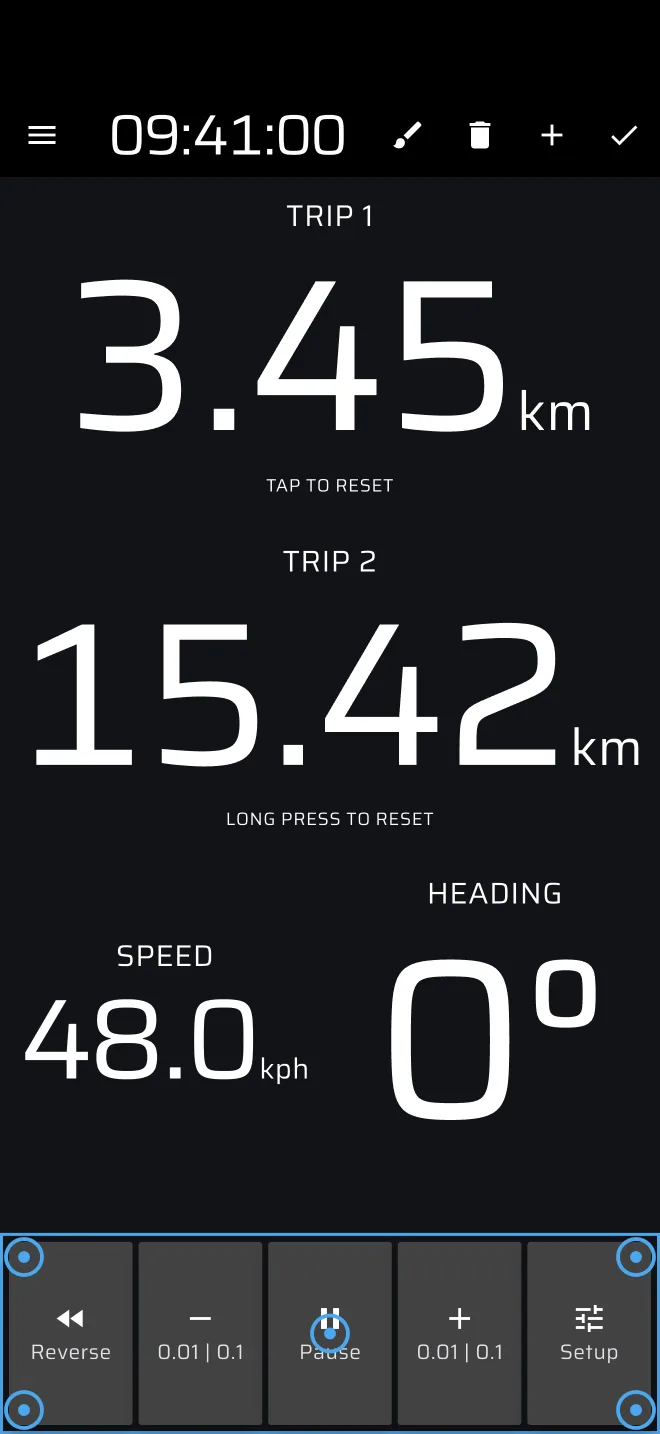
The pencil icon in the app bar turns edit mode on. The touch screen then stops running actions, and you can select components.
| Icon | What it does |
|---|---|
| + (add) | Opens the list of components. Pick one and it appears in the middle of the screen. Only custom layouts have this icon. |
| Brush | Opens the colour settings of the selected component. |
| Bin | Deletes the selected component. Custom layouts only. |
| Tick | Saves the layout and leaves edit mode. |
- Tap a component to select it. A blue frame and handles appear.
- Drag the centre handle to move it. Drag a corner handle to resize it. A component keeps at least a tenth of the screen in each direction, and stays inside the screen.
- Components are placed freely and can overlap. There is no grid and no snapping.
- The same component can be added more than once. Each copy has its own colours.
The Add list is alphabetical and has all components. The whole list, with a line on each, is in the Component reference.
When the layout is saved
The layout is saved on the phone when you tap the tick. It is also saved when you switch to another mode while editing, and when the app goes to the background, for instance when you lock the phone or open another app. Switching mode ends edit mode.
The ? icon in the app bar offers Quick guide and User Manual. The Quick guide walks you through the editor on your own layout, while Demo mode drives the car.
Colours and fonts
The brush opens the Customization screen of the component:
- Base Customization: Background color, Stroke Color, Stroke Width.
- Text Customization: Text color, Header color. The Ideal Time component has extra settings for the ahead and behind colours and the threshold, in Ideal time customization.
- The toolbar components and the Map have the base settings only.
The same settings exist for the built-in modes: turn edit mode on and select a component. The fonts, the theme and the colours that apply to everything are in Settings under Global Customization, see Appearance.
What works and what does not
All components are live, with the same data and behaviour as in the built-in modes. Some things to know:
- Stage components need a stage. Add a Stage Timer or a Stage toolbar so that you can create one. Their stage sheet has the Stage type switch, so you can create a stage of any type here. See Component reference.
- The stage that runs shows. A custom layout shows the stage that runs, whatever its type, or else the stage that was armed last. Only one stage runs at a time, see Running a stage.
- Section start, Section end and Section Toolbar show the speed limits of a Recce stage. In a Race or Regularity stage they stay empty. They are offered in the list for every stage type, but they only work in Recce.
- Speed Limit works in Recce only.
- The screen is also a reset button, as in the built-in modes. Components with their own touch action take the press instead.
- A custom layout has no stage or trip toolbar of its own. Add the Trip Toolbar and Stage toolbar components if you want them.
Plans
Custom layouts are Pro modes. Without Pro you can build a layout and drive with it on the daily Pro fuel: a gauge under the app bar shows what is left today. When it is used up, the layout is covered by You are out of fuel until the next day, unless a stage is armed or running. Demo mode uses no fuel. See Licences and plans.
Tips
- Start with three or four components. A crowded screen is harder to read at a glance than a clean one.
- Make the components you read most big, and the secondary ones small.
- Build and test a layout on a short drive before the event.
- A regularity layout, for instance: Ideal Time, Stage Timeline, Section, Next Section + Restart or the two Sync Section Boundary buttons, and the Trip Toolbar.