Creating stages
A stage is a saved definition that you load and run: a name, how it starts and ends, and for a Recce or Regularity stage the speed limits or the speed chart. This page describes the stage editor. The same form is inside the stage sheet that you open from a mode, see Running a stage.
Open the editor
- Open the drawer and tap Stages in the Library group.
- Tap the plus button to make a new stage. Tap a stage in the list to edit it.
The editor has the Stage name field in the top bar, a share icon and a bin icon (both only for a stage that is already saved), the form in the middle and a SAVE button at the bottom.
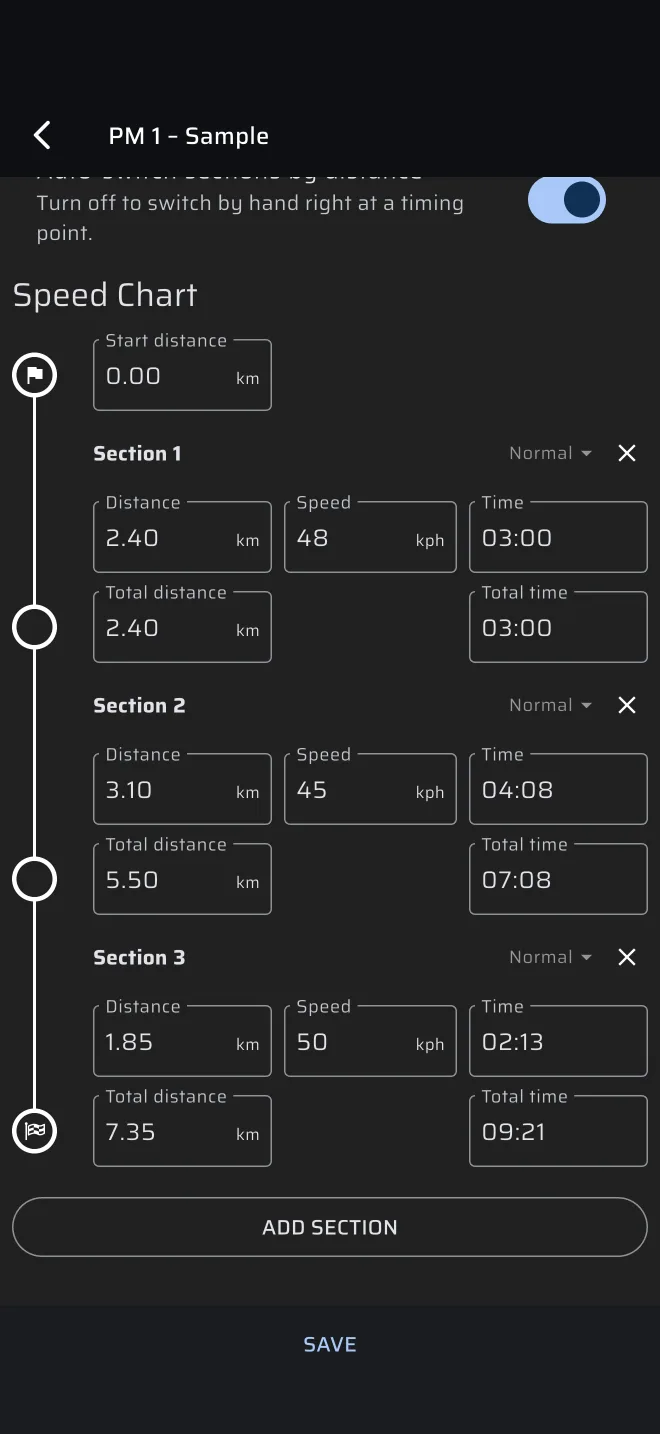
A new stage is a Race stage that starts by Time and finishes by Tap.
Stage types
Stage type is a three-way switch: Race, Recce and Regularity. The type decides what the rest of the form shows, and which mode runs the stage.
| Type | Form | Runs in |
|---|---|---|
| Race | Start signal and Finish signal. | Race, Rally Raid |
| Recce | Speed limits. No start or finish signal. | Recce |
| Regularity | Start signal, Finish signal, Options and the Speed Chart. | Regularity | TSD |
Inside a mode the type is fixed, because the mode asks for it. The type switch only shows in the editor of the library, and in the stage sheet of a custom layout.
Name
The Stage name field names the stage in the library and in History. A name is not required. A stage without one is saved as Untitled, so give each stage a name that you can recognise.
Start and finish
Start signal and Finish signal are each Tap, Time or Line. Recce stages have neither. See Start triggers.
Speed limits and the speed chart
- A Recce stage has a list of speed limits, see Speed limits.
- A Regularity stage has the Speed Chart, see Speed chart.
Options
A Regularity stage has an Options group with one switch. The group is open by default, and the sheet remembers whether you closed it.
| Switch | Default | What it does |
|---|---|---|
| Auto-switch sections by distance | On | On: the section changes by itself when the stage trip passes the end of the section. Off: you move to the next section by hand, with the section buttons, right at the timing point. The subtitle reads Turn off to switch by hand right at a timing point. |
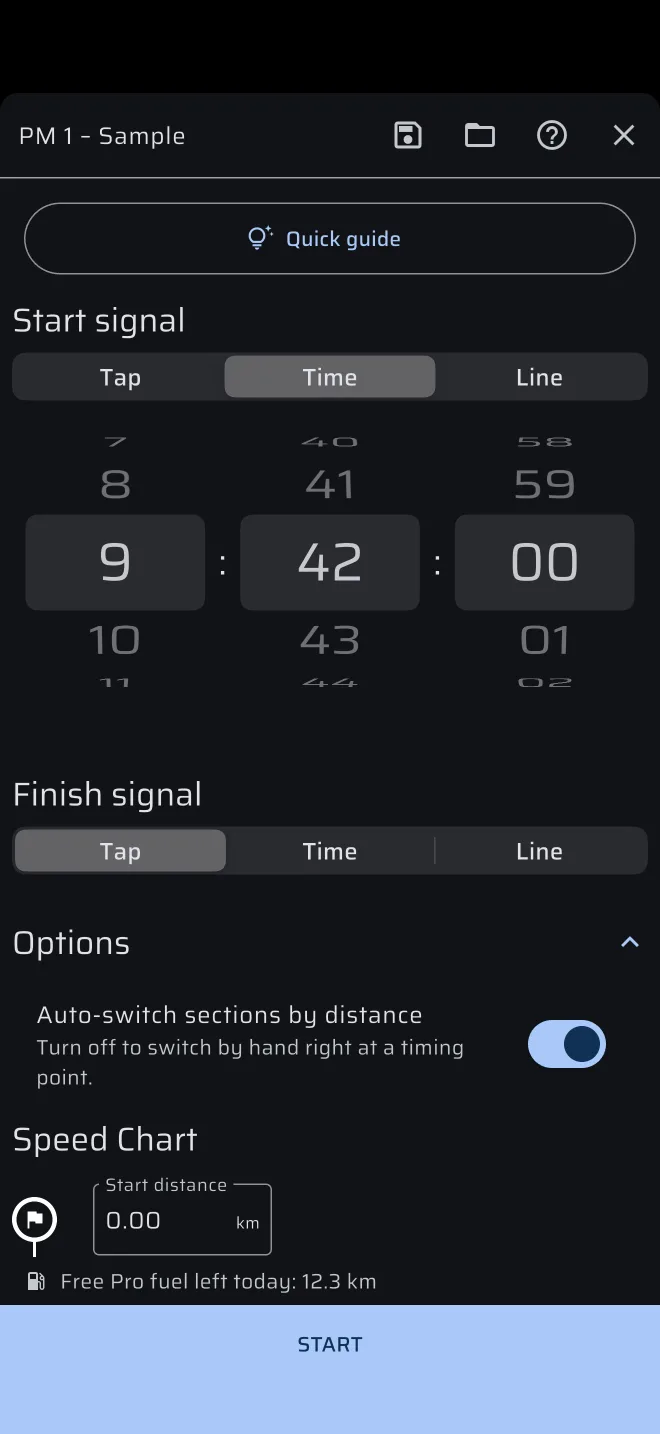
Two things always happen in a Regularity stage, with no switch:
- When you switch sections by hand, the stage trip is set to the start of the new section.
- The Section Trip and Section AVG start again at every new section.
The stage sheet remembers the last value of Auto-switch sections by distance and starts from it, so that a stage you create on the spot behaves as you set it last time.
The switch changes the buttons beside Ideal Time. See Regularity | TSD mode.
Saving
Tap SAVE. The toast says Saved and the editor closes. The stage is now in the library, see Stage library.
- A stage is saved to your account (a guest account too), so it appears on every phone that is signed in to the same account. See Account and sign-in.
- The bin icon asks first, with the stage name. Delete removes the stage and closes the editor. Cancel keeps it. See Stage library.
- The share icon sends the stage as a file, see Sharing stages.
In the stage sheet of a mode the save icon next to the name does the same. You do not have to save a stage to run it. Start runs the form as it is, see Running a stage.
Used in
Timing a stage, Recce day, Turning the roadbook into a stage.