Recordings and replay
Every pacenote recording is kept on the phone. Open one to see the route and the notes, and to replay the drive with a spoken co-driver.
The recordings list
Open the drawer and tap Recce recordings under Library. You can also tap Recordings on the Pacenotes start screen. The screen is titled Pacenotes (beta).
Each row shows the name, or the date and time when the recording has no name, and the file size. A filmed recce also shows video when the app holds the video, or video in library when the video is only in your photo library. Tap a row to open it.
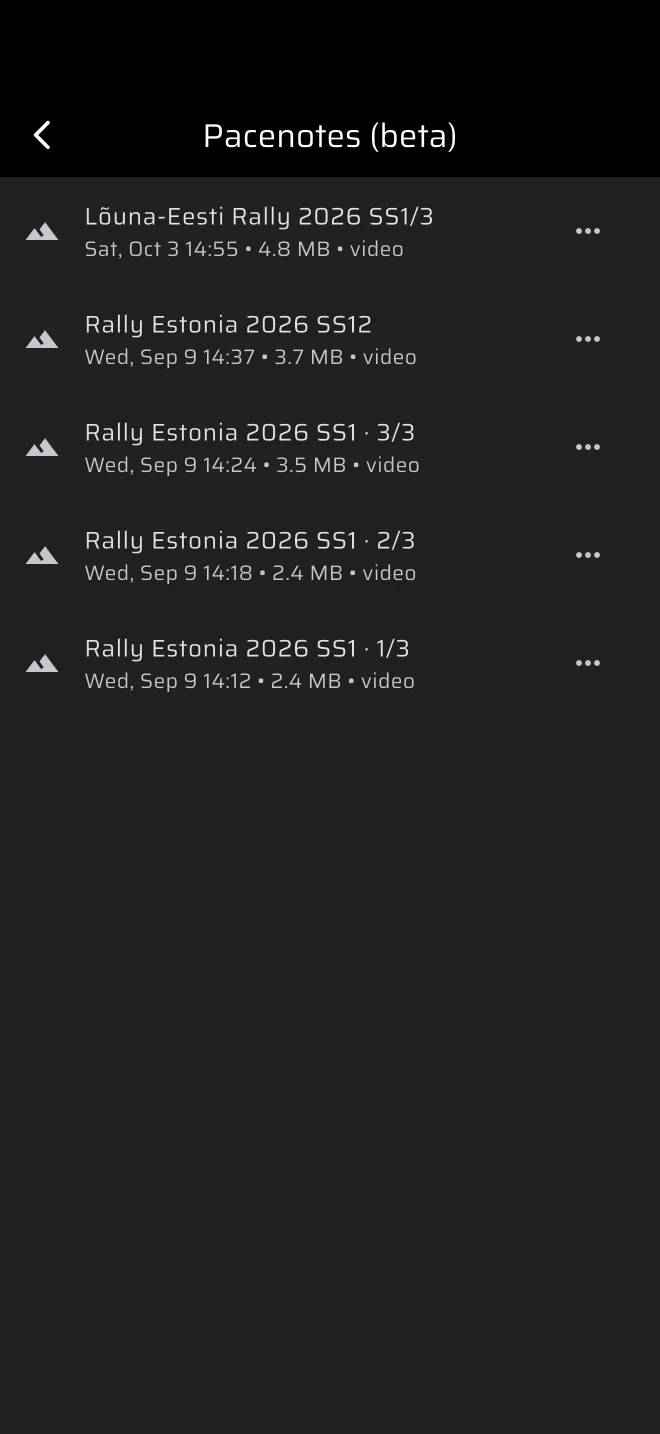
The three-dot menu on a row has:
- Rename: opens Rename recording.
- Delete: removes the recording from the phone and from your cloud backup. It does not ask first.
Opening the list syncs it with your cloud backup. It uploads recordings that the cloud is missing and restores the ones the phone is missing. A progress bar shows while it works. If it fails, a bar reads Couldn't sync recordings with Retry. You can open recordings while the sync runs.
The list can also hold sample recordings that ship with the app. They are never synced.
When a recording is running, a card at the top shows it. See Live notes.
The recording screen
The first time you open a recording, the app generates its notes with your current tuning. It shows Generating pacenotes… while it works. If no notes can be made, the screen shows No pacenotes yet. with a Generate pacenotes button.
If generation fails, a message tells you why. Two common ones are Not enough cornering in the recording to calibrate the gyro axis and a note that the gyro does not follow the GPS course, which asks whether the phone was mounted rigidly.
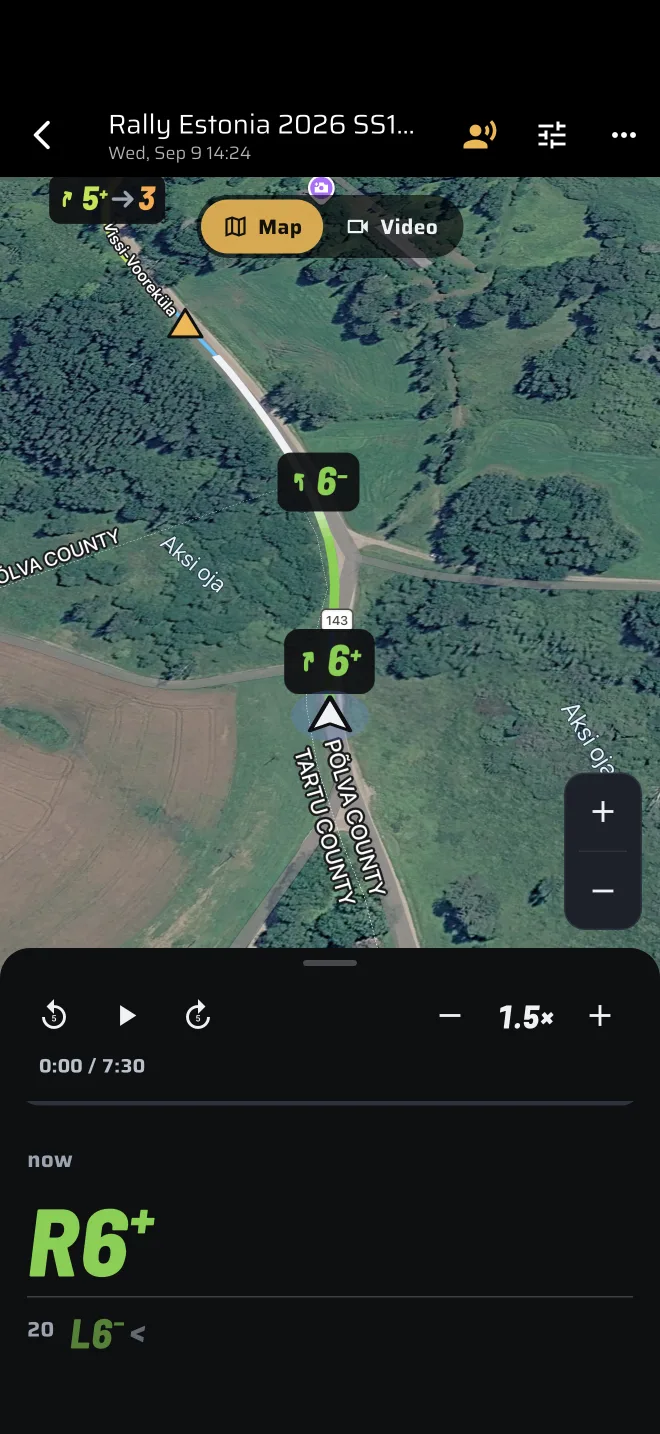
Portrait. The picture is at the top and a sheet is below. Drag the sheet between three stops:
- Down: the playback controls only.
- Middle: the controls and the calls at the car.
- Up: the controls and the full list of notes.
The list follows the car while it plays. Scroll it by hand and it stays where you put it for a few seconds. Tap a note to edit it.
Landscape. The picture fills the screen, the calls run along the bottom and a bar at the top holds the controls. While the replay plays, the bar hides itself after a few seconds. Tap the picture to bring it back.
The title is the recording's name, or Untitled. Tap it to rename the recording.
The picture: map or video
The map follows the car, tilted and heading-up. Pan it by hand to stop following. The navigation button (Follow the car) starts following again, and the plus and minus buttons zoom.
Corner stretches are coloured on the route. From a certain zoom in, each corner also has a badge with its grade, and crests have a triangle.
For a filmed recce, a Map and Video switch appears. Video shows your film with the calls drawn over it, in step with the map.
Attaching the video
The film is saved to your photo library when you stop, not inside the app. If the video is not on the phone, for example after moving to a new phone, tap Video. The photo library opens. Pick the film of this recce.
The app compares the lengths. If they differ, a dialog titled Different length asks whether to attach anyway. A trimmed or re-encoded copy is still the right video, so Attach anyway is fine in that case.
Detach video drops the copy the app holds. The film stays in your photo library and you can attach it again.
Playback
The playback strip has back 5 s, play or pause, on 5 s and slower and faster buttons, with a time row and a scrub line. Drag the line to jump.
The call strip shows the current call large, with the distance to it (now when you are within a few metres, otherwise in and a distance), and the call after it smaller. It is at the middle stop of the sheet in portrait and along the bottom in landscape. At the end of the road it reads No more notes.
The co-driver voice
The replay speaks the notes as the car reaches them. It is on when you open a recording.
- Tap the voice icon to turn it off (Mute the co-driver) or on (Co-driver voice).
- The voice speaks the app's language when the phone has a voice for it, and English otherwise.
- For a filmed recce, the video's own sound is off. The speaker icon (Video sound) turns it on.
- In landscape, the Angle dial icon puts the round dial over the picture, top right.
On a narrow phone the app bar shows only the first few controls. The others are in its overflow menu.
Demo: drive a recording
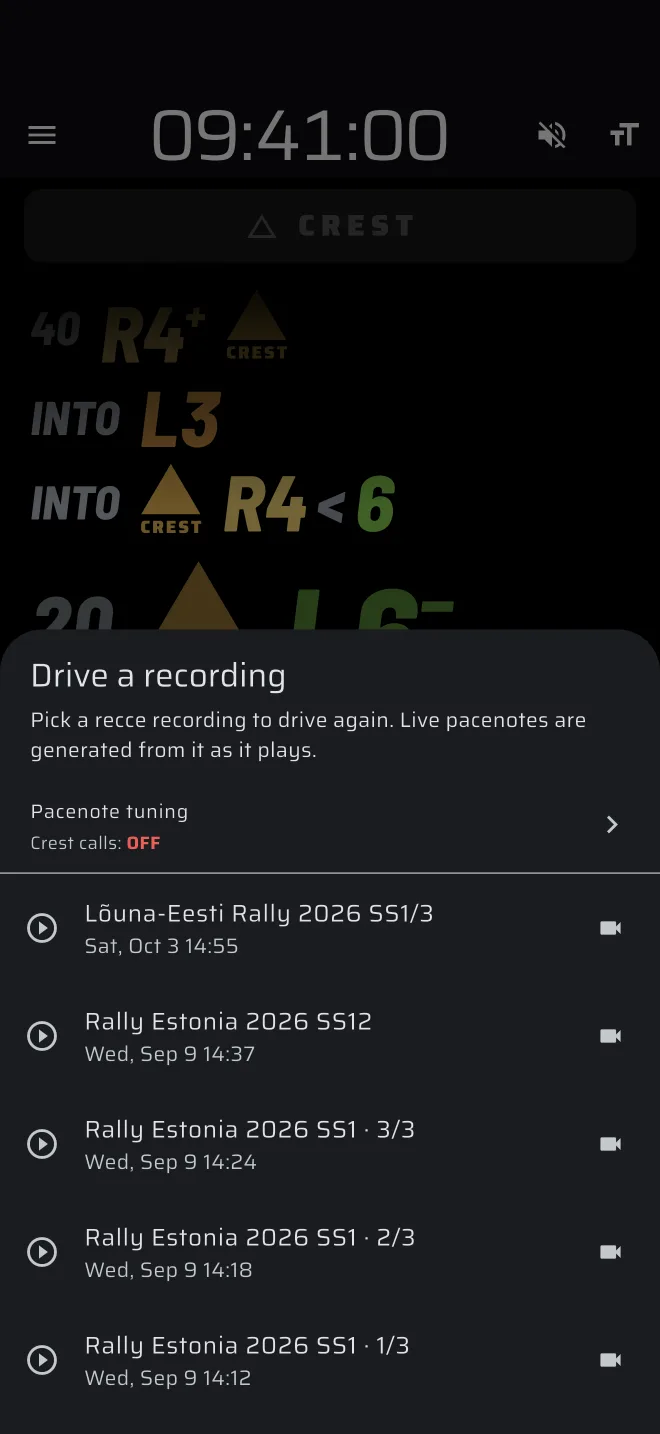
The Pacenotes start screen has a Demo button. It lets you try the live notes without driving.
- Open Pacenotes and tap Demo.
- In Drive a recording, pick a recording. The sheet explains: Pick a recce recording to drive again. Live pacenotes are generated from it as it plays.
- The pacenote tuning is on the same sheet. Set it first if you want to see the notes with other settings.
- The live view starts and plays the drive in place of the phone's sensors. Nothing is kept.
If there is no recording with sensor data, the app says No recce recordings with sensor data to drive.