Viewing routes
Saved Routes lists every route you recorded or imported. Open it from the drawer, under Library.
The list
Each route is a card with a title row and a static map. The track is drawn in the route colour, with S at the start and F at the finish. POIs show as small markers.
The title row shows the route name, or the date if the route has no name, and the date and time under a name. The list is sorted newest first. On a wide screen the cards sit in a grid.
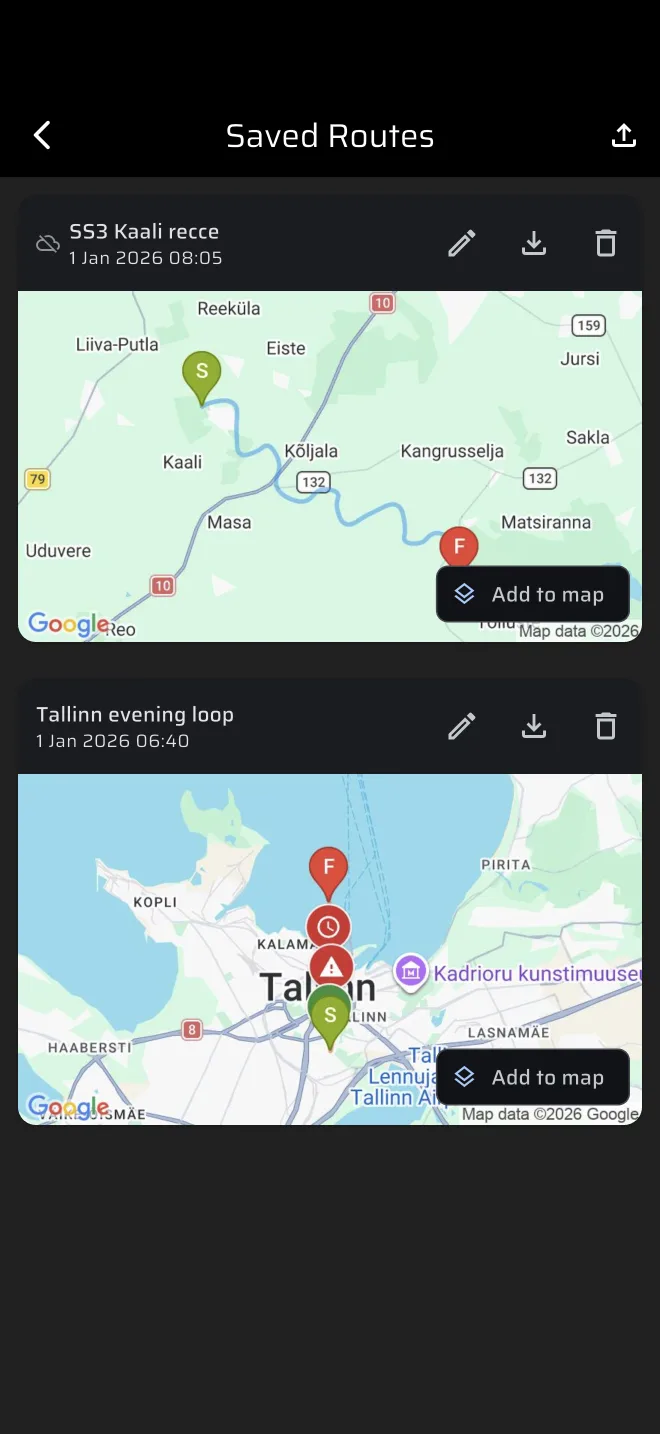
The icons on the right of the title row are:
- Edit route (pencil): name and colour.
- Export route (download): GPX, KML or GeoJSON.
- Delete route (bin): asks Delete route? first. Tap Delete to confirm.
The chip at the bottom right of the map reads Add to map. Tap it and the route is drawn on the map in Map mode, and the chip changes to On map. Tap it again to take the route off. In Map mode, the Routes button opens this list, with the number of routes that are on the map.
Tap the card to open the route.
The cloud-off icon
A small cloud-off icon before the name means the route is Waiting to sync. Its points are not uploaded yet, usually because the phone has no connection. The upload waits in a queue on the phone, survives an app restart and goes out when the connection is back.
The route screen
The route screen shows the whole track on a map, fitted to the screen. The top bar has the same edit, export and delete icons. Chips on the map show:
- the recording duration;
- the number of points (for example 856 pts);
- the number of POIs, when there are any.
The green flag marks the start and the red flag the end.
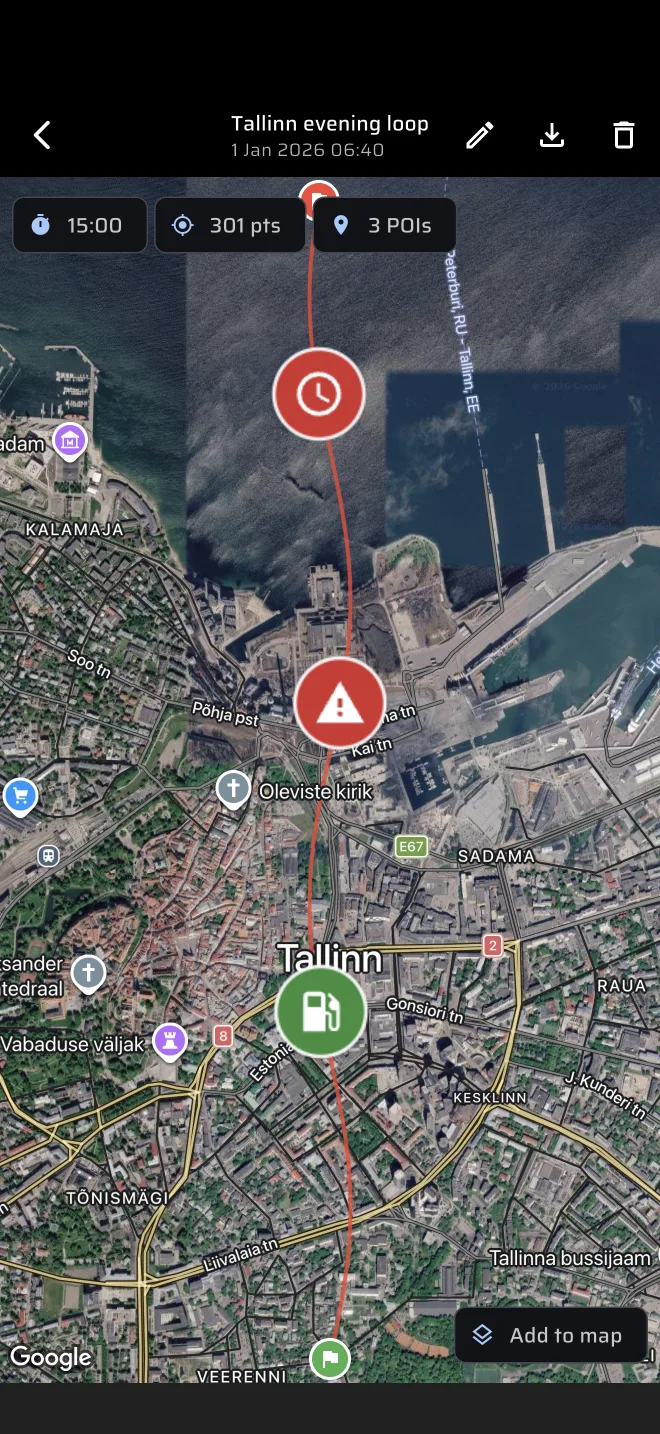
Tap a POI marker to edit it. The Edit POI sheet changes the name, the description and the type. Tap Save.
Edit a route
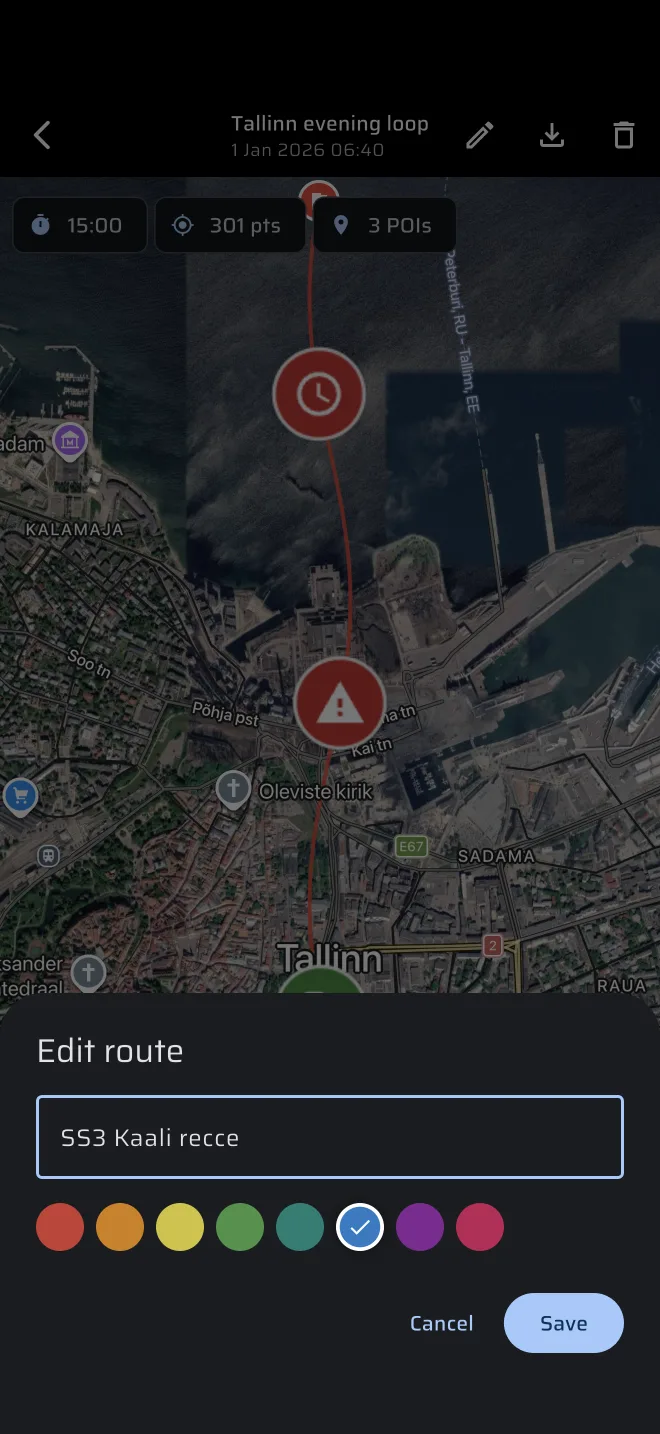
Tap the pencil icon. The Edit route sheet has:
- Route name (optional);
- eight colours: red (the default), orange, yellow, green, teal, blue, purple and pink.
Tap Save. The colour is used on the card, on the route screen and on the map.
Accounts and sync
Routes are stored in your account. The points are kept in cloud storage and loaded when you open a route. If you have never signed in, the app works under an automatic guest account. Routes, history and stages you record as a guest belong to it. When you sign in, the app moves that data to your account. A banner Sign in to sync your data across devices. shows at the top of the list for guests.
On the web, routes need a signed-in account.
To delete the account and its cloud data, open the drawer, tap the account header and use Delete account on the Account screen. Data stored only on the phone stays. A subscription is managed in the App Store or Google Play and is not cancelled by this.