Tripmeter
Tripmeter is the basic mode: two trips and your speed. It is at the top of the modes in the drawer, above the discipline groups, and it is the screen the app opens on.
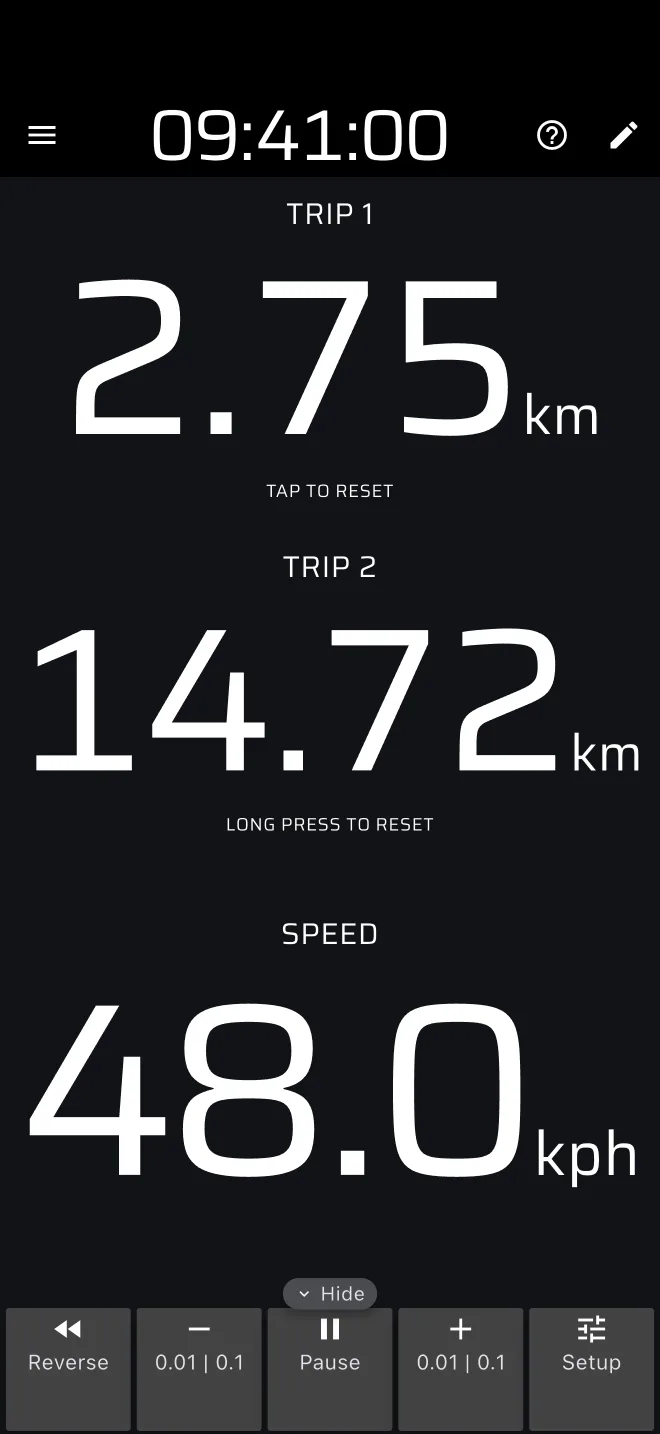
The screen
| Component | Shows |
|---|---|
| Trip 1 | Distance since you last reset Trip 1. The hint reads Tap to reset. |
| Trip 2 | Distance since you last reset Trip 2. The hint reads Long press to reset. |
| Speed | Your GPS speed, in kph or mph, with one decimal. |
All three come from the same GPS distance. A trip shows two decimals, in km or miles, and cuts the third instead of rounding. The smallest step is 0.01 km (10 m) or 0.01 mile. Set the units in Settings > Units: Speed for the speed, and Distance, or a unit of their own, for Trip 1 and Trip 2. The speed shows two decimals when Show speed to two decimals is on.
At the bottom (right, in landscape) is the Trip toolbar.
Both trips and the speed are scaled by the calibration factor.
The ? in the app bar asks Take the 1-minute tour?. Start demo tour shows the trips and the menu, while Demo mode drives the car. User Manual opens this page.
Resetting
The reset is on the whole screen, not on a trip. By default:
- A tap anywhere resets Trip 1.
- A long press anywhere resets Trip 1 and Trip 2.
The hints under the trips only remind you of that. You can change both in Settings > User inputs and also run them from a Bluetooth button or, on Android, the volume keys. See Buttons and remotes.
A trip never stops by itself. Pause in the toolbar stops it, Reverse counts it down.
Free distance and plans
Tripmeter is free for 80 km a day (the figure can change). The kilometres you drive in other modes count towards it too. Under the clock a bar shows the distance that is left. When it is used up, the mode is covered by an out-of-fuel screen until Basic or Pro is bought, or until the next day. Demo mode lifts it, but it simulates the drive. See Licences and plans.
Limits
- The trips need a GPS fix. With the red bar showing, they do not count.
- Trips keep counting when you change mode, but they are not saved. When the app is closed or restarted they start from zero.
- The trips count while the app is open on a main screen. To keep counting with the screen locked, switch on Keep running in the background in Settings.