Start triggers
A Race or Regularity stage starts and finishes on a signal. You choose each in the form: Start signal and Finish signal, each Tap, Time or Line. A Recce stage has no signals: it starts when you press Start and ends when you stop it.
There is no start or finish by distance.
In the stage editor of the library a new stage starts by Time. In the stage sheet of a mode, the Start signal begins as the one you used last, and as Tap the first time.
Tap
The stage waits until you start it by hand.
- In Race and Rally Raid tap the Stage Timer. Its hint reads Tap to start.
- In Regularity | TSD tap Ideal Time, or press Start in the stage toolbar.
As a finish, Tap means you end the stage by hand: in Race tap the Stage Timer (hint Tap to stop), in Regularity press Stop or Finish. These work whatever finish signal is set, see Finish.
Time
The stage starts at a clock time. Pick the time with the time picker. When you choose Time the picker starts at the next full minute.
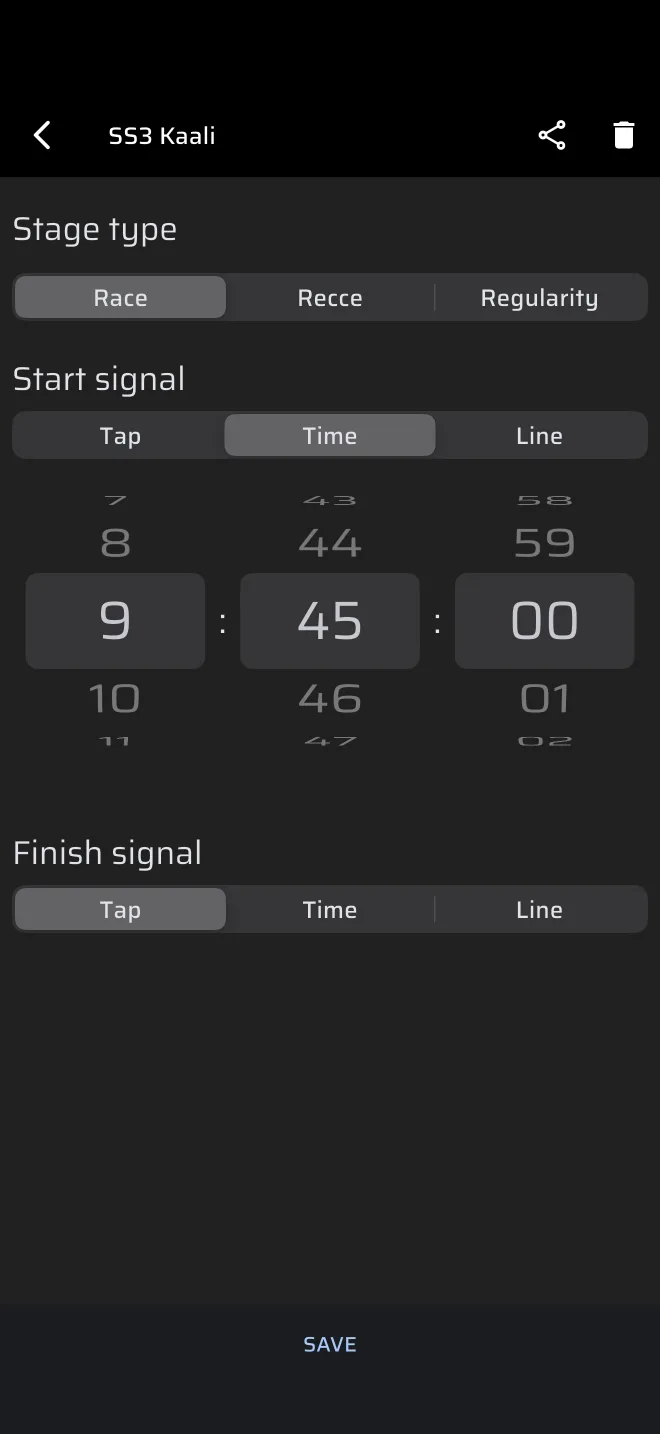
- The time is on the Rally Time, the clock in the app bar, so set it to the official clock first, see the Quick start.
- After you press Start, the stage waits. The Stage Timer (or Ideal Time) shows the header Start time and the time. In the last 30 seconds it counts down in seconds, and at zero the stage starts.
- The hint while waiting is Tap to reset.
While the stage waits for a Time or Line start, a tap on the Stage Timer or on Ideal Time, or on Stop in the stage toolbar, cancels it and clears the trips. The mode then shows its no-stage screen. To arm the stage again, load it again: with From library if you saved it, or by filling in the stage sheet again.
Check the time
If the start time has already passed when you press Start, the stage starts at once, and its clock counts from the time you set. A saved stage keeps only the time of day, not a date. Check it when you reuse the stage on another day.
Line
The stage starts when the phone crosses a line on the map. This gives a flying start.
- Choose Line. A map opens at your current position.
- Move and turn the map so that the line symbol in the centre lies across the road at the start line. Turning the map turns the line. The map in the form is live: the line you see is the line that is saved. Tap the expand button for a full-screen map, and Set to bring its position back.
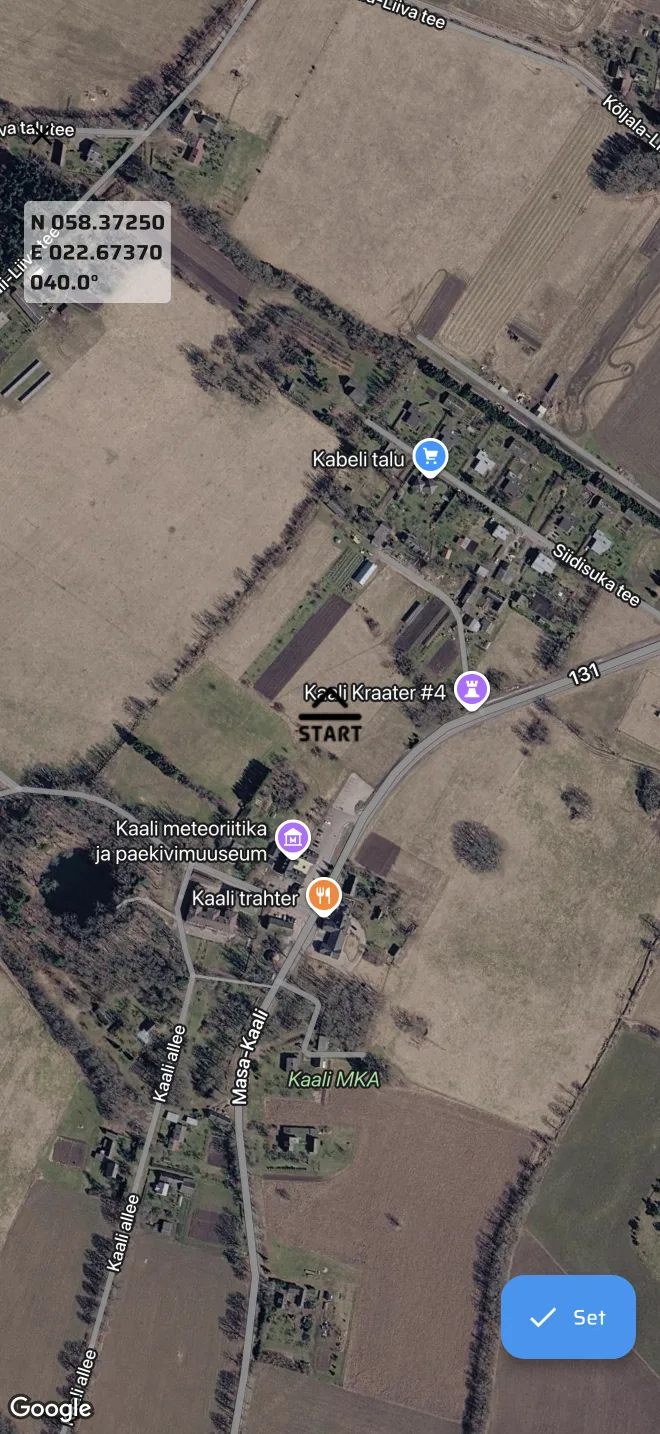
The line is about 100 m wide, 50 m on each side of the centre. The app watches the GPS positions and finds the moment the path between two fixes crosses the line. It works out the exact time between the two fixes, so a flying start is timed more precisely than a tap. While the stage waits, the hint is Cross the startline and Tap to reset.
A map in the form shows a coordinate overlay. Tap it to type in coordinates and a bearing for the line.
Lines need a good GPS
A line is only as accurate as the position of the phone. Test the start line on the recce.
Finish
Whatever the finish signal says, you can end a running Race or Rally Raid stage by tapping the Stage Timer, and a Regularity or Recce stage with Stop in the stage toolbar. Use that if a Time or Line finish does not fire.
| Finish signal | The stage ends |
|---|---|
| Tap | When you tap the Stage Timer, or press Stop or Finish. |
| Time | At the clock time you set. |
| Line | When the phone crosses the finish line. |
A stage can also be finished with a Bluetooth button action Start/Stop special stage or Finish.
Cancelling an armed start
While a stage waits for its start, you can cancel it:
- tap the Stage Timer or Ideal Time (Time and Line starts only);
- press Stop in the stage toolbar (Regularity and Recce).
A cancelled stage is not saved to History. The mode goes back to its no-stage screen, see Running a stage.