Roadbook navigation
The basic tool in the cockpit is two trips: Trip 1 for the distance since the last waypoint and Trip 2 for the running total. This page covers resetting, correcting the distance when the roadbook and the GPS disagree, and Reverse.
Trip 1 and Trip 2
- In the drawer, tap Tripmeter. It sits on its own at the top of Modes, above the discipline groups.
- The screen shows Trip 1, Trip 2 and Speed.
- At each roadbook waypoint, reset Trip 1. Let Trip 2 run as the total for the stage or the day.
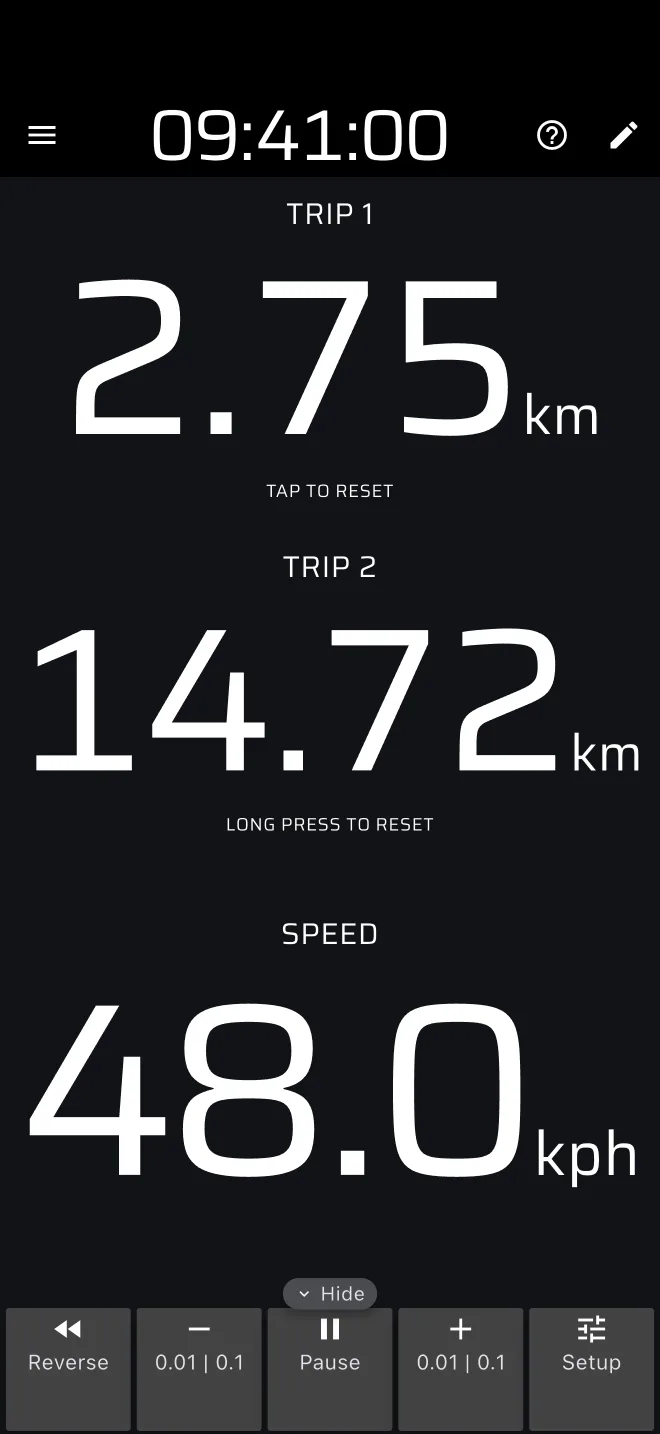
The trips show two decimals, in km or in miles, and the distance is truncated rather than rounded. A trip can go below zero if you correct it down or use Reverse.
Rally Raid mode does not show Trip 1 and Trip 2. It has the Section Trip and the Stage Trip instead. See Rally Raid mode. Use Tripmeter if you just want the two trips and no stage timing.
Reset by tap
By default:
- Tap anywhere on the screen resets Trip 1.
- Long press anywhere resets Trip 1, Trip 2 and the Section Trip.
The whole screen is the button. Tapping a trip does not reset only that trip, and the hints on the screen ("Tap to reset", "Long press to reset") are fixed texts that do not follow your settings.
A long press zeroes Trip 2 as well
There is no default way to reset Trip 2 alone, and a long press on a rough track can happen by accident. Change the actions in Settings, group User inputs: Default screen tap actions and Default screen long press actions. For example, set the long press to Reset Trip 2 only, or switch the long press off. The same actions can go on a Bluetooth button (see Remotes).
The two actions you will use most are Reset Trip 1 and Reset Trip 2. Reset Section Trip only does something while a stage is loaded.
Corrections with plus and minus
When the roadbook says 3.40 km and you are at the landmark, but the trip says 3.37, correct the trip rather than argue with it.
The trip toolbar sits at the bottom of the screen (on the right in landscape). If you do not see it, tap the Show tab at the edge of the screen. Its buttons, from the left: Reverse, minus, Pause, plus and Setup.
- Tap minus or plus to change the trips by 0.01.
- Hold minus or plus to step by 0.1. The longer you hold, the faster it repeats.
- Each trip steps in its own unit, km or miles. The section and stage trips use the Distance unit in Settings > Units.
Minus and plus change all trips at once: Trip 1, Trip 2 and the section and stage trips. That keeps the trips in step with each other, but it also means you cannot correct only Trip 1 from the main toolbar.
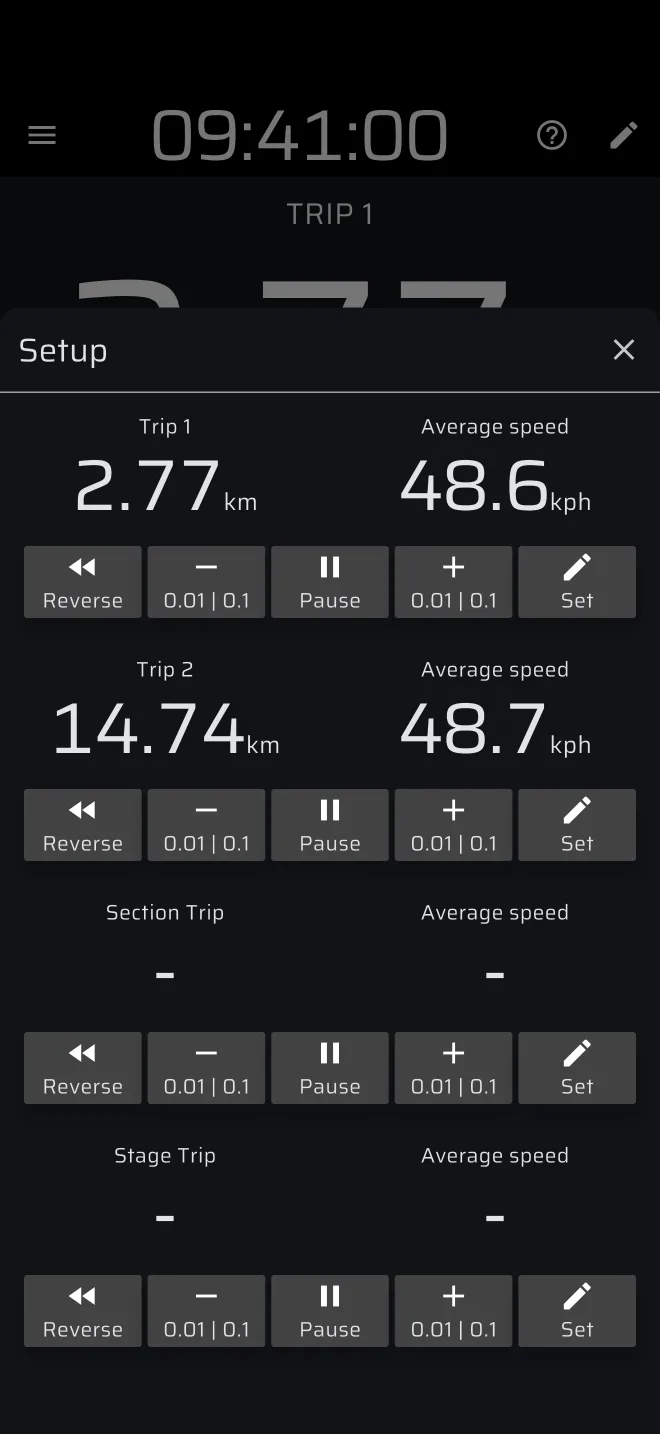
To change one trip only, tap Setup. The sheet lists Trip 1, Trip 2, Section Trip and Stage Trip, each with its own average speed and its own small toolbar. Use the minus and plus buttons there, or tap Set to type a value:
- Tap Set on the trip. A sheet opens with the title Set and the trip name, for example "Set Trip 1".
- Enter a Distance, an Average speed, or both. Leave a field empty to keep that value.
- Tap Set at the bottom.
The Distance replaces the trip. The Average speed works out the elapsed time as distance divided by speed, so the trip's average reads that speed, and it carries on from there. The section and stage trips take a value only while a stage is loaded.
Reverse and Pause
Reverse makes the trips count down instead of up. Use it when you have missed a waypoint and must drive back: Trip 1 shows how far past the waypoint you are, and counts down to zero as you return to it. Tap Reverse again to count up. The trip keeps its value when you switch, so you do not lose the distance.
The average speed of a reversed trip falls while you reverse, because it is the trip distance divided by the elapsed time.
Pause stops all the trips, and their elapsed time, so the averages hold. The GPS keeps running. Tap Pause again to continue. Use it for a fuel stop or a ferry. A paused trip does not count the distance you move.
Both buttons act on all trips. Reverse and Pause are also available per trip in the Setup sheet.
Calibration
If the trip is consistently off over a known distance, enter a Calibration factor in Settings. The allowed range is 0.8 to 1.2, and the default is 1.0. When it is not 1.0, an amber warning appears at the bottom of the drawer. The steps are in Calibration.
Calibrate on a known road before the event. A factor that suits tarmac may not suit a gravel track. Over a long stage, correct the trip with plus and minus at landmarks.