Recording a recce
A pacenote recording is a normal route recording with the pacenote option switched on. The recording keeps your route and the sensor data the notes are generated from.
There are two ways to start one. Pick the one that matches how you drive the recce.
Start from the Pacenotes mode
Use this when the recording is the point of the drive.
- Open the drawer, open the Stage rally group and tap Pacenotes.
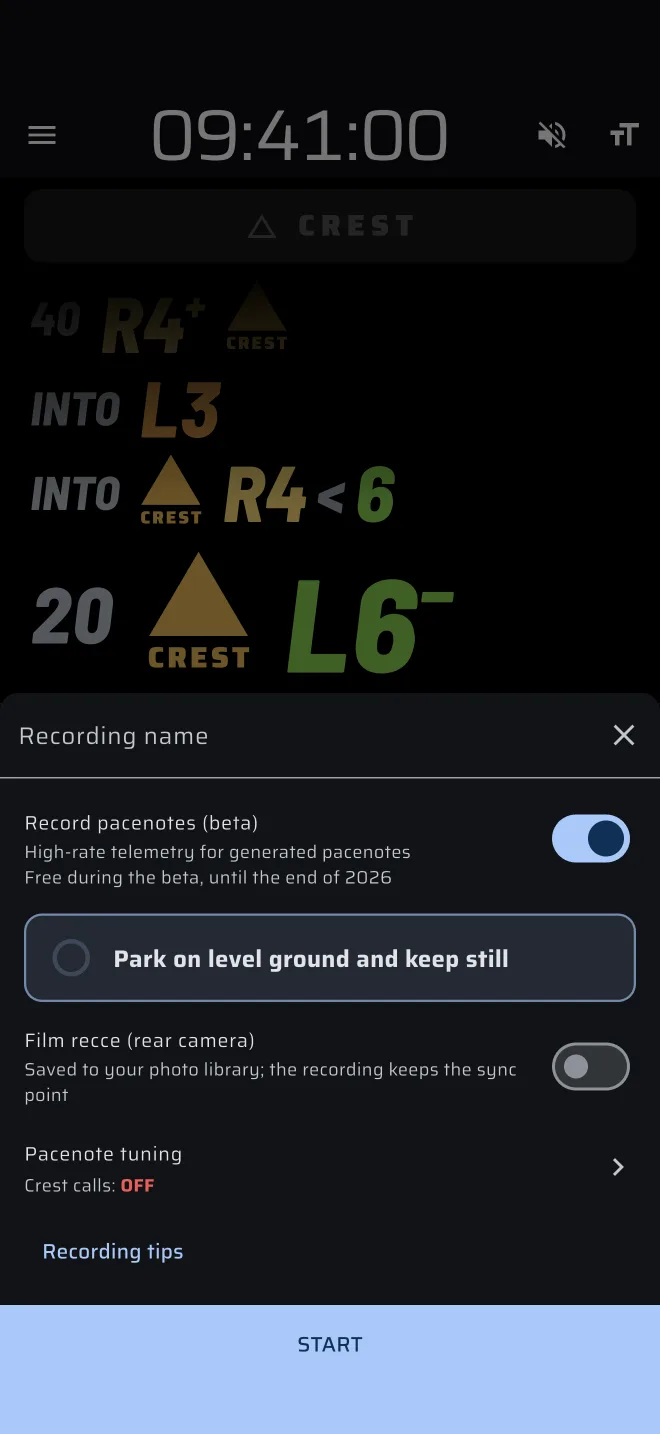
- Tap Start recce. The recording sheet opens with Record pacenotes (beta) already on. Its caption reads High-rate telemetry for generated pacenotes and Free during the beta, until the end of 2026.
- Type a name in Recording name, or leave it empty.
- Check the mount tile, then tap Start. The sheet is described below.
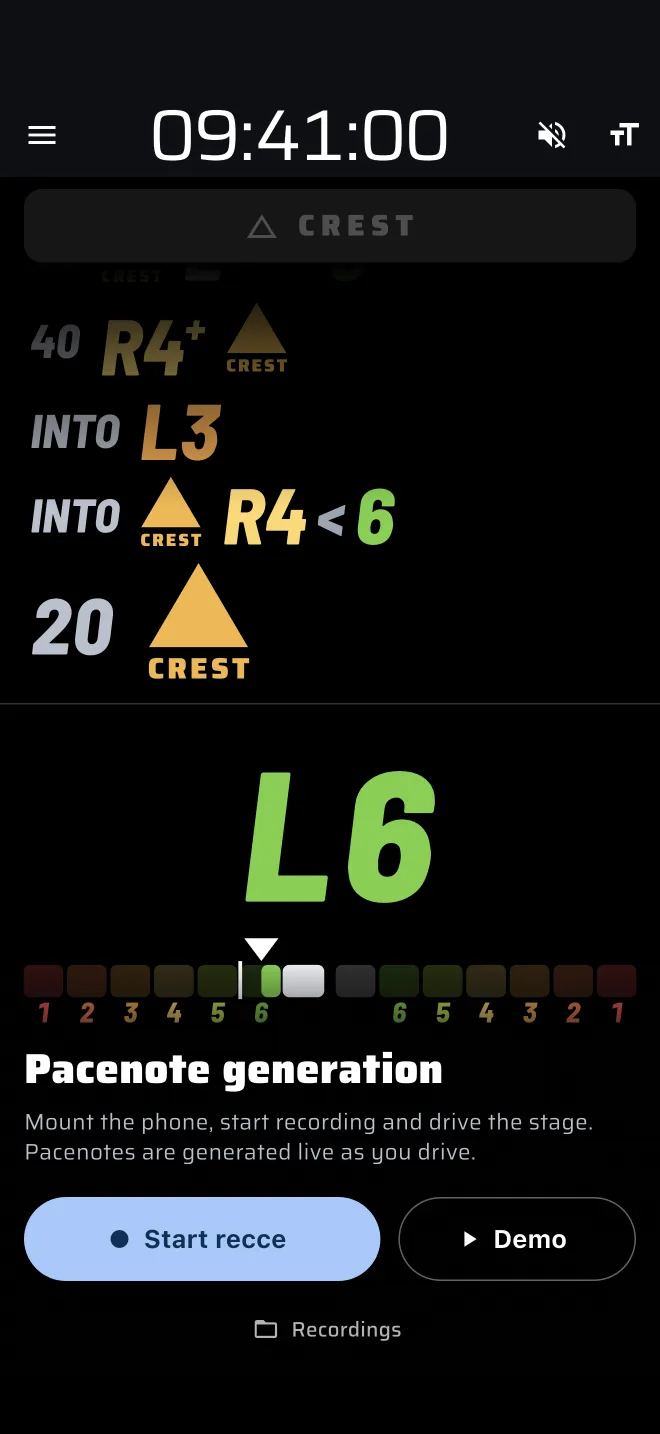
Behind the start screen, the live display plays a minute of a real recce, so you can see what you will get. It is the display you picked in the app bar (see Live notes). Over it are the title, Pacenote generation, a short description, Start recce, Demo and Recordings.
If a plain route recording is already running, it shows a notice instead of the buttons: A recording without pacenotes is running. Stop it from the recording bar to start a recce. Stop that recording first.
Start from the Recce stage sheet
Use this when you want the speed limits of a Recce stage and the notes together.
- Open the stage sheet. In Recce mode with no Recce stage, the screen shows Create a stage and, if you have saved stages, From library. Tap one of them. In a custom layout, open the stage sheet and set the stage type to Recce.
- Load or enter your stage.
- Switch on Record pacenotes (beta). Its caption reads Records the drive and generates pacenotes; stops with the stage.
- Tap Start.
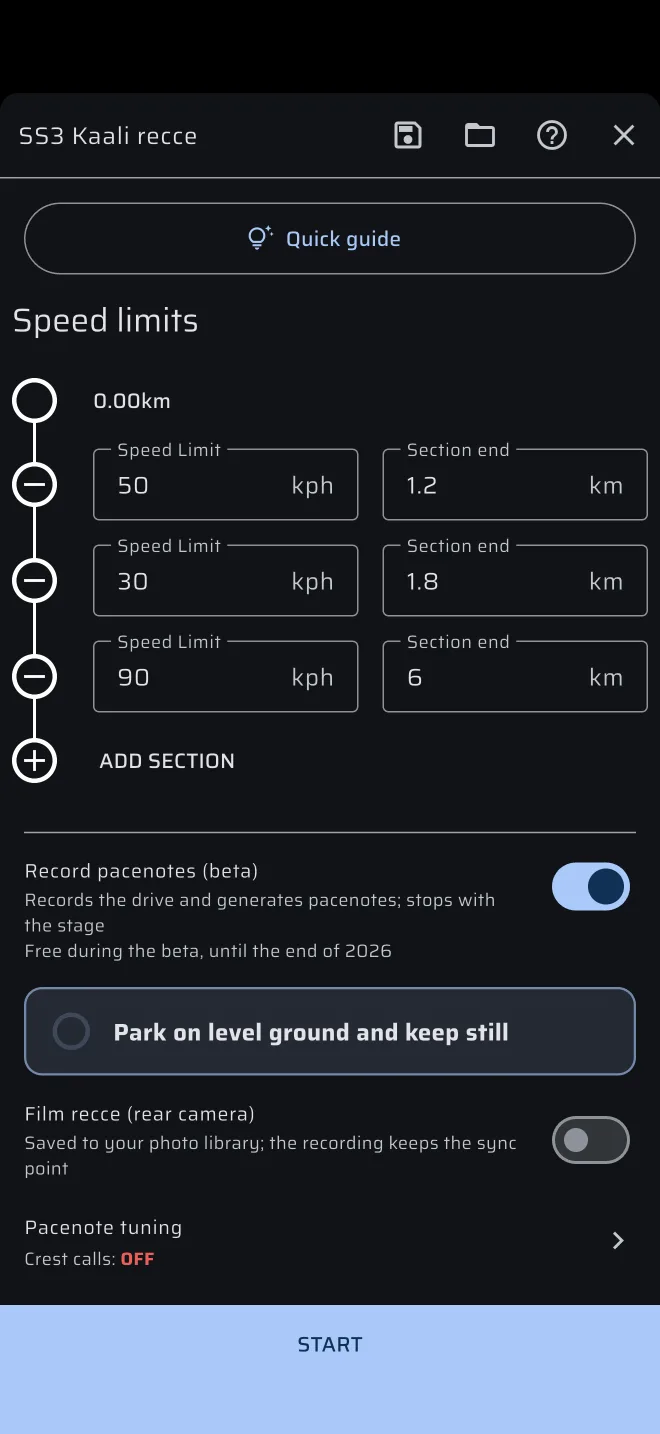
The stage and the recording start together, and the recording is named after the stage. Stopping the stage stops the recording. The switch is only there for Recce stages.
Recce is a Pro mode. On the free plan, starting the stage uses the daily Pro fuel. Only one stage runs at a time: if a Race or Regularity stage is running, the app asks Stop the … stage? first.
The options under the switch
Switching on Record pacenotes (beta) opens three things.
Mount status. A tile that reads the phone's motion while the sheet is open:
| Tile | Meaning |
|---|---|
| Park on level ground and keep still | The phone is still calibrating. A ring fills while you hold it still. |
| Mount calibrated | The mount is steady and has had its still moment. |
| Phone looks loose — check the mount | The phone is moving. Fix the mount. |
The tile only informs. It never stops you from starting.
Film recce (rear camera). Films the road with the rear camera, with sound. The caption reads Saved to your photo library; the recording keeps the sync point. The video is used in the replay.
The first time, the phone asks for the camera and the microphone. If you refuse either, the recording runs without video. When you stop, the phone may ask for the photo library. If you refuse it, the app keeps the video with the recording instead.
Pacenote tuning. Shows the tuning the drive will use and opens the tuning sheet. Set it before you start. The live notes run on it for the whole recording, and it cannot be changed while recording.
In the recording sheet, a Recording tips button shows while the switch is on. It opens the checklist below without starting anything.
What happens when you tap Start
- The app asks for location if it does not have it yet.
-
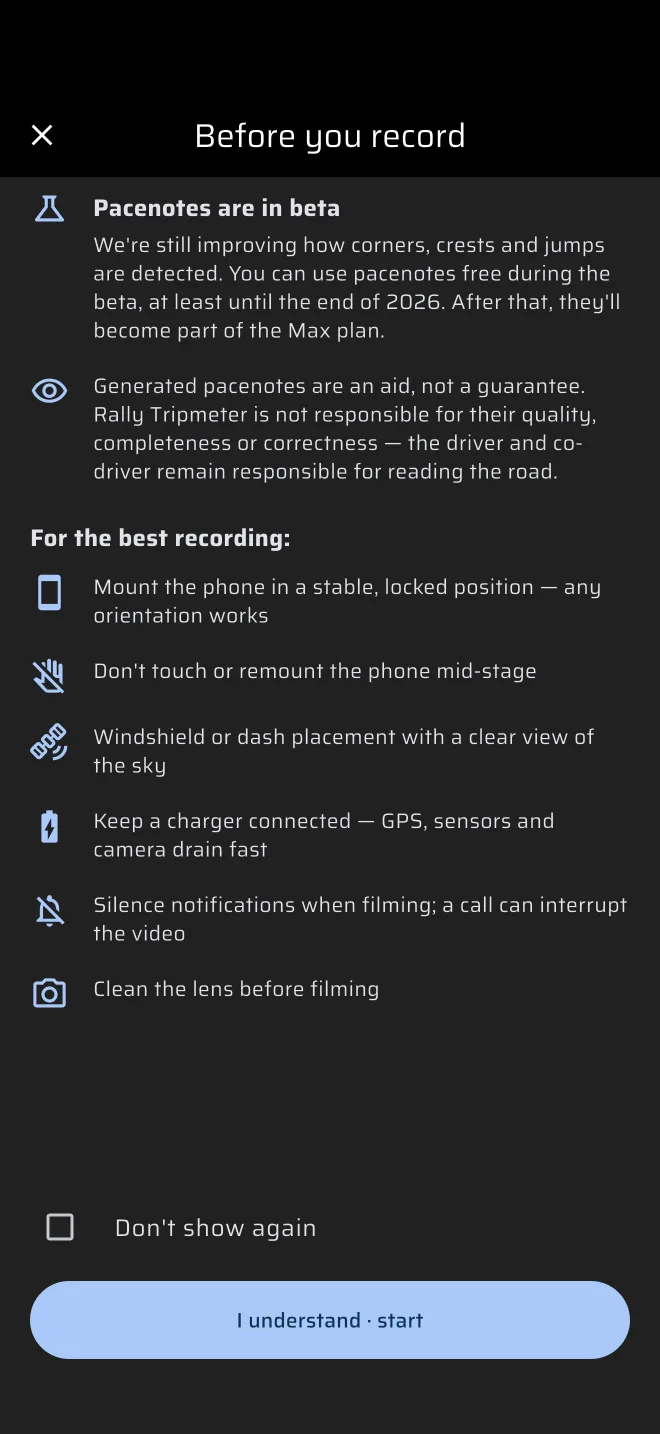
The Before you record screen opens, unless you ticked Don't show again earlier. It repeats the beta notice and the disclaimer quoted in the overview, and a checklist titled For the best recording:
- Mount the phone in a stable, locked position, any orientation works.
- Don't touch or remount the phone mid-stage.
- Windshield or dash placement with a clear view of the sky.
- Keep a charger connected, GPS, sensors and camera drain fast.
- Silence notifications when filming, a call can interrupt the video.
- Clean the lens before filming.
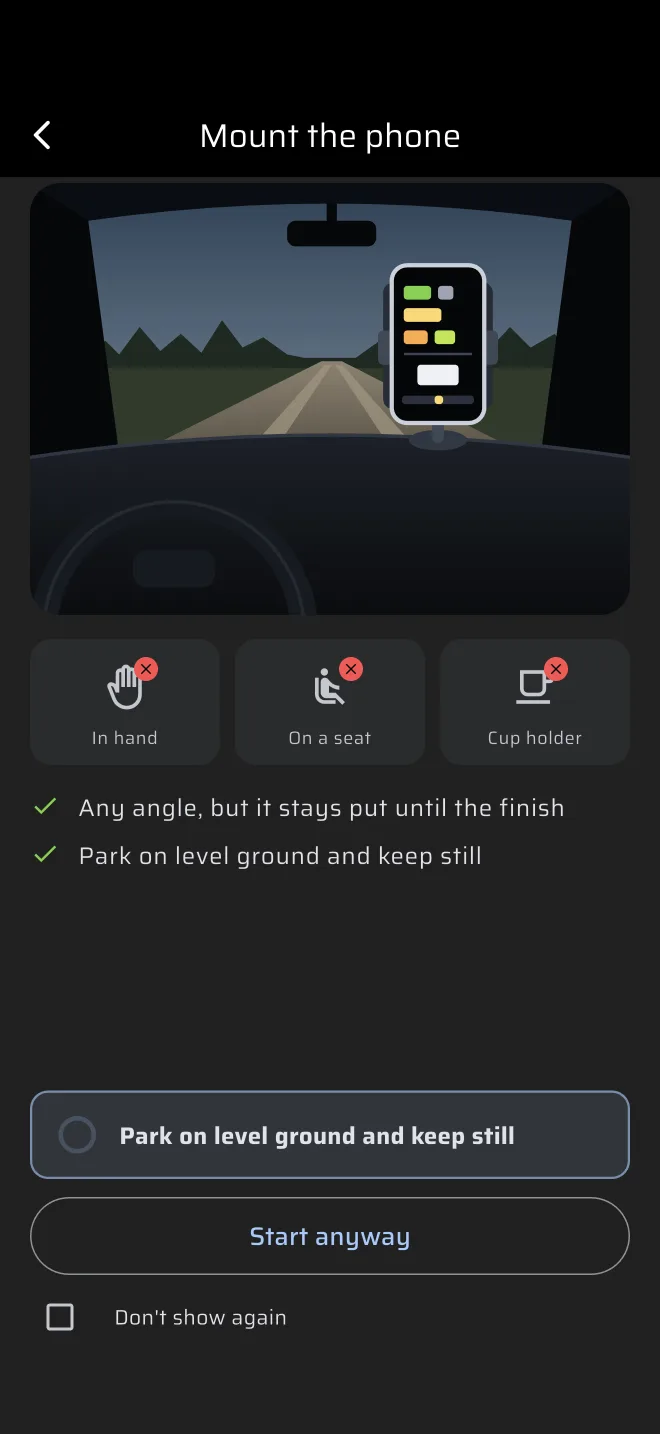
Tap I understand · start to go on. 3. The Mount the phone screen opens, unless you ticked Don't show again on it and the mount already reads calibrated. It shows the places the phone does not go, In hand, On a seat and Cup holder, and two rules: Any angle, but it stays put until the finish and Park on level ground and keep still. The button reads Start when the mount is calibrated and Start anyway when it is not. 4. The recording starts.
Start anyway is fine
A car that idles rough, or a phone you are still holding, may never read as still. Start anyway records normally. If the recording has too little cornering to work out the phone's axes, generation fails later and tells you so.
While it records
The recording bar shows above the screen in every mode except the custom layouts, with the elapsed time and Stop. Drive the stage as you would for any recce. Do not touch the phone.
In the drawer, the red Record chip shows the elapsed time, and a tap on it stops the recording. See Recording a route.
With Film recce on, Stop takes a moment: the app shows Finishing the video…, Saving the video to your photo library… and Keeping the video with the recording…. Wait for it to finish.
When it stops by itself
The recorder stops and saves the recording when the car has not moved for 15 minutes, or when the recording reaches 90 minutes. A dialog titled Recording stopped tells you which.