Buttons and remotes
You can run the app without touching the screen. Screen taps, Android volume keys and Bluetooth buttons all run the same list of actions, and you choose which actions each one runs. This page is the overview. The reference pages have every option: User inputs, Bluetooth buttons and the Trip toolbar.
Screen taps
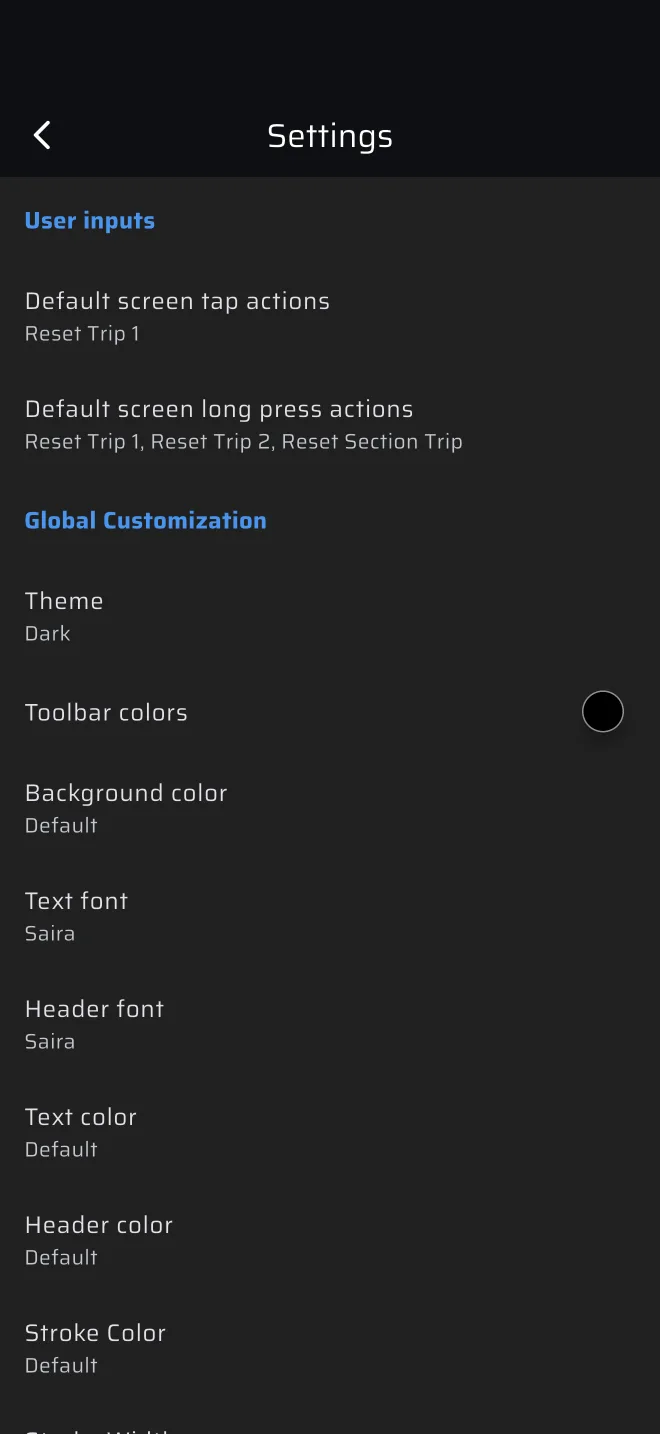
The whole main screen is one big button. A tap anywhere on it runs the tap actions. A long press anywhere runs the long press actions.
| Default action | |
|---|---|
| Tap | Reset Trip 1 |
| Long press | Reset Trip 1, Reset Trip 2 and Reset Section Trip |
Reset Section Trip only does something while a stage runs.
To change them, open Settings, group User inputs, and tap Default screen tap actions or Default screen long press actions. Each opens a list of actions (the full list is below). Tick the actions you want. One press can run several.
These cases do not follow the screen setting:
- A component with its own touch action takes the press first. The Stage Timer, Ideal Time, Last TC, Allowed Time, Next TC, Time to TC, Countdown Trip and the buttons of the stage toolbar are examples. Tapping Stage Timer starts or finishes the stage, it does not reset Trip 1.
- In Map mode, taps and long presses do nothing.
- In Recce mode, a tap with no stage, or after a finished one, opens the stage sheet, a tap on a stage that is waiting starts it, and a long press starts a waiting stage or stops a running one. A tap while the stage runs resets Trip 1 as usual.
- In edit mode the screen does not run actions.
The hint under a trip, such as Tap to reset or Long press to reset, is a reminder only. It does not change what the press does.
Sound
Switch on Play a sound when resetting trips in Settings and any press that runs an action beeps: a short beep for a tap or a short Bluetooth press, a longer beep for a long press. It is off by default.
Android volume keys
On Android the volume keys run actions too. Four settings in the User inputs group:
| Setting | Default |
|---|---|
| Default volume up button actions | Reset Trip 1 |
| Default volume down button actions | none |
| Default volume up button long press actions | none |
| Default volume down button long press actions | Reset Trip 1, Reset Trip 2, Reset Section Trip |
The keys only work while the main screen is on top. Under a screen such as Settings they go back to the phone and change the volume. The next and previous media keys act like volume up and volume down. The iPhone has no such setting.
Bluetooth buttons
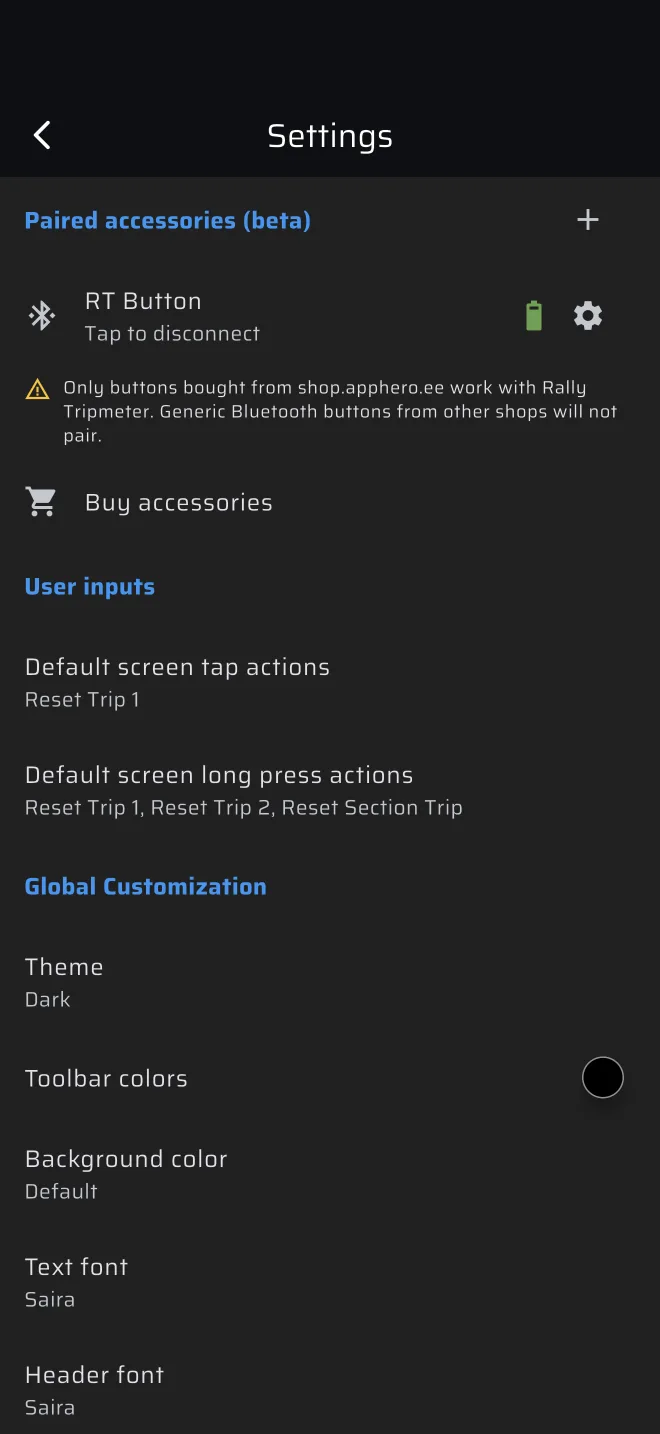
A Bluetooth button gives the co-driver a physical switch, on the steering wheel or the roll cage. Only buttons from the shop at shop.apphero.ee work. The app says so next to every Add button entry. The link to the shop is at the bottom of the drawer, Rally Tripmeter store.
To pair one:
- Open Settings. In the group Paired accessories (beta) tap Add button.
- In Searching for devices press the button. Its row lights up.
- Tap Connect.
Tap the row to connect or disconnect. The gear icon opens Button Settings, where you set the Tap actions and the Long press actions of that button. A new button starts with Reset Trip 1 on a tap and Reset Trip 1 plus Reset Trip 2 on a long press.
The app keeps the connection to your buttons while a mode screen is open.
The actions
The same list serves the screen, the volume keys and the buttons.
| Action | What it does |
|---|---|
| Reset Trip 1, Reset Trip 2, Reset Section Trip | Set that trip to zero. |
| Distance +10, +100, -10, -100 | Move all trips by that many thousandths of each trip's own unit: metres for a trip in km, thousandths of a mile for a trip in miles. +10 is the same step as the plus button of the trip toolbar. |
| Pause/Resume Trips | Toggle Pause on all trips. |
| Start/Stop special stage | Start a stage that waits for its start, or finish a running one. Bluetooth buttons only. With no stage waiting and no Pro fuel left, it buzzes and opens the out-of-fuel sheet. |
| Quick TC | Record a time control at the current stage trip in a running stage. |
| Next Section, Next Section + Restart | Move to the next section of a Regularity stage. Next Section + Restart also records a TC that restarts the ideal time, and on the last section it finishes the stage. |
| Sync Section Boundary, Sync Section Boundary + Restart | Snap the stage trip to the start or end of the current section. The + Restart variant also records a TC that restarts the ideal time. |
| Finish | Finish a running stage. |
The stage actions do nothing when no stage is running. They are described in Regularity | TSD mode.
Where to read more
- User inputs
- Bluetooth buttons
- Trip toolbar
- Rally raid crews: Remotes