Timing runs
Load a Race stage, start the run, stop it at the finish and compare your runs in History.
For your own reference
The app is the crew's own reference. It does not replace the organiser's timing. The result is the organiser's time.
Set up a run
In the drawer, open Hillclimb and sprints and tap Race. With no stage loaded, Race shows its no-stage screen, with buttons at the bottom. Start a stage now starts the timer at once, which is enough for a quick run: tap the Stage Timer again at the finish. Quick guide shows the screen hands-on, with Demo mode driving. To set the start and finish:
- Tap Create a stage (or From library for a saved one) to open the stage sheet.
- Enter a name in Stage name, for example "Hillclimb Run 1". The name is optional: a stage saved without one is called Untitled.
- Choose the Start signal and the Finish signal (below).
- Tap the save icon to keep the stage in your library. Tap the folder icon (Load) to load a saved one.
- Tap Start.
You do not need to save a stage for a single run. A saved stage gives you a clean start and stop for every run on the same course.
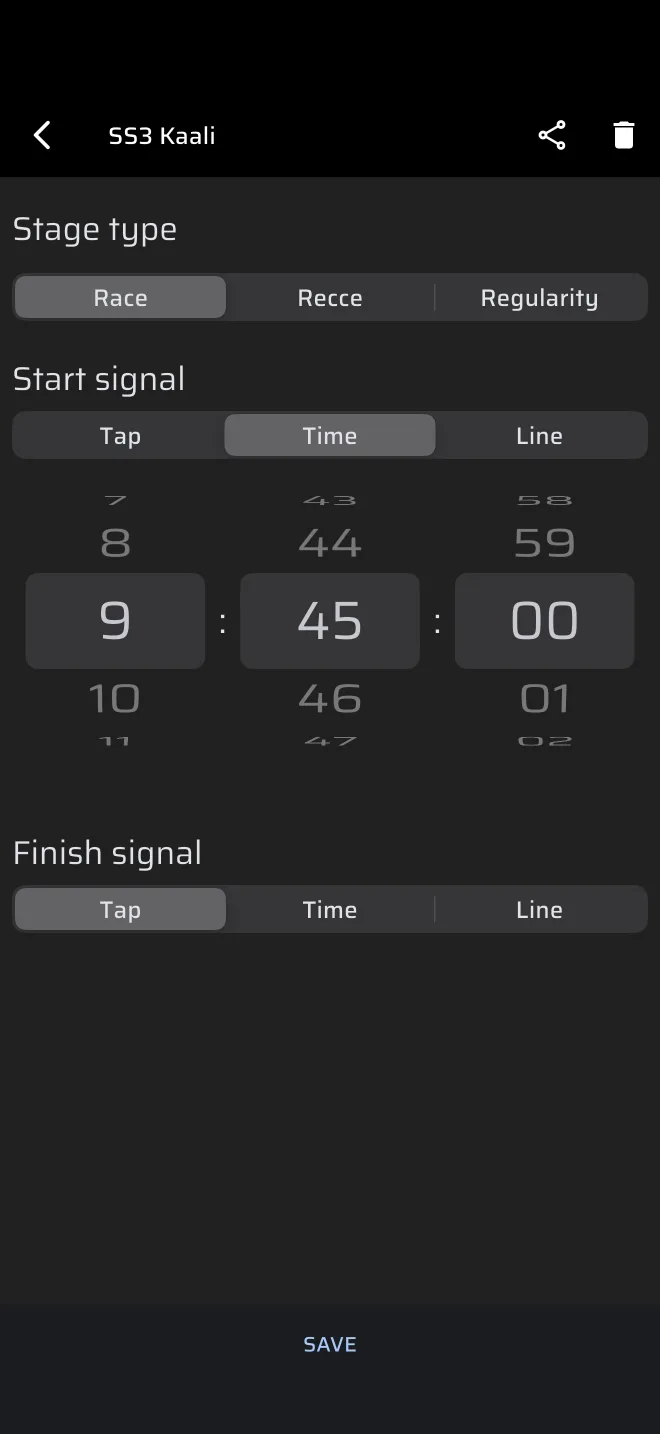
Which start to use:
- Tap is the usual choice. The stage waits for you. When the starter gives the signal, tap the Stage Timer. The hint reads Tap to start. The time you tap is the start, so your reaction time is part of the run time.
- Time is for a scheduled slot. Enter the start time. The default is the next full minute. In the last 30 seconds the Stage Timer counts down, and at zero it starts. The time comes from the Rally Time, so set that to the official clock first.
- Line is for a flying start. See below.
Two traps apply to a Time or Line start: a tap on the Stage Timer cancels it, and a start time that has already passed starts the run at once. Both are explained in Timing a stage. A saved stage keeps only the time of day, so check it when you reuse the stage.
Start and finish lines
A Line start or finish uses a line you draw on a map.
- Under Start signal or Finish signal, choose Line.
- The map opens at your current position. Move and turn it so that the line symbol in the centre lies across the road at the start or finish line.
- Save the stage with the line, so it is ready for every run.
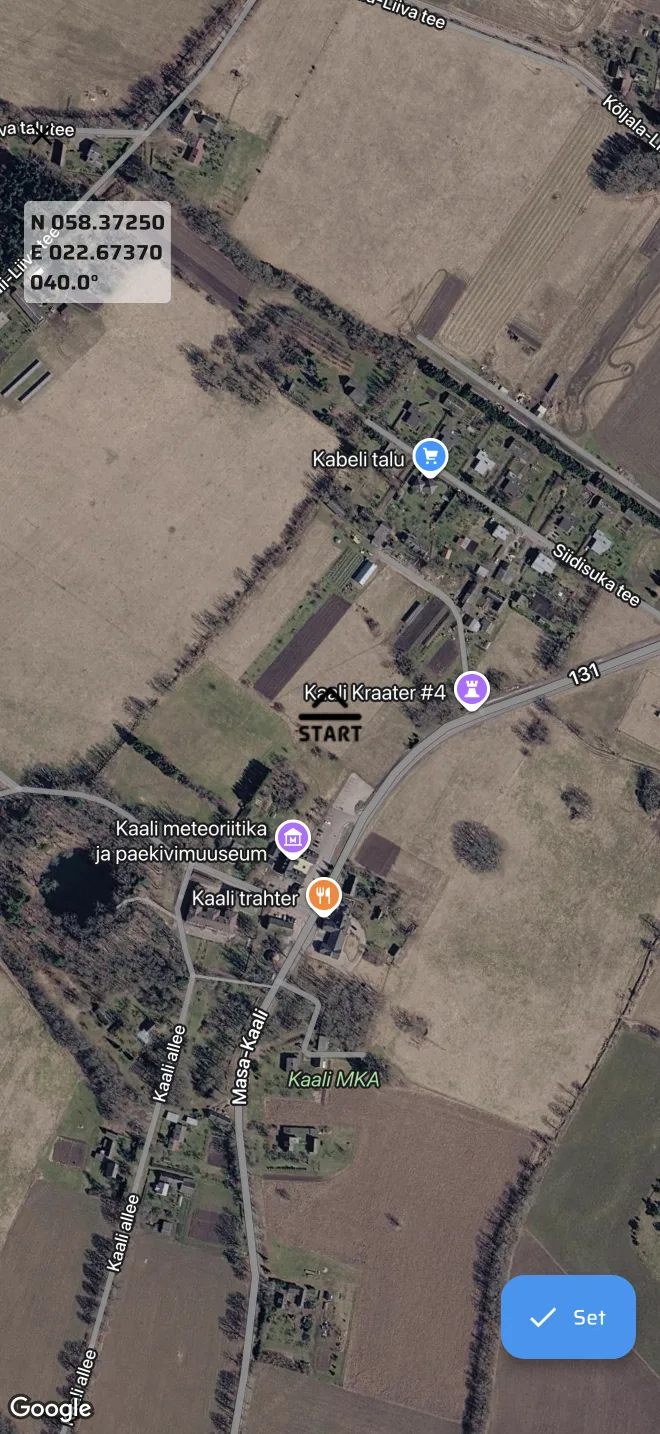
The run starts or finishes when the phone crosses the line. The app works the crossing time out between the two GPS fixes either side of the line, assuming a constant speed between them. It counts from the time the second fix reached the app, so any delay in the phone's GPS delivery shifts the time.
Keep these limits in mind:
- Standing starts. A car that sits on the line and then accelerates does not move at a constant speed between two fixes. A Line start suits a flying start. For a standing start use Tap, or Time for a scheduled slot.
- Finish. A Line finish works well at speed. The line is crossed by the phone, not by the front wheels or the official timing beam. Expect a small difference from the official time.
- Other finishes. The finish can also be Time, or you tap the Stage Timer. The text on the timer reads Tap to stop.
- The app cannot start or finish by distance.
You can end any running stage by tapping the Stage Timer, whatever the finish signal says. Use that if a Time or Line finish does not fire, and keep your hand off the timer during the run. The finished run shows its time with the hint Tap to reset. A tap clears it and takes you back to the no-stage screen. Load the stage with From library for the next run.
During the run
Race mode shows:
- Stage Timer, the run time in tenths of a second;
- Stage Trip and Stage AVG, the distance and average speed since the start;
- Section Trip and Section AVG, since you last reset the section trip;
- Speed, and Stage Max Speed, the highest speed so far.
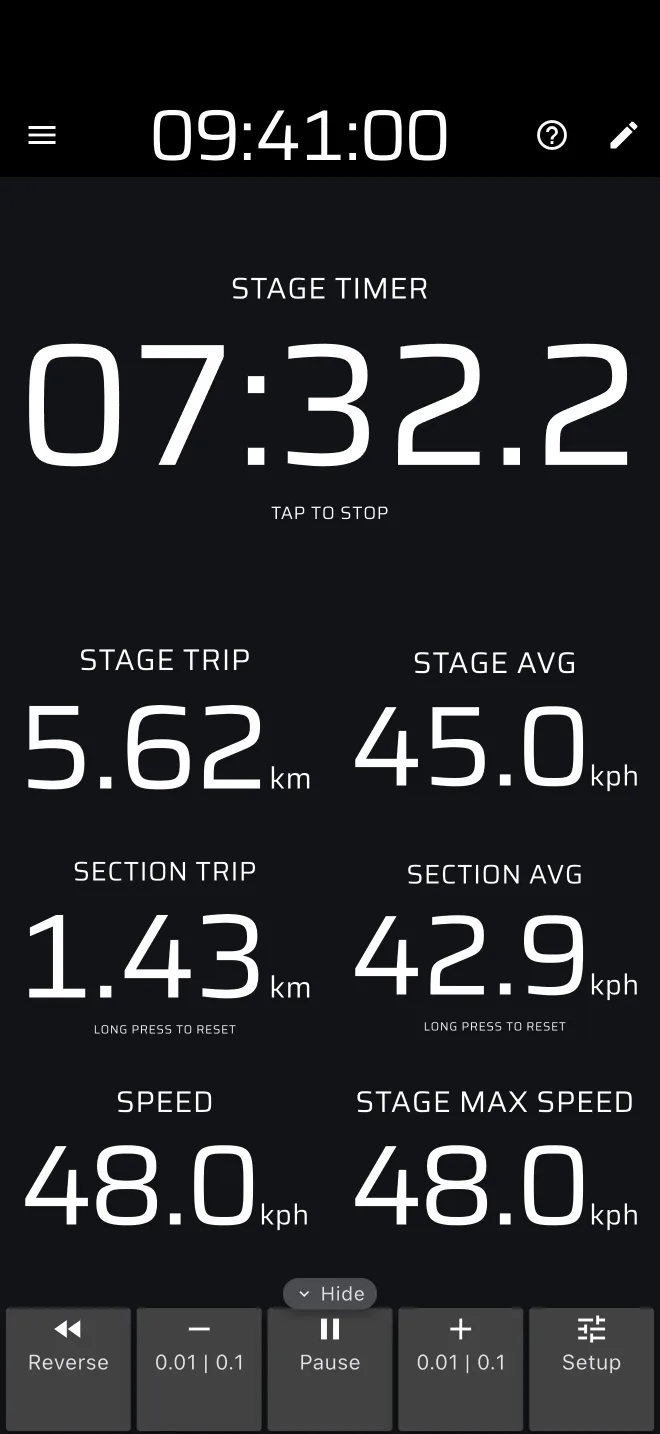
To compare splits between runs, reset the section trip at a known landmark. A long press anywhere on the screen resets it (the hint on the Section Trip reads Long press to reset), and it also resets Trip 1 and Trip 2. Section values are not stored in History, so write down the time and distance you want to compare.
The Stage Trip counts GPS distance with your calibration. Compare it with the known length of the course. If the two differ, check the calibration. See Calibration.
History per run
Every finished run is saved automatically as a separate entry, with the stage name, the time, the average speed and the distance. A run you cancel before it starts is not saved.
- Open the drawer and tap History, under Library.
- Put the times of your runs next to each other. The pencil icon renames a run, so you can label them "Run 1", "Run 2".
- Tap a run to open Telemetry. The speed graph shows speed against distance. Drag along it, and the map and the chips follow. Open two runs and drag to the same distance, for example the same hairpin, to see where you gained or lost speed.
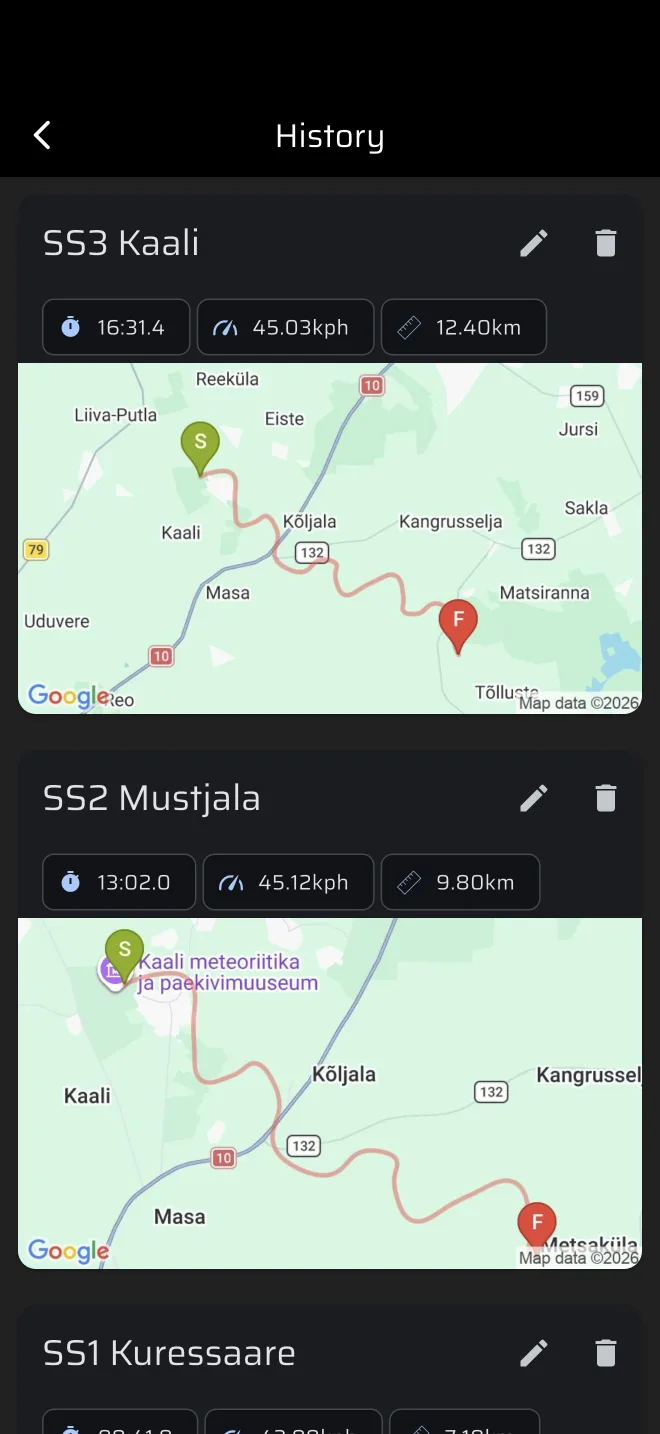
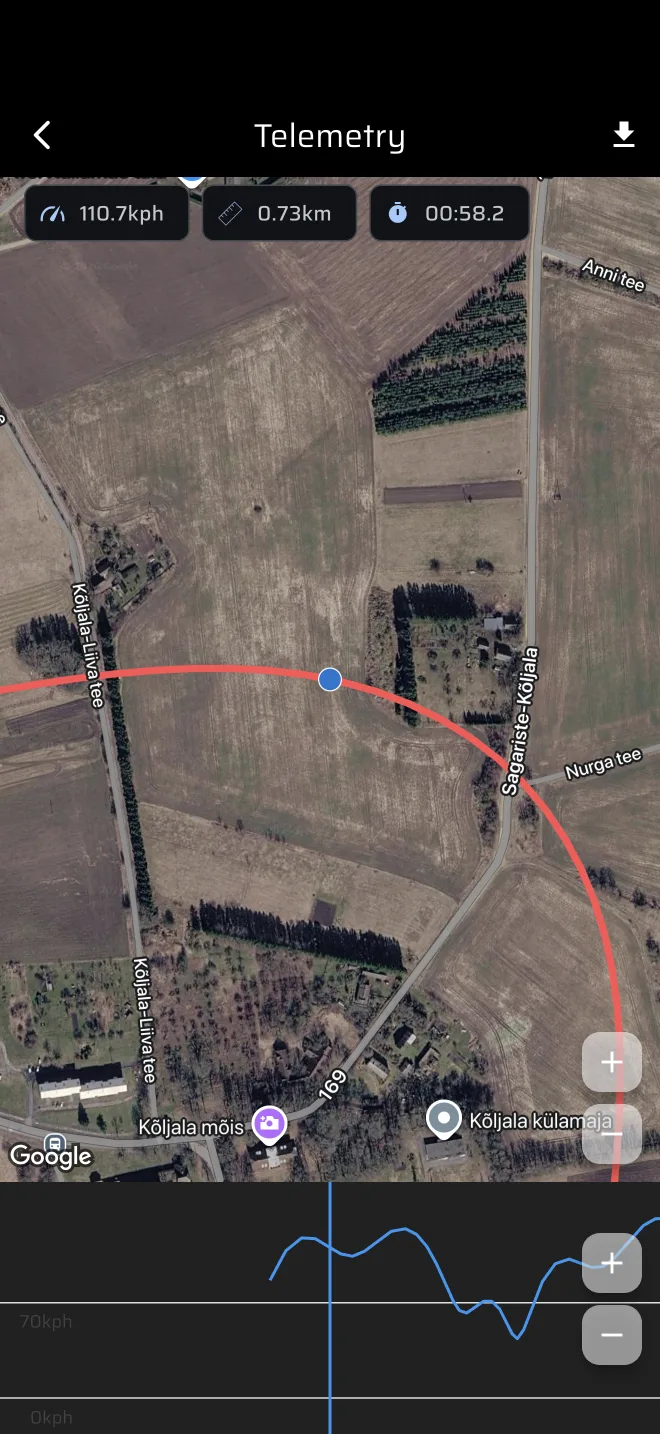
The app has no side-by-side comparison. A run that finishes without a connection shows in the list at once, with a cloud-off icon (Waiting to sync), and uploads when the phone is online again. See Service and history.
To share the course with other competitors, open Library > Stages and tap the share icon next to the stage. It is sent as an .rtstage file. They import it with Import stage.