Bluetooth buttons
A Bluetooth button lets the co-driver reset a trip or press Sync without touching the screen. The buttons sit on the steering wheel, the roll cage or the gear lever.
Only buttons from shop.apphero.ee pair
Rally Tripmeter works with the buttons sold in the accessory shop at shop.apphero.ee. Generic Bluetooth buttons and selfie remotes from other shops do not pair. The app says this next to every Add button entry.
The shop link is at the bottom of the drawer as Rally Tripmeter store, and in Settings as Buy accessories.
Pair a button
- Open Settings. The Paired accessories (beta) group is below Calibration factor.
- Tap Add button. With a button already paired, tap the plus icon in the group header.
- The Searching for devices dialog lists buttons that are nearby. A button appears with its name, usually RT Button.
- Press the button once. Its row lights up, so you know which one is in your hand.
- Tap Connect on that row.
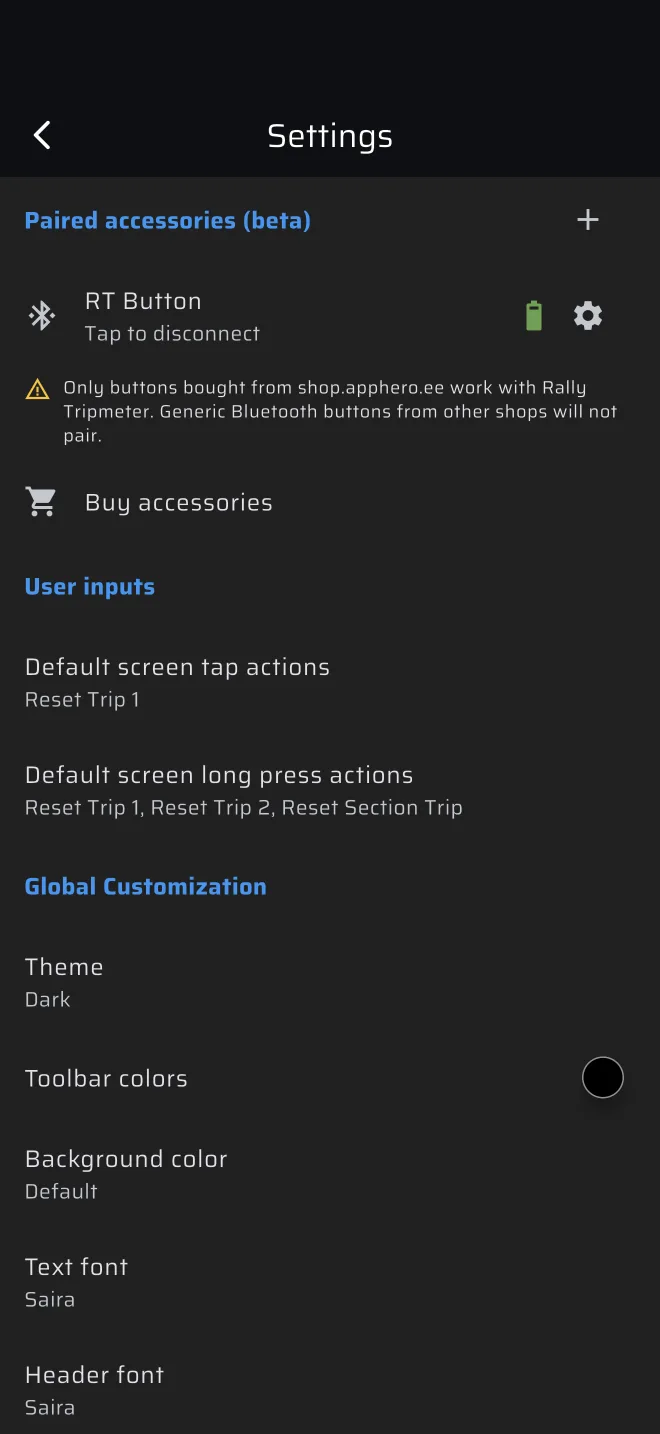
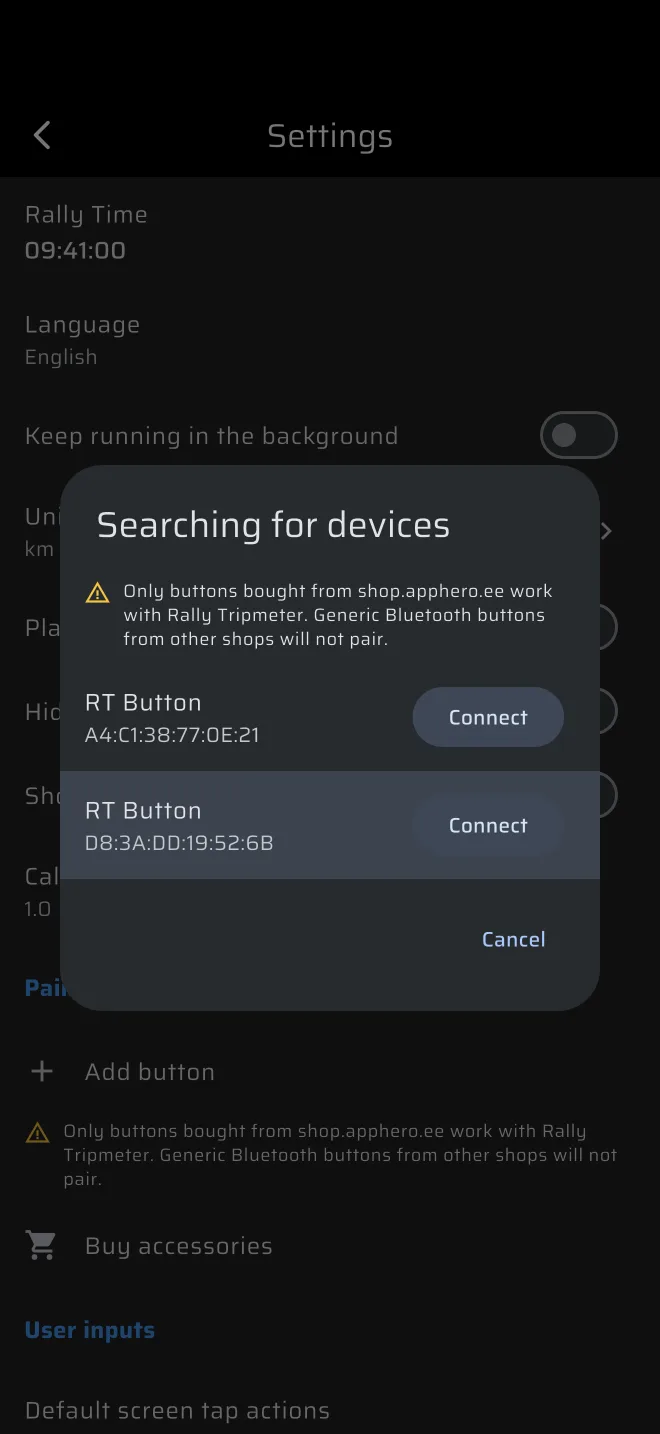
The dialog closes and the button is in the list. A button that is already paired shows Already paired and is greyed out.
If Bluetooth is off, the dialog and the group show why instead of the list:
| Message | What to do |
|---|---|
| Bluetooth disabled | Switch Bluetooth on in the phone settings. |
| Bluetooth permission denied | Tap the row, then allow Bluetooth for the app. |
| Location services disabled | Android needs location on to scan for Bluetooth. Tap the row. |
| Determining bluetooth status... | Wait a moment. |
| Bluetooth is not supported | The phone has no usable Bluetooth. |
The list of buttons
Each paired button is a row with its name, its state and a settings icon.
- The state reads Tap to disconnect when connected, Connecting, Disconnecting or Tap to connect. Tap the row to connect or disconnect.
- A battery icon shows next to the gear while connected. It is red when low and green when full. A question mark means the level is not known yet.
The app connects to every paired button while the app is open, on every screen, and reconnects when a button comes back in range.
Button settings
Tap the gear icon to open Button Settings.
| Setting | What it does |
|---|---|
| Button name | A name you choose. |
| Device ID | The address of the button. Read only. |
| Battery level | The level in percent, or N/A when not connected. |
| Tap actions | The actions for a short press. Default: Reset Trip 1. |
| Long press actions | The actions for a long press. Default: Reset Trip 1 and Reset Trip 2. |
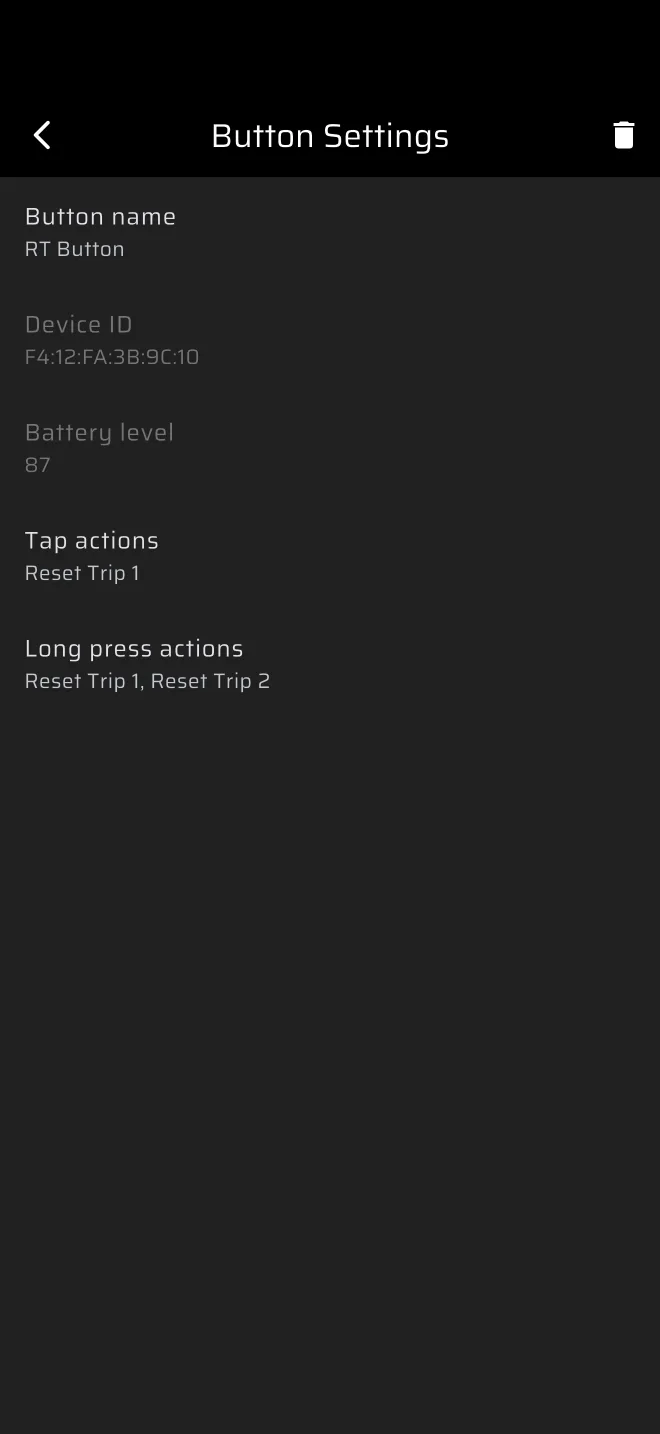
A press that is held for 300 ms counts as a long press. It fires at that moment, without waiting for you to let go.
The action list is the same as for the screen, with one more entry, Start/Stop special stage. See User inputs. Each press can run several actions.
The bin icon in the top bar removes the button, after Remove bluetooth device?.
If Play a sound when resetting trips is on, a press with at least one action beeps.