Editing and export
The generated notes are a starting point. Correct any note on the recording screen, then print the notes as a pacenote book.
Edit a note
- Open a recording from Recce recordings.
- Tap a note in the list, or the call at the car. The note edit sheet opens.
- Change what is wrong. Every change is saved as you make it.
- Tap Done.
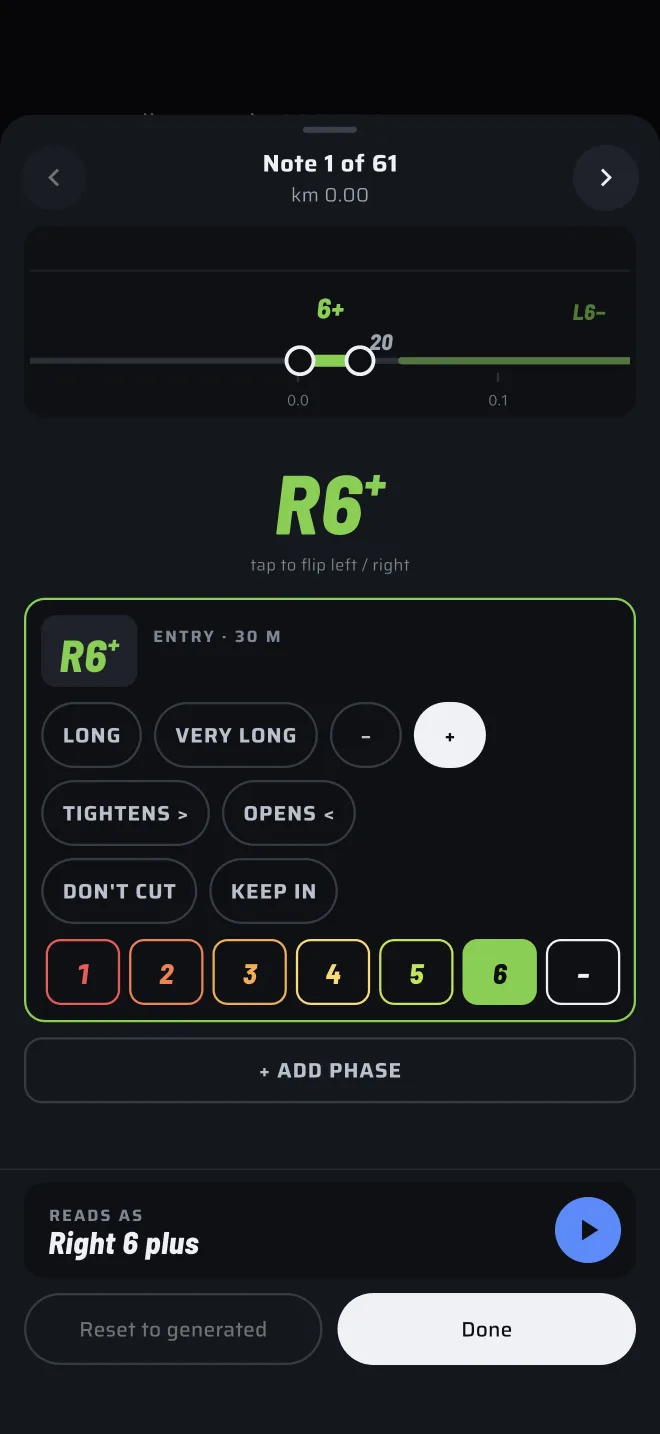
At the top of the sheet, the chevrons go to the Previous note and the Next note. The label reads Note n of m with the position in kilometres, and edited once you have changed the note. Moving to another note saves the one you leave. Swiping the sheet away saves it too.
Under the label is the road from the note's point of view. Crests show on it and you can drag one to move it.
A corner
- Flip left and right. Tap the large call. The hint under it reads tap to flip left / right.
- Grade. Tap a number from 1 to 6, or the dash for an unnumbered bend. The numbers follow the grade numbering you chose in the tuning sheet.
- Half grades. The + and − chips make the grade a half step faster or slower, depending on the numbering ("+" is a little faster or "+" is a little tighter).
- Length. Chips for long and very long.
- Shape changes. Chips for tightens (>) and opens (<).
- Hairpin and square. They show when the grade is 1. SQUARE is on the corner's first phase only.
- Don't cut and keep in. Chips for those calls.
The words on the chips are in the app's language.
Phases
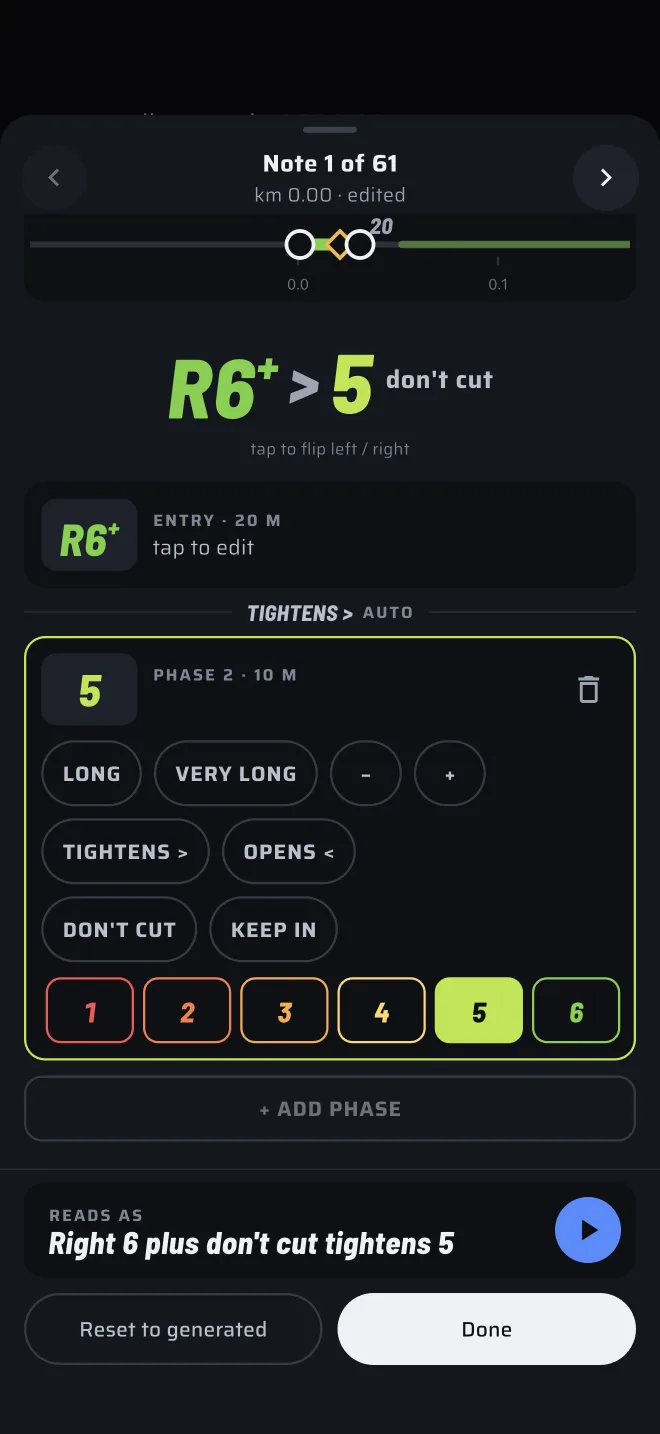
A corner can have phases, each with its own grade and its own tightens or opens chips. The list shows entry and then phase 2, phase 3 and so on, each with its length in metres.
- Tap a phase to open it (tap to edit).
- Tap + ADD PHASE to add one.
- Tap the bin icon (Delete phase) to remove one.
- Between two phases, a divider shows how the second differs from the first: TIGHTENS >, OPENS < or SAME GRADE. It is worked out from the two grades and marked auto.
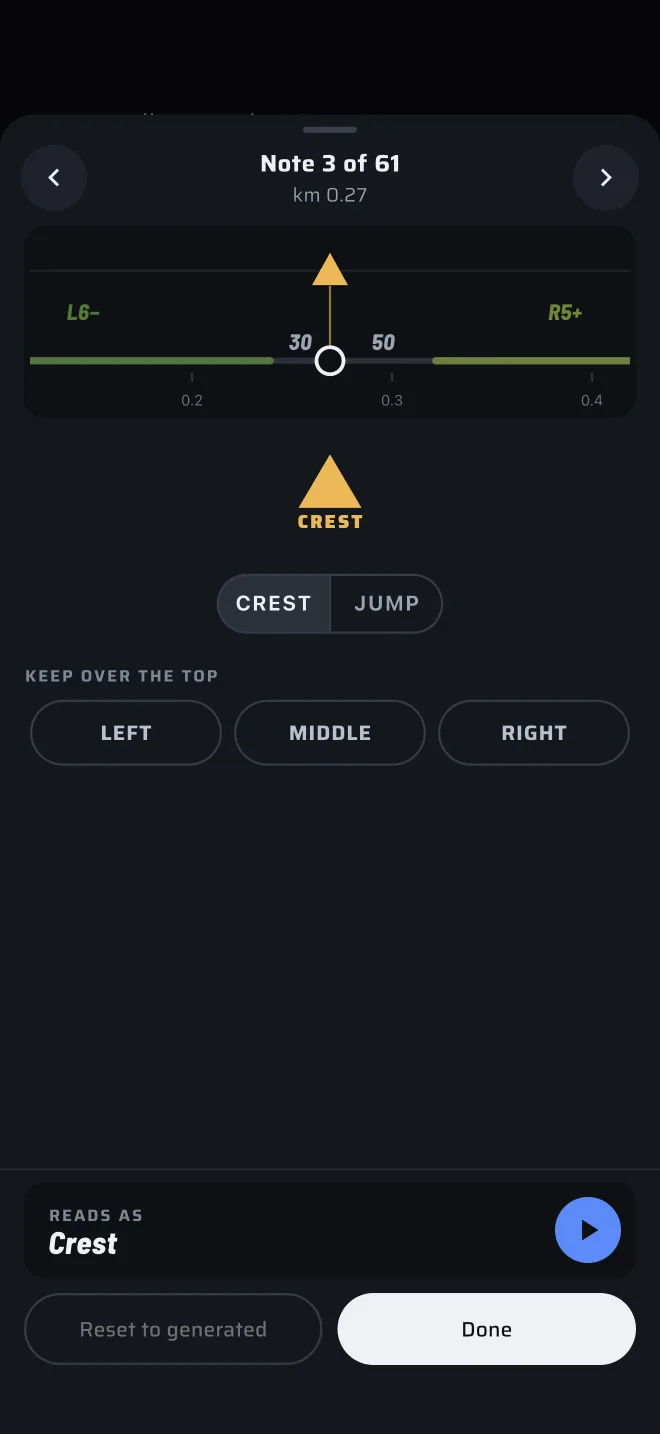
A crest
- Switch between a crest and a jump with the two-way switch at the top.
- Under keep over the top, choose LEFT, MIDDLE or RIGHT, the side of the road to keep. Tap it again to clear it.
A crest that sits inside a corner is its own card in the corner's sheet, with the same switch.
Hear it
At the foot of the sheet, reads as shows the note as the co-driver says it. Tap the play button (Play the call) to hear it.
Reset
Reset to generated puts the note back as the generator wrote it. It is only active once you have changed the note.
Generate again
The Tune and regenerate button in the app bar opens the tuning sheet. Change the settings and tap Generate. The notes are made again from the whole recording.
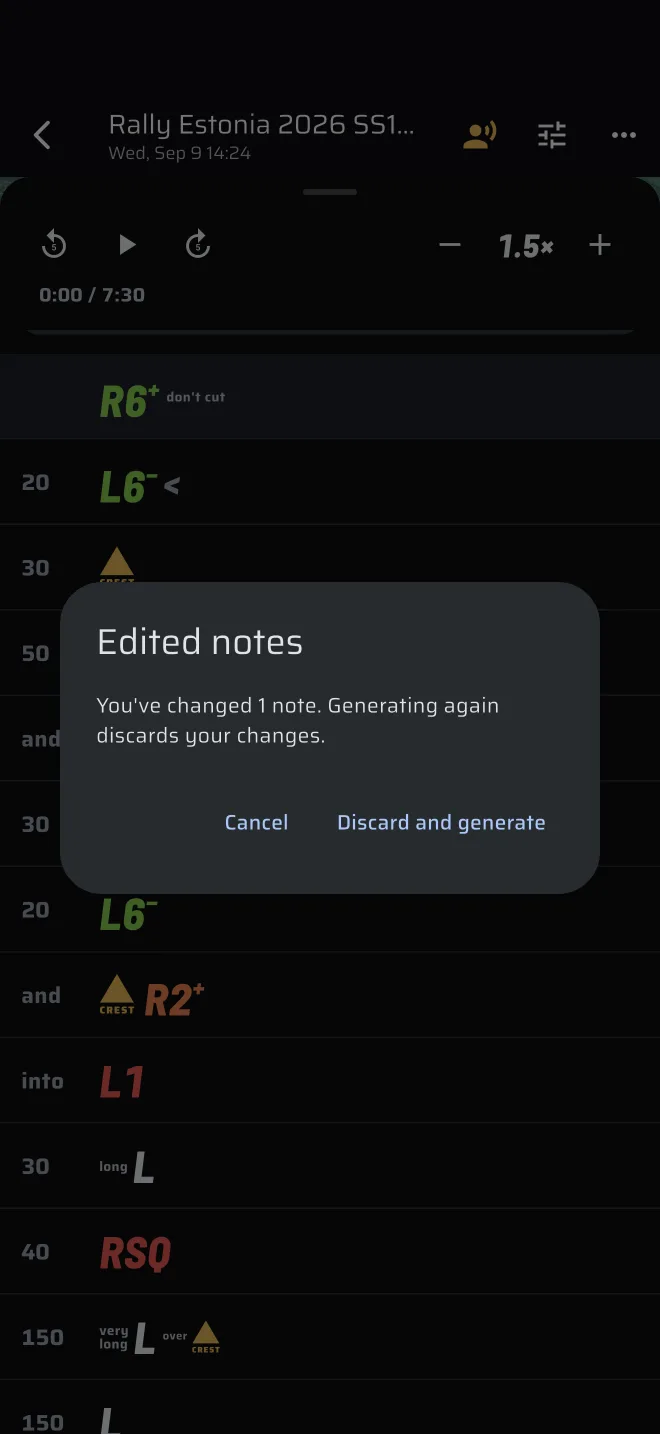
If you have edited notes, the app warns you first. The dialog is titled Edited notes and reads You've changed n notes. Generating again discards your changes. Tap Discard and generate to go on, or cancel to keep your edits.
The tuning is shared
The tuning sheet edits the same settings that the live notes and every new recording use. Tuning here changes later recordings too.
Export a pacenote book
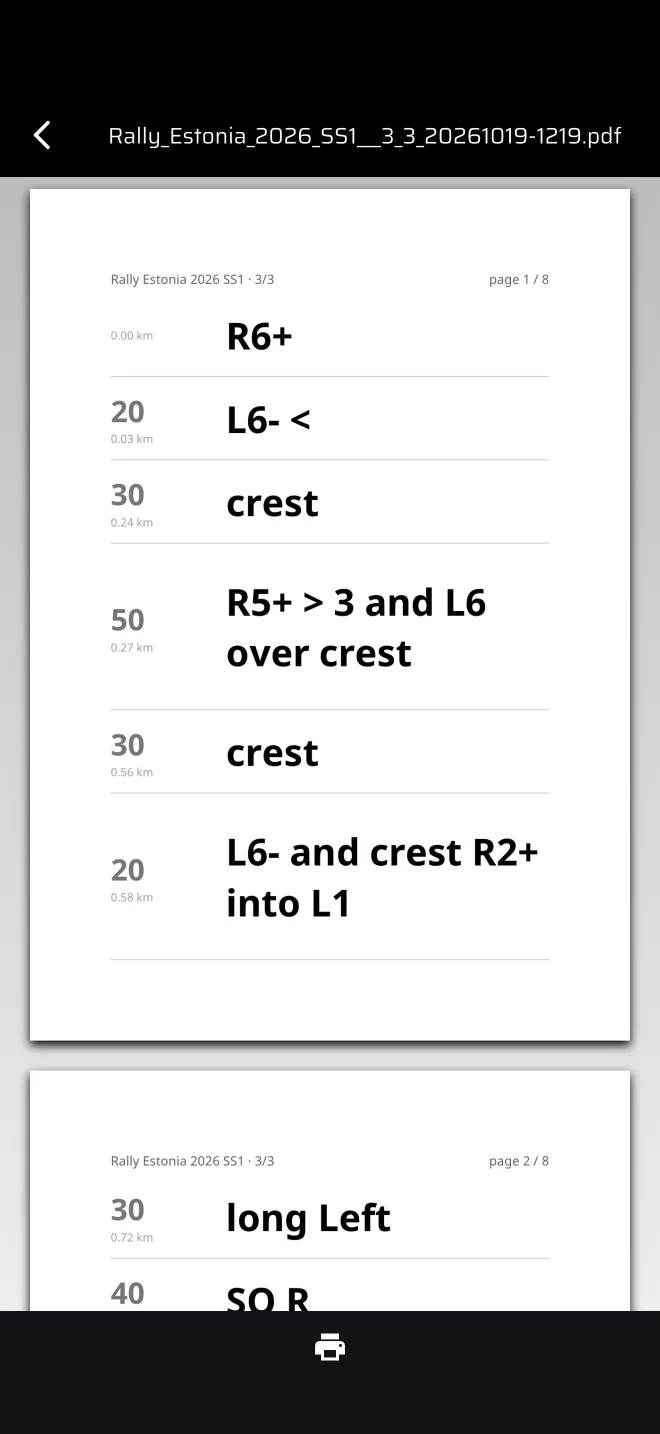
The export makes a PDF of the notes, one row per call, to read in the car or to print.
- Open the recording.
- Tap Export. It is in the app bar, or in its overflow menu on a narrow phone. It is only there when the recording has notes.
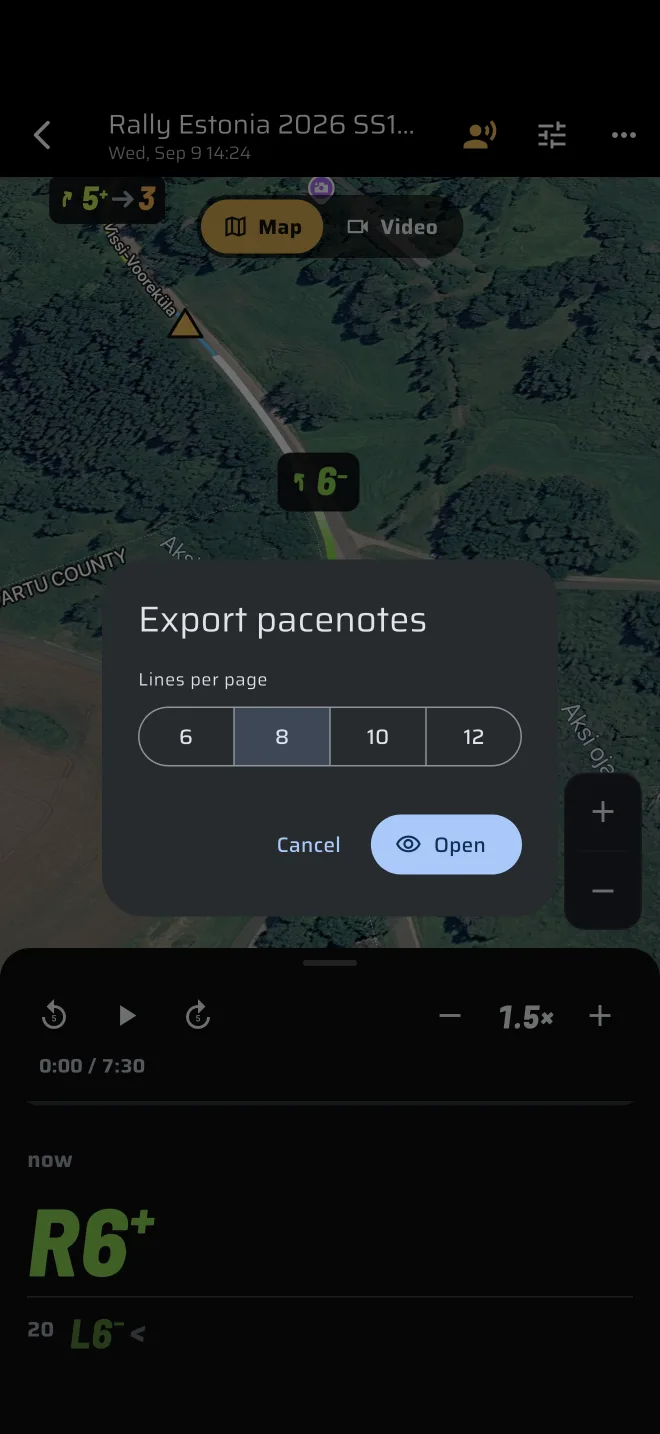
- In Export pacenotes, choose Lines per page: 6, 8, 10 or 12.
- Tap Open.
The PDF opens in a preview at A5. The preview offers printing. It has no share button, so the PDF does not leave the app as a file. Recce data stays with the person who drove it.
Your last choice of lines per page is remembered while you stay on that recording.