Timing a stage
Race mode times a special stage. It shows a Stage Timer, stage and section trips with averages, your speed and the highest speed of the stage. This page covers setting up the stage, the three ways to start, the three ways to finish and what the screen shows.
For your own reference
The app times the stage from the phone's GPS and clock. It is for the crew's own reference, not official timing. The organiser's time is the result.
Set up the stage
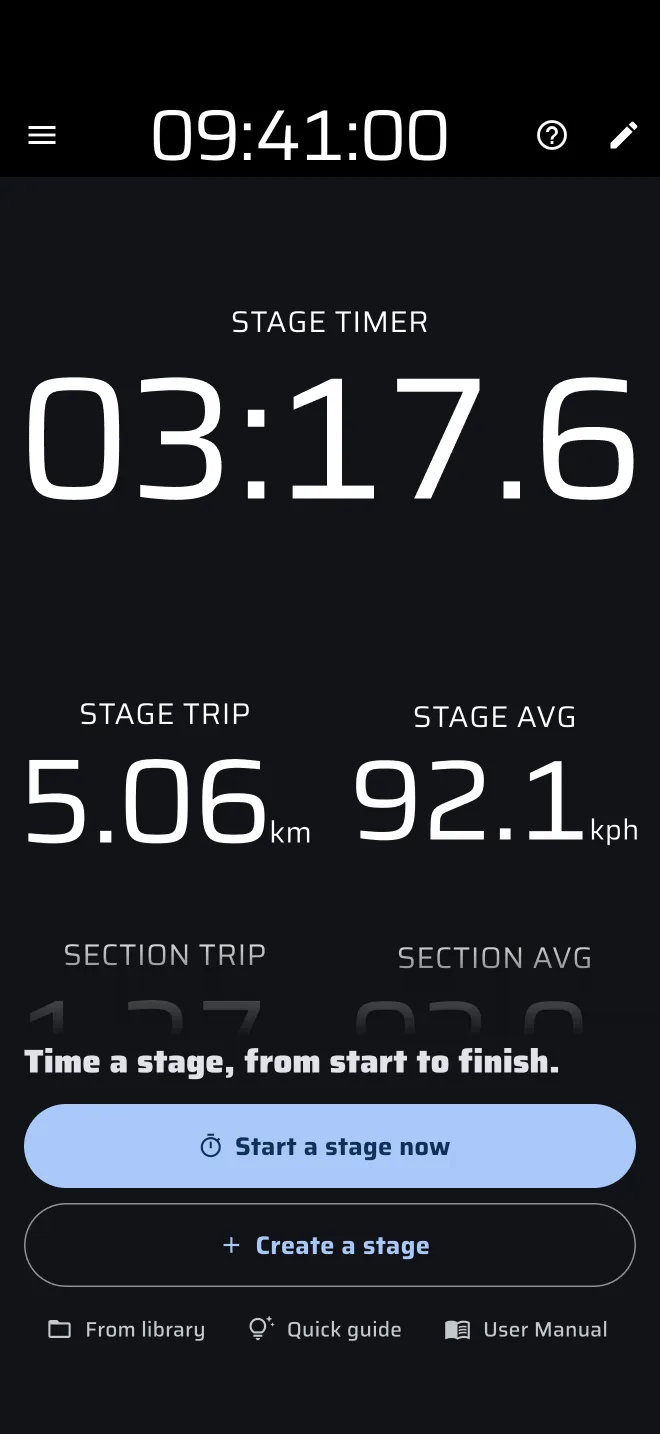
In the drawer, open Stage rally and tap Race. With no Race stage loaded, Race shows its no-stage screen: a stage plays in the background, and a panel at the bottom has these buttons:
- Start a stage now: the stage timer starts at once, with nothing to set up. Tap the Stage Timer at the finish to stop it.
- Create a stage: opens the stage sheet.
- From library: pick a saved stage. It shows when your library has a stage.
- Quick guide: Demo mode drives the car and tips show how the screen works, from the start to the finish. The guide's stage is not saved to History, and it is gone when the guide ends.
- User Manual: opens the Race page of this manual.
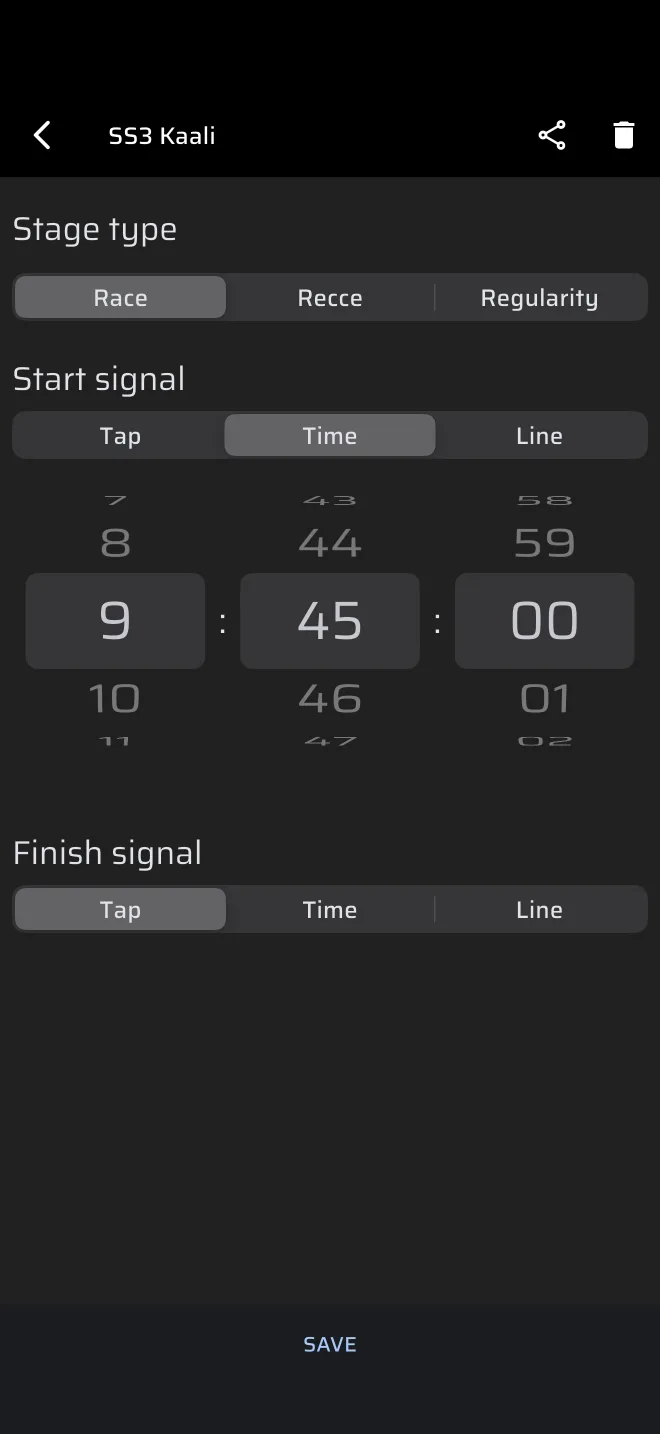
To set up a stage with a start and finish signal:
- Tap Create a stage (or From library). The stage sheet opens.
- Enter a name in Stage name, for example "SS1". A name is optional: a stage saved without one is called Untitled.
- Choose the Start signal and the Finish signal (below).
- Tap the save icon to keep the stage in your library. Tap the folder icon (Load) to pick a saved one.
- Tap Start.
Saved stages are in the drawer under Library > Stages. You can also create a stage there, share it as an .rtstage file and import one that someone sent you. See Stage library.
Start by Tap, Time or Line
Under Start signal, choose one of three.
Tap. The stage waits for you. When the marshal gives the start signal, tap the Stage Timer. Its hint reads Tap to start.
Time. Enter the start time. The default is the next full minute. After you press Start:
- the Stage Timer header changes to Start time and shows the start time;
- in the last 30 seconds it counts down in seconds;
- at zero it starts counting the stage time.
The start time uses the Rally Time in the app bar, so set that to the official clock first (see the Quick start).
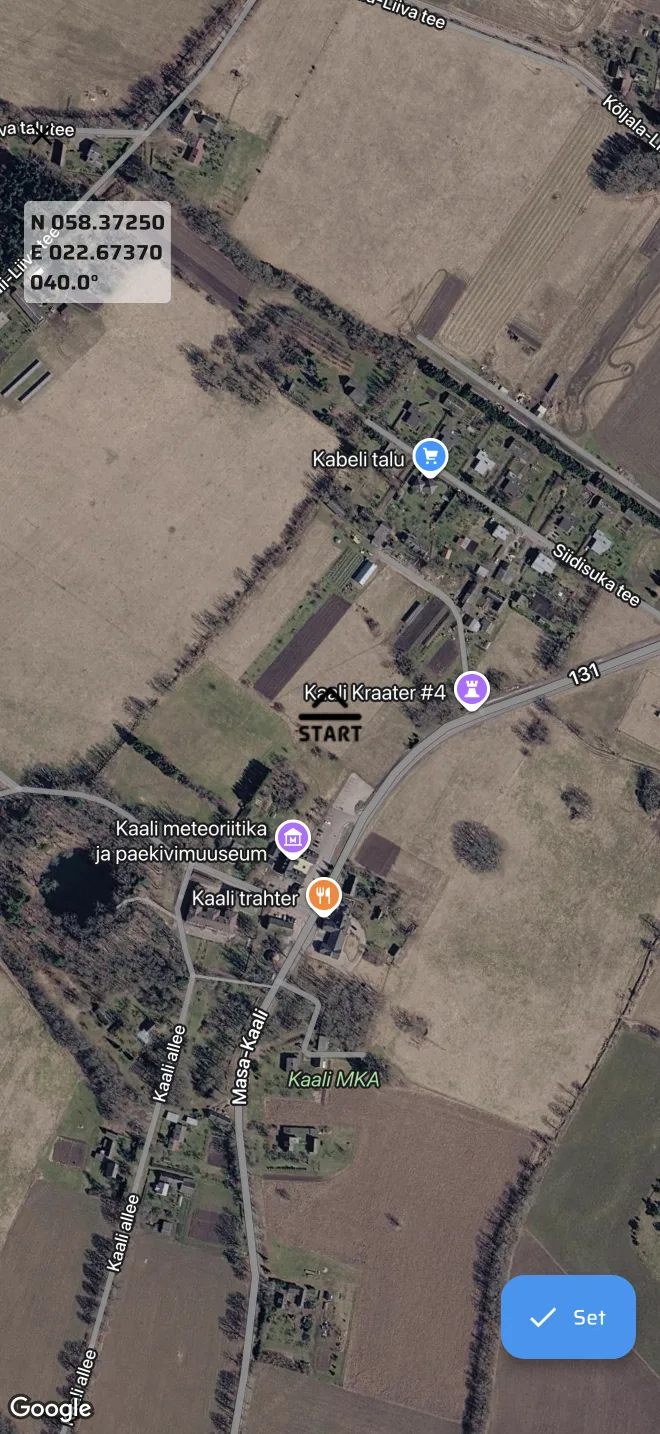
Line. Draw a start line on the map. The map opens at your current position. Move and turn it so the line symbol in the centre lies across the road at the start line. The timer starts when the phone crosses the line. The start time is worked out between two GPS fixes, so a flying start is timed more precisely than a tap. The hint reads Cross the startline.
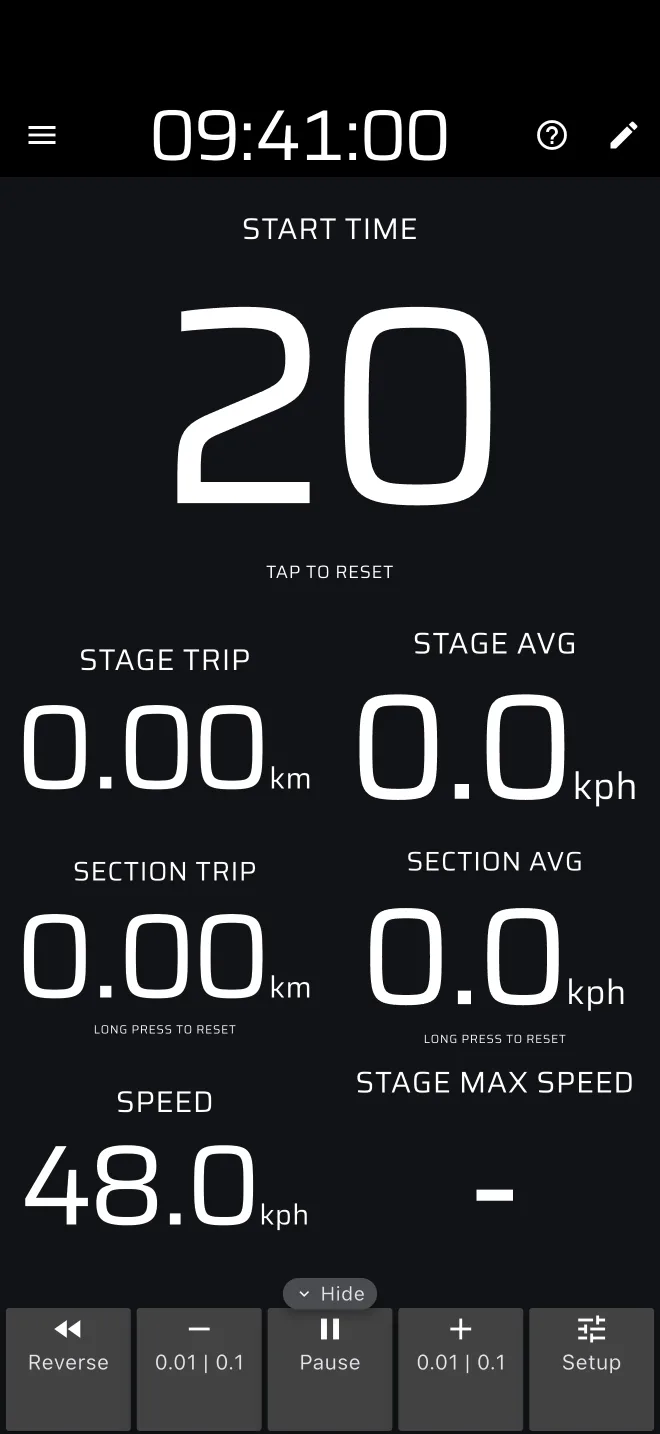
A tap on the timer cancels a Time or Line start
While a Time or Line start is armed, tapping the Stage Timer cancels the stage and clears the trips. You then have to set the stage up again. Keep your fingers off the timer until the stage has started.
Check the start time
If the start time has already passed when you press Start, the stage starts at once and the timer counts from that earlier time. A saved stage keeps only the time of day, so check that it matches today's schedule when you reuse it.
The app cannot start a stage by distance.
What the screen shows
- Stage Timer: the stage time, in tenths of a second.
- Stage Trip and Stage AVG: distance and average speed from the start of the stage.
- Section Trip and Section AVG: distance and average speed since you last reset the section trip.
- Speed: your speed.
- Stage Max Speed: the highest speed of the stage so far.
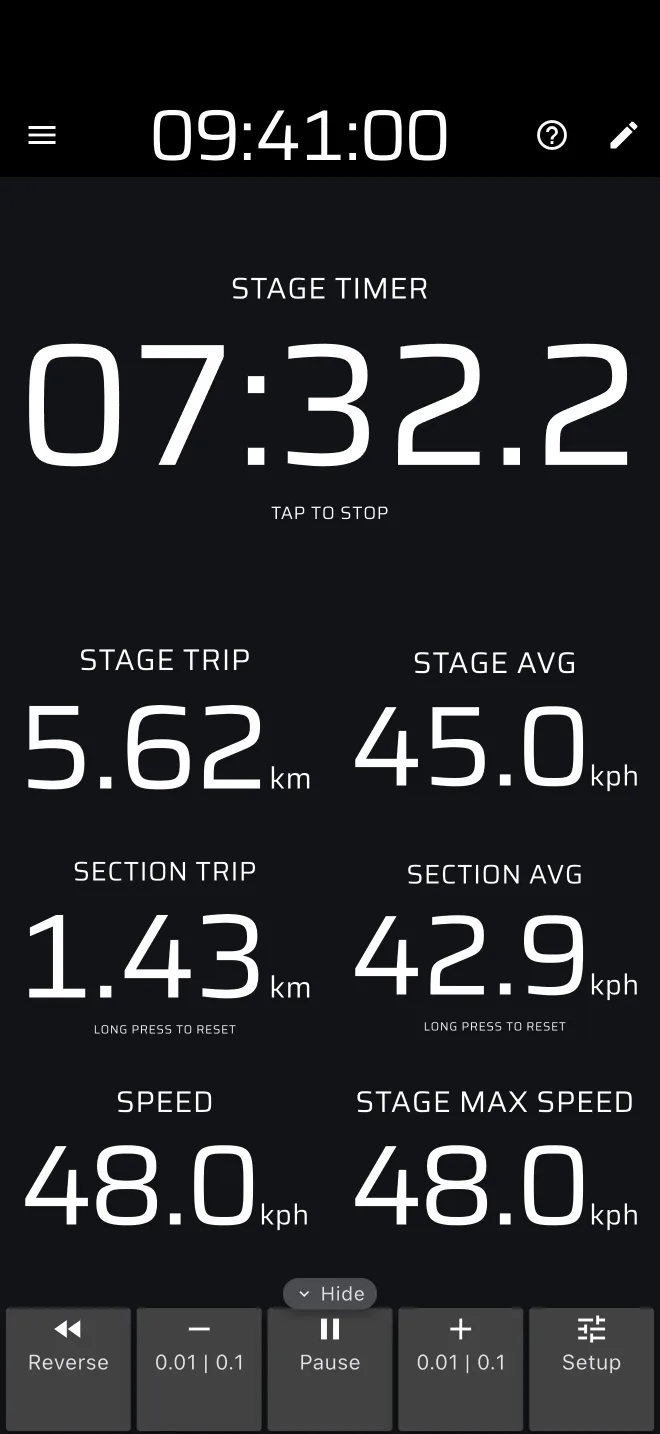
The section trip is for splits. At a landmark, long press anywhere on the screen to reset it (the hint on the Section Trip says Long press to reset). You can then compare the section time and distance with another run. The long press also resets Trip 1 and Trip 2, which Race mode does not show.
Finish by Tap, Time or Line
Under Finish signal, choose how the stage ends.
- Tap: tap the Stage Timer. The hint reads Tap to stop.
- Time: the stage ends at the time you enter.
- Line: draw a finish line on the map. The stage ends when the phone crosses it.
You can also end any running stage by tapping the Stage Timer, whatever the finish signal says. Use that if a Time or Line finish does not fire.
The finished stage shows its final time and the hint Tap to reset, and the run is saved to History automatically. Tap the Stage Timer again to clear it. Race goes back to its no-stage screen, ready for the next stage.
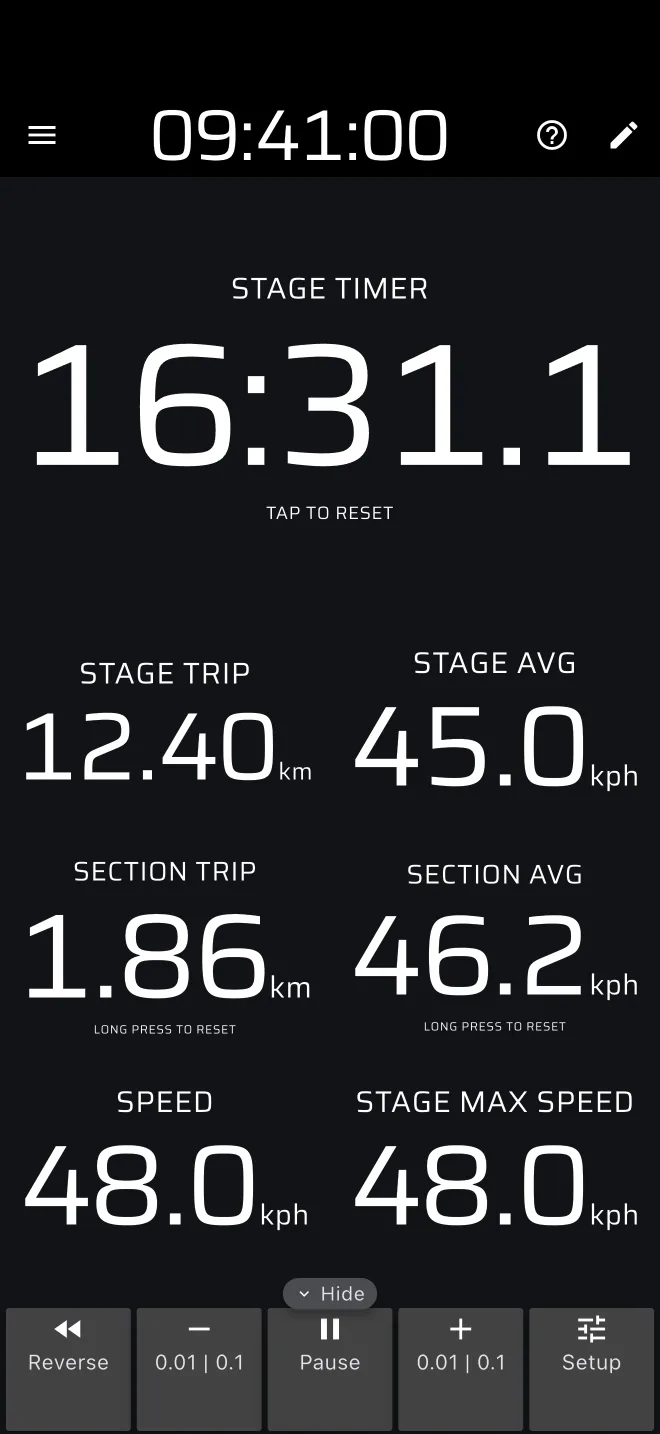
A tap on the timer ends a running stage
While the stage is running, a tap on the Stage Timer finishes it. Do not rest a hand on the timer on a rough stage.
The app cannot finish a stage by distance either. If the stage finishes at a flying finish, use a Line finish, or tap at the finish.
Several stages in a day
Once a stage is finished, tap the Stage Timer to go back to the no-stage screen. Then use Create a stage or From library for the next one. Each finished run is a separate entry in History.
Switching to another mode from the drawer only changes the screen. The stage you started keeps running. Rally Raid uses the same stage as Race. Recce and Regularity | TSD keep their own stages, so they do not show a Race stage. Only one stage runs at a time: starting a stage in another mode asks you to stop the running one first (for example Stop the Race stage?). A started stage is finished and saved to History.
Pro fuel
Race is a Pro mode. Without a Pro plan it runs on the free daily Pro fuel. The gauge under the app bar shows how much is left today, and the stage sheet shows Free Pro fuel left today. The fuel is checked when you press Start. With an empty tank, a sheet You are out of fuel offers Go Pro, and Save stage to keep what you entered. Once a stage is armed, it starts and runs to its finish even if the fuel runs out. With the tank empty, the no-stage screen stays open but Start offers only Go Pro; after a finished stage the mode pauses until the next day. See Pro fuel.