Navigating the app
The app has one main screen and a drawer. A mode is a screen layout for one job, such as Tripmeter or Race. The drawer switches between modes and opens everything else.
The drawer
Open it with the menu icon at the top left, or swipe in from the left edge. The parts, from the top:
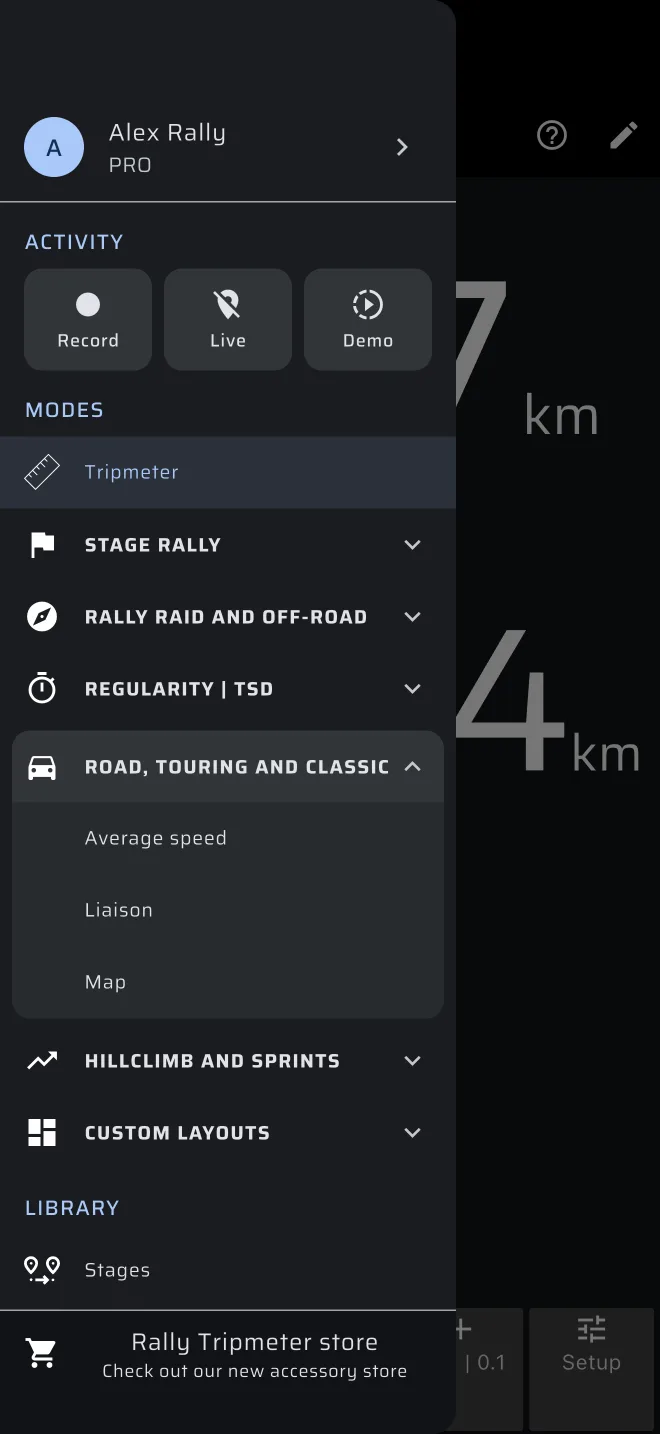
| Part | What is in it |
|---|---|
| Account header | Your avatar, your name (or Sign in) and your plan underneath. Tap it to open the Account screen. |
| Activity | Three chips: Record, Live and Demo. See The Activity chips below. |
| Modes | Tripmeter first, then one group for each kind of event. See The mode groups below. |
| Library | Stages, History, Saved Routes and Recce recordings. |
| More | Settings, Quick guides and Help and contact. |
At the very bottom the drawer shows a link to the Rally Tripmeter store. When the calibration factor is not 1.0, an amber Calibration factor warning sits just above it.
The Activity chips
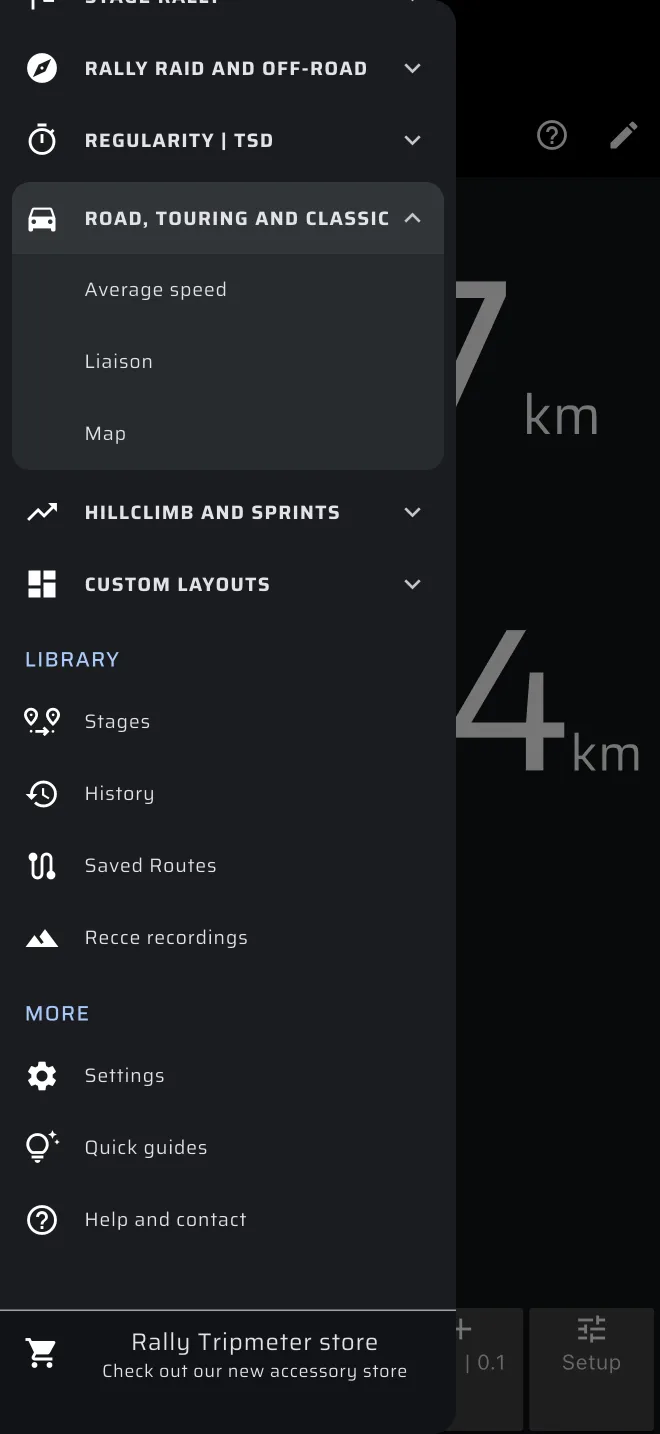
The three chips start things that run next to the mode you are in. Tap a chip that is off and a sheet opens. Tap a chip that is running and it stops at once.
| Chip | The sheet | When it runs |
|---|---|---|
| Record | The recording sheet for a route or a pacenote recording. See Recording a route. | Red, with the elapsed time. A tap stops and saves the recording, closes the drawer and shows a Saved message. |
| Live | Share live location: what it does, Your identifier (tap it to edit; None until you have one), the racelivemap.com link in the text and Start sharing. See Live tracking. | Green. A tap stops sharing. |
| Demo | Demo mode: what it does and Start demo. See Try everything with Demo mode. | Amber. A tap stops the demo. |
The mode groups
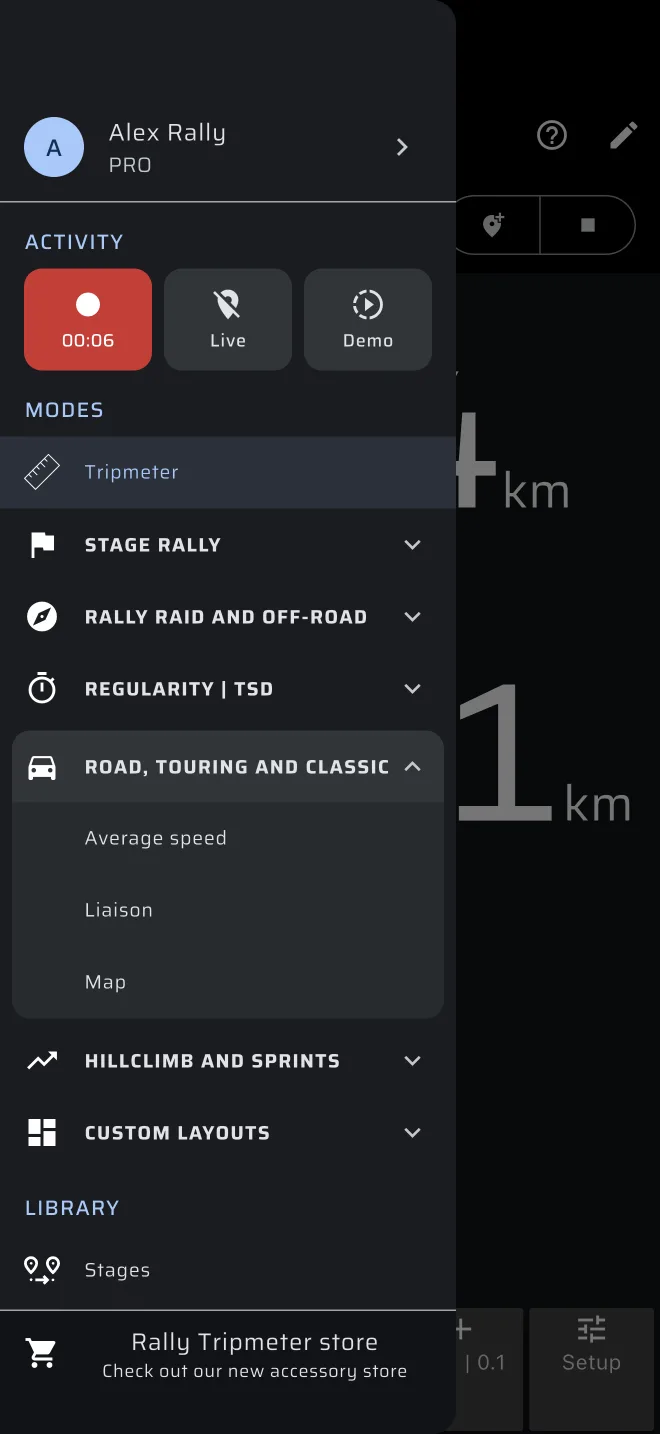
Tripmeter sits on its own at the top of Modes, because every discipline uses it. Below it are six groups. Tap a group name to open or close it. An open group shows its modes in a card under its name.
| Group | Modes in it |
|---|---|
| Stage rally | Recce, Pacenotes, Liaison, Race |
| Rally raid and off-road | Rally Raid, Map |
| Regularity | TSD | Regularity | TSD, Liaison, Average speed |
| Road, touring and classic | Average speed, Liaison, Map |
| Hillclimb and sprints | Race |
| Custom layouts | Custom Layout 1, Custom Layout 2, Custom Layout 3 |
A mode can sit in more than one group. It is highlighted in every group that has it. The app remembers which groups are open, also after a restart. At first only one group is open: Road, touring and classic when you are in Tripmeter, otherwise the first group of the current mode.
Two badges mark modes. PRO marks a mode that needs the Pro plan for unlimited use. It shows only if you do not have Pro. Early access marks Pacenotes.
The main screen
From top to bottom the main screen has:
-
The app bar. The menu icon at the left opens the drawer. The big clock in the middle is the Rally Time. Tap it to match the organiser's clock (see Set the Rally Time). At the right are a ? icon, which opens the help of the mode (see The ? icon), and a pencil icon, which enters edit mode.
 2. The fuel bar, only without a plan that covers the mode: Daily free mileage remaining in Tripmeter and Map on the free plan, Daily Pro fuel remaining in a Pro mode without Pro. See Licences and plans.
3. The recording bar, only while a route or pacenote recording runs. See Recording a route.
4. The location bar, only when the position is missing or poor, or in Demo mode. See Quick start.
5. The mode itself.
6. Toolbars. Stage modes have a stage toolbar at the top, or at the left in landscape. Its buttons depend on the mode.
2. The fuel bar, only without a plan that covers the mode: Daily free mileage remaining in Tripmeter and Map on the free plan, Daily Pro fuel remaining in a Pro mode without Pro. See Licences and plans.
3. The recording bar, only while a route or pacenote recording runs. See Recording a route.
4. The location bar, only when the position is missing or poor, or in Demo mode. See Quick start.
5. The mode itself.
6. Toolbars. Stage modes have a stage toolbar at the top, or at the left in landscape. Its buttons depend on the mode.
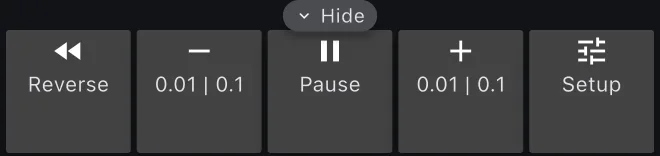
The trip toolbar is at the bottom, or at the right in landscape. Both toolbars fold away with the Hide tab on their edge, and come back with Show.
The screen itself is a button too. A tap or a long press anywhere on it runs the actions you chose in Settings. See Buttons and remotes.
The stage modes, Regularity | TSD, Race, Rally Raid and Recce, show a start sheet over the mode when no stage of their kind is loaded. It has buttons such as Create a stage, From library and Quick guide. See the page of each mode.
On Android the back button asks Close App?.
Switching modes
Open a group in the drawer and tap a mode. The drawer closes and the screen changes. The trips keep counting, because they belong to the app and not to a mode. A stage that is running also keeps running when you change mode. Only the screen changes.
Recce, Race and Regularity | TSD each keep their own stage. Rally Raid uses the Race stage. Only one stage runs at a time: if you start a stage while one of another kind runs, the app asks, for example, Stop the Race stage? first.
Which modes you can use depends on your plan:
| Mode | Plan |
|---|---|
| Tripmeter, Map | Free for the daily distance, then Basic |
| Every mode with a PRO badge | Free on the daily Pro fuel, then Pro |
| Pacenotes | Free in early access |
When the fuel runs out, the mode is covered by You are out of fuel, with a button to the plans and Enable Demo mode. A stage mode's no-stage screen stays open. See Licences and plans.
The ? icon
The ? icon in the app bar opens a sheet with the name of the mode and three buttons:
- Quick guide runs hands-on tips on the live screen. Demo mode drives the car while it runs, and stops when the guide ends. Regularity | TSD is the exception: its guide runs on a sample stage on its own screen, without Demo mode. Tap the ringed control when a tip asks for it, or Next to go on. Exit stops the guide. In Tripmeter the sheet asks Take the 1-minute tour? and the button is Start demo tour.
- User Manual opens the page of this manual for the mode.
- Not now closes the sheet.
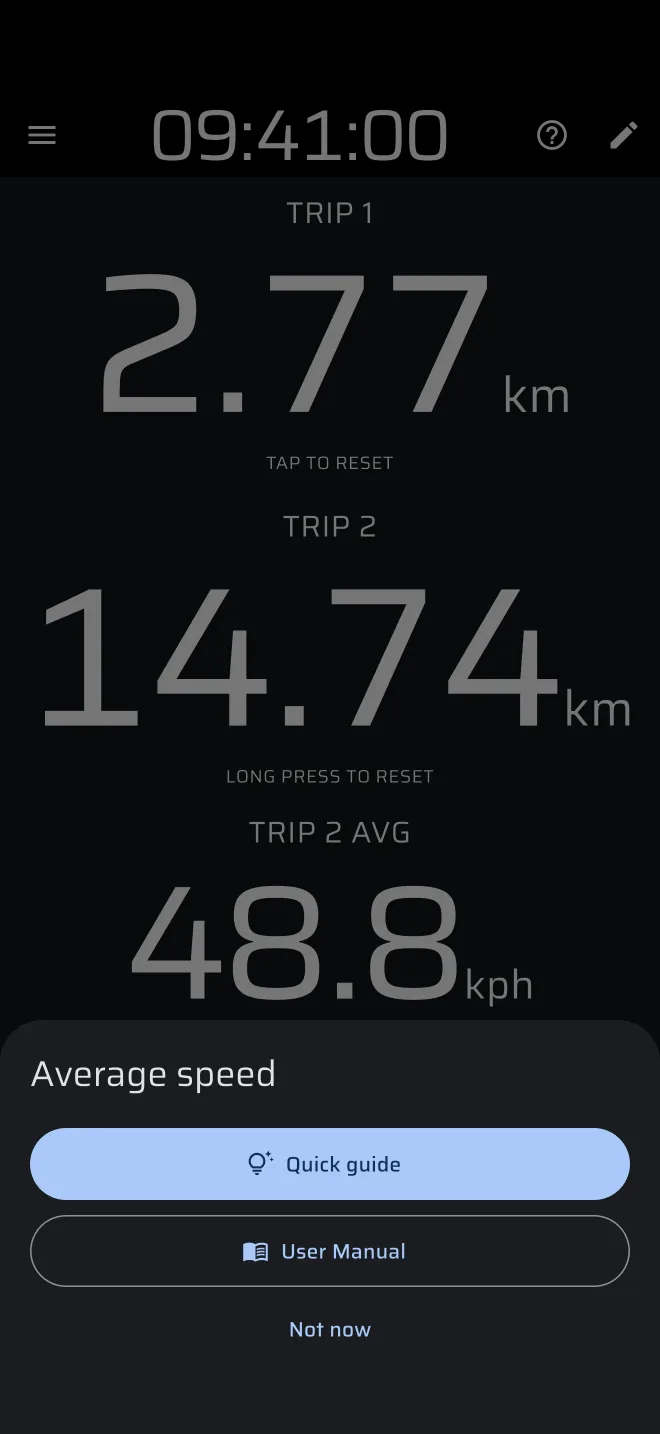
The first time you open a mode, this sheet opens by itself. After Not now the app points at the ? icon: The guide is here whenever you need it. A stage mode with no stage loaded skips this sheet, because its no-stage panel has a Quick guide button of its own.
Pacenotes has no ? icon. When Hide hints is on in Settings, the ? icon and the first-visit sheets are hidden. The guides are still under Quick guides in the drawer.
The stage sheet and the time card sheet have a ? of their own, with a Quick guide for that sheet.
A Quick guide uses your own screen
The guide runs on your own trips and layout. It adds some distance to Trip 1 and Trip 2 so there is something to show. Reset them before you drive. The Regularity | TSD guide is different: it runs on its own sample stage screen and leaves your trips alone. Bluetooth buttons and the volume keys do nothing while a guide runs.
Quick guides
Quick guides, under More in the drawer, lists the guide of every mode: Tripmeter, Average speed, Liaison, Regularity | TSD, Recce, Race, Rally Raid, Map and the three custom layouts. The last entry, Creating a stage, opens the stage sheet with its guide.
Tap one. The app switches to that mode and runs its guide. A Pro mode runs its guide in Demo mode, so it works without a plan.
Help and contact
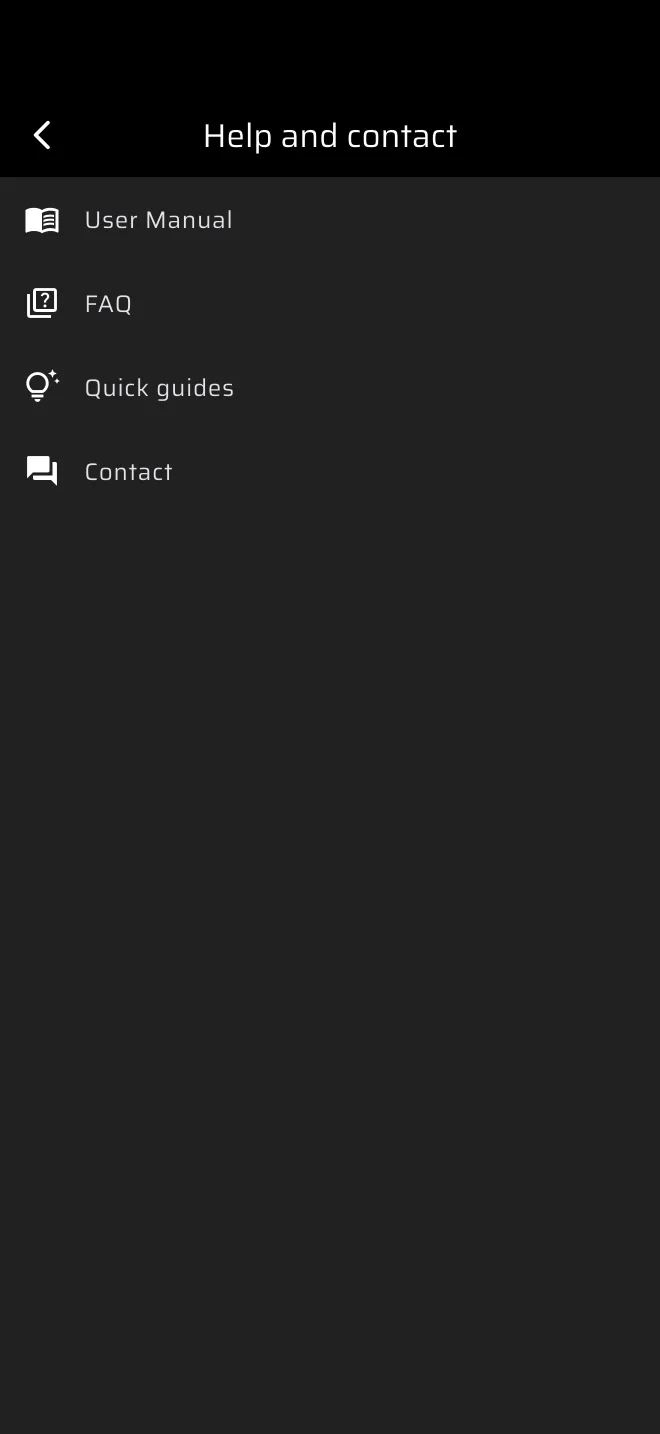
Help and contact in the drawer, under More, has four entries: User Manual, FAQ, Quick guides and Contact. User Manual opens this manual in the browser, in your app language when the manual has it. FAQ opens the manual's FAQ page. Quick guides opens the same list as the drawer. Contact offers Messenger, WhatsApp, Facebook and e-mail.
Edit mode
The pencil icon on any mode lets you tap a component and open its colour settings with the brush icon. On the three Custom Layout modes it also lets you add, move, resize and delete components. See Custom layouts.
Where things are
| To do this | Go here |
|---|---|
| Build or load a stage | Drawer > Library > Stages, or the stage sheet inside a stage mode |
| Read a finished run | Drawer > Library > History |
| See your recorded routes | Drawer > Library > Saved Routes |
| Calibrate, program the tap | Drawer > Settings |
| Change units | Drawer > Settings > Units |
| Pair a Bluetooth button | Settings > Paired accessories (beta) |
| Sign in, sign out, delete the account | Drawer > the account header at the top > Account screen |
| Change or restore your plan | Drawer > the account header > Change plan or Restore Purchases |
| Record a route, share your position, try the demo | Drawer > Activity chips |
| Open the recce recordings | Drawer > Library > Recce recordings |
| Learn a mode hands-on | The ? icon > Quick guide, or Drawer > More > Quick guides |
| Manual, FAQ, contact | Drawer > More > Help and contact |