Recce
Recce mode is for the reconnaissance run. It shows your speed next to the speed limit of the part of the stage you are in, and warns you when you go over. It is a Pro mode.
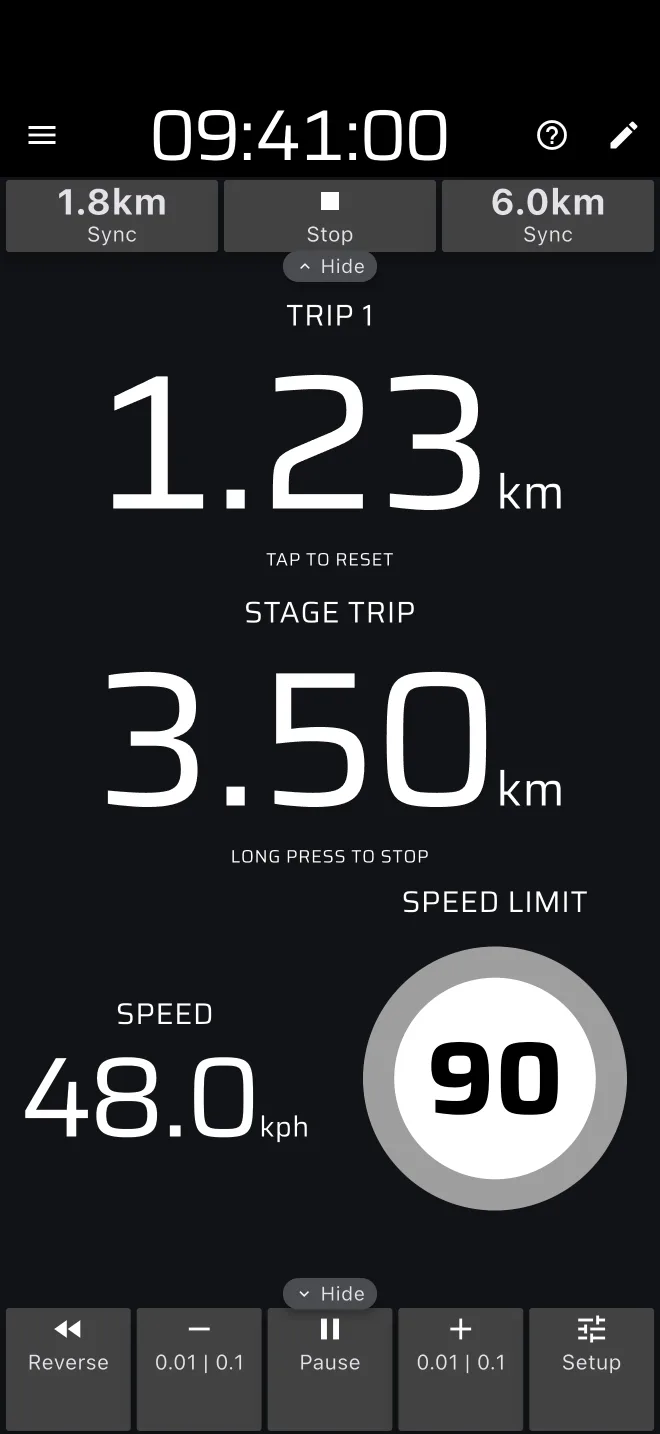
The screen
| Component | Shows |
|---|---|
| Trip 1 | Your working trip. A tap resets it. |
| Stage Trip | Distance since you pressed Start. The speed limit sections are measured on it. |
| Speed | Your GPS speed. |
| Speed Limit | A round sign with the limit of the current section, or - when there is none. |
The stage toolbar is at the top (left, in landscape) and the Trip toolbar at the bottom (right).
The ? in the app bar offers Quick guide and User Manual. The Quick guide drives a short sample recce stage in Demo mode, with a 50 km/h limit for the first 2 km and 80 km/h after that, and shows the screen on it. The sample stage is removed after the guide and is not saved to History.
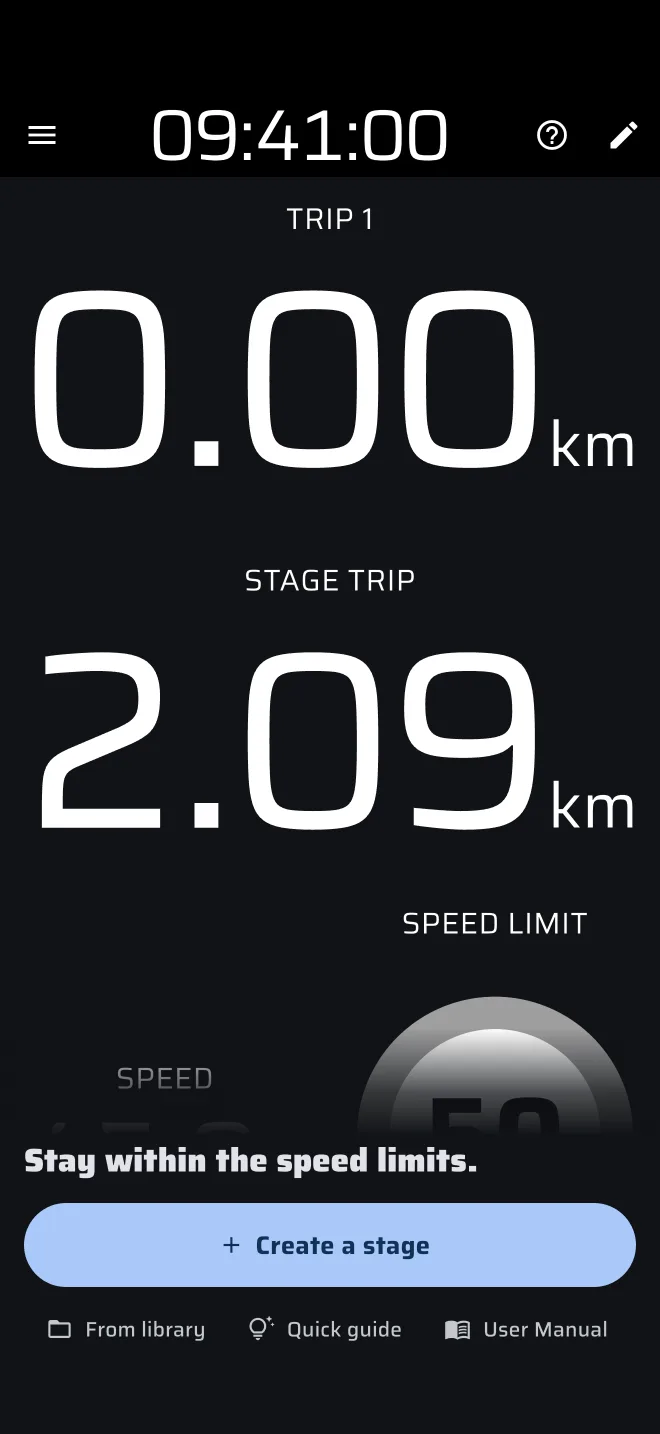
With no stage
With no Recce stage, the mode shows its no-stage screen: Stay within the speed limits. It has Create a stage, and the links From library (when you have saved stages), Quick guide and User Manual. The mode also shows this screen while a stage of another type is loaded. See Running a stage.
The hint under the Stage Trip
| State | Hint |
|---|---|
| Running | Long press to stop |
| Finished | Tap to reset |
The Speed Limit sign
The limit comes from the stage's speed limits and changes by itself as the Stage Trip passes the end of each section. After the last section end the sign shows -.
The ring of the sign is grey while your speed is within the limit and turns red when it is over. At the moment you cross the limit the app plays one long beep. The beep is not controlled by Play a sound when resetting trips, so it sounds even when that is off. The speed that is compared includes the calibration factor.
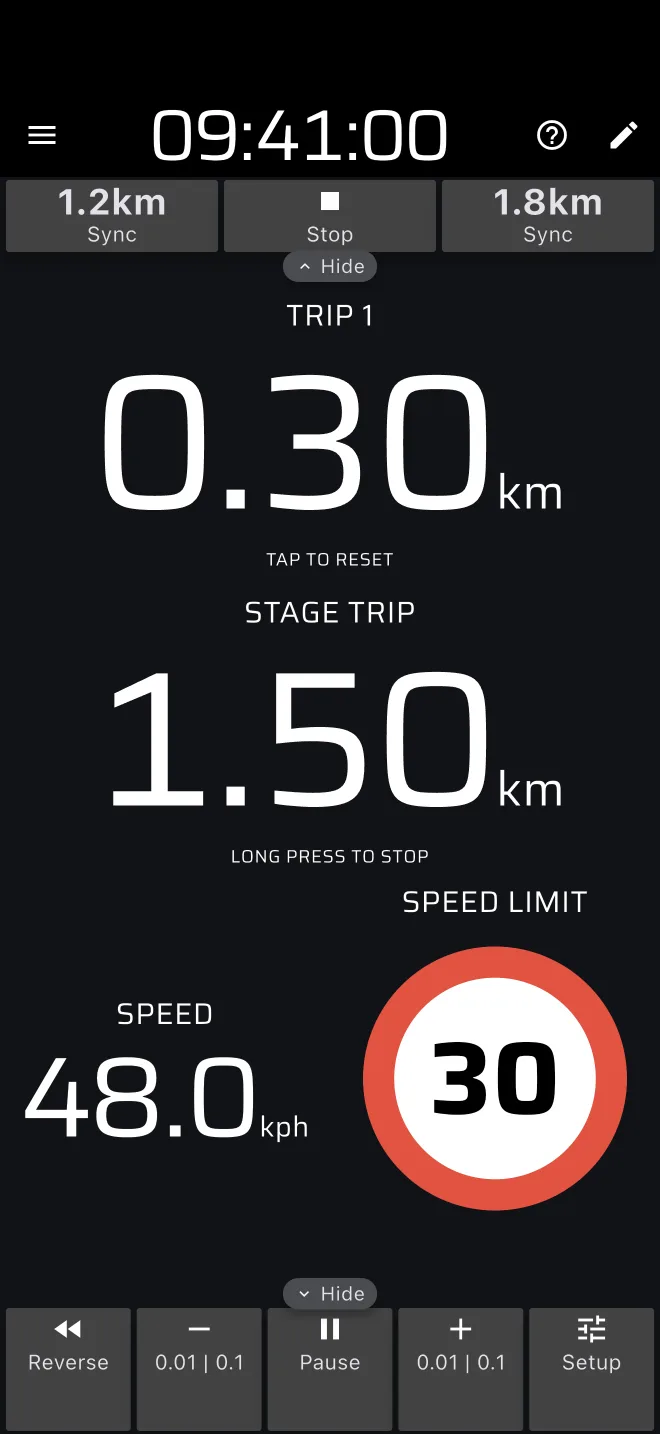
The stage toolbar
| Button | When | What it does |
|---|---|---|
| Sync with a distance (left) | Stage running, inside a limit section | Sets the Stage Trip to the start of the current speed limit section. |
| Reset | The stage is finished | Clears the stage. The no-stage screen comes back. |
| Stop | Stage running | Finishes the stage. |
| Restart | The stage is finished | Starts the finished stage again. The time it was stopped is not counted. |
| Sync with a distance (right) | Stage running, inside a limit section | Sets the Stage Trip to the end of the current speed limit section. |
Use Sync when you pass a speed limit sign and the Stage Trip has drifted from the roadbook.
The toolbar can be folded away with the arrow tab.
Starting and stopping
- On the no-stage screen, tap Create a stage and enter the limits, or tap From library to pick a saved stage. In the stage sheet the folder icon (Load) also picks a saved stage.
- Tap Start.
A Recce stage has no start or finish signal. It starts at once when you press Start, and Trip 1 is reset. Press it at the stage start line. It ends when you press Stop, long press anywhere on the screen, or use a Bluetooth button with Finish.
A tap while the stage runs resets Trip 1. A long press stops the stage. If the stage is loaded but has not started, a tap or a long press starts it.
The run is saved to History when it ends, with its track. After the finish a tap on the screen opens the stage sheet for the next stage, and Reset goes back to the no-stage screen.
Recording the route and the pacenotes
Recording the route is separate from the stage, see Recording a route. The stage sheet of a Recce stage has one extra option, Record pacenotes (beta). It records the drive and stops when the stage ends. This is part of the early access, see Recce and pacenotes.
Limits
- The app does not store hand-written notes. Use the trips and the Stage Trip distances for them.
- Speed limits exist only in Recce stages. A Speed Limit component in a custom layout shows - while a Race or Regularity stage is loaded.
Plans
Recce is a Pro mode. Without Pro, real driving in it uses the daily Pro fuel, see Running a stage and Licences and plans. Demo mode lets you try it without fuel.