Viewing history
History keeps every stage you finish. Open it from the drawer, under Library.
What is saved
The app saves a run when a stage finishes. This covers Race, Recce and Regularity stages, whether they end by the finish signal, by Finish or by the Stop button. You do not have to do anything.
A stage you cancel before it starts is not saved.
The list
Each run is a card with:
- the stage name, or Untitled if the stage had none;
- three chips: the stage time, the average speed and the distance;
- a static map of the track, with S at the start and F at the finish.
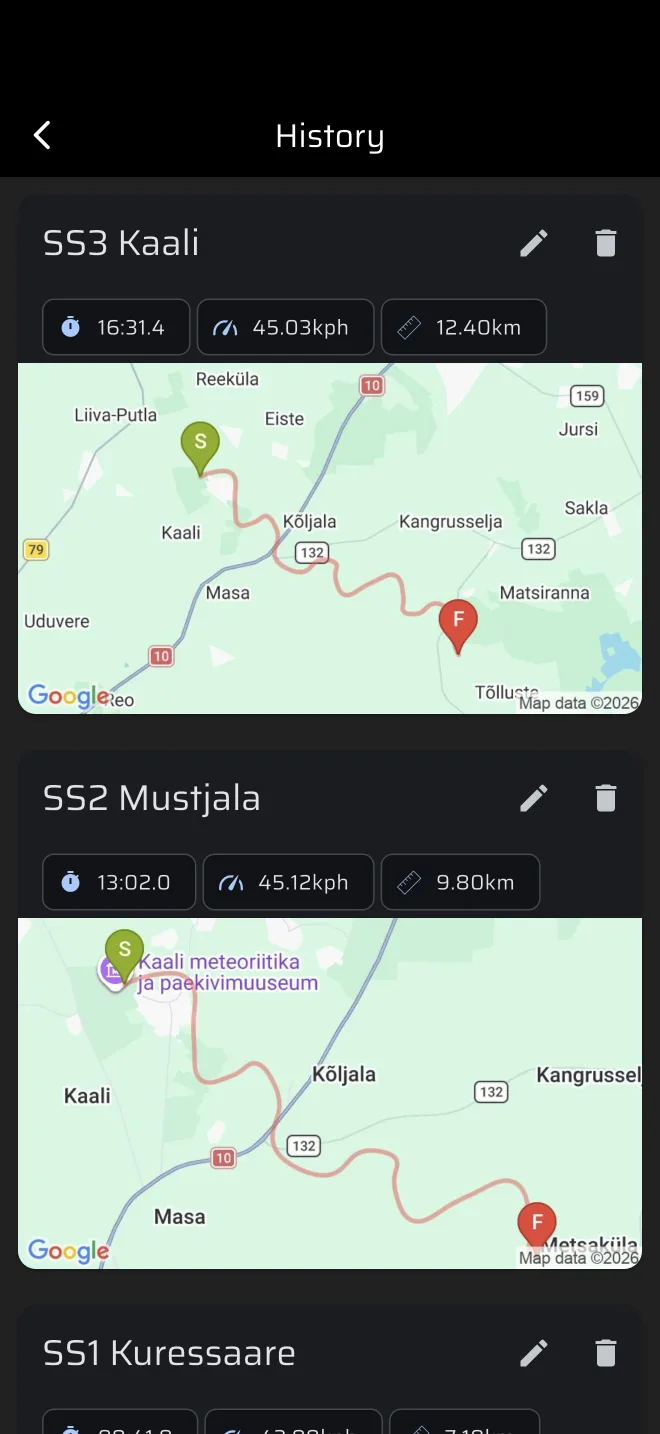
The distance on the card is the length of the recorded GPS track. It does not include your calibration factor, so it can differ from the Stage Trip you saw in the car. The average speed is that distance divided by the stage time.
The card shows no date. The list is not sorted: the order comes from the database and can change. Rename the runs you want to find again.
If you have never signed in, a Sign in to sync your data across devices. banner shows at the top.
Rename and delete
- The pencil icon opens Stage name. Type a new name and confirm.
- The bin icon asks first: Delete stage?, with the name of the run. Delete removes the run and its telemetry. Cancel keeps it. There is no undo.
Open a run
Tap a card to open its Telemetry.
Saving without a connection
History is stored online, but a stage that finishes without a connection is not lost. The run appears in History at once. Its entry and its track wait on the phone and go out when the phone is online again. The wait survives a restart of the app.
While the track has not been uploaded, a small cloud-off icon shows before the name: Waiting to sync. You can open the run's telemetry while it waits. The icon goes away once the upload is done.
The waiting run is only on this phone. Do not sign out, delete the app or clear its data before the icon has gone. Open the app with a connection after the event, so the upload can go out.
Related
- Telemetry
- Service and history
- Viewing routes for accounts and guest data