Setup
Live tracking sends your position to a public map at racelivemap.com. Crew, family and the team manager can watch you drive. Nobody needs the app to watch.
What is sent
While sharing is on, the app uploads your latitude and longitude, speed, heading, the time and your identifier. The upload is throttled to once every 5 seconds. A new position goes out only if:
- you drive faster than 5 km/h, or
- you have moved 20 metres since the last upload, or
- 60 seconds have passed.
A parked car therefore sends one position a minute.
Turn it on
- Open the drawer.
- Under Activity, tap the Live chip. The Share live location sheet opens. It says what sharing does, with racelivemap.com as a link, and shows Your identifier.
- Tap Start sharing. The Live chip turns green.
- The sharing row also appears under the map in Map mode.
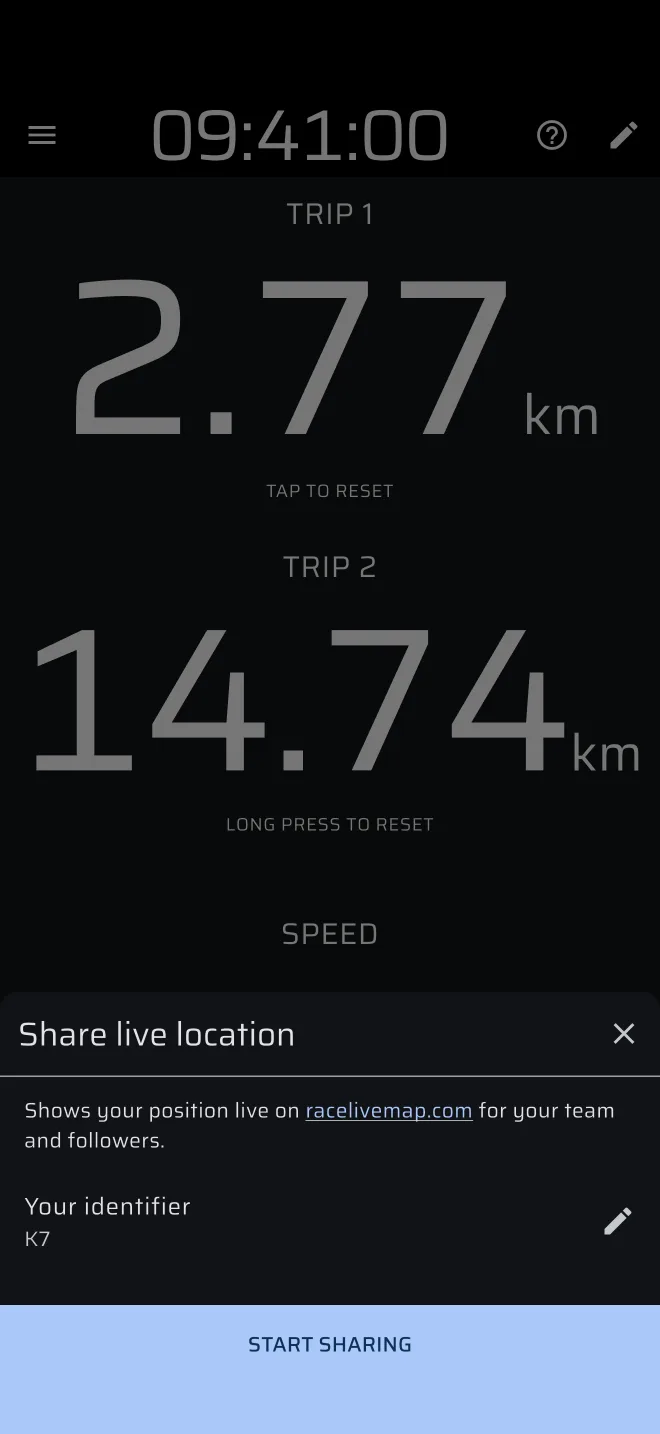
The first time, the app signs in with an automatic guest account if you have no account. You do not need to sign in yourself.
To stop, tap the green Live chip. It stops at once. You can also tap Stop sharing in the sheet. When you stop, the app deletes your position from the live map at once.
Your identifier
The identifier is the label other people see on your marker. If you have none, the app picks a random number from 1 to 99 when you switch sharing on.
To change it, tap Your identifier in the Share live location sheet. In the dialog, type up to three characters, for example 14 or RT4, and tap Save.
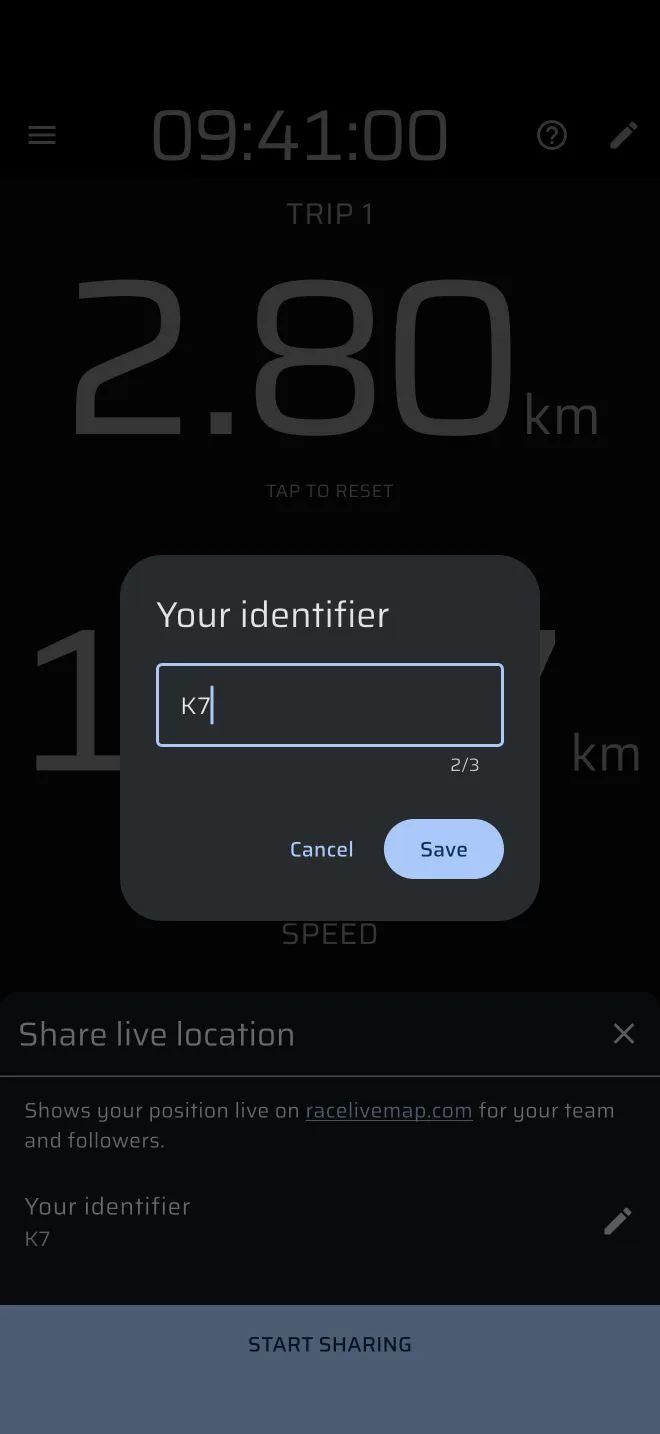
Use your car number. People find you on a busy map by it.
In Map mode
In Map mode the Share live location row is under the map. In landscape the row is replaced by a Share live location button on the map. When it is on, the button reads Live with your identifier.
Other drivers appear on your map only while your own sharing is on. See Live map.
Limits
- Anyone who opens the live map can see all participants. There is no private group.
- Sharing needs a data connection. Without one the last position stays where it was. When your phone drops off, the map greys your marker.
- Sharing uses the same GPS as the tripmeter. It adds network use and battery drain. Keep the phone on a charger.
- For the GPS to keep running with the screen off, turn on Keep running in the background in Settings.