Driving a test
This chapter is about driving the stage: how to read the Ideal Time, what to do at a speed change, and how to correct the distance at a landmark without breaking the timing. The start is in Rally time and the start.
The rule for this chapter
A TC (time control) is a time you record in the app. Recording a TC restarts the ideal time from that moment. The buttons that end in + Restart and a long press on Ideal Time record a TC. In a test timed from the start to the finish, never use them inside the test. Chapter 7 shows this with numbers.
Reading the Ideal Time
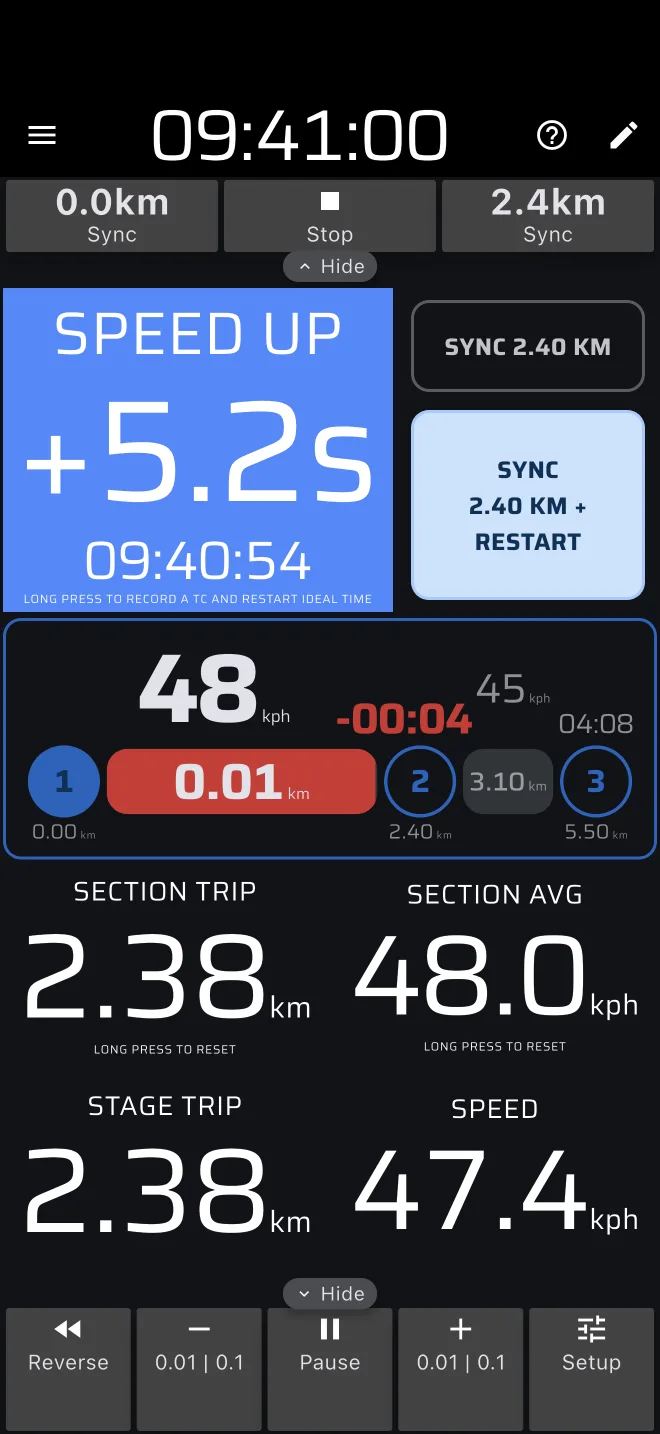
The big Ideal Time number is your gap from the speed chart at the point where you are now. The app works out the clock time at which the chart says you pass this point. It subtracts that time from the Rally Time.
+means you are late. The header reads SPEED UP.-means you are early. The header reads SLOW DOWN.- Under one minute the number is in seconds and tenths, for example
+12.3s. From one minute it is minutes and seconds, for example+01:05. - A gap of less than 0.05 s has no sign.
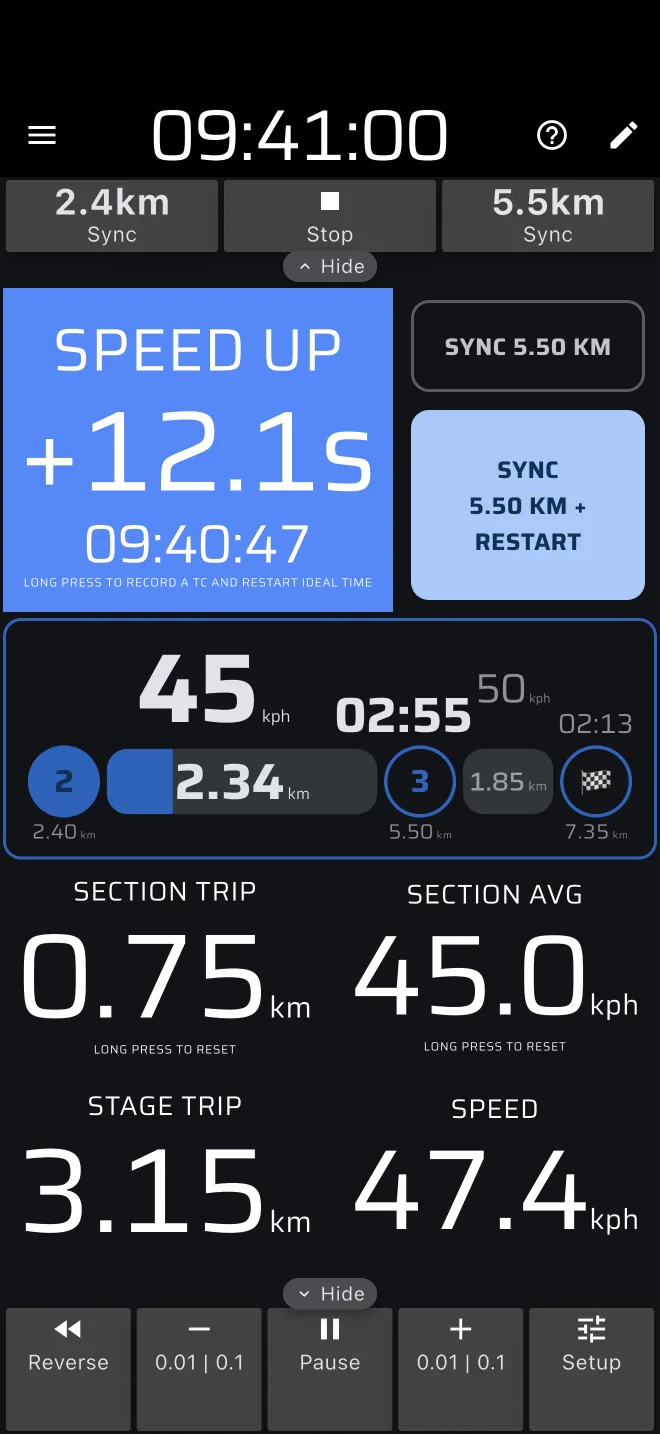
The header changes only when the gap reaches the Ideal time threshold, which is 1 second by default. Inside the threshold the header stays Ideal Time and the background is plain. You can change the threshold in the Ideal time customization group. See Appearance.
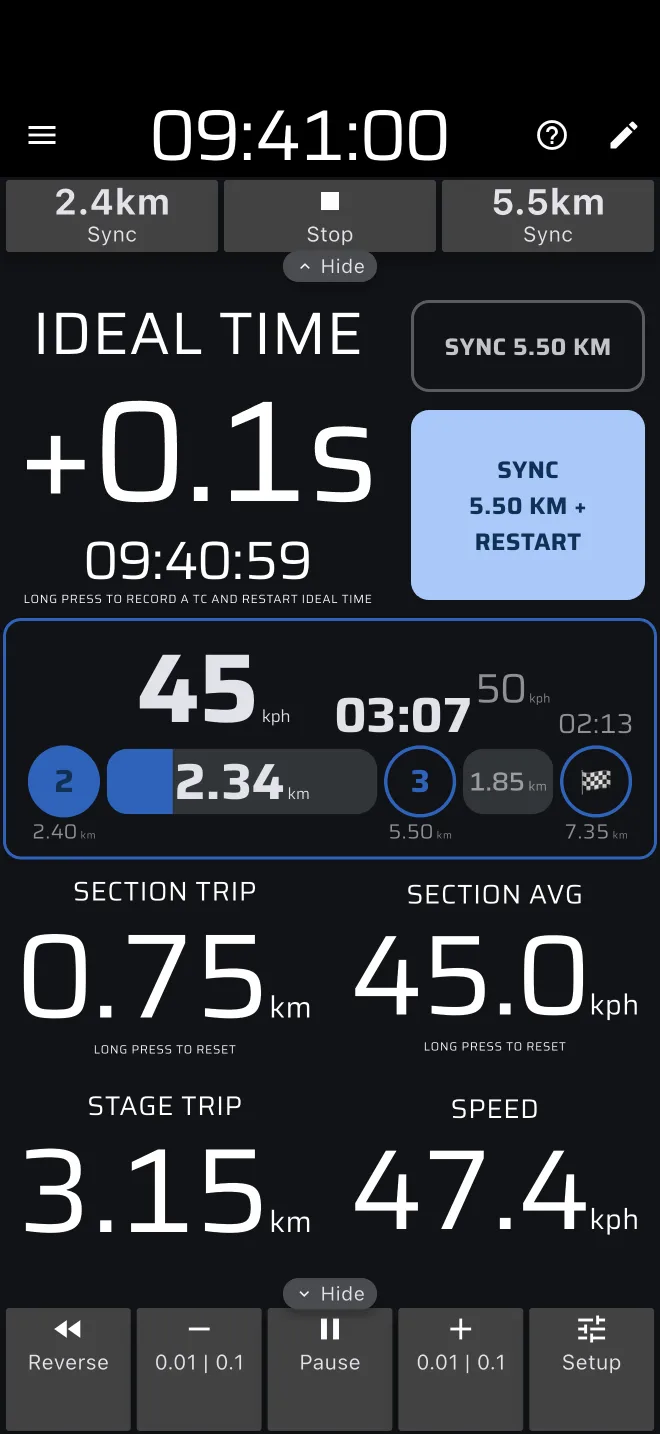
The small line under the number is the ideal clock time at this point. The difference between it and the clock in the app bar is the number above. The co-driver can read it aloud as "we should pass here at 10:03:40".
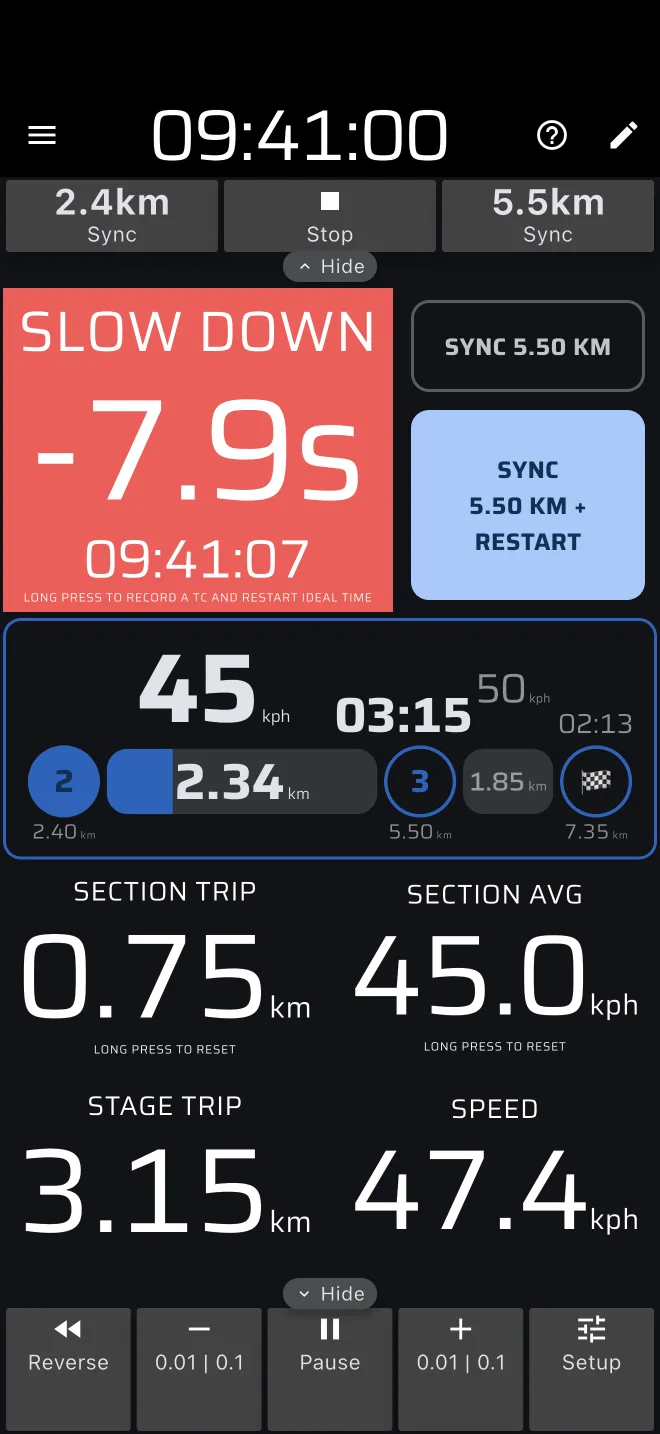
Colours
By default SPEED UP has a blue background and SLOW DOWN a red one. You can change both in the same Ideal time customization group. The Checkpoints sheet uses the opposite colours: late is red and early is blue. Read the word and the sign, not the colour.
The app makes no sound for the ideal time. The co-driver reads the screen aloud.
Correct gently
Make small corrections. If you are 4 seconds late on a long section, drive 1 or 2 km/h above the target for a while. Do not accelerate hard. Look at the next section's speed on the timeline before the change, so you can prepare early for a drop from 50 to 35 km/h.
Accuracy depends on calibration. A wrong calibration factor makes the gap grow steadily along a long section.
The Stage Timeline
The Stage Timeline shows the sections of the stage as a row of numbered dots and bars.
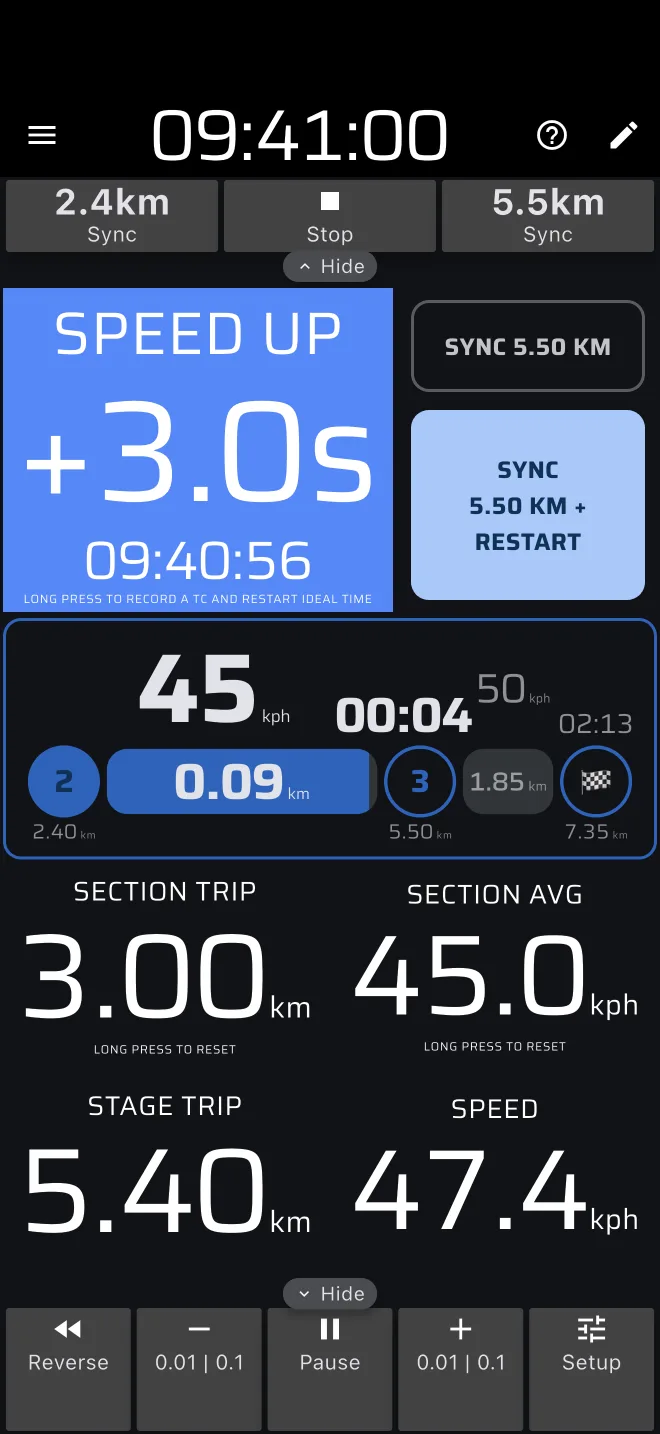
- The filled dot on the left is the start of the current section. The dot after the bar is its end. The last dot is a chequered flag: the finish.
- The bar fills as you drive through the current section. The number inside the bar is the distance left to the end of the section.
- Above the bar is the target speed of the section. In a Free zone it reads Free zone instead.
- Above the end dot is the time left until the ideal arrival at the end of the section, in minutes and seconds. It follows the clock, not the distance. It turns red when it goes below zero.
- The pale segment after the end dot is the next section: its target speed, its length and its duration. Use it to prepare for the speed change. A narrow screen hides it.
- A small marker in the bar shows where the last TC was recorded, if it is inside this section.
- In a Distance unknown section the distances and times show
?until a TC ends the section.
The bar turns red when the section is overdue: you are past its end distance, or the ideal arrival time at its end has passed. Red is not a penalty. It means the section should already have ended. It never appears in a free zone.
While the section is overdue, the + Restart button beside the Ideal Time (Next Section + Restart or Sync … + Restart) also pulses, and so does Next Section. In a test timed from the start, ignore the pulse on the + Restart button.
Speed changes
A stage moves from one section to the next in one of two ways. You choose the way in the stage editor, with Auto-switch sections by distance (see Options).
Automatic (the default). The section changes by itself when your stage trip passes the end of the section. The buttons beside the Ideal Time are the two Sync buttons. The target speed on the timeline changes at the distance the app counted, not at the signpost you see.
Manual. The section changes only when you press Next Section or Next Section + Restart. Each press also sets the stage trip to the start of the new section. Until you press, the app keeps comparing you with the end of the current section. After the boundary, the gap grows by one second every second.
In both ways, the roadbook landmark and the app's distance can differ by tens of metres. At each speed change, press Sync (automatic) or Next Section (manual) at the landmark. This puts the app back on the roadbook.
Correcting distance at a landmark
In an automatic stage, the two buttons beside the Ideal Time show the distance they will set, for example Sync 2.00 km and Sync 2.00 km + Restart. The first one corrects the distance only. The second also records a TC and restarts the ideal time, so do not use it in a test timed from the start.
- Drive to the landmark the roadbook gives for the section boundary.
- Check the distance on the Sync button. It should be the roadbook distance of that boundary.
- Press Sync as you pass the landmark.
The app sets the stage trip to that distance and resets the Section Trip. The ideal clock does not change, but the distance does, so the number on the screen jumps. If the app was 20 m behind and you drive at 10 m/s, the gap drops by 2 seconds. That is the correction.
How Sync picks the distance
Sync sets the trip to the start or the end of the current section:
- In the first 15 % of the section, it goes back to the start of the section.
- After that, it goes forward to the end of the section.
For a section from 1.00 km to 3.00 km, 15 % is 0.30 km. At 1.20 km on the trip, the button reads Sync 1.00 km. At 1.50 km it reads Sync 3.00 km. A section that starts at 0 has no start to go back to, so it always goes to its end.
The rule is made for the moment you pass a boundary. If the app is ahead of the roadbook, it has already moved to the next section. You are then in its first 15 %, and Sync goes back to the boundary. If the app is behind, you are near the end of the section, and Sync goes forward to it.
Press Sync only at the landmark
Pressed in the middle of a section, Sync sets the trip to the end of the section. The stage trip then jumps by up to most of the section length. Read the distance on the button before you press.
Small drift
For a small error, use the − and + buttons in the bottom toolbar. A tap moves the trip by 0.01 km (10 m). Holding the button moves it in steps of 0.1 km (100 m). A trip in miles steps by 0.01 and 0.1 mile. Holding repeats the 0.1 steps slowly at first and faster the longer you hold: after 3 seconds it makes ten steps a second, so let go early and finish with taps. The buttons change all the trips, including the stage trip, each in its own unit.
+ tells the app that you are further along, so it will ask you to slow down. Neither button records a TC.
Top toolbar
The top toolbar has a button on each side of Stop. In an automatic stage they are Sync buttons, labelled with the start distance and the end distance of the current section. Each sets the stage trip to its distance, with no 15 % rule. In a manual stage they are two Section buttons, previous and next. The next one does the same as Next Section. None of these buttons restarts the ideal time.
What not to press in a cumulative test
These actions record a TC and restart the ideal time:
- Next Section + Restart
- Sync … + Restart
- a long press on Ideal Time
- the TC button of a custom layout
- the Quick TC action of a Bluetooth or volume button
- the Record TC icon in the Checkpoints sheet
In a test timed from the start (for example a French regularity zone or an Italian prova di media), do not press any of them inside the test. At a secret check, keep driving and press nothing: the organiser times you, and the app's ideal time is already right. If you press one by mistake, see Fixing a wrong TC.
At the last section the same button reads Finish. Press that one at the finish line. See Finishing and after.
Do not press Pause in the bottom toolbar either. It stops the distance of all trips, but the ideal time follows the clock. While the app is paused, it does not count the road you drive, so you fall further and further behind.