Rally time and the start
This chapter covers matching the app to the official clock and starting a stage at the traffic light. It ends with one warning that costs people their start.
Set the official clock
The app uses the Rally Time for every start time, ideal time and time control. It is the clock in the app bar at the top of the screen. By default it shows the phone's clock. The organiser's clock is the one that counts, and the two can differ by a few seconds. A few seconds are a few penalty points on every check, so set the Rally Time to the official clock.
- Find the official clock. The organiser tells you which one at the briefing or at the start of the rally. It is often the clock at the first time control.
- Tap the clock in the app bar. The Rally Time dialog opens with wheels for hours, minutes and seconds. The wheels do not move by themselves.
- Set the wheels to a time a few seconds ahead of the official clock.
- Watch the official clock. When it reaches the time you set, tap OK.
When you tap OK, the app takes the difference between the wheels and the phone's own clock and keeps it as an offset. The app saves the offset, so it is still there tomorrow. To go back to the phone's clock, tap Reset in the same dialog. You can also open the dialog from Settings > Rally Time.
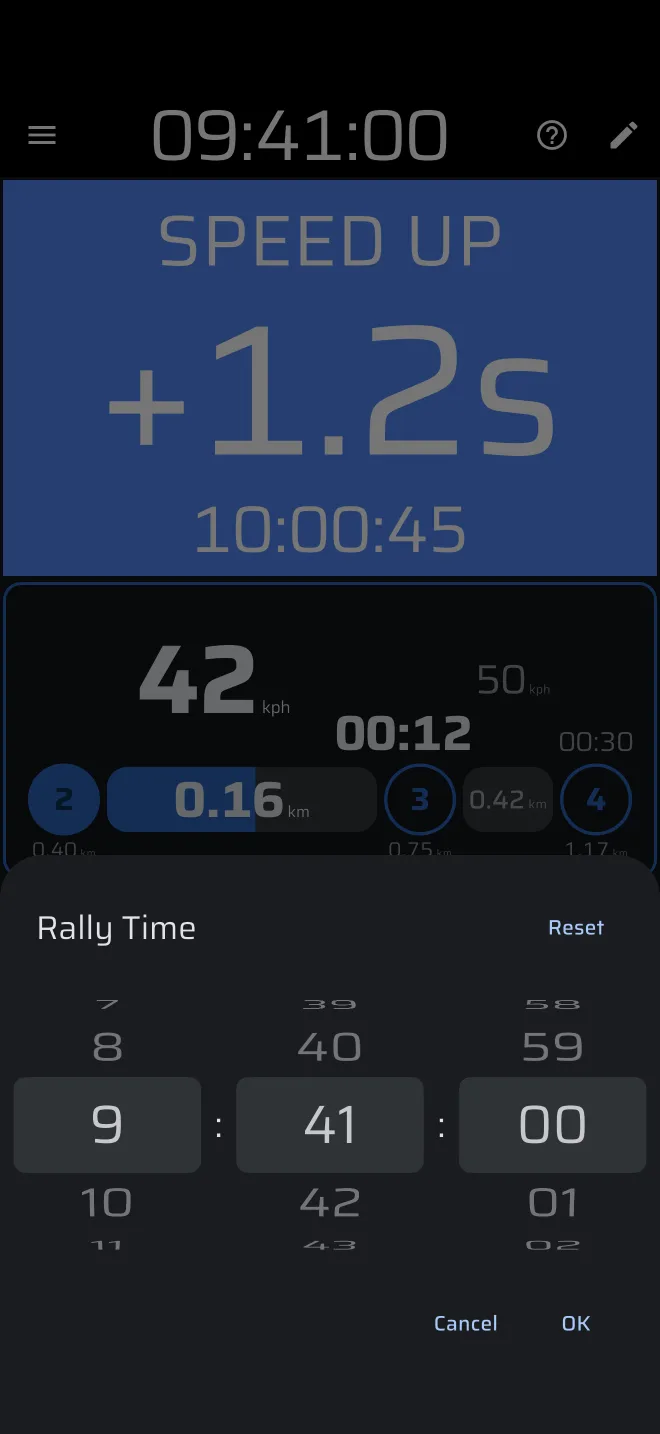
Your tap sets the accuracy. An error of a fraction of a second is normal. If the official clock is a GPS or radio-controlled clock, set the Rally Time against that one.
Check it again before each day, and after a restart of the phone or a change of time zone.
Set it again at the start line
If you pass a better clock before the first test, set the Rally Time against it again. It takes ten seconds.
Load the stage
You made the stage at home (chapter 4). Now open it.
- In the drawer, open the Regularity | TSD discipline and tap Regularity | TSD.
- With no regularity stage loaded, the screen shows a panel with Create a stage. Under it, tap From library and pick the stage from your list. (From library appears once you have a saved stage. You can also tap Create a stage, then the folder icon, Load, at the top of the sheet.)
-
The stage sheet opens with the stage. Check three things:
- The name at the top is the stage you want.
- Start signal is the right type. For Time, the time on the wheels must be the time the organiser gave you for this start. The saved time is the one you entered at home, so it is probably wrong now.
- The Speed Chart is complete. Scroll down to look.
If you change anything and want to keep it, tap the save icon. Saving overwrites the stored stage.
-
Tap Start. This does not start the stage. It arms the stage: the app now waits for the start time (or the line, or your tap).
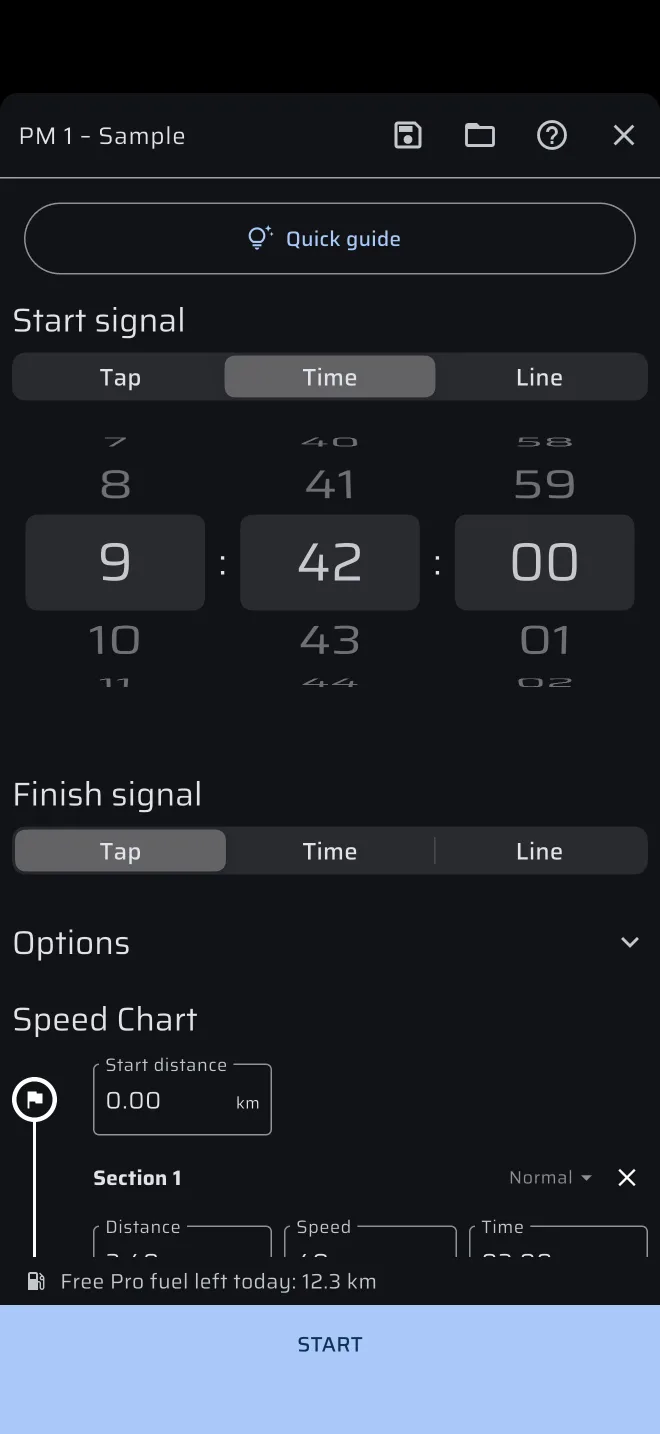
If the speed chart is empty, the app asks Start without sections? Tap Cancel and fill in the chart.
Without Pro, Start needs Pro fuel. If none is left today, You are out of fuel opens instead. See Pro, Pro fuel and Demo mode.
Each stage mode keeps its own stage: Regularity | TSD has its regularity stage, Race its own, Recce its own. You can open Liaison or another mode during a test, and the regularity stage carries on. Only one stage runs at a time. If a stage of another type is waiting or running when you press Start, the app asks, for example, Stop the Race stage?
Time start at the traffic light
With Time as the start signal, the app starts the stage at the start time you entered, measured by the Rally Time. Use the time the organiser gave you for your car.
After you press Start, the Ideal Time panel changes:
- The header reads Start time, and the panel shows the start time in hours, minutes and seconds.
- In the last 30 seconds before the start, it counts down in whole seconds.
- At zero the stage starts. The header goes back to Ideal Time, and the panel shows your gap from the ideal time, starting from zero.
Be at the line before the countdown ends and drive off on the signal. The trips start when the stage starts, so the app does not count any distance before that. Do not move up to the line after the start time.
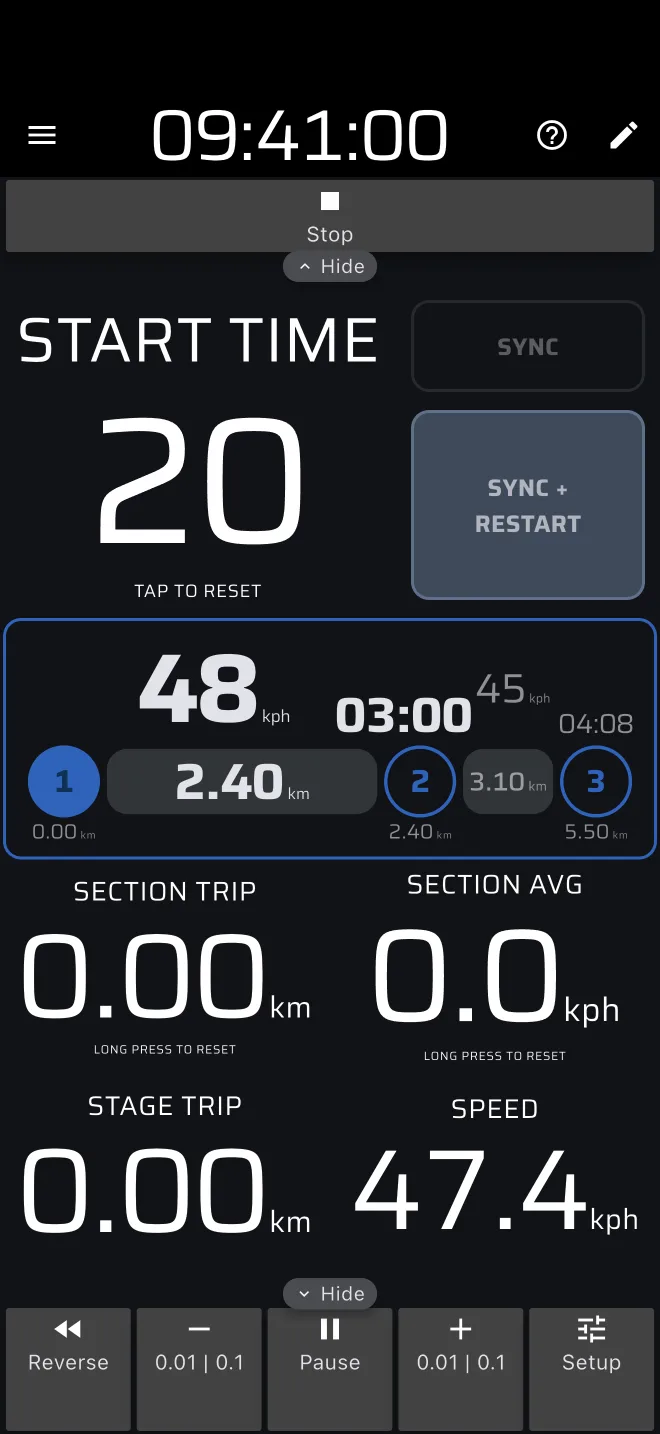
The ideal time runs from the start time, whether you move or not. If you are still standing when the stage starts, the ideal time runs on and the distance does not. You start behind.
Line start for flying starts
Some tests start at a line you cross at speed. For those, choose Line under Start signal when you build the stage.
- In the stage editor or the sheet, under Start signal, tap Line.
- A map opens at your current position. Move and turn it so that the line symbol in the middle lies across the road at the start line.
- Press Start as before.
The stage starts when the phone crosses the line. The app works out the start time between the two GPS fixes either side of the line, so it is more exact than a tap. The panel shows the hint Cross the startline.
If you drew the line at home, check it against the real start line on the day.
Cancel a waiting stage, and check the start time
You can cancel a stage that is waiting to start. Tap the Ideal Time tile (it says Tap to reset) or Stop in the top toolbar. Both clear the trips, and the screen goes back to the panel with Create a stage. To arm the stage again, tap From library, pick it and press Start.
A start time in the past starts the stage at once
If the start time has already passed when you press Start, the app does not wait. It starts the stage at once and counts from the earlier start time. The Ideal Time panel then shows that you are late by the whole difference, for example +04:00. The trips count from now.
Pressing Start a minute or two after the start time is harmless: the elapsed time is still right. The danger is a saved stage with the wrong start time, for example one used at another event. It starts at once and you are behind from the first metre. Look at the start time before you press Start.